








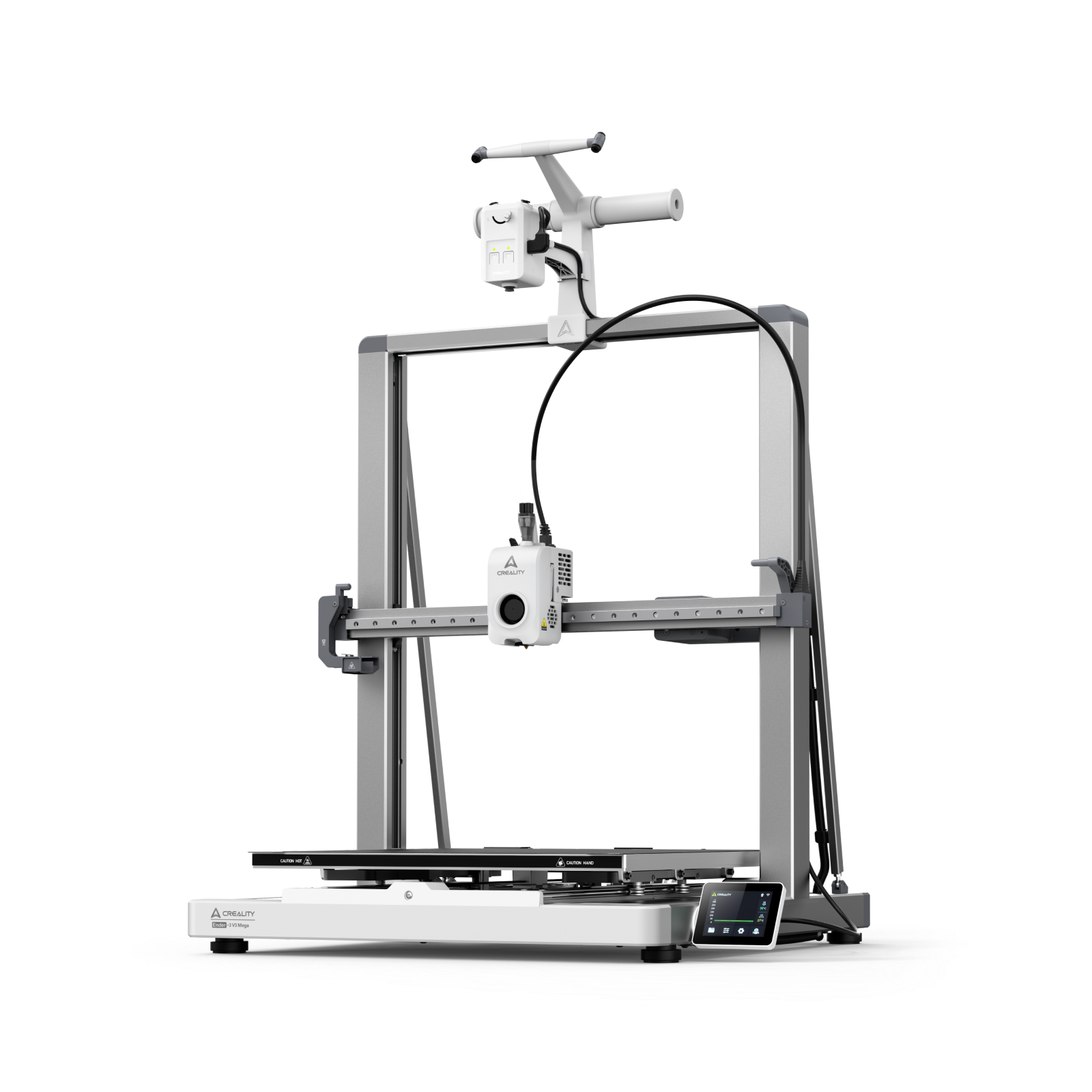
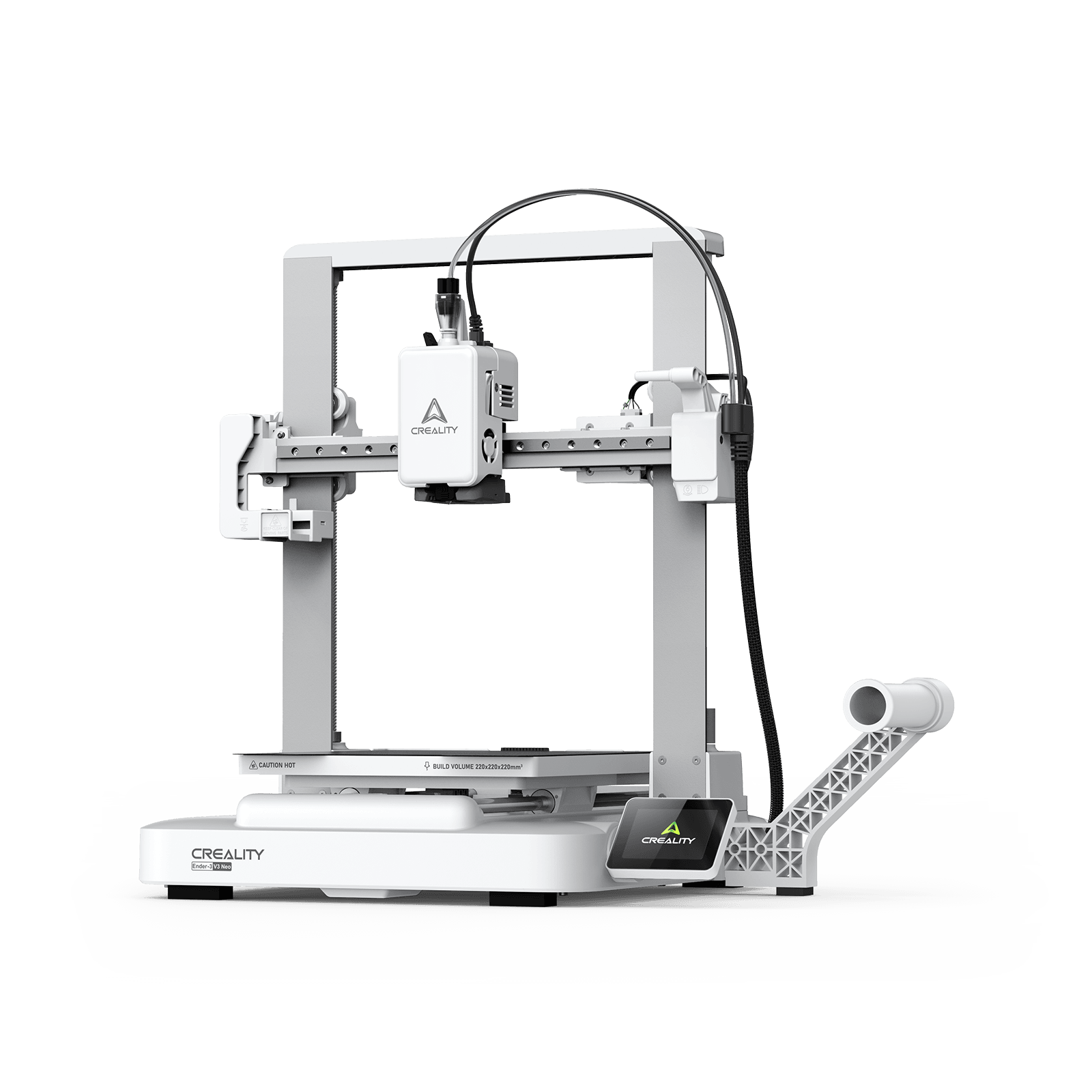































You’ve just bought the Creality 3D printer that’s been in your shopping cart for months. After tracking the delivery every step of the way, you’re finally ready to start printing your 3D projects. Taking the time to learn how to set up your 3D printer is crucial to ensuring its longevity and print quality.
While you’ll find in-depth how to guides for some 3D printers on our blog, such as our K2 Pro Combo 3D Printer, most of the key steps to setting up a 3D printer are universal. In this article, we’re sharing our ultimate 3D printer setup guide, covering everything from unboxing to configuring your new printer and loading the filament for your first test print.
Unboxing Your 3D Printer & Preparing Your Workspace
Most Creality 3D printers will come with the same core items, including a frame, print bed, power supply, and a quick start guide. Take the time to check each piece for any damage, and don’t throw away the packaging until your 3D printer is completely set up and tested. Double-check the contents of your box with the quick start guide included to ensure you have everything you’ll need.
3D printers are best kept on a stable surface that offers good ventilation and power access. It’s best to avoid high-vibration zones and to keep your 3D printer away from any heat sources.
Your 3D printer workspace will evolve with time, and it can take a little trial and error to find the best setup, including the right 3D printer stand for your workspace. Once your workspace is ready, you can start assembling your 3D printer using the specific instructions provided for your chosen model.
How to Assemble Your Creality 3D Printer
If it’s your first time setting up a 3D printer, we recommend watching one of our in-depth assembly videos to see how to correctly assemble your printer. You’ll find unboxing and setup videos for each Creality 3D printer, like the Creality Hi Combo, on Creality official YouTube channel. Some 3D printers may arrive partly assembled, leaving you with only a few pieces to attach. Make sure to keep track of the tools and small parts provided, as you’ll need these throughout the setup process.
After assembling your 3D printer according to its specific instructions, check if the firmware is up to date as this may need to be updated, depending on when you buy your printer. You can upgrade your 3D printer firmware by using the device screen or manually using the Creality Software page.
Once you’ve checked your 3D printer firmware, check the bed levelling for your printer to achieve perfect first layers. While some of our 3D printer models, like the K2 Plus Combo, offer automatic bed levelling, you can may need to manually calibrate your printer by moving the nozzle to each corner and adjusting the knobs until it’s level, or use on-screen assisted levelling suggestions if available.
Loading Filament & Running a 3D Print Test
It’s important to choose the right filament for your 3D printer before running your first print test. PLA filament is the most popular option for Creality 3D printers, and you’ll want to follow our guide on how to store your 3D printer PLA filament to maintain your print quality. You can buy filament directly from Creality, guaranteeing that you’ll be using our recommended filament to avoid clogging.
Preheat the nozzle of your 3D printer and cut the filament at an angle before feeding it into the extruder. You can help guide it into place by pressing the release lever and placing the filament spool on the holder to ensure it unrolls without tangling.
When you’re doing the first print test for your 3D printer, keep things simple. A calibration cube is a great option and can help you familiarize yourself with making 3D files for printing and using the Creality slicing software. Double-check that the bed and nozzle temperatures are correct before printing.
Optimizing & Fine-Tuning Your Creality 3D Printer
Now that your 3D printer is up and running, it’s important to regularly optimize and fine-tune it to get the best results. Making small adjustments can help reduce wasted filament and improve your print quality.
You may need to adjust the filament layer height between projects, especially if you’re experimenting with different categories. Most figurines and mechanical parts call for a lower layer height of 0.1mm, while general projects use a slightly larger 0.2mm layer height.
Make sure you’re using the bed and nozzle temperatures recommended by the manufacturer to optimize your 3D printer settings. Stringing or blobs on your filament are a sign to slightly lower your nozzle temperature.
Once you’re regularly using your 3D printer, it’s important to carry out maintenance every few weeks. Change any worn parts and ensure your printer gets the ventilation it needs.
FAQs about How to Set Up a 3D Printer
Do you have a question about how to set up your 3D printer? Explore the official Creality blog or visit our support center for more information and dedicated 3D printer guides.
1. How long does it take to set up a 3D printer?
Most 3D printers take 20 minutes to an hour to set up. Set aside at least an hour for the whole process and make sure your 3D printer workspace is ready for you to start unboxing and assembling your printer.
2. Does my 3D printer require constant calibration?
Although it’s not necessary to calibrate your printer every time, it’s a good idea to check the bed levelling before printing.
3. What if the filament isn’t loading?
The filament may not be loading correctly if the tip is bent or misaligned. It’s also a good idea to check if there’s debris in the printer’s extruder or if you have a clogged nozzle.
Start 3D Printing with Creality’s Beginner-Friendly How-To Guides
Setting up your 3D printer correctly is the first step to guaranteeing reliability and print quality. After following the steps in this article, you can start exploring the Creality blog for beginner-friendly printing guides. Get the most out of your K2 Combo or K2 Plus by learning how to make 3D printed jewelry and even how to 3D print your own cookie cutters.
Still shopping around for a suitable first 3D printer? Shop our range of Creality 3D printers or contact our friendly customer service team at cs@creality.com to help you find the right 3D printer for your project goals.