








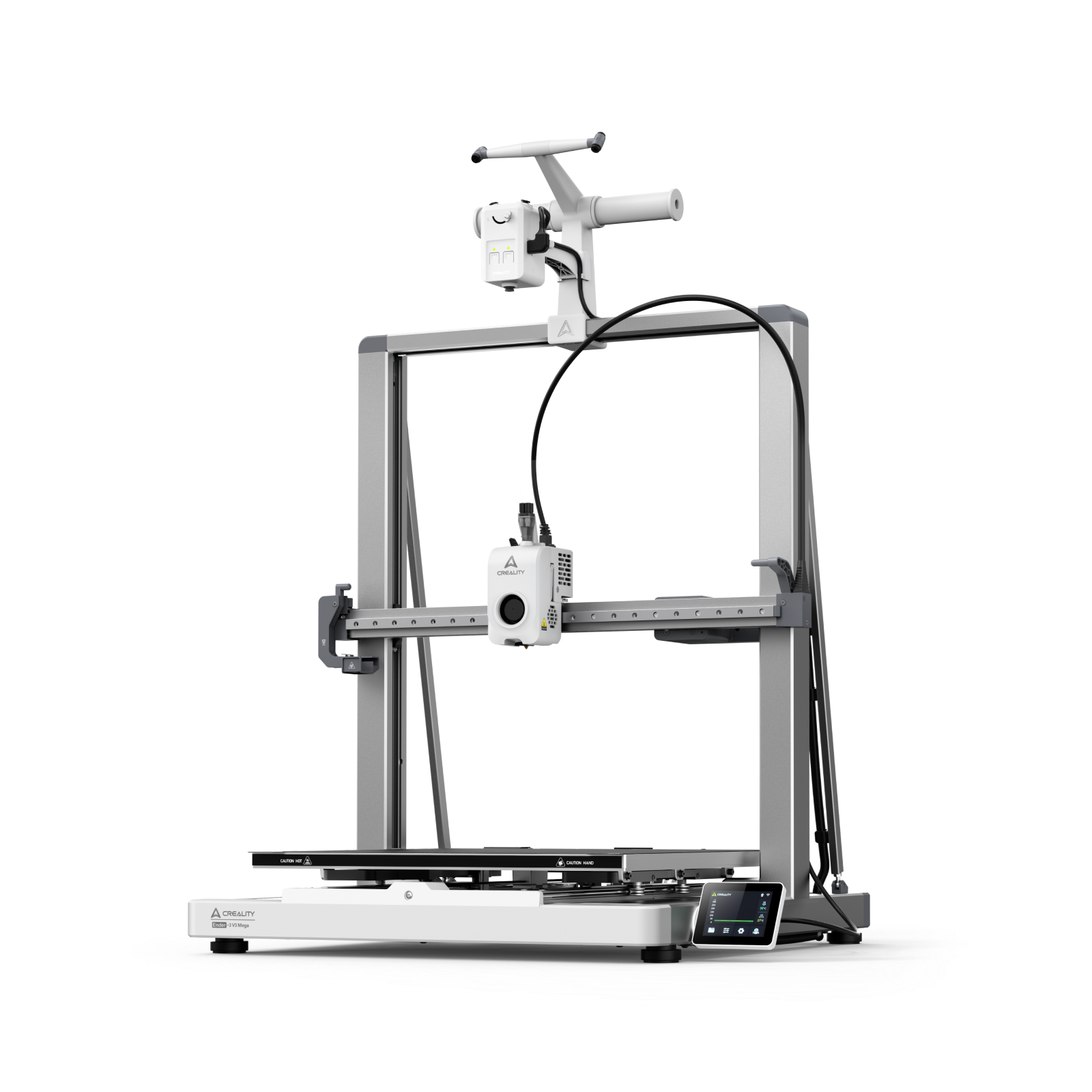
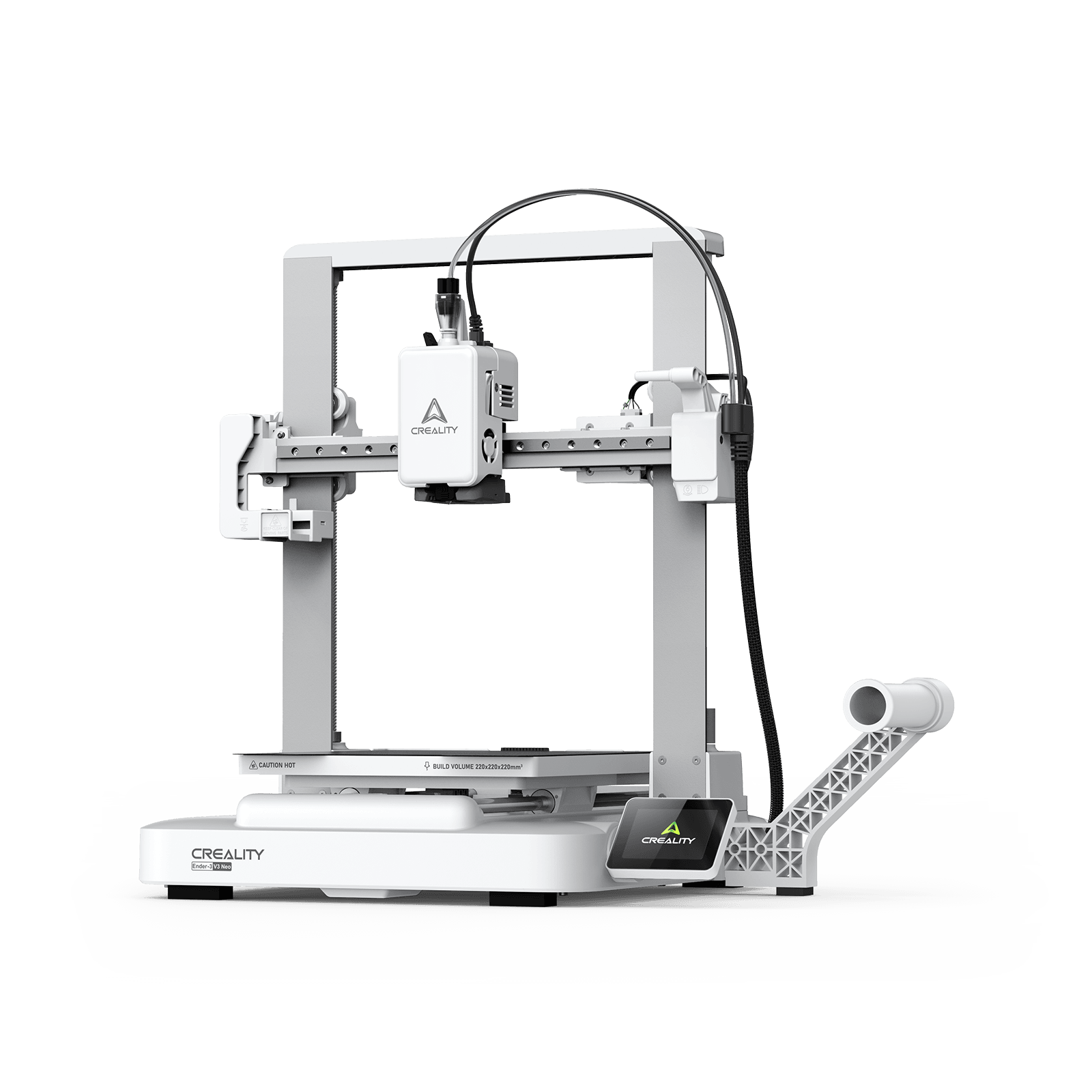































Every 3D printing project relies on the first layer being right. Get it wrong and your entire project will end up in the trash. Having a brim in your 3D print is one of the most powerful yet simple tools to have for any project. It’s one of the best ways to improve your print reliability, whether you’re using a Creality K2 Plus or a K1 Max.
In this article, we’re sharing everything you need to know about using a brim for your 3D printer, when to use it, and how to configure it for your Creality 3D printer.
What is a Brim in 3D Printing?
A 3D printer brim is a filament layer printed around the perimeter base of your model, which attaches to the first layer. Unlike a raft, it does not go underneath the first part, but instead increases the contact area that touches the build plate to prevent warping and lifting during 3D printing.
You think of this tool as being like a hat brim, wrapping around the base of your print project to hold it down and increase stability. The brim improves bed adhesion and is a must-have tool when printing tall and thin objects or if you’re using materials like ABS, which are prone to warping. After your model has finished printing, you can easily separate the brim from your model and discard it.
How to Set Up a Brim for Your 3D Printer
The first step to setting up the brim for your 3D printer is to open your preferred slicer tool. We recommend using the Creality Print slicing software, which you can download directly from our official website and is available for Windows, macOS, and Linux.
After downloading and opening Creality Print, select the ‘others’ option on the right side of your screen. You’ll see an option with headings for ‘skirt’ and ‘brim’. Under the ‘brim’ section, you can choose the width, line count, and brim-object gap. Most models will have a brim width of 5 mm to 10 mm with a 0 mm gap to ensure the brim touches your model.
When you’re ready, start printing your model and wait until it’s complete and cooled before gently peeling or cutting away the brim to remove it. A hobby knife is a great tool to have on hand to help you carefully separate the brim from the model edge. If you see a ring line from where the brim was on the model, you can lightly sand away the edges.
Why You Should Use a 3D Printer Brim
Now you know how to set up a brim, but why should you use one when 3D printing? If you’re a beginner to 3D printing or you’re struggling with warping, adding a brim to your workflow will improve the model’s adhesion to the printer’s build plate, improving its stability.
Using a brim is ideal for 3D models of all sizes, but especially those with a flat, thin, or small footprint. You can also use a 3D printer brim to help prime your 3D printer nozzle to ensure you get a consistent first layer for your model. The brim gives your model a wider footprint, and we recommend using it if you’re creating your model with materials like ABS or PETG, which are prone to warping.
Whether you’re a hobbyist or a professional, using a brim when 3D printing will speed up your printing time and use less filament than if you were to have a full raft without compromising on adhesion. Even if it’s your first time 3D printing, it’s easy to remove a brim and leaves less of a mark than using a raft.
Should You Use a 3D Printer Brim Every Time?
While adding a brim might feel like something you should do for every 3D model, this isn’t always the case. It’s best suited for 3D models with a smaller footprint, large flat surfaces, or if you’re printing your model using materials that are prone to warping, like ABS, nylon, and high-temperature PETG.
As a general rule of thumb, you’ll want to use a 3D printing brim when your model needs extra edge stability, but you don’t need a raft. By comparison, you don’t need to use a brim if your 3D model has a large flat base that will naturally adhere well to your build plate.
You’ll also want to skip using a brim if the surface finish of your model is important, as you’re likely to cause some marks or abrasions when removing the brim. Similarly, if you’re creating model parts that have a very low tolerance, you’ll want to avoid attending a brim to keep the base dimensions as accurate as possible.
If you’re not using a brim, you may be able to use a skirt or a raft when 3D printing instead. A raft is a structure that sits underneath the model, while a skirt is a border not attached to the model but helps with priming.
Troubleshooting Common Problems When Using a 3D Printer Brim
Problems can pop up at any stage in the 3D printing process, whether you’re a beginner or making jewellery to sell with your Creality 3D printer. Here are some of the common problems when using a 3D printer brim and how to troubleshoot them:
-
If your corners are still lifting when using a brim, it’s too narrow, meaning you’ll need to increase the width.
-
If the brim is too hard to remove or causes damage to your model, reduce your brim line count, or add a 0.1 mm or 0.2mm offset.
-
If you’re still experiencing warping, check your printer’s calibration, as a brim won’t counteract the impact of an unstable printer.
Download the Creality Print Slicer to Add a Brim to Your 3D Printing Process
Using a brim is one of the best ways to improve the adhesion for your 3D model and to prevent warping. Streamline your 3D printing process by using the guide above to help you get the best results when using your K2 or K2 Plus. Start your next 3D printing project by downloading Creality Print to add a brim to your model.