


























Welcome to Creality  12th Anniversary 🔥

Creality
Store
  • 3D Printers
  • Ecosystem
  • Support
  • Software
  • Blog
  • Creality Cloud
  • Investor Relations
  • United States (English)
Cancel

Quick Links

    Creality
    3D PrintersEcosystem SupportSoftwareBlogCreality CloudInvestor Relations
    Store
    SPARKXFlagshipHi SeriesEnder SeriesHALOT Series
    SPARKX i7
    New
    SPARKX i7
    More Products
    Compare
    K2 SE
    New
    K2 SE
    K2
    New
    K2
    K2 Pro
    K2 Pro
    K2 Plus
    K2 Plus
    K1 Max
    K1 Max
    More Products
    Compare
    Creality Hi
    Creality Hi
    More Products
    Compare
    Ender-3 V4
    New
    Ender-3 V4
    Ender-5 Max
    Ender-5 Max
    Ender-3 V3 Plus
    Ender-3 V3 Plus
    Ender-3 V3
    Ender-3 V3
    Ender-3 V3 SE
    Ender-3 V3 SE
    More Products
    Compare
    HALOT-X1
    New
    HALOT-X1
    HALOT R6
    HALOT R6
    HALOT-MAGE S
    HALOT-MAGE S
    HALOT-MAGE
    HALOT-MAGE
    More Products
    Compare
    Filaments3D ScannersLaser EngraversAccessories
    Hyper Series
    Hyper Series
    CR Series
    CR Series
    Soleyin Series
    Soleyin Series
    Ender Series
    Ender Series
    More Products
    Compare
    Sermoon P1
    New
    Sermoon P1
    Sermoon X1
    Sermoon X1
    Sermoon S1
    Sermoon S1
    Creality Raptor Pro
    Creality Raptor Pro
    Otter Lite/Basic
    Otter Lite/Basic
    More Products
    Compare
    Creality Falcon T1
    New
    Creality Falcon T1
    Creality Falcon A1 Pro 20W
    New
    Creality Falcon A1 Pro 20W
    Creality Falcon A1
    Creality Falcon A1
    Creality Falcon2 Pro 60W
    Creality Falcon2 Pro 60W
    Creality Falcon2 Pro
    Creality Falcon2 Pro
    More Products
    Compare
    CFS-C
    New
    CFS-C
    SpacePi X4L
    New
    SpacePi X4L
    Creality SpacePi X4
    Creality SpacePi X4
    Creality Space Pi  Dryer
    Creality Space Pi Dryer
    CFS - Creality Filament System
    CFS - Creality Filament System
    More Products
    Compare
    Download Center
    3D Models
    Creality Cloud App
    Firmware & Software
    Service Center
    Help Center
    Creality Wiki
    Product Support
    Video Guides
    Product Comparison
    Filament Guide
    Find Your Printer
    Discover
    User Stories
    3D Scanner Applications
    3D Printing in Education
    Blog Center / K2 Series Manual Filament Loading from Spool Holder Step-by-Step
    Contents
    contents

    Join Our Newsletter

    Subscribe to our newsletter for 3D printing insights, step-by-step guides, and inspirations for your next 3D printing adventure.

    By subscribing, you agree to our Terms and Privacy Policy.

    Social Media

    • Youtube
    • Facebook
    • Instagram
    • TikTok
    • Twitter
    • Reddit
    • Discord
    • LinkedIn

    Contents

    • Step One
    • Step Two
    • Step Three
    • Step Four
    • Step Five
    • Step Six
    • Step Seven
    • Step Eight
    • Step Nine

    K2 Series Manual Filament Loading from Spool Holder Step-by-Step

    May 20, 2026 09:01:50

    Step One

    Ensure the printer is not printing, and observe if there is filament in the extruder:

    1. No Filament in the extruder

    If there is no filament in the extruder, and you have confirmed that the filament has been retracted by the CFS , you can proceed directly to Step Four.
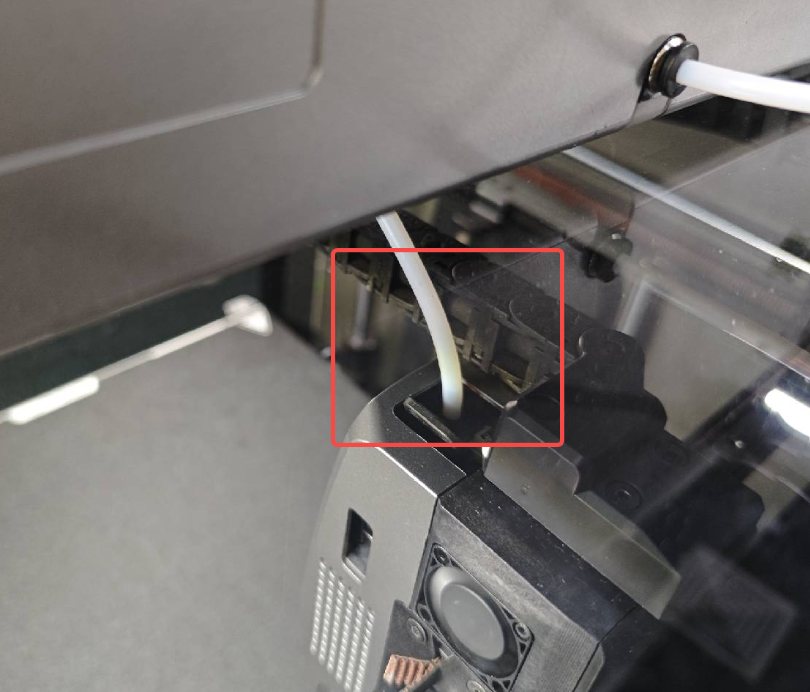
    No Filament in the extruder

    2 Filament in the extruder

    If there is filament in the extruder, you need to unload filament first, then proceed to Step Two.
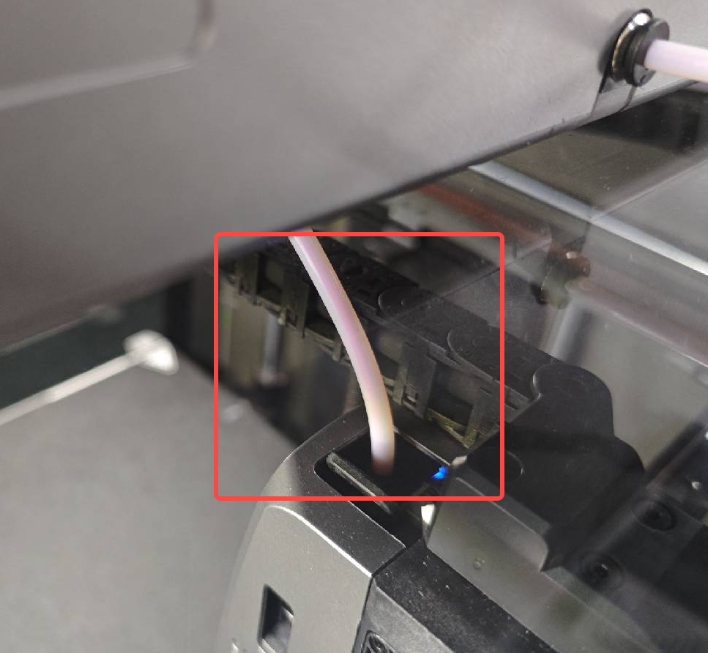
    Filament in the extruder

    Step Two

    1. On the Filament page, click Retract, and the printer's extruder will move to the front-left position to cut off the filament, then retract it.
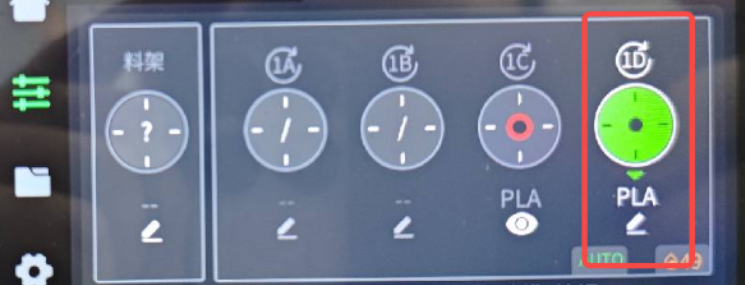
    On the Filament page

    2. After clicking Retract, the nozzle will heat up to the set temperature, and the printer will cut off the filament and retract it. During this process, the "Extrude" and "Retract" buttons will be grayed out and unavailable.

    Step Three

    After the retraction is complete, the CFS will automatically retract the filament, and the "Retract" button will become available.

    Step Four

    Press and hold the pneumatic connector of the PTFE tube (teflon tube), and plug out the PTFE tube (teflon tube) connecting the printer and the buffer.
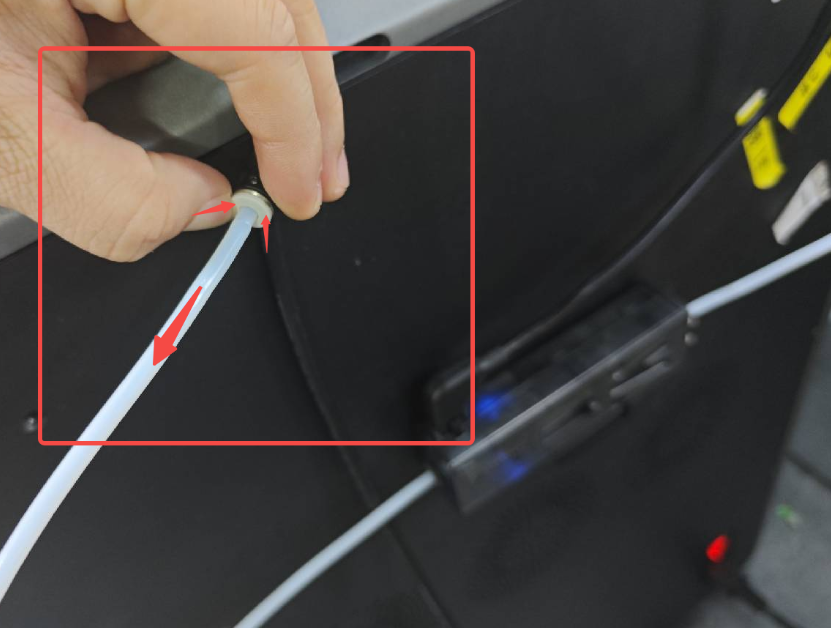
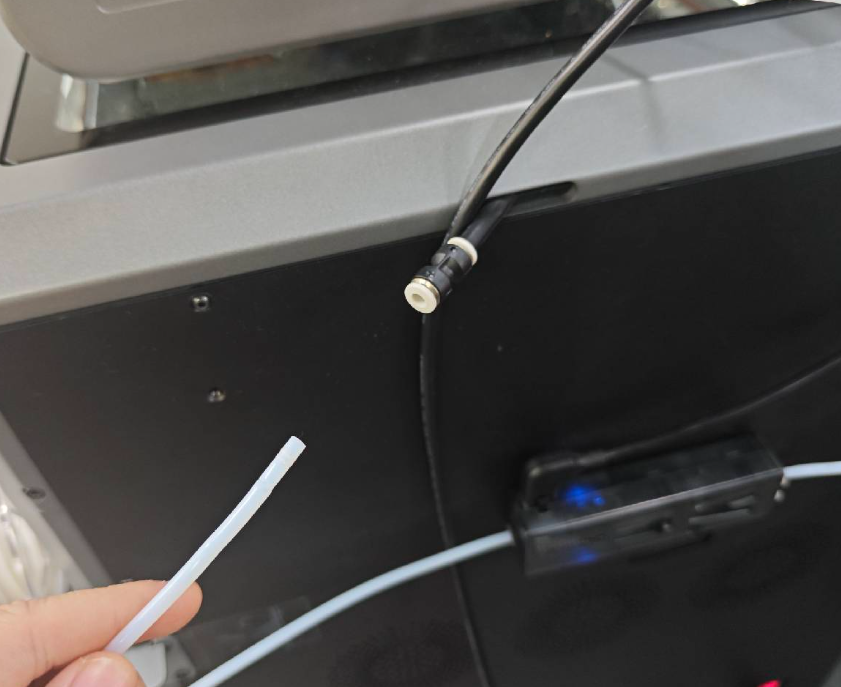
    press PTFE tube (teflon tube)
    plug out the PTFE tube (teflon tube)

    Step Five

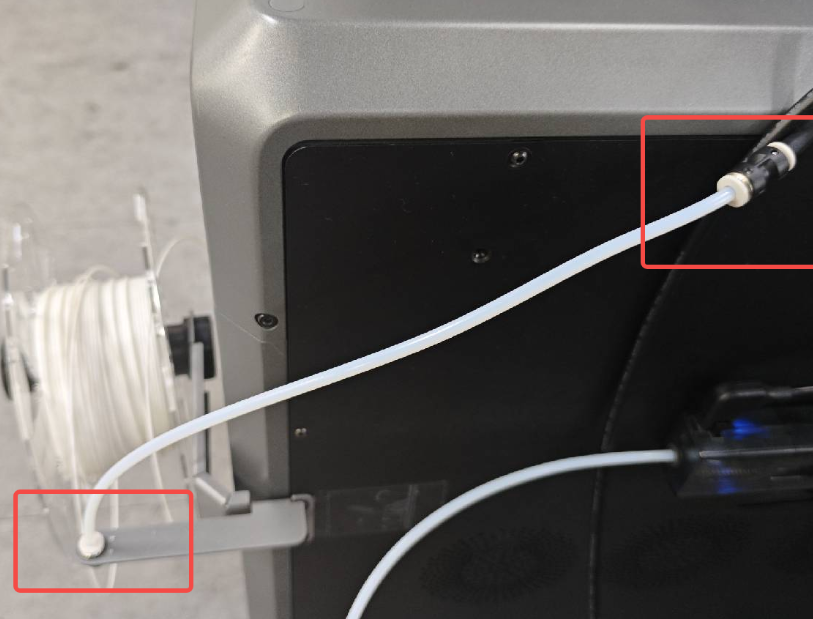
    Insert the PTFE tube (teflon tube) from the external spool holder into the PTFE tube pneumatic connector of the machine (Refer to the wiki page: K2 Series Spool Holder Printing Guide).
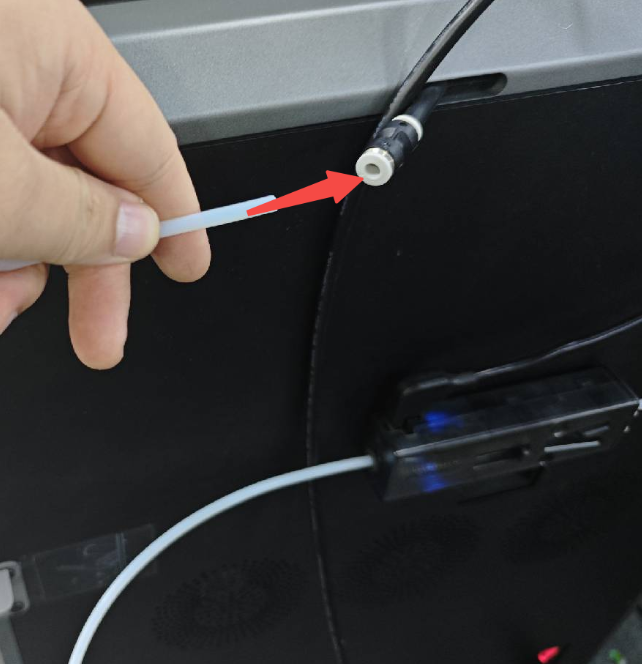
    Insert the PTFE tube (teflon tube)
    PTFE tube pneumatic

    Step Six

    Thread the filament from the external spool holder into the PTFE tube of the spool holder, and gently push it until it cannot be pushed further.
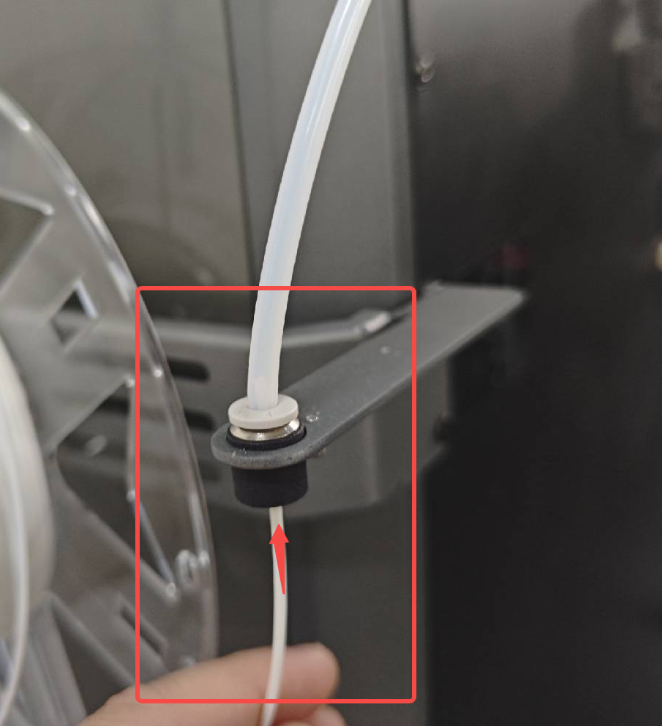
    K2 Series Filament Switches-1

    Step Seven

    Edit filament information 

    On the filament page, click the edit button below "Spool Holder", and set the filament brand, filament type, and filament name respectively. Finally, set the filament color and click "OK" to save.
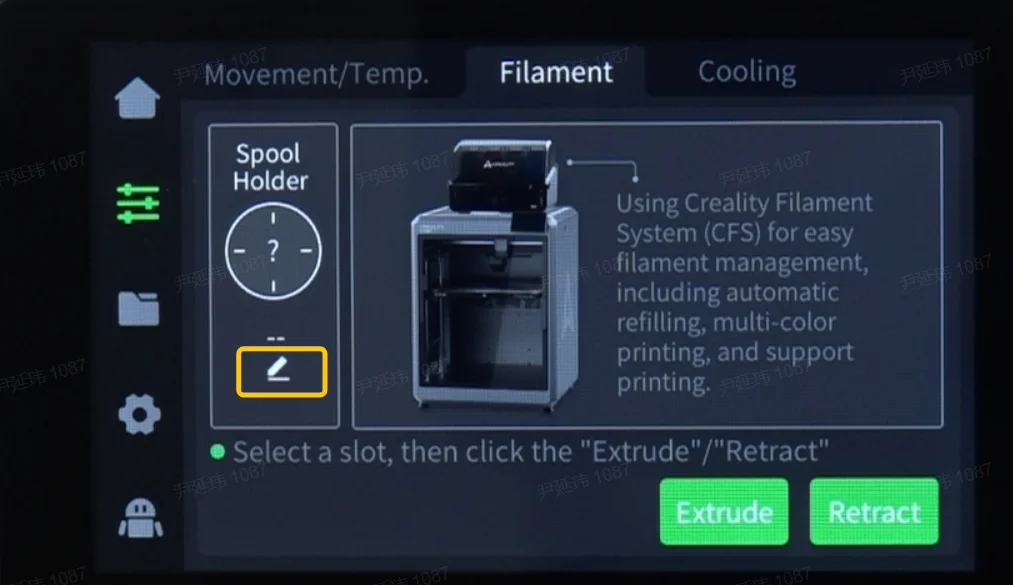
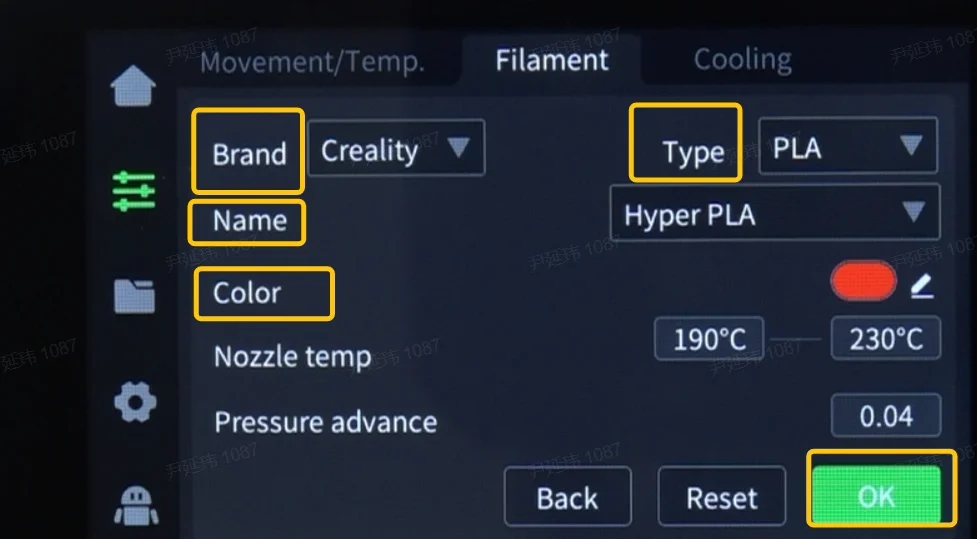
    Edit filament information
    Edit filament information

    K2 Plus & K2 Pro External spool holder with automatic RFID filament identification

    When using an external spool holder with K2, RFID filament cannot be automatically identified and filament information needs to be edited manually as per previous steps. However, K2 Plus & K2 Pro can enable automatic RFID filament identification when using an external spool holder.

    For K2 Plus & K2 Pro,place the chip of RFID filament over the scanning area on the side panel. The printer will make a "beep" sound and automatically read the filament information. At this point, the "edit" button below the screen will display and filament information will be automatically recognized. You can manually modify it. After modification, the "RFID" indicator on the filament page will disappear.
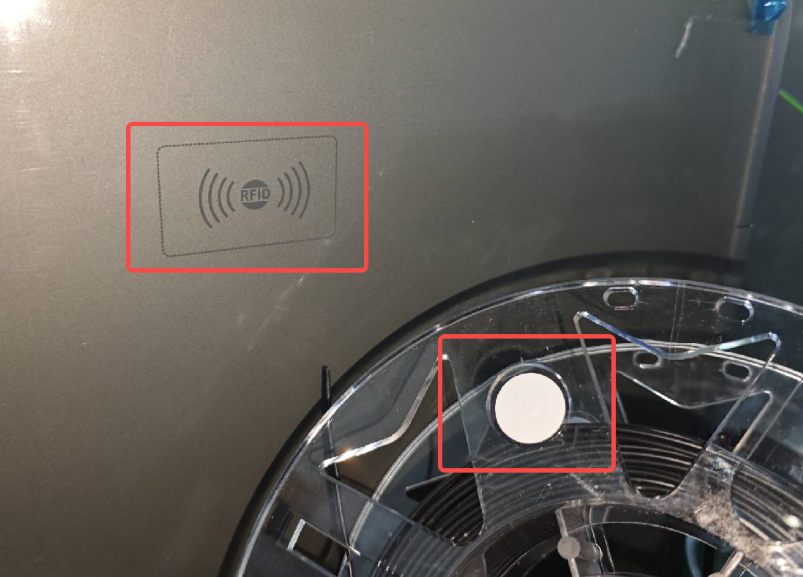
    K2 Plus & K2 Pro External spool holder

    Step Eight

    On the filament page, select the filament under "Spool Holder", then click "Extrude". Observe the nozzle; if filament is loading, wait until the "Extrude" button becomes available.

    If no filament is observed, you can gently push the filament towards the extruder from the PTFE tube at the back of the printer, then click "Extrude" again.

    After clicking "Extrude", the nozzle will heat up to the set temperature and start loading the filament. During the loading process, the "Extrude" and "Retract" buttons will be grayed out and unavailable.

    Step Nine

    After the loading is complete, the filament from the external spool holder is extruded, and you can use the filament from the external spool holder for printing. When printing, you need to uncheck "Enable CFS" to print.
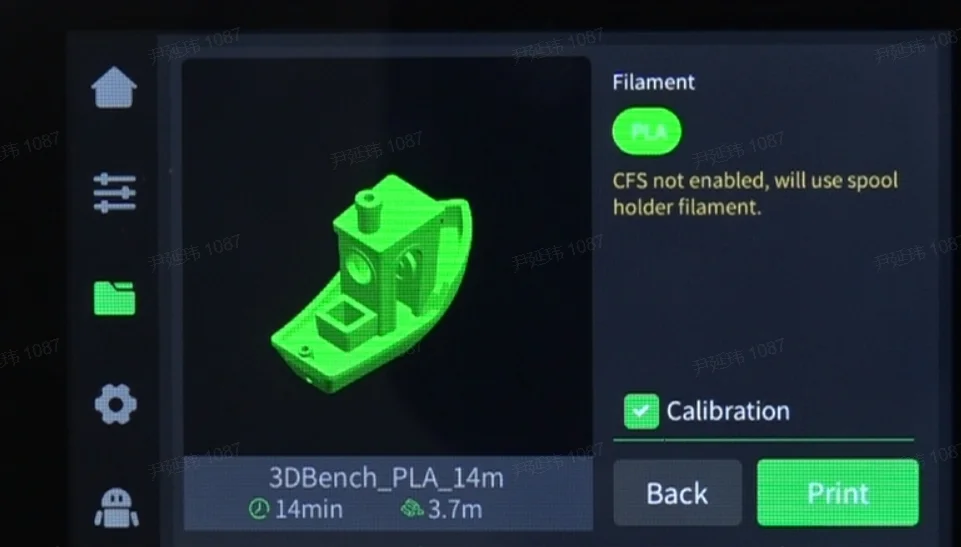
    Enable CFS

    SHOP

    • Store
    • Falcon Store
    • Where to Buy
    • K Series
    • Hi Series
    • Ender Series

    COMMUNITY

    • Forum
    • Creality Cloud
    • Discord
    • Reddit
    • Open Source

    SUPPORT

    • Downloads
    • Help Center
    • Video Guides
    • Warranty & Repairs
    • Creality Wiki

    ABOUT

    • About Us
    • Distributors
    • ShareFest Events
    • Investor Relations

    Be the First to Know

    Get the latest news from Creality.

    • Youtube
    • Facebook
    • Instagram
    • TikTok
    • Twitter
    • Reddit
    • Discord
    • LinkedIn
    Privacy PolicyTerms of SalesShipping PolicyFeedback
    United States(English)

    Copyright © 2026 Creality Co., Ltd. All rights reserved.