

Welcome to Creality  SPARKX i7 Buy Now 🔥

Creality
Store
  • 3D Printers
  • Ecosystem
  • Support
  • Software
  • Blog
  • Creality Cloud
  • United States (English)
Cancel

Quick Links

    Creality
    3D PrintersEcosystem SupportSoftwareBlogCreality Cloud
    Store
    SPARKXFlagshipHi SeriesEnder SeriesHALOT Series
    SPARKX i7
    New
    SPARKX i7
    More Products
    Compare
    K2 SE
    New
    K2 SE
    K2
    New
    K2
    K2 Pro
    K2 Pro
    K2 Plus
    K2 Plus
    K1 Max
    K1 Max
    More Products
    Compare
    Creality Hi
    Creality Hi
    More Products
    Compare
    Ender-3 V4
    New
    Ender-3 V4
    Ender-5 Max
    Ender-5 Max
    Ender-3 V3 Plus
    Ender-3 V3 Plus
    Ender-3 V3
    Ender-3 V3
    Ender-3 V3 SE
    Ender-3 V3 SE
    More Products
    Compare
    HALOT-X1
    New
    HALOT-X1
    HALOT R6
    HALOT R6
    HALOT-MAGE S
    HALOT-MAGE S
    HALOT-MAGE
    HALOT-MAGE
    More Products
    Compare
    Filaments3D ScannersLaser EngraversAccessories
    Hyper Series
    Hyper Series
    CR Series
    CR Series
    Soleyin Series
    Soleyin Series
    Ender Series
    Ender Series
    More Products
    Compare
    Sermoon P1
    New
    Sermoon P1
    Sermoon X1
    Sermoon X1
    Sermoon S1
    Sermoon S1
    Creality Raptor Pro
    Creality Raptor Pro
    Otter Lite/Basic
    Otter Lite/Basic
    More Products
    Compare
    Creality Falcon A1 Pro 20W
    New
    Creality Falcon A1 Pro 20W
    Creality Falcon A1
    Creality Falcon A1
    Creality Falcon2 Pro 60W
    Creality Falcon2 Pro 60W
    Creality Falcon2 Pro
    Creality Falcon2 Pro
    Creality Falcon2 22W
    Creality Falcon2 22W
    More Products
    Compare
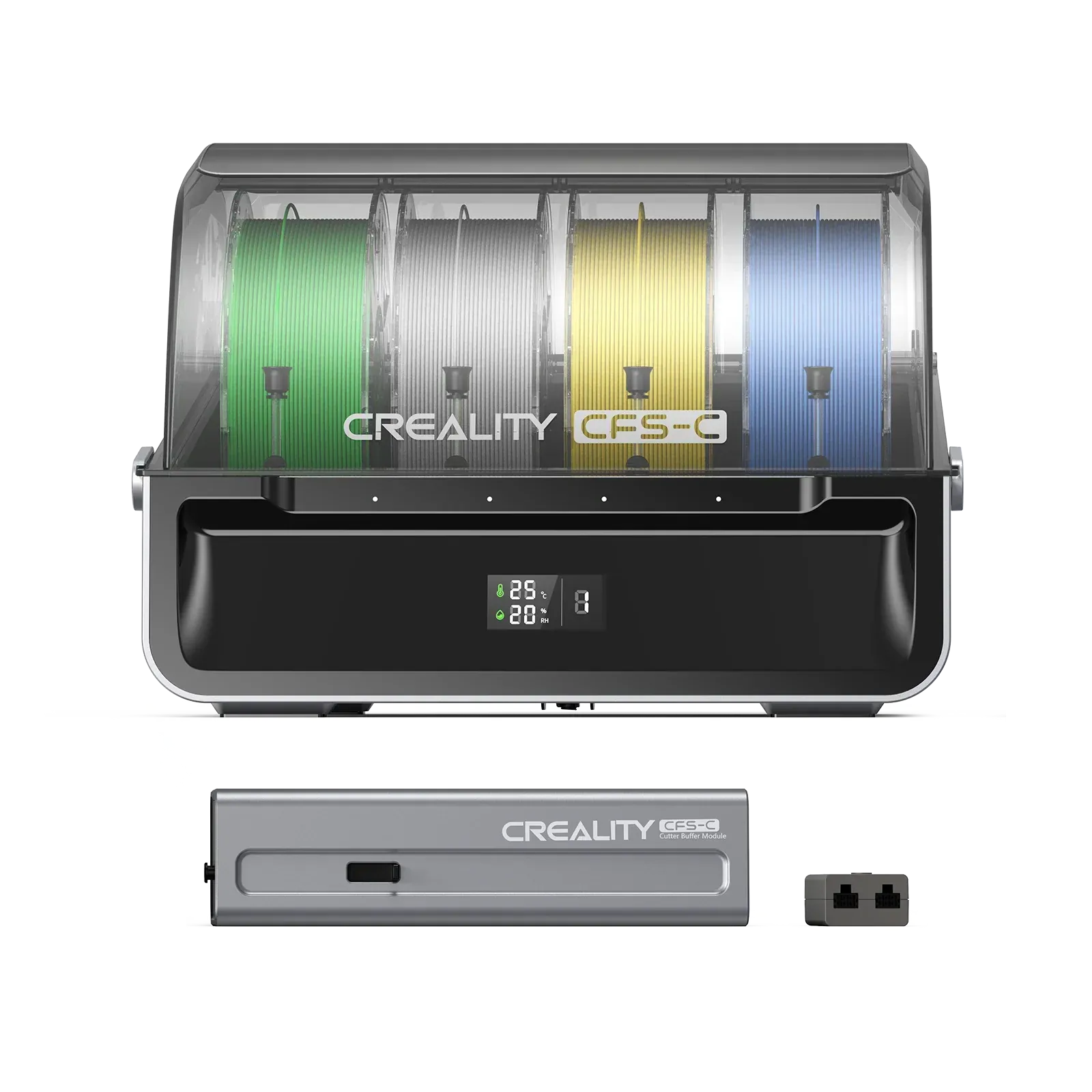
    CFS-C
    New
    CFS-C
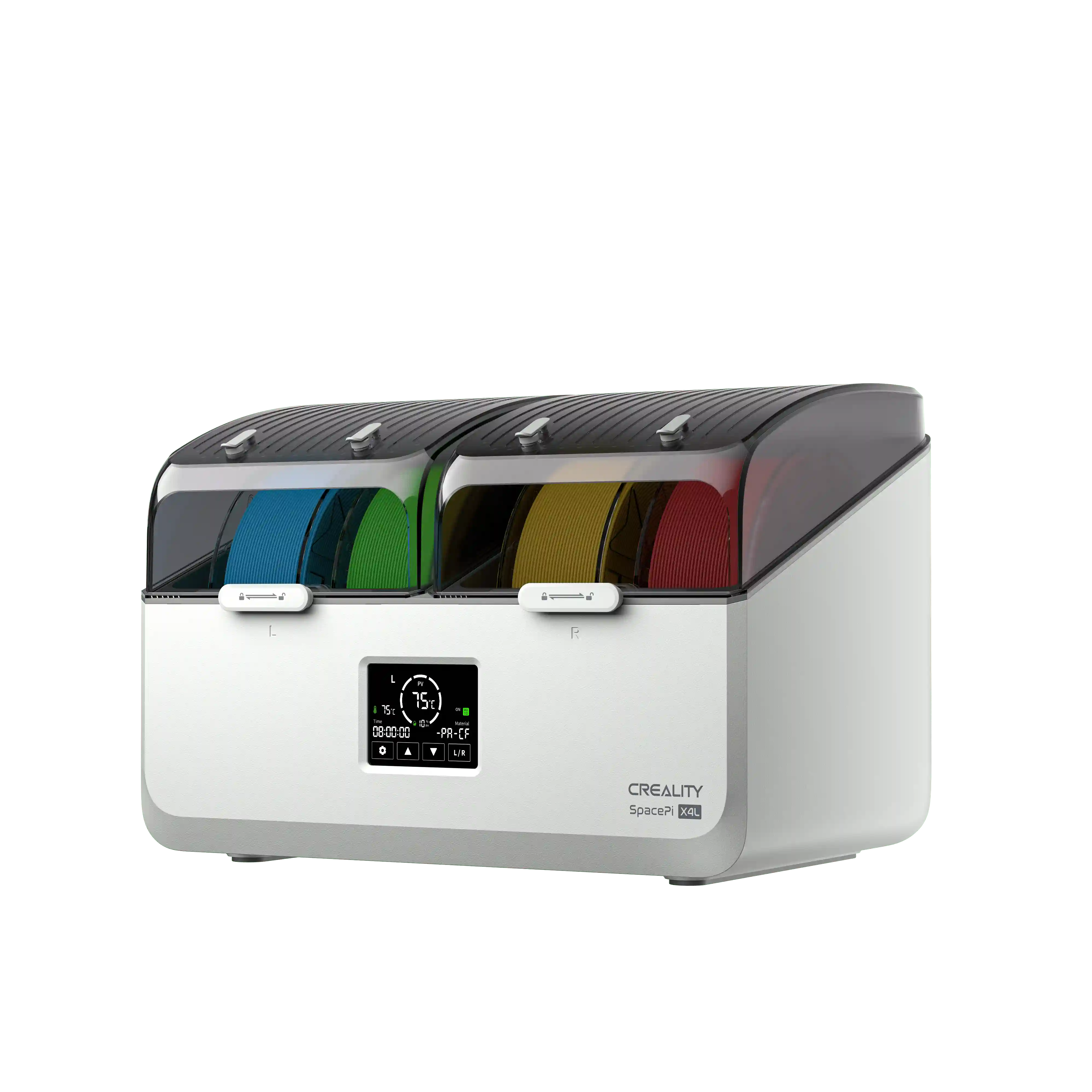
    SpacePi X4L
    New
    SpacePi X4L
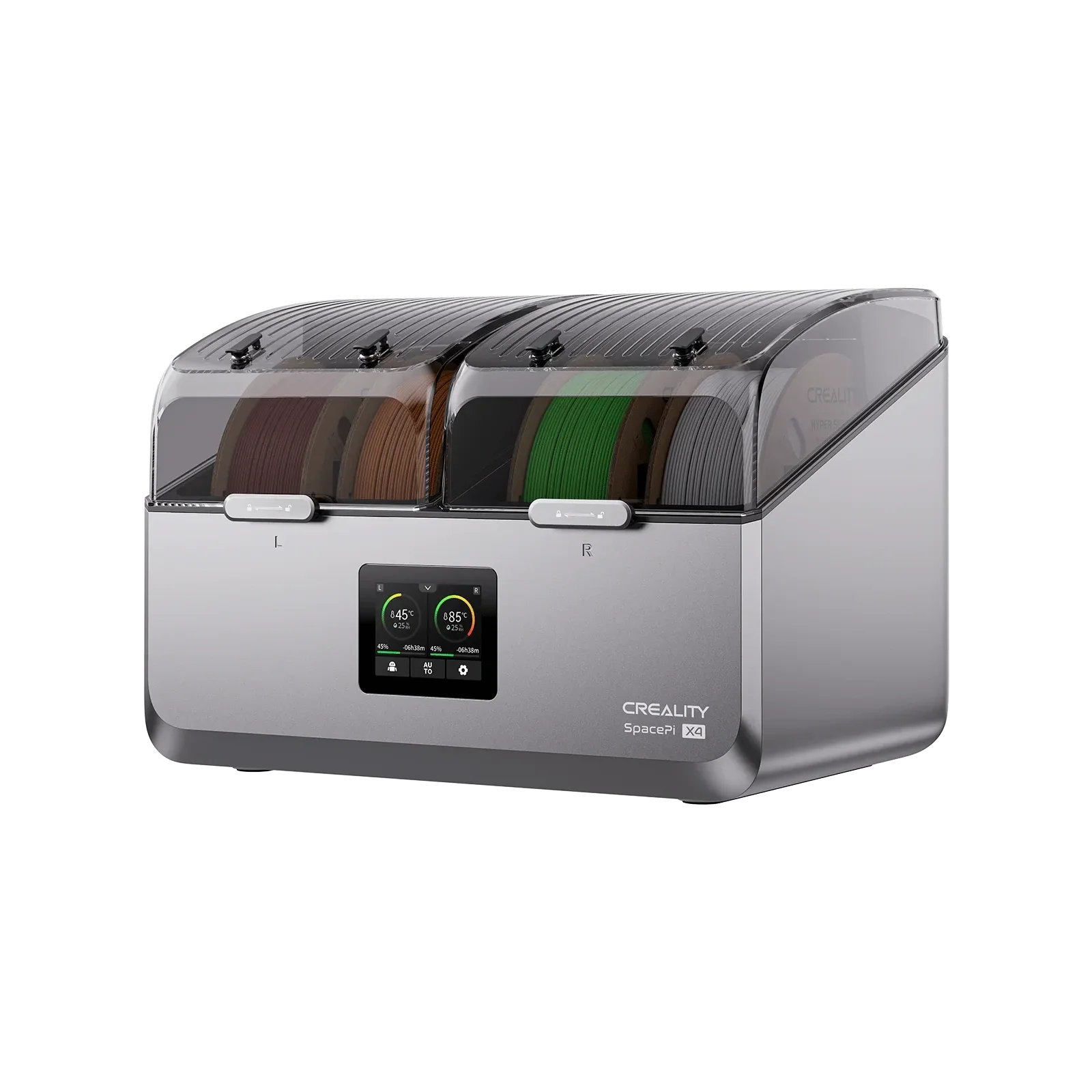
    Creality SpacePi X4
    Creality SpacePi X4
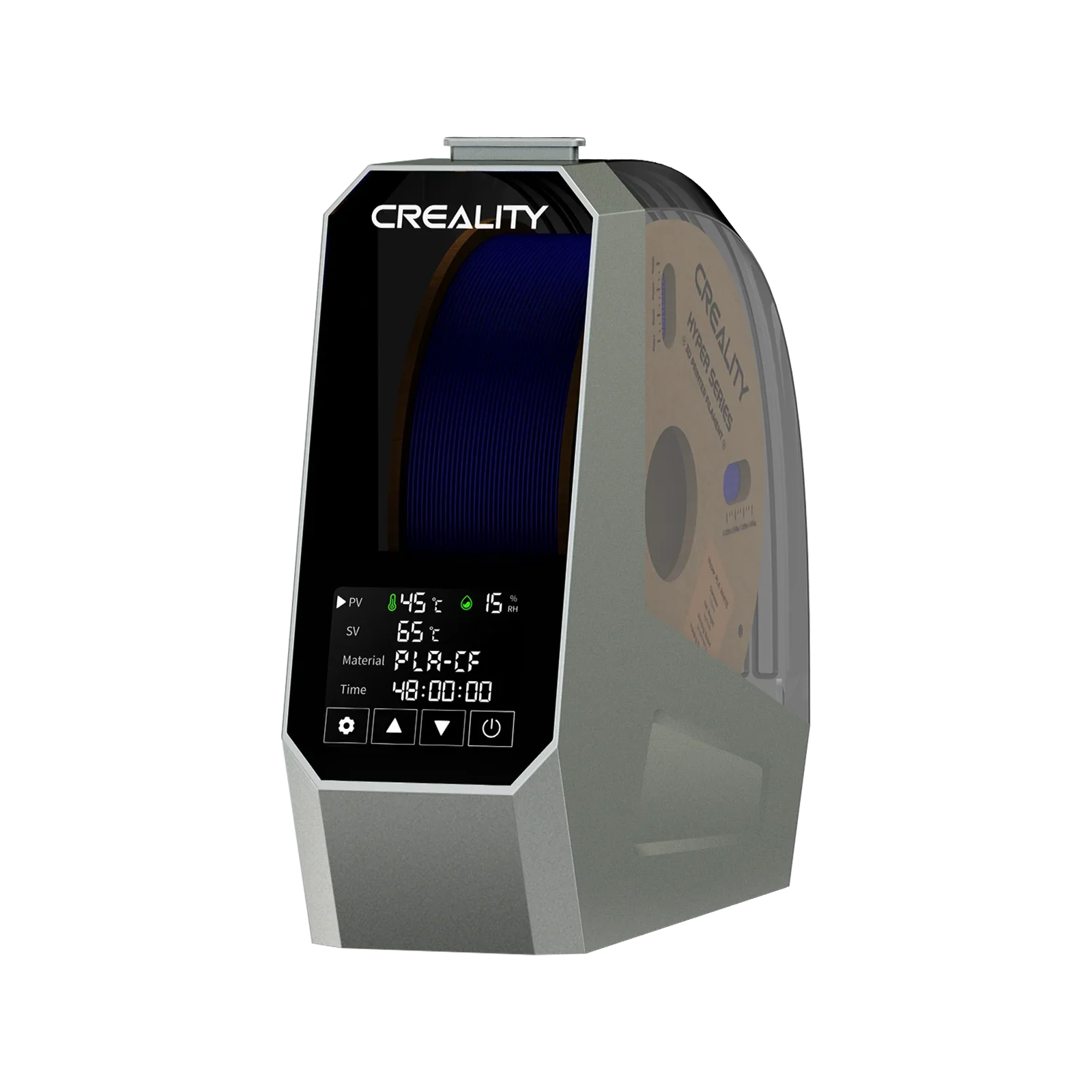
    Creality Space Pi  Dryer
    Creality Space Pi Dryer
    CFS - Creality Filament System
    CFS - Creality Filament System
    More Products
    Compare
    Download Center
    3D Models
    Creality Cloud App
    Firmware & Software
    Service Center
    Help Center
    Creality Wiki
    Product Support
    Video Guides
    Product Comparison
    Filament Guide
    Find Your Printer
    Discover
    User Stories
    3D Scanner Applications
    3D Printing in Education
    Blog Center / How to Use a USB Drive on SPARKX i7 | 3D Printing Guide
    Contents
    contents

    Join Our Newsletter

    Subscribe to our newsletter for 3D printing insights, step-by-step guides, and inspirations for your next 3D printing adventure.

    By subscribing, you agree to our Terms and Privacy Policy.

    Social Media

    • Youtube
    • Facebook
    • Instagram
    • TikTok
    • Twitter
    • Reddit
    • Discord
    • LinkedIn

    Contents

    • Starting a Print Job Using a USB Drive
    • USB Drive Specifications and Requirements

    How to Use a USB Drive on SPARKX i7 | 3D Printing Guide

    Apr 23, 2026 11:13:43

    Starting a Print Job Using a USB Drive

    Prepare the USB Drive

    The performance of the USB drive significantly affects file parsing speed. For best results, we recommend using a USB drive from a reputable brand.

    Prepare the Sliced Model File

    Open the model file you created or downloaded from an online model repository using Creality Print slicing software.

    In the upper-left corner, select the printer model SPARKX i7.

    Verify that all slicing parameters are correct.

    Click Slice in the lower-right corner to generate the sliced file.

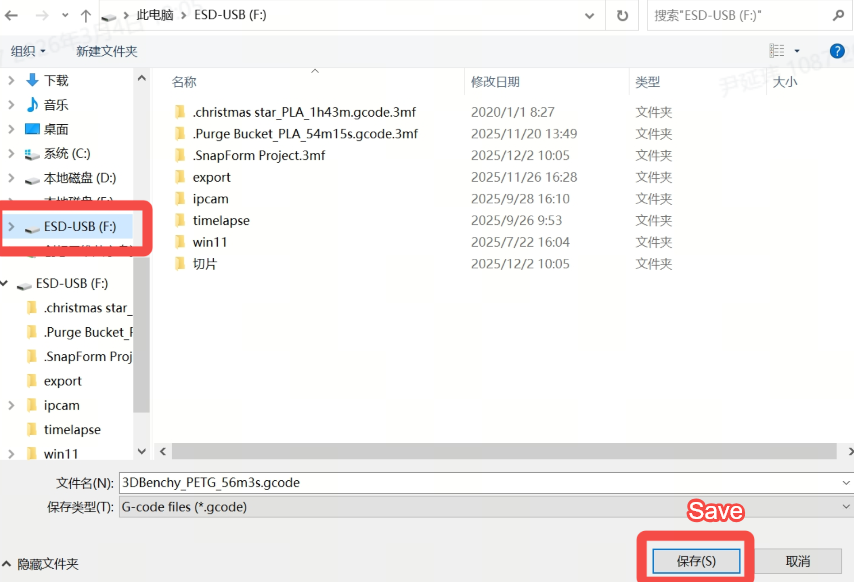
    After slicing is complete, export the sliced file and save it to the prepared USB drive.

    Insert the USB Drive and Start Printing

    Insert the USB drive into the USB port on the left side of the printer. The printer will automatically detect and read the USB drive.
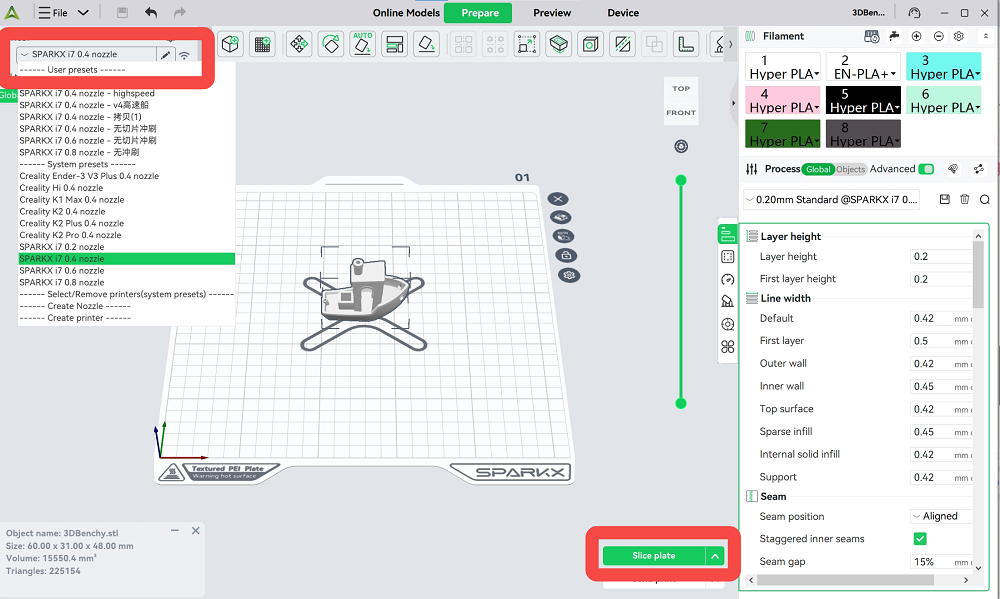
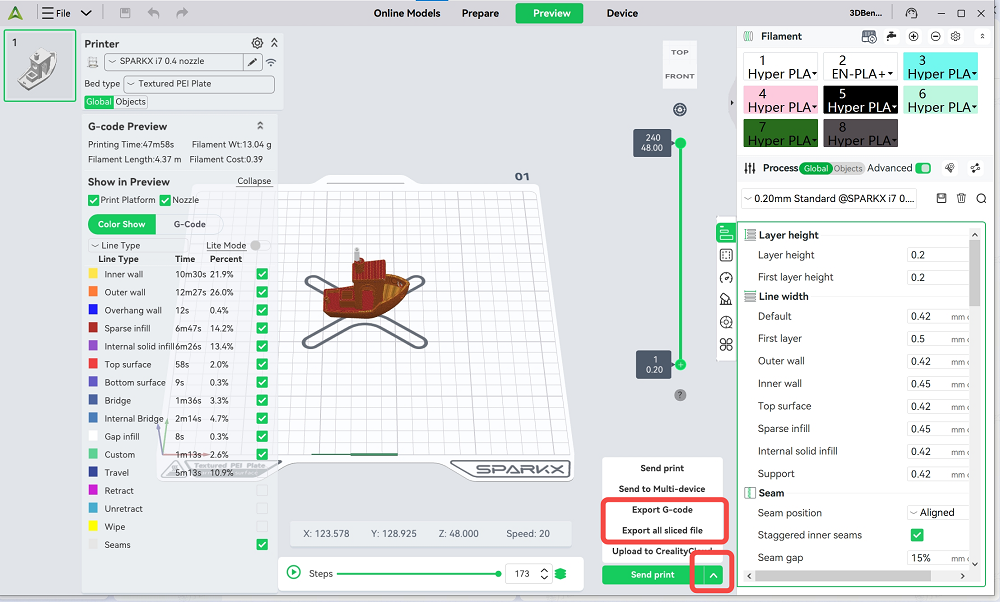
    select the printer model SPARKX i7
    select the printer model SPARKX i7 (2)
    save sliced to the prepared USB drive

    On the touchscreen:

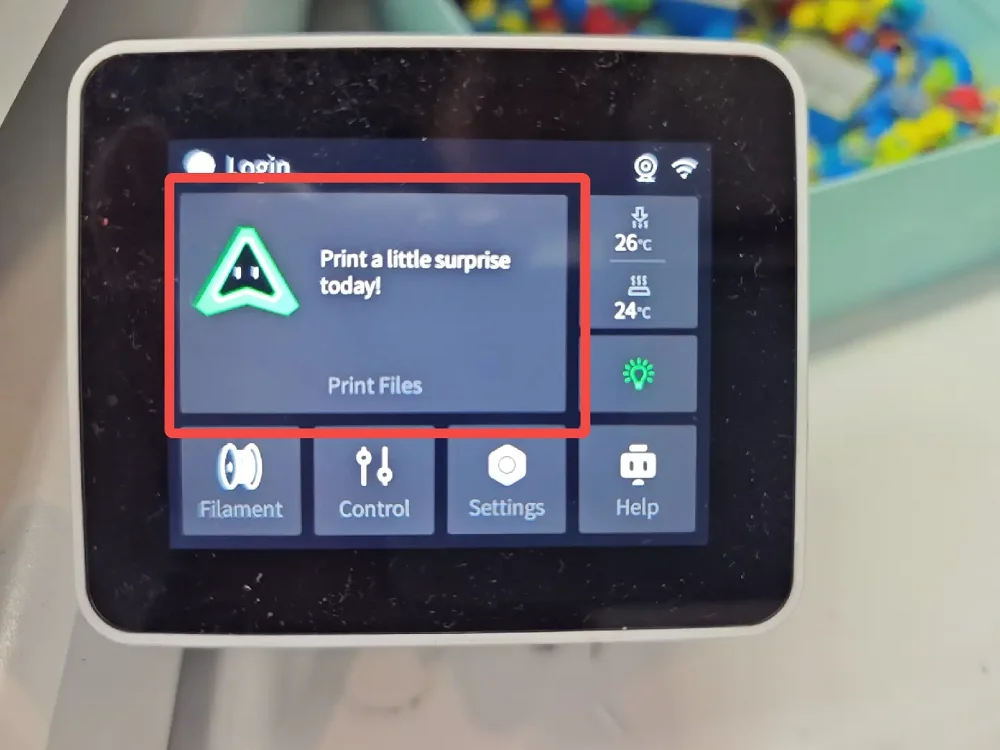
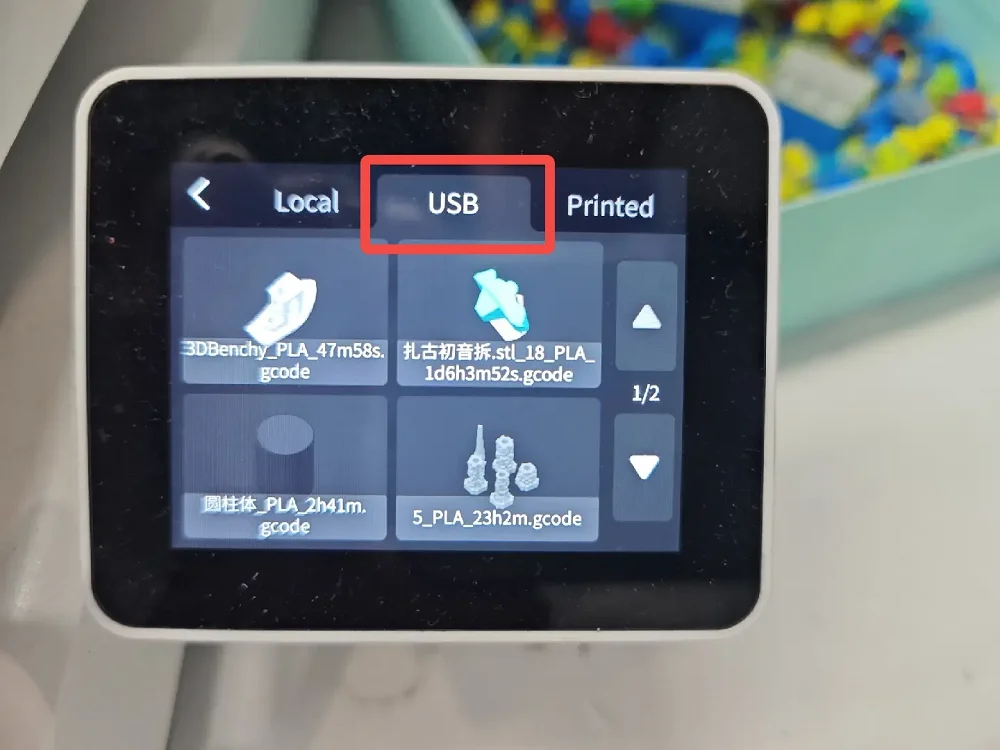
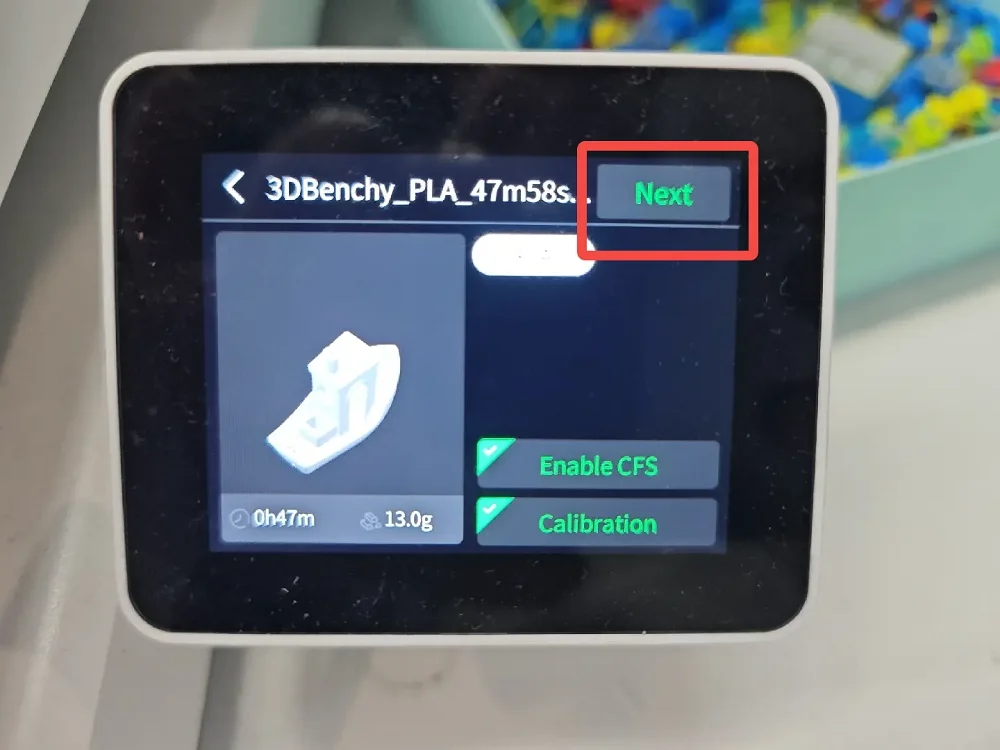
    Tap Print Files → USB.

    Wait for the USB drive to finish loading.

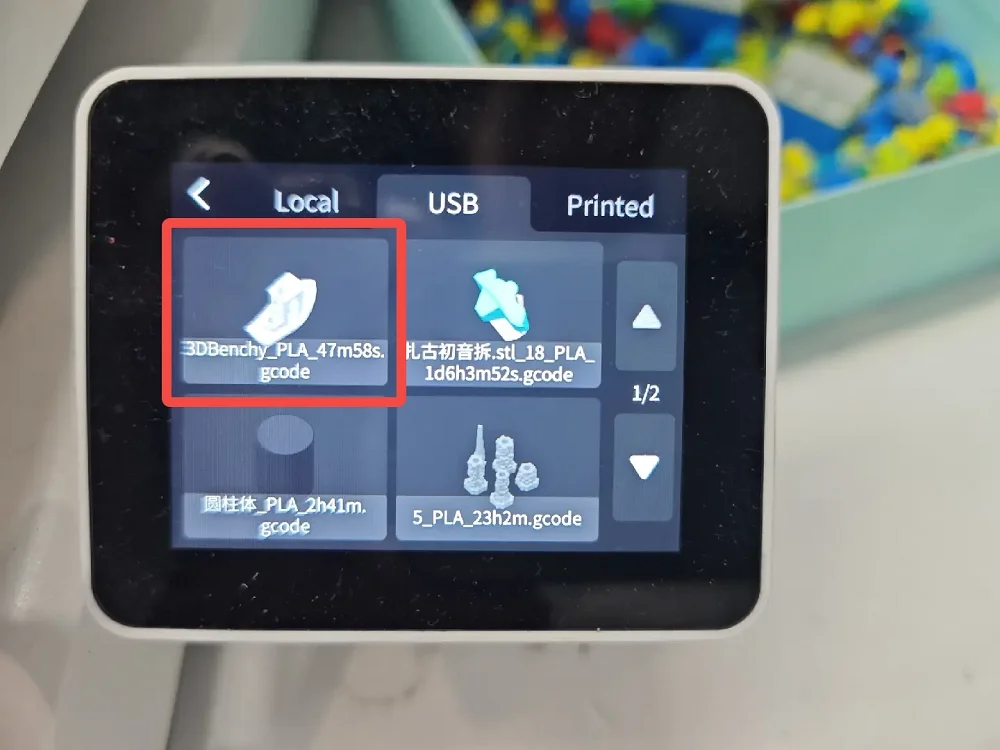
    Select the sliced file you want to print.

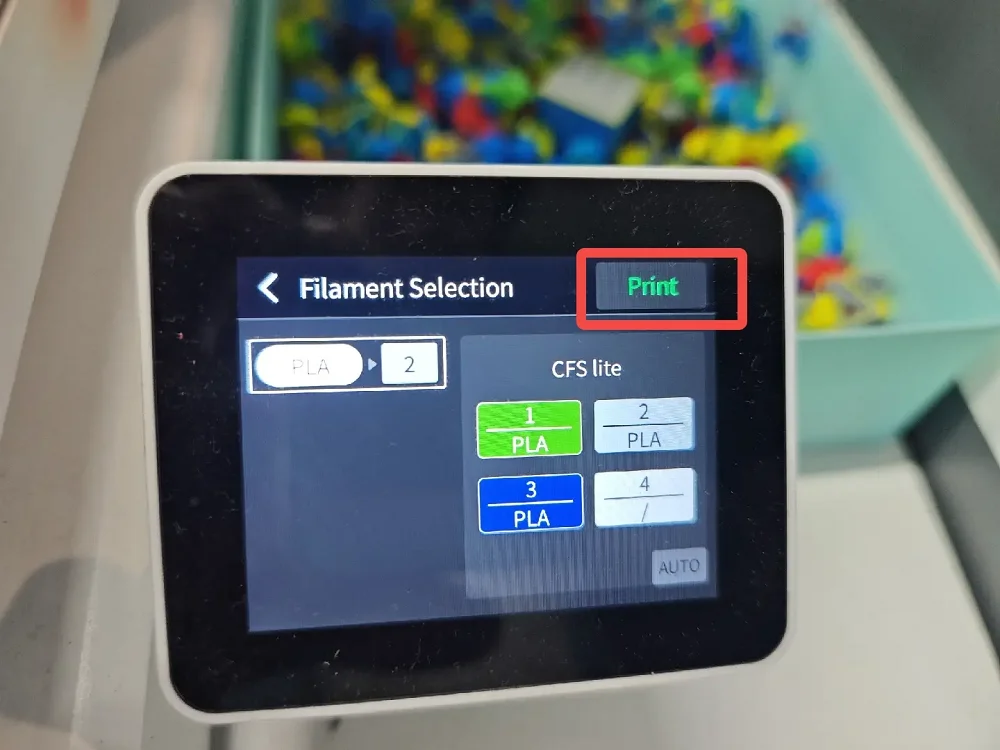
    Choose whether to enable CFS (if available) and printing calibration.

    For Color Combo models, you can also select the filament colors to be used.

    Tap Print to start the printing task.
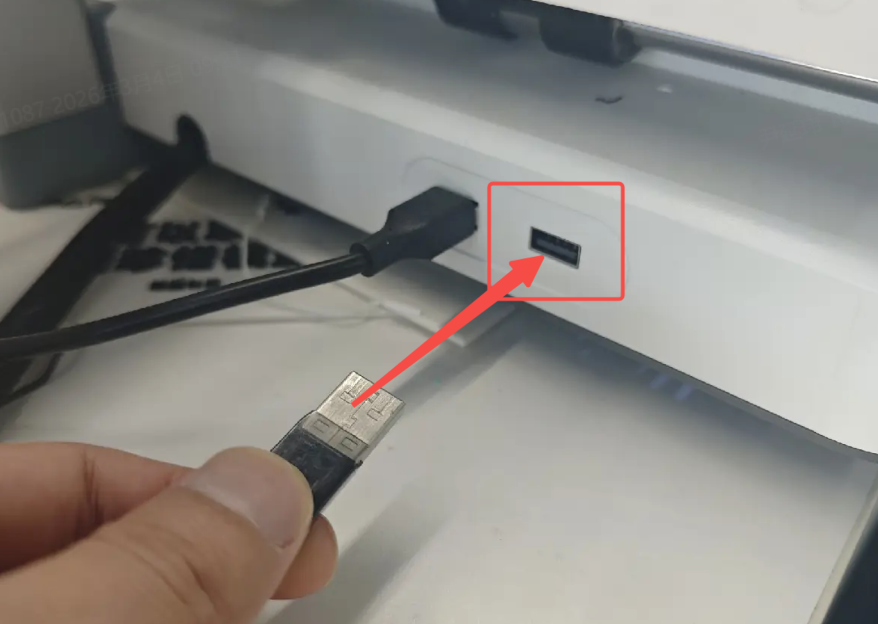
    Insert the USB Drive
    start USB Printing


    start USB Printing
    start USB Printing


    start USB Printing
    start USB Printing

    USB Drive Specifications and Requirements

    The USB drive must support USB 2.0 protocol or higher, with a minimum sustained write speed of over 10 MB/s. Supported file systems include: FAT32 / exFAT / NTFS / ext2 / ext3 / ext4.

    The SPARKX i7 supports mounting only one USB drive at a time. Connecting multiple USB drives via a USB hub is not supported.

    The printer itself does not impose a capacity limit on USB drives. However, the maximum supported capacity depends on the file system format:

    FAT32

    When formatted on Linux or macOS, the maximum supported capacity is 2 TB.

    When formatted on Windows, the maximum supported capacity is 32 GB. On Windows systems, USB drives larger than 32 GB are formatted as exFAT by default, while Linux and macOS do not have this limitation.

    exFAT

    The maximum supported USB drive capacity is 128 PB.

    The SPARKX i7 supports the following USB drive functions:

    Copying model files from the USB drive to local storage;

    Starting print jobs directly from sliced files stored on the USB drive;

    Copying local G-code files to the USB drive;

    Deleting files stored on the USB drive.

    Note: When using a high-capacity USB drive (e.g., 1 TB or larger) or when the USB drive contains a large number of files, the time required for the printer to read the USB drive may increase accordingly.

    SHOP

    • Store
    • Falcon Store
    • Where to Buy
    • K Series
    • Hi Series
    • Ender Series

    COMMUNITY

    • Forum
    • Creality Cloud
    • Discord
    • Reddit
    • Open Source

    SUPPORT

    • Downloads
    • Help Center
    • Video Guides
    • Warranty & Repairs
    • Creality Wiki

    ABOUT

    • About Us
    • Distributors
    • ShareFest Events

    Be the First to Know

    Get the latest news from Creality.

    • Youtube
    • Facebook
    • Instagram
    • TikTok
    • Twitter
    • Reddit
    • Discord
    • LinkedIn
    Privacy PolicyTerms of SalesShipping PolicyFeedback
    United States(English)

    Copyright © 2025 Creality Co., Ltd. All rights reserved.