







































The Creality K1C is one of Creality’s most advanced CoreXY printers, built for speed, stability, and precision. In fact, innovative devices like the Creality K1C can encounter technical issues. Typically, users encounter common issues with 3D printers, such as bed leveling faults, extrusion problems, or firmware misconfigurations. These disturbances bring about wasted filament, failed prints, and idle time. This guide addresses common K1C 3D printer problems and how to fix them.
1. Layer Shifting During Prints
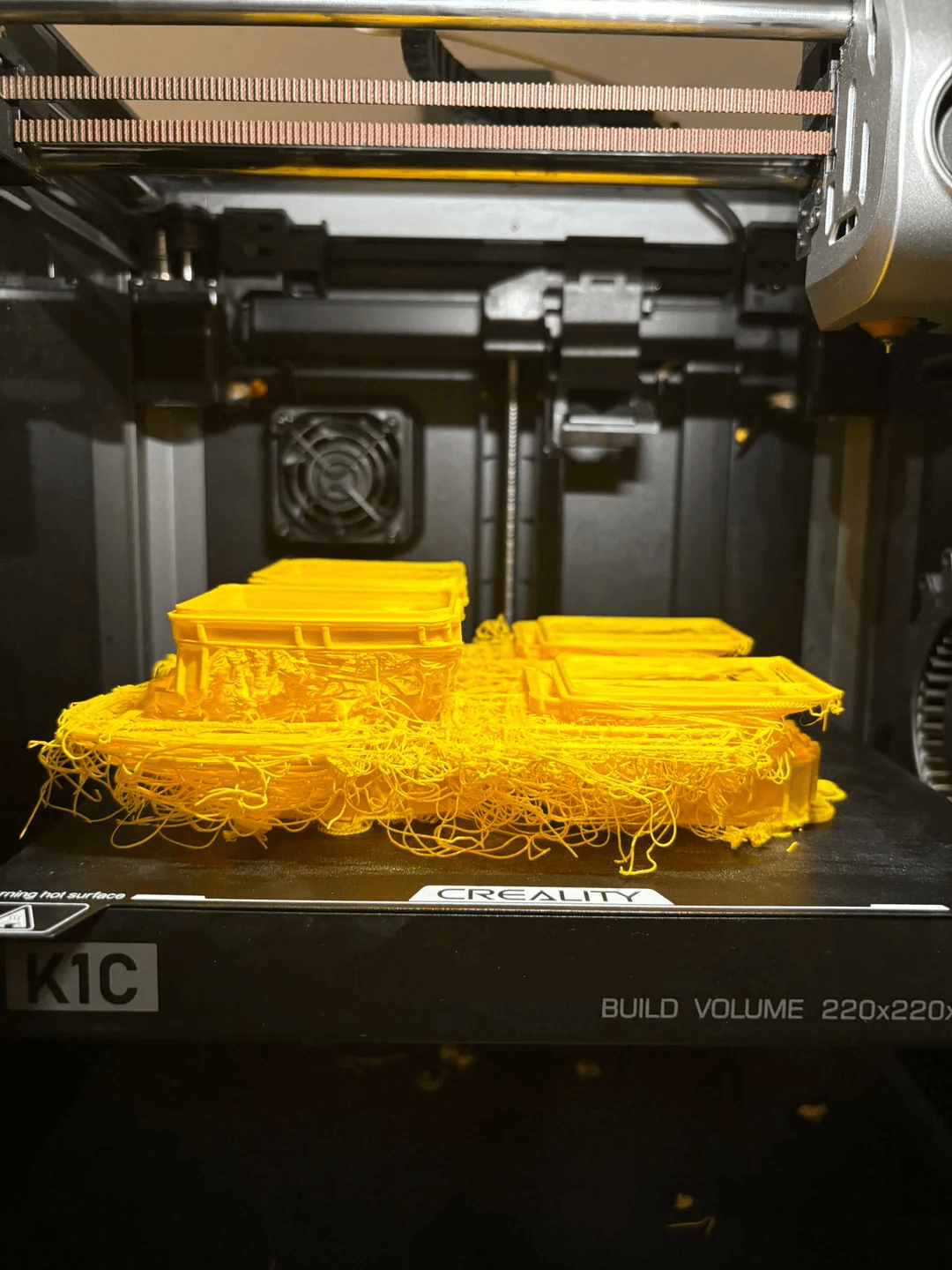
Layer shift is a situation during the 3D printing procedure when the X or Y axis gets shifted in some direction or a height fault while printing more than one layer, causing misorientation between layers of the printed object. This issue might result in an incomplete model structure, the surface might be rough, or further quality issues.
Causes
-
Loose or improperly tight belt
-
G-code and files, a corrupt SD card, and a G-code file cause layer shifting
-
Power supply settings swapped wrongly
-
Printing paces are very high for steady flow
-
Gantry misalignment after prolonged usage
-
Nozzle scratches the model when a filament with high viscosity is used
Fix
-
Inspect belt tension on the two X and Y axes. Screw up the belts till firm but not excessively stretched.
-
Format or wipe the SD card, or make a new G-code and reload it.
-
Switch the printer completely off, find the switch on the side of the printer that says 230 volts, and swap it over to 150 volts.
-
Slow up print speeds in the slicer to lower the abrupt force on moving components.
-
Check gantry calibration using a square tool and re-adjust in case required.
-
Dry the filament or turn on the prime tower to avoid nozzle and model collision.
2. K1C Not Showing on Creality Cloud App
Connectivity issues between the app and the printer are also classified as usual 3D printer common issues. The K1C occasionally does not show up in the Creality Cloud app, leaving people helpless to observe or manage their equipment remotely.
Causes
The two major causes of this issue can be the phone and the printer linked to separate WiFi bands (2.4GHz vs 5GHz) and cached device bindings leading to detection glitches.
Fix
-
Verify the K1C and phone are both linked to a 2.4GHz WiFi network, as the printer does not support 5GHz bands.
-
Restart both the Creality app and printer. Clear caches in the app settings and rebind the tool.
-
Confirm that the firmware of the app and printer is optimized to the latest version. Outdated versions mostly have pending connection bugs.
-
Enter the WiFi credentials again in the network settings menu of the printer. Typically, a basic rebind recovers complete connectivity.
3. Hotend Filament Blob
A filament lump happens when the softened filament gathers around the hotend rather than extruding efficiently via the nozzle. The problem is a pervasive 3D printer problem on the K1C.
Causes
The filament blob can be the outcome of inadequate retraction settings, causing wild filament flow. Moreover, other causes include the nozzle blockage from dust or diminished filament and creep temperature, where heat moves up the filament path and leads to incomplete melting.
Fix
-
Switch off and let the nozzle head cool off.
-
Attentively extract the stiffened blob utilizing tweezers or pliers.
-
Check the nozzle for obstructed passage and clean or change it if required.
-
Refill filament and continue printing after verifying smooth extrusion.
To avoid this error, use the right retraction settings in the slicer, and cleanse the nozzle routinely to prevent accumulation. Additionally, confirm the hotend cooling fan is operating to avoid thermal stress.
4. Print Head Movement Failure
Movement setbacks are very unsettling 3D printer frequent problems on the K1C. Signs involve jerky movement, unexpected stuttering, or the print head stopping completely while printing. Such errors mostly stem from mechanical parts such as the gantry or bearing alignment.
Causes
-
Damaged or weakened bearings hinder effortless movement.
-
Unsecured screws on the gantry, causing inconsistent flow
-
Rails requiring lubrication, raising friction with time
-
The gantry is not square, which pushes the print head astray.
Fix
-
Switch off the printer and slide the print head across every axis to perceive resistance.
-
Check linear rails for waste or dust. Cleanse them with a microfiber cloth and apply PTFE-based lubricant to restore motion
-
With a carpenter’s square, confirm the gantry alignment and regulate as required so the two sides move equally.
-
Ensure all screws are tightened on the gantry and frame, no sides bashed or loose screws.
For reliable 3D printer troubleshooting, arrange regular inspections of bearings and rails. Additionally, appropriate lubrication every couple of months helps avoid several of these 3D printer issues.
5. K1C AI Camera Not Detected
Tap on system settings, then AI function, and open AI detection. The screen shows “No camera detected”. After verification via the PC Local Area Network from Creality Print, the camera feed shows “IP has denied our connection request”.
Causes
-
Unusual camera module
-
Loose drag chain or the user interface of the camera
-
Abnormal mainboard
-
Very high cavity temperature of the device
Fix
-
Install the new camera again.
-
Reinstall the drag chain wire of the camera
-
Replace the mainboard.
-
Inspect the cavity temperature of the machine in case the issues happen. When the temperature is greater than 30 degrees, users do not lock the cover and door while printing. Typically, a very high cavity temperature is the cause, if the issue happens while printing ABS materials in an enclosed space. To avoid these problems, print without a cover. Additionally, the feature of introducing a heat sink to the camera is being tested by R&D to upgrade heat removal.
6. Distorted Cylindrical Prints
Another common K1C problem is the outsized or undersized dimensional calculations while printing cylinders at 45° alignment. Printed cubes contain slopes of uneven length.
Causes
-
XY top frame warping
-
Unstable XY belt tension
-
Wrong vibration compensation
-
X/Y axis motion is not even
Fix
-
Adapting depending on the colored design optimization
-
Assess if the frame is crooked using a square ruler.
-
Force the printhead alongside the X-axis to inspect the proper functioning. Cleanse the leftover black graphite matter on the guide rail with a dry towel if it is not seamless. Besides, this guide rail needs a thinner lubricant or metal rust-proof oil and routine upkeep.
7. Extruder Detection Failure After Upgrade Kit
Extruder unsuccessful detection is a repeated point in 3D printer problems, specifically after users install upgrade kits on the K1C. The printer might misread the extruder, leading to no filament supply.
Causes
-
Firmware incompatibility after introducing a new extruder kit
-
Inadequate wiring between the extruder motor and the mainboard
-
Disconnected or loose cables
-
Old firmware not assisting the updated hardware.
Fix
-
Double-check all wiring connections between the board and extruder to confirm every cable is entirely settled and aligned properly.
-
Reflash the firmware with a version that assists the upgrade extruder kit. Get official firmware from the Creality support site.
-
Approach the printer records to identify specific error codes and determine if the failure originates from sensor misinterpretation, wiring, or firmware issues.
8. Bed Leveling Deviation
A super big common K1 C printer issue is bed leveling deviation. A badly leveled bed prompts the first layer to stick irregularly, causing deformed elements or failed prints.
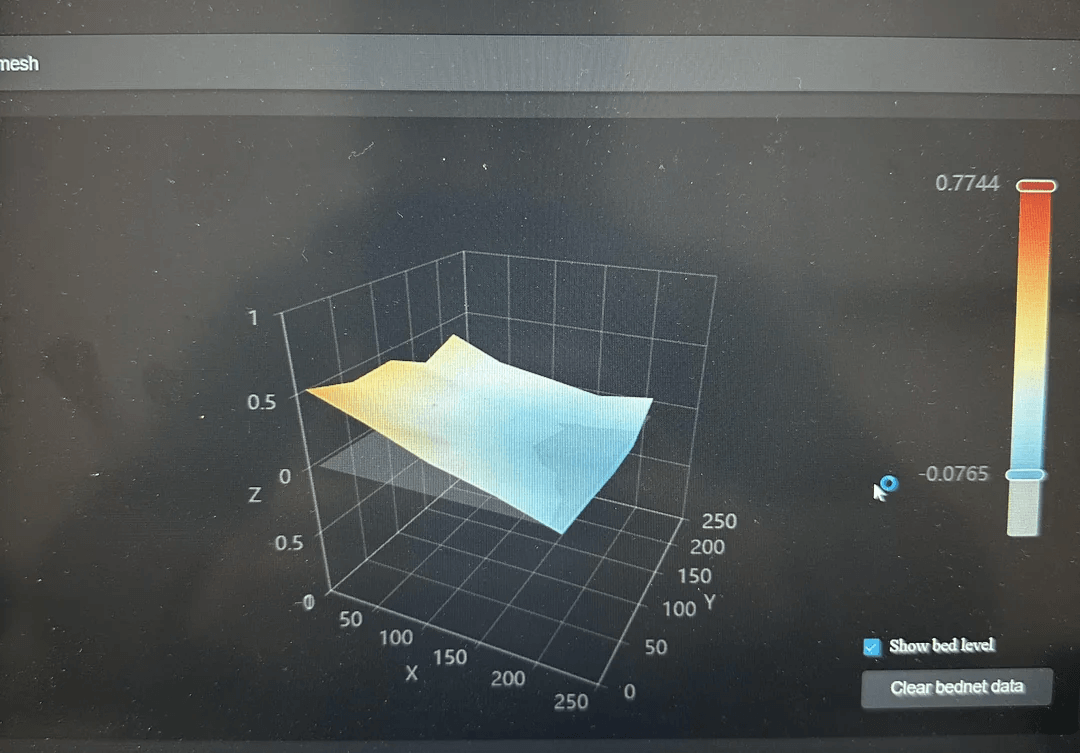
Causes
The K1C utilizes supported leveling; however, still diversions occur because of mechanical switching, deformed beds, or inappropriate calibration. In fact, a minor distinction in height across the bed surface can cause bad adhesion and spaces between layers.
Fix
-
Operate the assisted leveling setup of K1C from the touchscreen
-
Run a manual test at every corner of the printer bed with different temperatures to get better first layers.
-
Preheat your printer bed for 10 minutes, do the probing sequence, and adjust the flow down to avoid over-extrusion.
-
Calibrate the live Z-offset during the initial layer print for accuracy
-
Check the bed surface with a straight edge to explore warping. Change the build plate if required. Use a slightly thicker aluminium plate
9. Violent Homing After Moonraker Install
On the K1C, this mostly emerges after the Moonraker installation or altering macros. The print head starts moving aggressively when attempting to home, and that can damage the gantry or restrict switches.
Causes
-
Defective G-code macros from the Moonraker installation
-
Wrong turn on or sensor feedback in firmware
-
Motor activity instructions conflicting with printer defaults
Fix
-
Revert to the former steady firmware in case the problem started right after the install
-
Evaluate the printer.cfg file in Moonraker and confirm homing macros are properly defined
-
Inspect every axis by hand to verify limit switches react correctly.
-
Reinstall the K1C firmware with the official release of Creality when customized macros keep creating issues.
10. Boot Freeze at Logo Screen
The last but not least frequent K1C 3D printer issue is that K1C freezes in the LOGO screen following booting, unresponsive.
Causes
-
The damaged module
-
The faulty firmware
-
The abnormal mainboard
-
The defective mainboard
Fix
-
From the mainboard, turn off all the connections, except just the 24V power cable and the touchscreen cable. Switch on the power to check if the primary interface can be analyzed. In that case, link every terminal separately and decide which terminal is associated with the LOGO interface.
-
It is advised to reflash the mainboard firmware
-
If reflashing does not work, change the motherboard.
Conclusion
Sometimes modern tools such as the Creality K1C face usual problems during routine usage. Beginning at the layer shifting to the printer stuck at the logo interface, each issue has a dependable solution. Additionally, routine maintenance and carefulness stay the ideal defense against repeated errors.