







































Your 3D print may look perfect until you flip it over and see the bottom, where there is a slight bulge along the edges. This common issue, known as 3D printer elephant foot, happens when the first layer is overly compressed, causing it to spread outward.
While it seems minor, elephant foot can affect the dimension and fitting of the 3D print. In the following section, you will learn about the causes of 3D printer elephant foot, as well as the compensation technique to achieve a flawless first layer.
What Is Elephant Foot in 3D Printing?
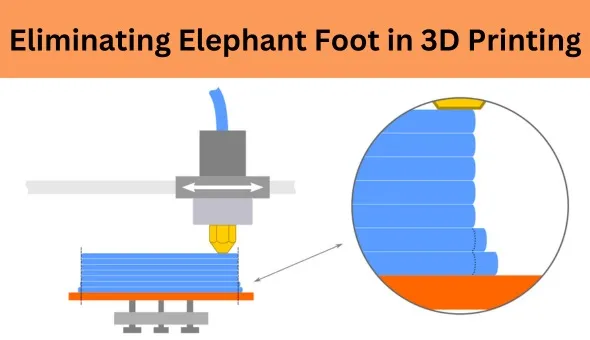
“Elephant foot” is a defect at the bottom of a 3D print in which the first layer or layers are “wider or bulged out” compared to the rest of the part.

The “Elephant foot” phenomenon is important as it affects the dimensions of the part. For instance, a box and a lid may not match or mechanical parts may not align properly.
What Causes Elephant Foot in 3D Printing?
This happens when the first few layers stay warm and pliable for too long and the weight of the upper layers presses them outward. Key factors include:
-
Nozzle too close to bed (Z-offset too low): If the nozzle is set too near the build plate, then the filament is squished onto the bed. This additional pressure causes the first layer to bulge outwards.
-
High bed temperature: If the bed is too hot, then the filament is almost liquid when extruded onto the bed. This soft layer is not able to set properly and is pushed outwards when the head moves over it.
-
Over-extrusion on first layer: Excessive extrusion or a high first layer extrusion width causes the first layer to bulge outwards.
-
Poor cooling of first layers: Lack of cooling of the first layer causes the base to remain soft and bulge outwards due to the weight of the other layers.
-
Uneven bed leveling: If the bed is not perfectly flat or is unevenly leveled, then the nozzle is closer to one edge than the other and causes uneven bulges.
Here is a quick reference of common symptoms and likely causes:
|
Symptom (What you see)
|
Likely Cause
|
|
Bottom edge bulging or flaring outwards
|
Nozzle height too low; bed temperature too high; first-layer
|
|
Rounded, drooping corners on base
|
As above (excess squish and weight on corners)
|
|
Part wobbles on table (unstable base)
|
Base not flat due to bulging or warping
|
|
Printed pieces do not fit together
|
Base is oversized (elephant foot)
|
|
Rough or glossy bottom surface
|
Too-high bed temp; material not solidified before next layer
|
How to Remove Elephant Foot in 3D Prints
Fixing elephant foot is a stepwise process. This involves quick hardware fixes, followed by advanced slicer/design fixes. Below are some steps you can take:
Re-level the bed and set Z-offset
Make sure your bed is perfectly leveled, and you have raised your nozzle slightly. Many problems are caused by improper leveling.
If your first layer is being oversquished, you should try raising your Z offset by 0.05-0.1 mm. Next, print a pattern to make sure your base is not being flattened too much.
Lower the bed temperature
Lower your bed temperature by small increments, e.g., by 5 degrees, from its default value for your filament. For PLA, you should use 50-60 degrees, whereas for ABS, you should use approximately 90-100 degrees.
A high bed temperature causes the layers to be “more fluid” and consequently “spread outwards” when squished by the nozzle. By lowering your bed temperature, you may be able to dramatically reduce the size of your bulge.
Reduce first-layer extrusion
In your slicer, turn down the first-layer flow rate or line width. For example, set the first-layer flow to 90–100% or decrease the first-layer line width (if your slicer allows). Less material extruded means less bulging.
Increase cooling on early layers
Switch on your cooling fan early, e.g., on layer 2 or 3 instead of later on. This will ensure that the base is solidified before being pressed down by the later layers. PLA should be cooled early on. Some printers let you set a lower fan speed (e.g. 50%) for the first layer and full speed on the second layer.
Enable a brim (if needed)
A brim consists of a series of outlines on the first layer, which aids adhesion and may allow squish distribution across a larger area. This does not eliminate elephant foot but may stabilize the print edges. Consider adding a brim of 5-10 mm, which may ensure adhesion without affecting print geometry.
Use a raft for severe cases
For an efficient approach, use a raft. A raft is a thick base under the model. The raft will bear the deformation. The base of the model will be printed flat. After printing, you simply peel off the raft, leaving a flat bottom.
Design fixes
In your CAD model, add a small chamfer or fillet (e.g. 0.5–5 mm at 45°) to the edges of the base. This hides some of the bulge in a sloped surface. Simply rounding or beveling the base corners ensures any elephant foot sits on the angled face instead of the functional bottom.
What Is Elephant Foot Compensation in 3D Printing?
a test print of a simple object (such as a calibration cube) should be done. If everything else fails and elephant foot is still a problem, this might be the last option: elephant foot compensation. This is an option found in some slicer software that attempts to correct the elephant foot effect.
In PrusaSlicer (v2.2 and above), the setting named “Elephant Foot Compensation” automatically reduces the perimeters of the first layer by a certain amount. It also detects thin walls on the first layer and avoids over-compensating them."
Cura has a feature called "Initial Layer Horizontal Expansion" which can be used for this. If a negative number (for example, -0.1mm) is entered for this parameter, it is effectively telling Cura to print the first layer inside the boundaries of the model.
When Should You Use Compensation vs Manual Fixes?
The table below helps decide when to rely on slicer compensation and when to fix hardware/settings manually:
|
Condition
|
Recommended Fix
|
|
Minor bulge, non-critical dimension
|
Enable elephant-foot compensation (or negative horizontal expansion) for a quick software fix.
|
|
Severe bulge, tight tolerances needed
|
Focus on leveling Z-offset, bed leveling, lower bed temperature.
|
|
First attempt, uncertain cause
|
Calibrate machine (bed leveling, Z-offset) first, then use compensation if needed.
|
|
ABS or materials requiring high bed temp
|
Try mechanical fixes (cooling, chamfer) before compensation, as heat is main factor.
|
|
After mechanical fixes are done
|
If a slight bulge remains, fine-tune with compensation for exact accuracy.
|
Common Mistakes to Avoid
If you want to get rid of elephant foot in your 3D prints, here're common mistakes to avoid:
-
Only relying on slicer fixes without calibration: A negative expansion or compensation won’t cure elephant foot if the nozzle is extremely low or the bed is vastly overheated. Always level the bed and set a proper Z-offset first.
-
Over-adjusting compensation: Setting an excessive negative expansion or compensation value can make the base undersized or cause brim separation. Adjust in small steps (0.05–0.1 mm) and re-test.
-
Forgetting to check bed leveling: An uneven bed means one side of the nozzle can be lower, creating localized bulge. As Tom’s Hardware warns, even top printers have issues if the bed isn’t flat.
-
Printing at too high a bed temperature: Although bed temperature is important, you should avoid printing with an extremely high temperature, as it may lead to an overly soft base. For example, PLA typically needs only ~60 °C.
-
Not inspecting prints: Elephant foot cannot be checked on your slicing software, as it will only be visible on your actual print. Therefore, check your actual print when needed.
By avoiding these pitfalls, you can diagnose and fix elephant foot more efficiently.
Wrapping Up
The problem of elephant foot is a nuisance, and the solution is to completely avoid it by calibrating and controlling the following settings: level your bed, set the right Z-offset, dial in the correct bed temperature, and ensure good first-layer settings. With these methods, you can completely avoid the bulging of the base, and the first layer settings can be crisp and smooth, and the prints can fit perfectly.