

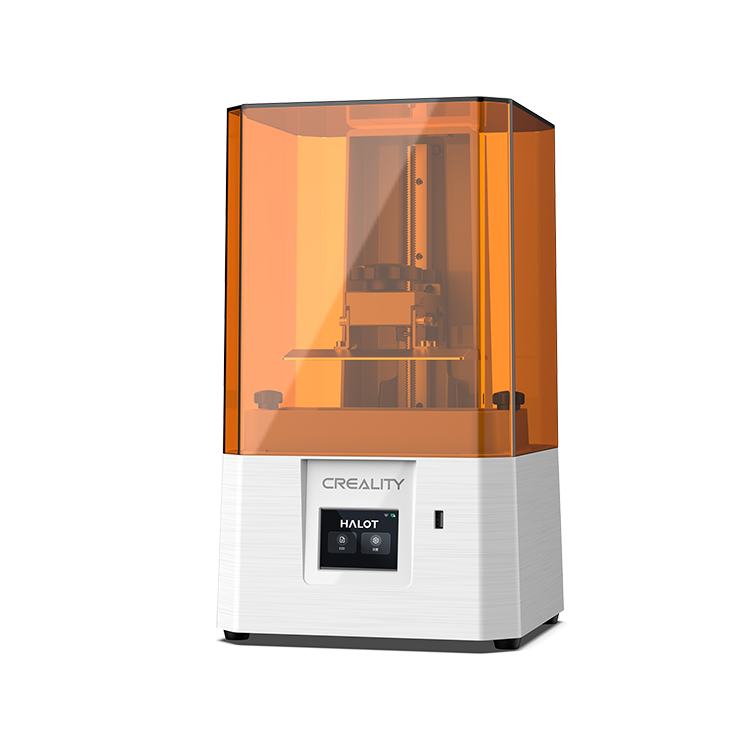
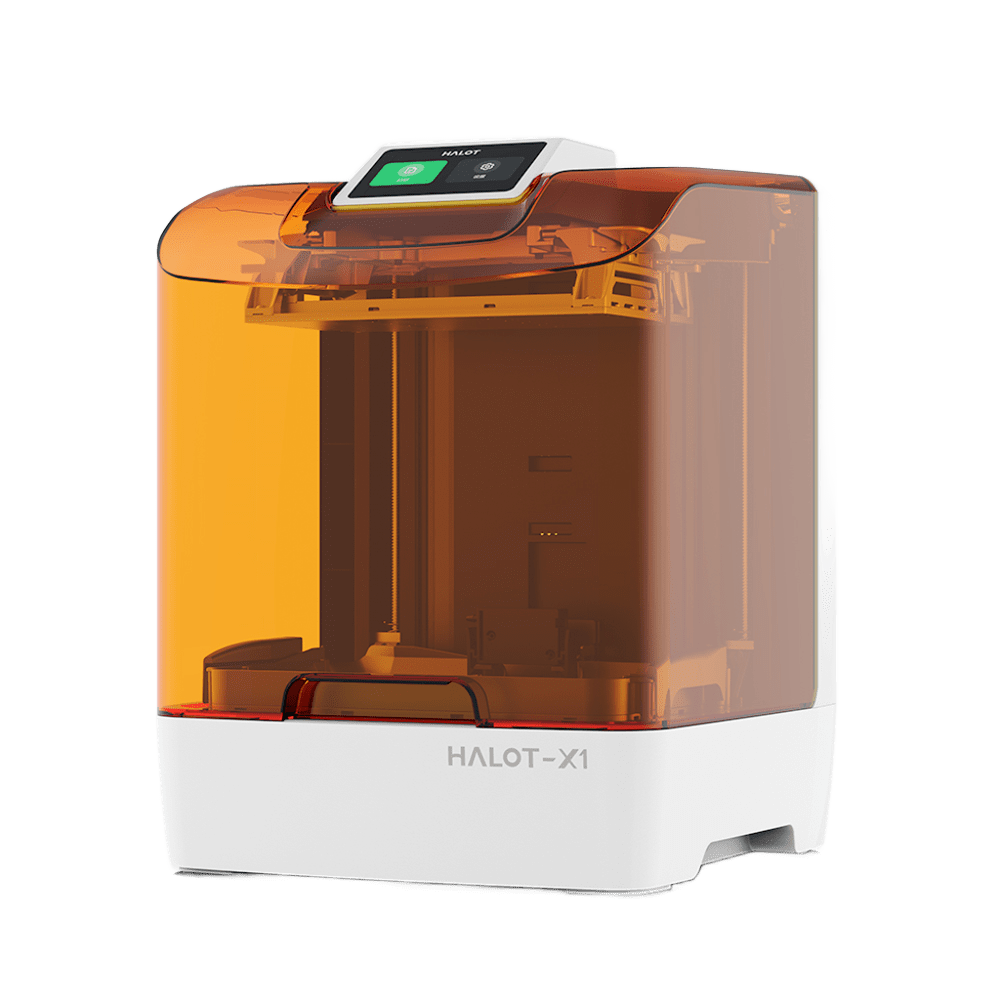
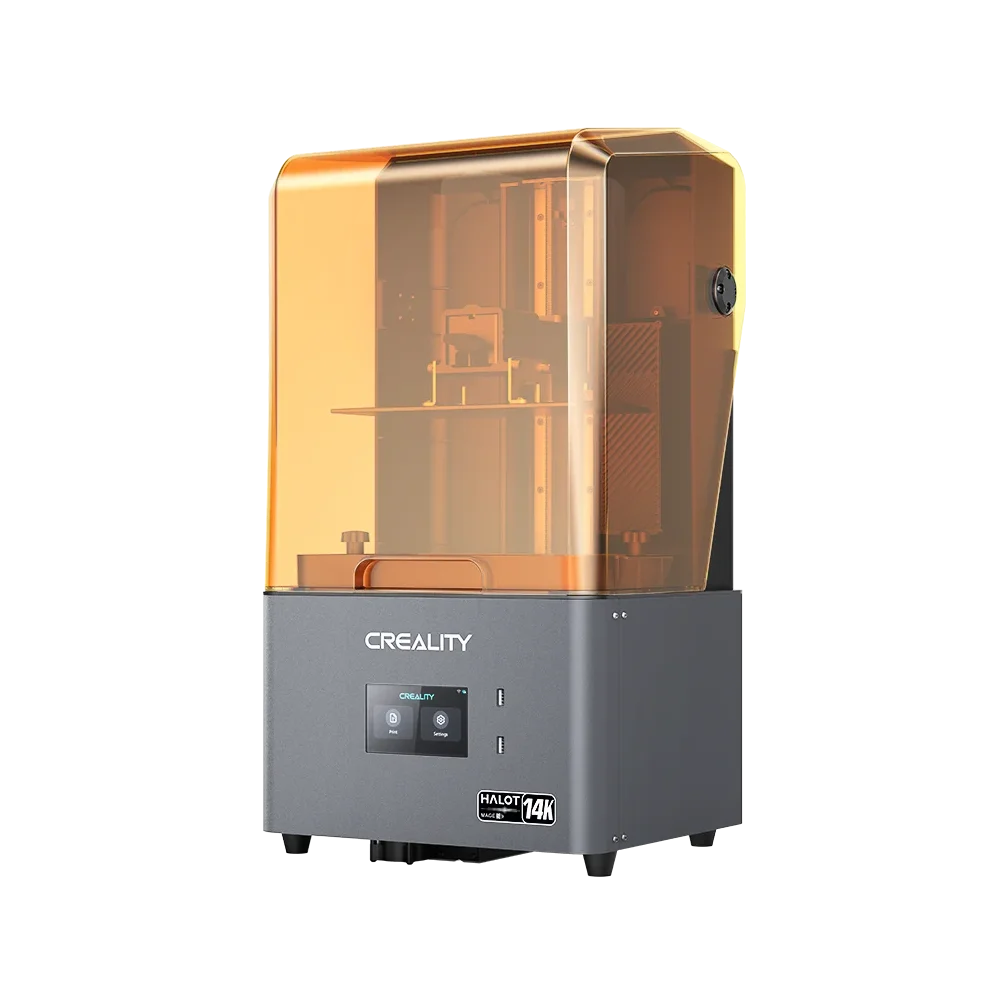
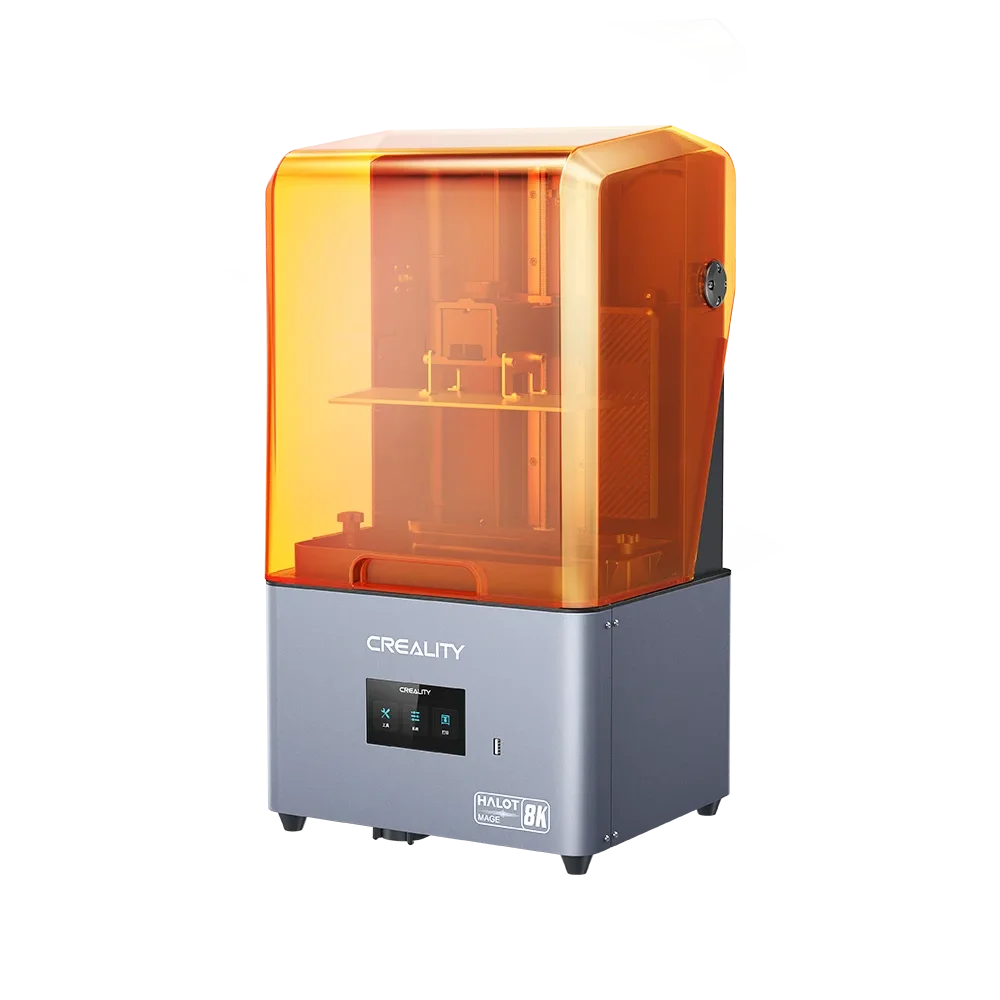
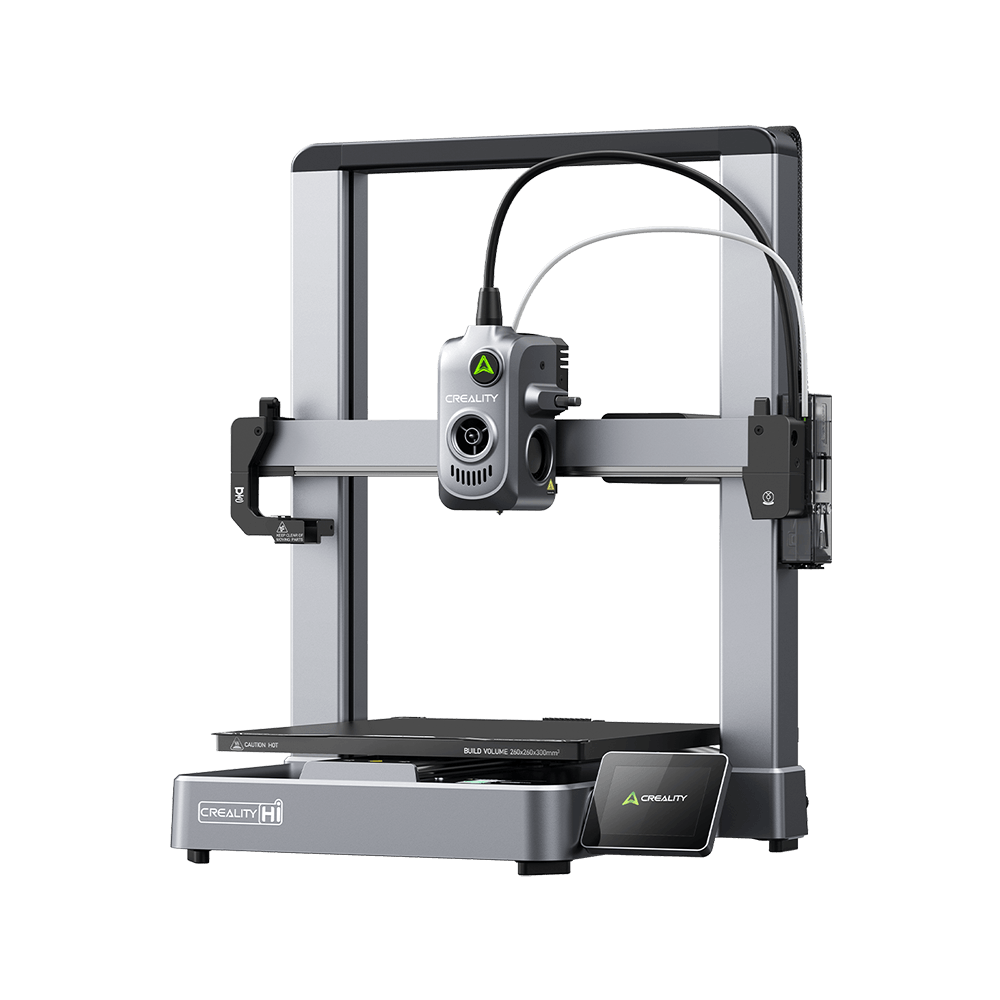

Most print quality issues are not equipment failure; they are calibration problems. This is what most newbies are not aware of. Do not just unbox a 3D printer and hope for ideal prints right off. First, your printer requires proper calibration. 3D printer calibration is not a one-time setup you perform once you unbox the machine. It’s an ongoing procedure that ensures each print will unfold the same way each time. This guide discusses how to calibrate a 3D printer, every calibration step in the right order, why calibration matters, and the tools you need before starting.
Why Calibration Matters?
Calibration is the cornerstone on which everything else is built. It makes no difference how strong your printer’s hardware is, how good your filament is, or how detailed your model is. If the printer is not calibrated properly, the output suffers every time.
Below is what calibration directly manages:
-
Dimensional precision, if the completed part matches the designed measurements
-
First layer adhesion, if the print sticks to the bed or lifts mid-job
-
Surface quality, whether the walls are smooth and reliable or rough
-
Structural strength, if layers bond correctly or split apart under light pressure
The combined impact is what most people misjudge. A Z-offset error of only 0.1mm does not affect one layer; it affects each layer above it. A flow rate set 5% very high, does not generate one blob; it generates excessive material on every single line deposited over the whole print.
What You Need Before You Start?
Calibrating a 3D printer without the proper tools creates guesswork, not results. Before beginning any calibration step, prepare these 3d printer calibration tools :
-
Wipe the build plate with isopropyl alcohol (IPA) before each calibration session. Debris and oils make outcomes inconsistent.
-
Digital calipers are key for calculating filament movement and wall thickness precisely during E-step and flow rate calibration
-
Slicer software, Creality Print, Orca, or equivalent. Default profiles are a beginning point, not a finished calibration
-
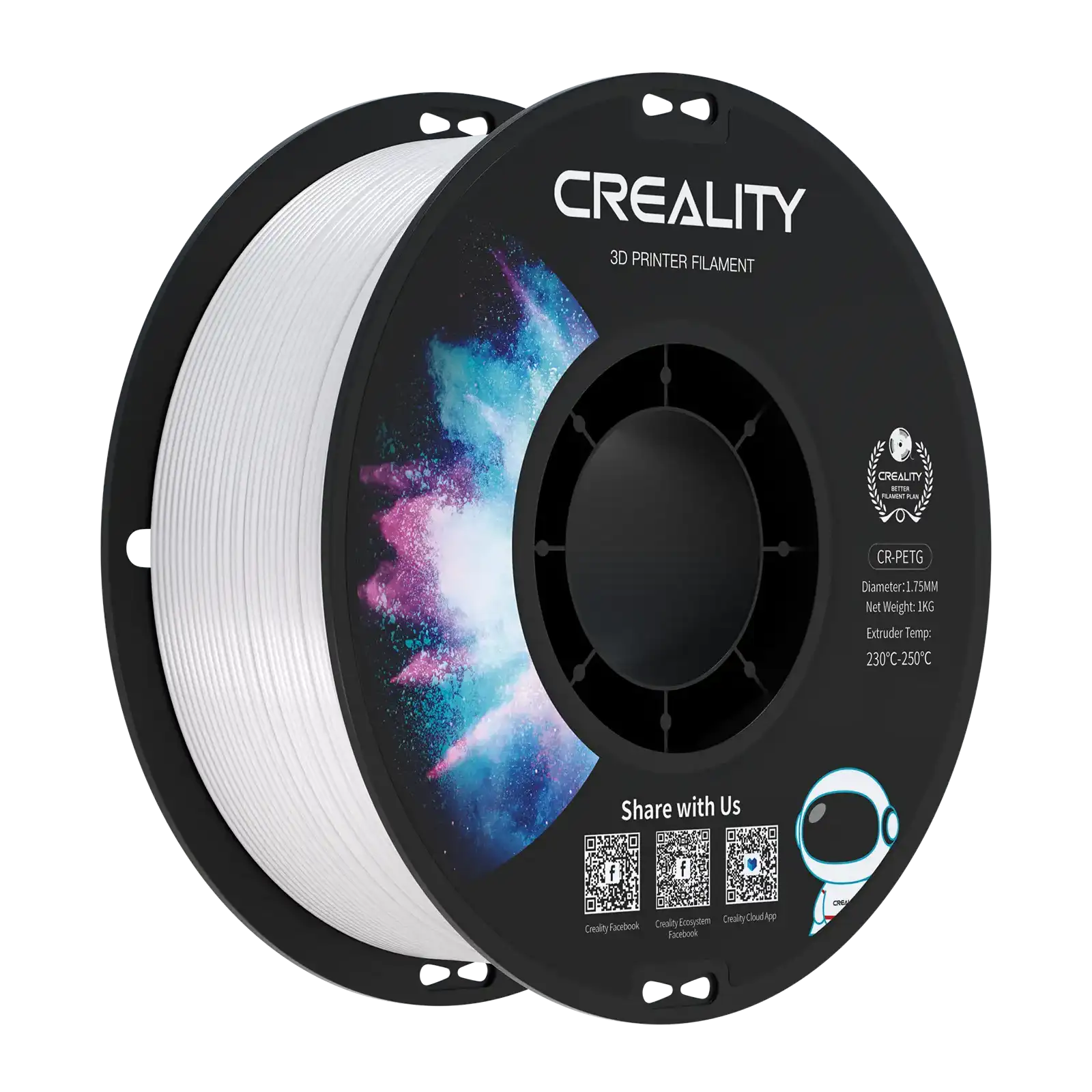
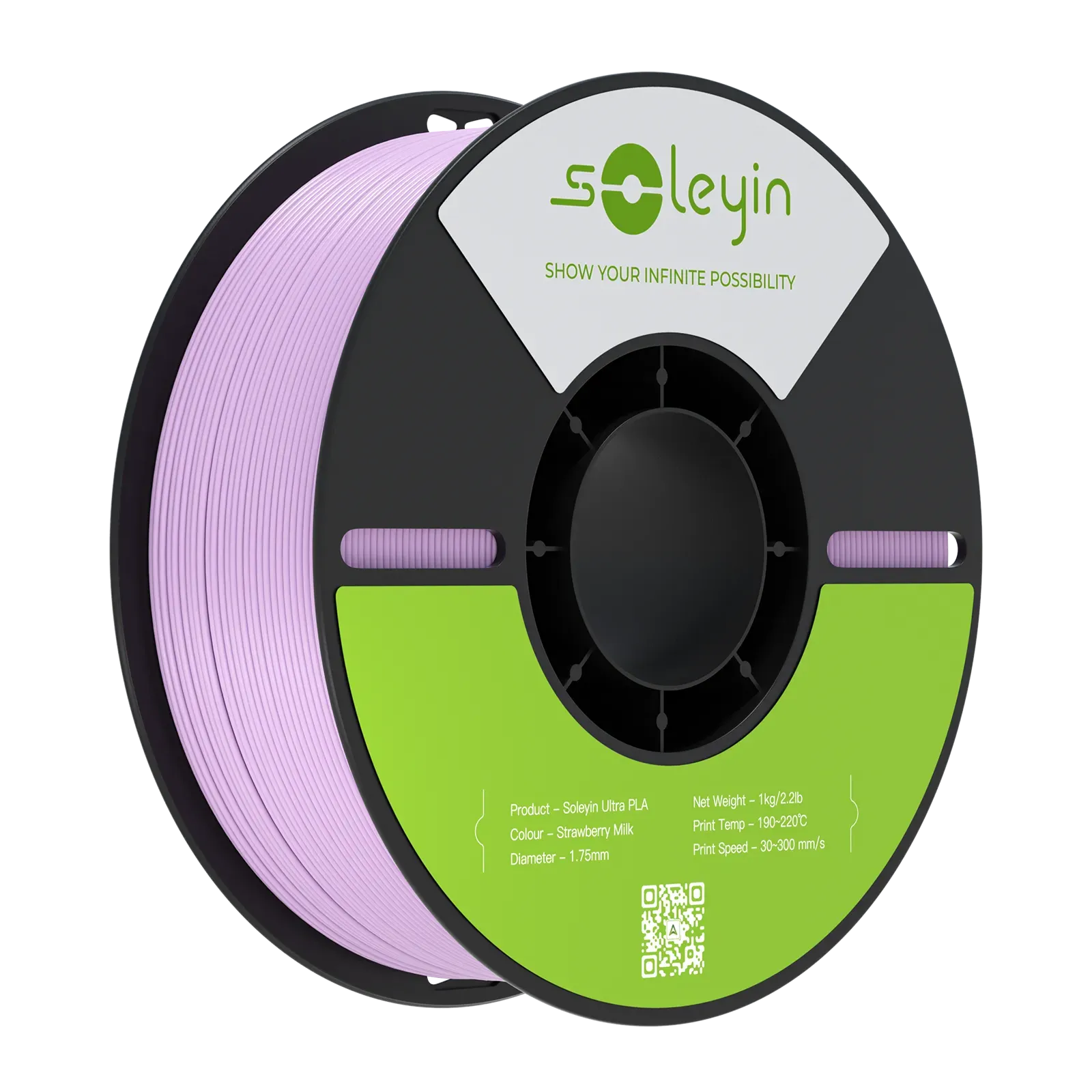
A known, dry filament spool, because water-damaged or unfamiliar filament adds variables that skew calibration results
-
30-60 minutes, as rushing creates poor outcomes. Every step requires a test print, a measurement, and an adjustment
Step 1: Bed Leveling, The Foundation of Every Good Print
The very first and most essential step is bed leveling. An uneven bed generates inconsistent initial layers across the whole print surface. One corner bonds excellently. Another corner barely touches. The print twists, lifts, or fails, and no amount of Z-offset adjustment fixes a bed that is not level. Each calibrating 3D printer method begins here.
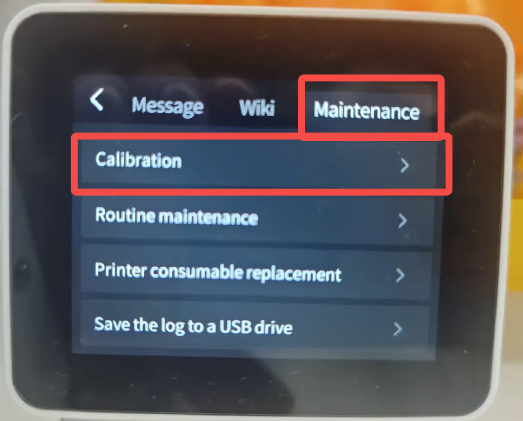
Auto Bed Leveling
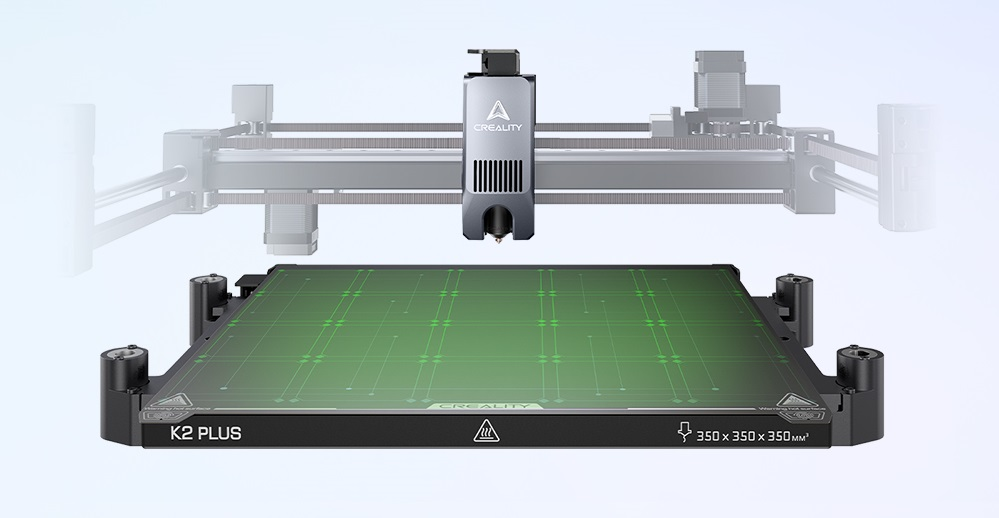
Most innovative printers involve automatic bed leveling, a probe maps several points across the build surface, and compensates for any inconsistency automatically. Here’s how it functions and when to use it:
-
The probe touches the build surface at various points, generally a 3×3, 5×5, or 7×7 grid
-
The printer produces a mesh map of the surface height variation
-
While printing, the Z-axis mechanically regulates at every point to compensate for the mapped unevenness
-
The outcome: a stable first layer over the entire bed, even if the physical surface is not ideally flat
When to run auto bed leveling:
-
After moving or shifting the printer
-
After each nozzle replacement
-
When the first layer quality declines noticeably
-
At the start of any critical or long print job
Once you run the leveling routine, inspect the mesh map on your printer’s screen or slicer. A good mesh displays little, gradual variation across the grid. Big sudden deviations at particular points signal a physical issue.
For more detailed instructions on checking the print surface and achieving a consistent first layer, read our complete 3D printer bed leveling guide.
Manual Bed Leveling
If you have a printer without auto-leveling, or as an initial assessment before running the auto routine, the paper method is the most dependable approach.
How to do it:
-
Start by heating the bed to the printing temperature, for ABS 80 °C or for PLA 60 °C, and leave it for 10 minutes to get settled.
-
Home the printer, bring the nozzle to the home position
-
Shut off the steppers to move the print head manually
-
Put a printer paper sheet under the nozzle
-
Adjust the bed corner till you feel a bit of resistance when sliding the paper; the nozzle must grip the paper lightly without tearing it
-
Work in a cross pattern: front-left → back-right → front-right → back-left → center
-
Run the entire series twice, regulating one corner impacts the adjacent corners, so a second pass fixes any drift from the first
Step 2: Set the Z-Offset
Z-offset gets the nozzle at exactly the correct height above the print bed during the initial layer. This is the distance between the build surface and the nozzle tip during the printer’s home position. It is a small number, mostly less than 1mm, but it has a larger effect on print quality than almost any other setting.
Very low, and the nozzle scrapes the surface and compresses material outward. Very high, and the filament does not adhere to the bed. The difference between the ideal first layer and a failed one is mostly only 0.1mm.
What a correct Z-offset looks like:
-
First layer lines are squished a little, pressed into the surface, not sitting on top of it
-
Lines touch and fuse together, with no gaps noticeable between them
-
The layer has a bit of sheen, not transparent, not raised
How to Adjust Z-Offset
-
Make tweaks in 0.05 steps; the Z-offset is sensitive. Big adjustments exceed the target.
-
Do a first-layer test print after each adjustment, a simple, large, thin rectangle or grid pattern that covers most of your bed works well
-
Monitor the outcome before modifying again, let the test complete at least one full layer before judging
-
Keep adjusting until the first layer seems squished, even, and gap-free over the entire surface
Step 3: E-Step Calibration
E-steps calibration assures the printer ejects precisely the correct amount of filament. Every other extrusion-related setting, pressure advance, flow rate, and retraction only function properly if E-steps are correct first.
How to Calibrate E-Steps?
Firstly, get ready a marker, digital calipers, and access to your printer’s terminal or control panel.
Step by Step:
-
Primarily, warm your hotend to the filament printing temperature; ABS (220 to 250 °C), PLA (190 to 210 °C) to remove cold extrusion resistance.
-
Mark the filament, calculate 100mm above the extruder access point, and make a mark. Measure 120mm and make a second mark.
-
Direct 100mm extrusion through the printer’s control panel or terminal, command the extruder to move precisely 100mm of filament.
-
Assess what truly moved from the extruder entry point to your first mark. The distance remaining tells you how much filament actually moved.
-
Measure the right E-step value using this formula: New E-steps = (Current E-steps × 100) ÷ Actual mm extruded
-
Update the value. Put the new E-step value through the printer’s firmware settings or EEPROM. Save and restart the printer.
-
Verify, repeat the 100mm extrusion test. Now, the filament should move just 100mm
Step 4: Calibrate Flow Rate
E-steps set the hardware baseline. Flow rates control how much filament the slicer commands the printer to deposit (software multiplier). Nailing it guarantees correct dimensional accuracy and wall thickness.
How to Calibrate Flow Rate?
You need slicer software, digital calipers, and 20 minutes per filament type. Next:
-
Slice a single-wall calibration cube. Set the wall count to 1, no fill up, no top or bottom layers. Export and print.
-
Calculate the wall thickness with digital calipers, take measurements at several points around the cube, and average them
-
Compare it to your nozzle diameter; a 0.4mm nozzle should create a wall of 0.4mm. A 0.6mm nozzle should create 0.6mm.
-
Calibrate in 2-3% increments; do not make big jumps. Little adjustments compound fast.
-
Reprint and remeasure after every adjustment till wall thickness matches the nozzle diameter constantly.
Step 5: Temperature Calibration
Print temperature influences everything: surface quality, layer adhesion, stringing, and bridging performance. Each filament brand operates a bit differently, even within the same material type.
How to Run a Temperature Tower
-
Begin by inspecting the temperature variation on the filament spool or the designer’s website. Generally, 190–220°C is the best temperature for PLA, 230–250°C for PETG, and 230–250°C for ABS.
-
Download a temperature tower model, find one on Creality Cloud
-
Organize the model to alter the temperature at defined height intervals
-
Print the tower and assess every section. The perfect temperature brings a good bridging, robust layer adhesion, and smooth surface
-
Select the section that does best across all four criteria
-
Set that temperature as your profile default for that filament
Step 6: Pressure Advance / Linear Advance
When the extruder ejects filaments, there’s a slight delay before it appears at the nozzle tip; pressure increases in the hotend before it releases. At corners and direction changes, this delay causes excessive material to deposit just as the print head slows down, producing bobs, rounded edges, and inconsistent line width.
Pressure advance satisfy that delay by lowering extrusion slightly before a direction change and boosting it just after.
How to Calibrate Pressure Advance
-
Print a Pressure Advance test pattern, available in Klipper, Orcae Slicer, and most modern slicers as an integrated calibration tool
-
Evaluate the pattern, search the section where corners are sharpest, lines are steady, and no extra material appears at direction changes
-
Record the value at that section of the pattern
-
Enter the value into the firmware settings or slicer profile
-
Run a test print of a geometric model, a simple cube or market, to verify corners are clean at your normal print speed
Conclusion
Appropriate calibration needs some time initially; however, it brings vast benefits later. A properly calibrated printer creates high-quality, dependable prints with little trouble. You will save time on debugging failed prints and spend more time producing incredible projects. Preventative maintenance and recalibration keep your printer at its peak performance.