
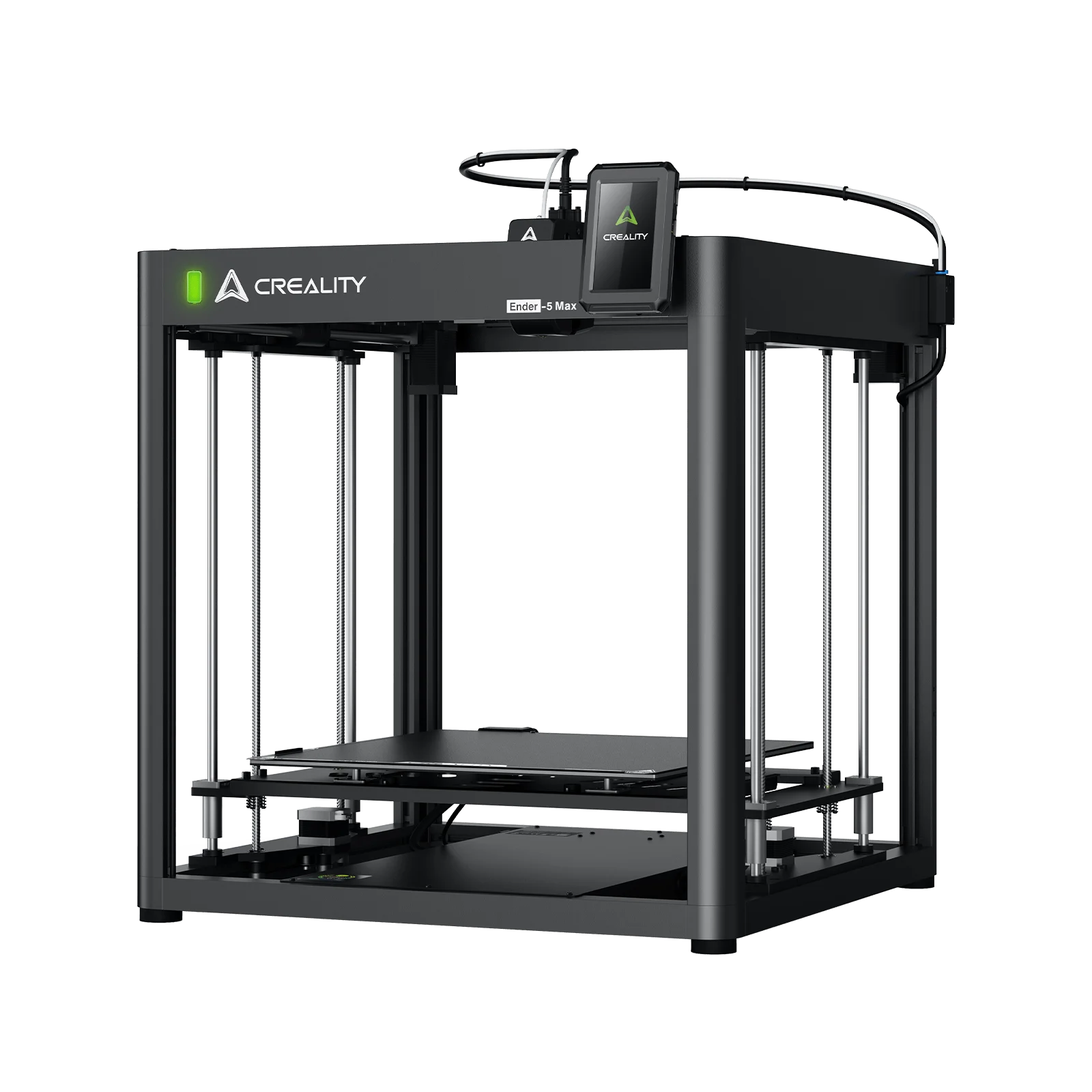
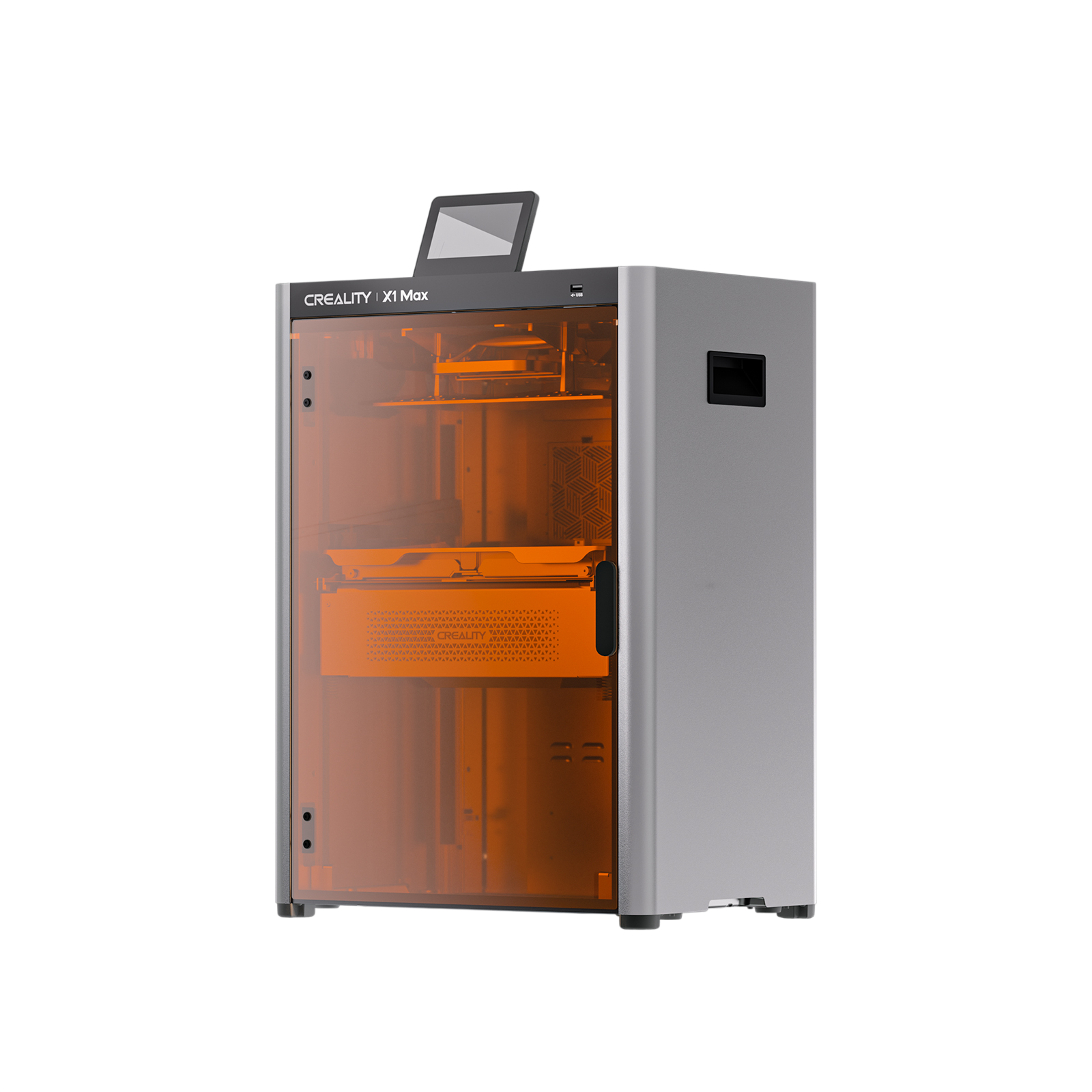
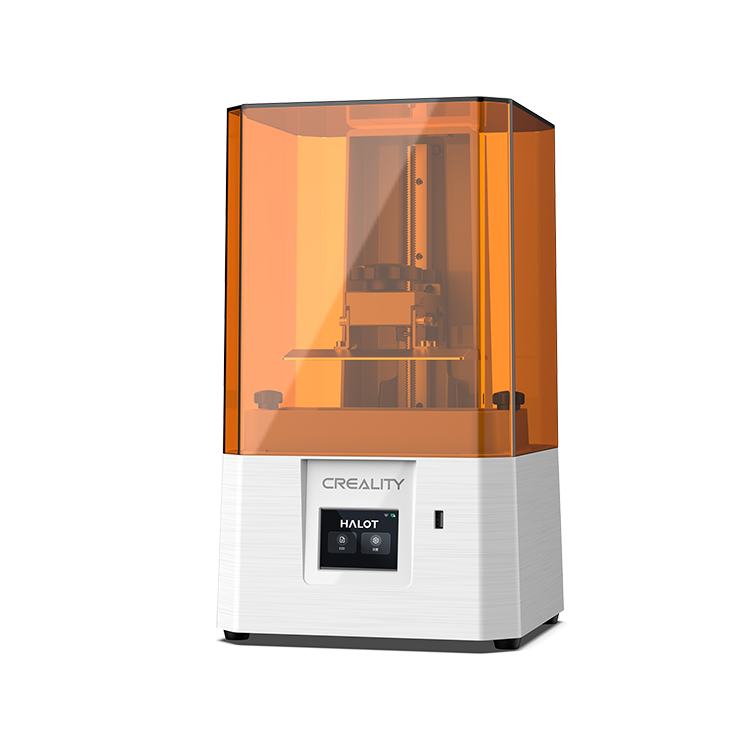
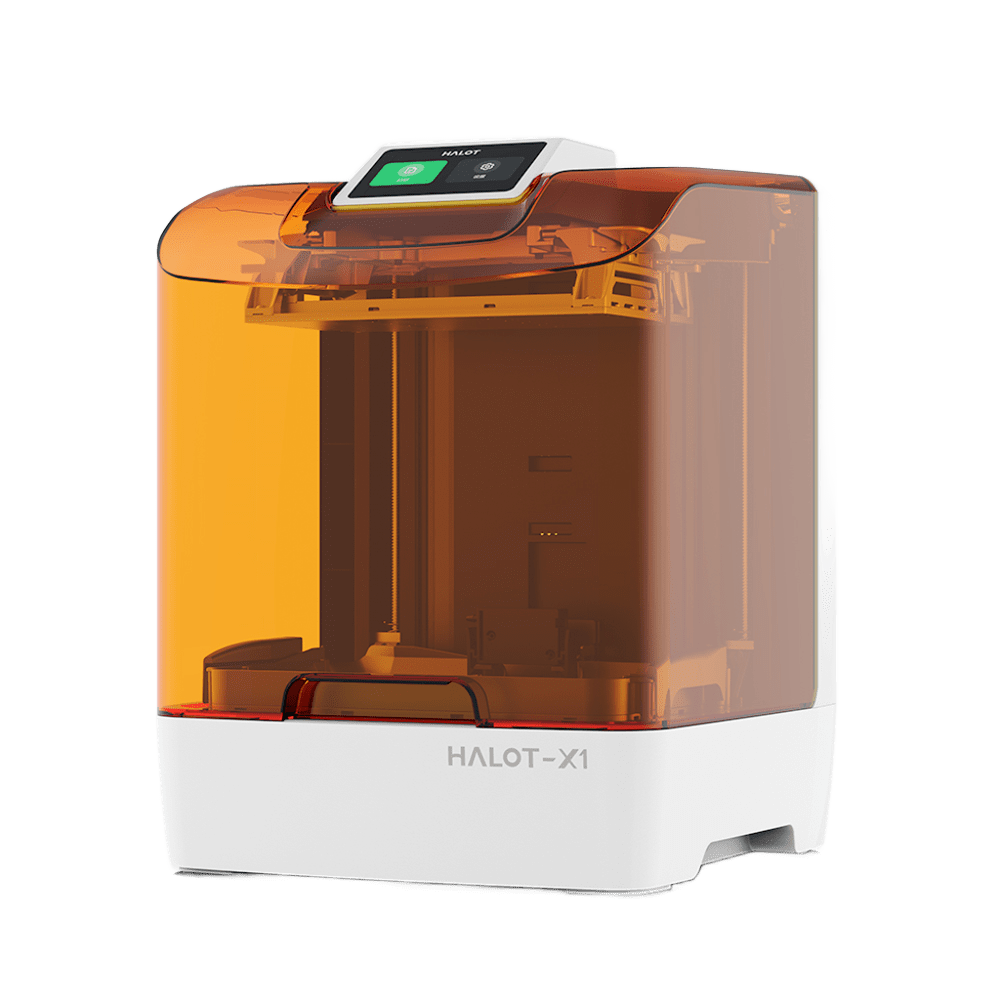
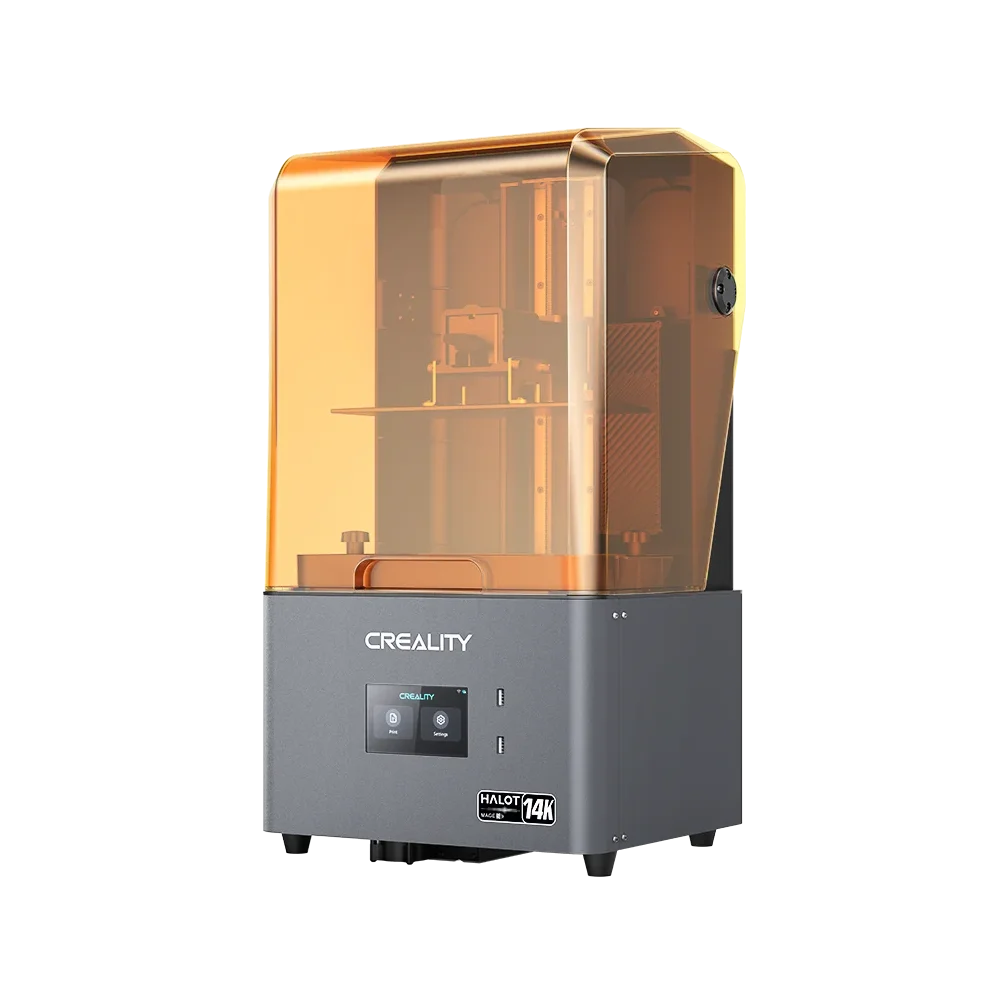
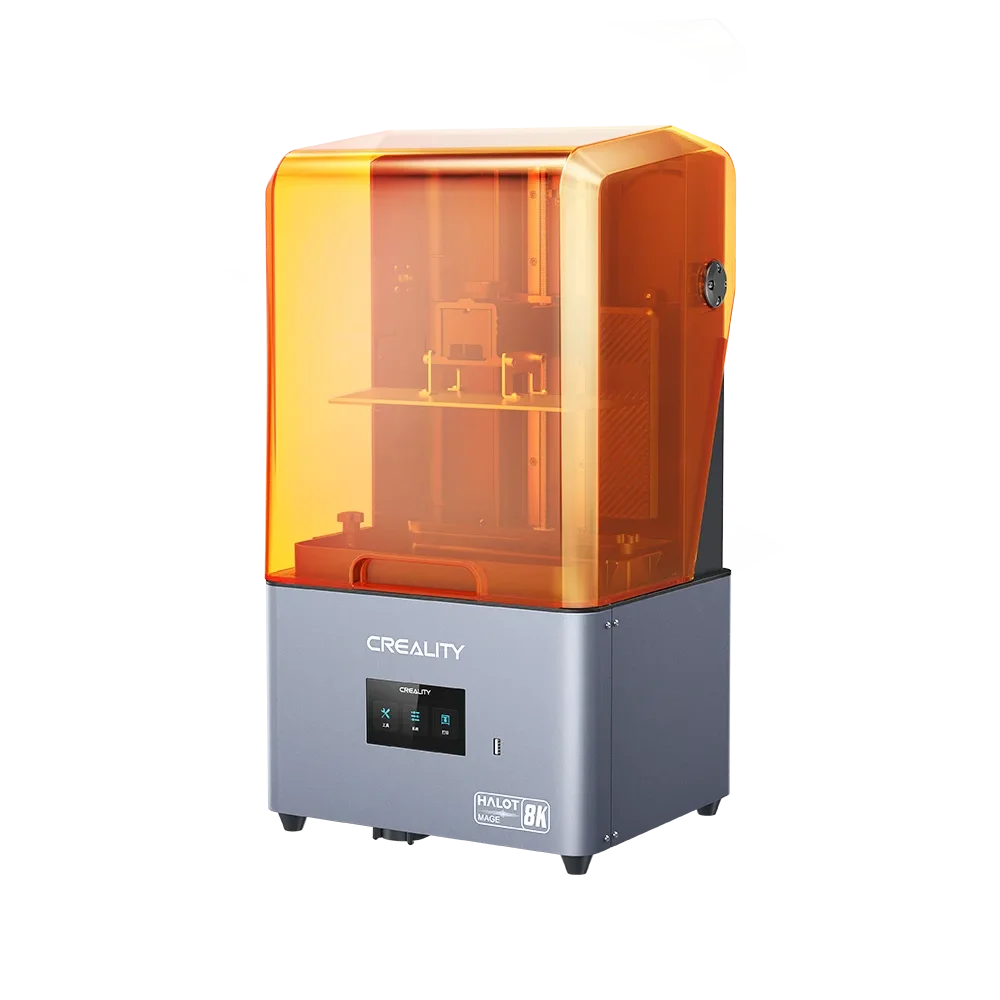
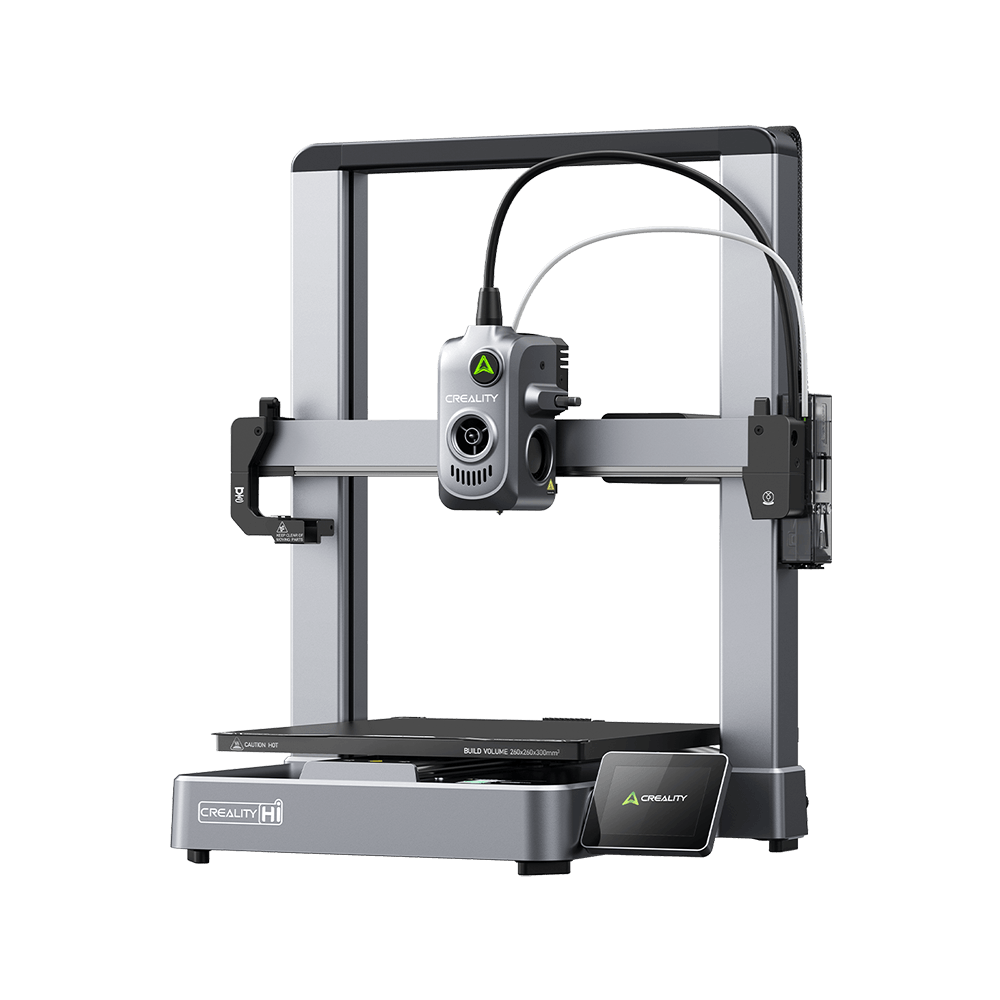
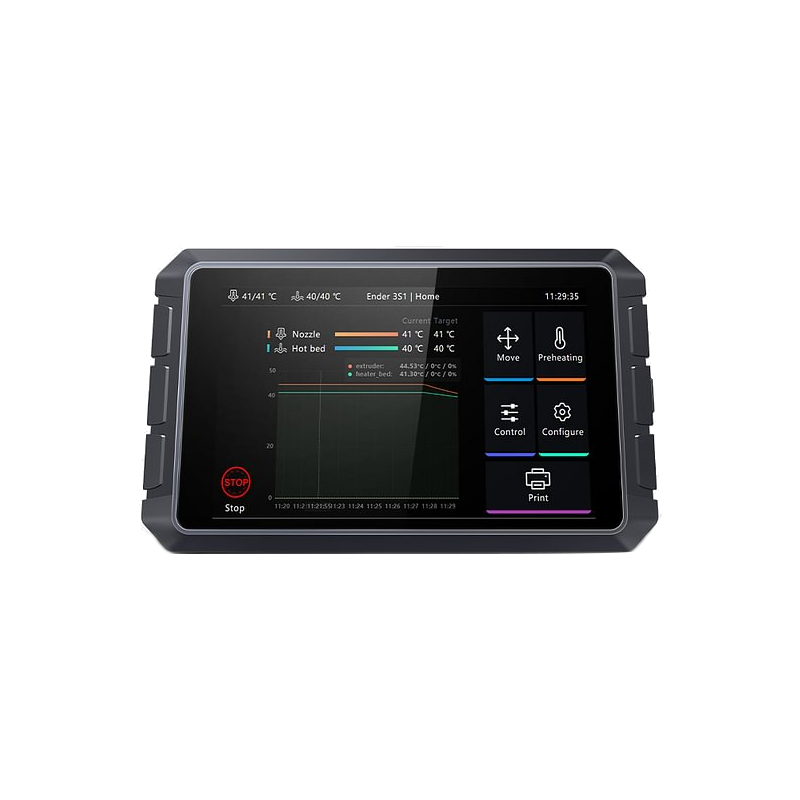

You've just purchased a brand new 64GB USB drive, loaded it with G-code files, but your 3D printer displays the dreaded "No files found" message. Your computer reads the drive perfectly, yet your printer acts like it's empty.
The culprit? Your USB drive is formatted with GPT (GUID Partition Table) instead of the MBR/MSDOS partition scheme your printer requires. This incompatibility frustrates thousands of makers daily, wasting hours of troubleshooting time.
The solution, however, is simpler than you might think once you understand the fundamental differences between these partition schemes and why 3D printers universally require the older MBR format.
Understanding the Core Problem: GPT vs MBR for 3D Printers
Modern USB drives often ship with GPT partition tables designed for contemporary computing systems.
However, 3D printers operate on embedded microcontrollers with severely limited resources, typically just 32 to 128KB of RAM.
These constraints make parsing GPT's complex 64 bit addressing system and CRC32 checksums impossible for most printer firmware.
MBR (Master Boot Record), also known as MSDOS partition scheme, uses a simple 512-byte structure that requires minimal computational resources.
This fundamental difference explains why your carefully calibrated printer with the perfect nozzle setup still can't recognize your files.
The technical specifications reveal the stark contrast:
-
MBR/MSDOS: 32 bit addressing, single 512 byte sector, maximum 2TB drive support
-
GPT: 64 bit addressing, redundant partition tables, integrity checksums, up to 9.4 zettabytes support
-
3D Printer Reality: STM32 microcontrollers with limited flash memory prioritizing motion control over file system complexity
Why Every 3D Printer Brand Requires MBR with FAT32?
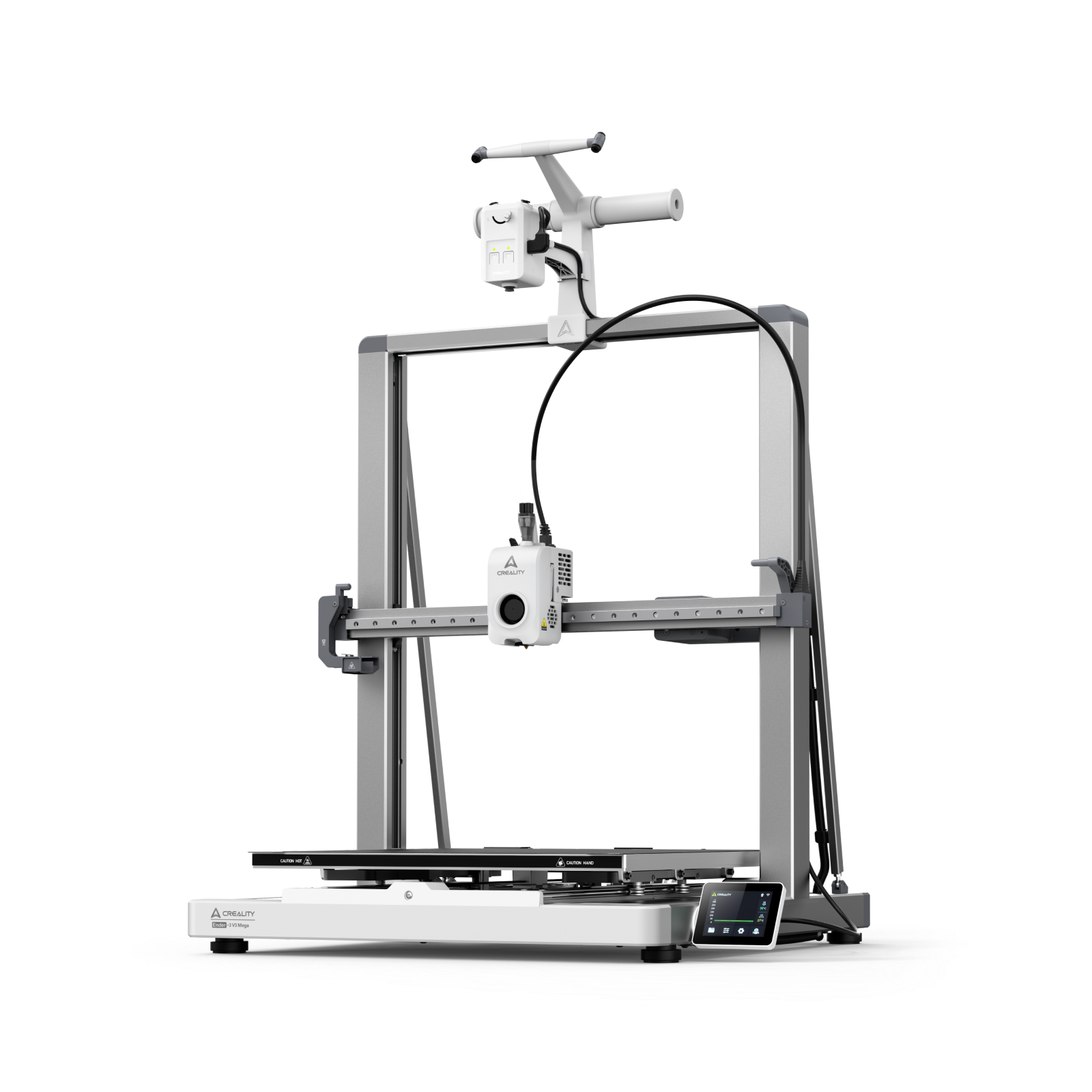
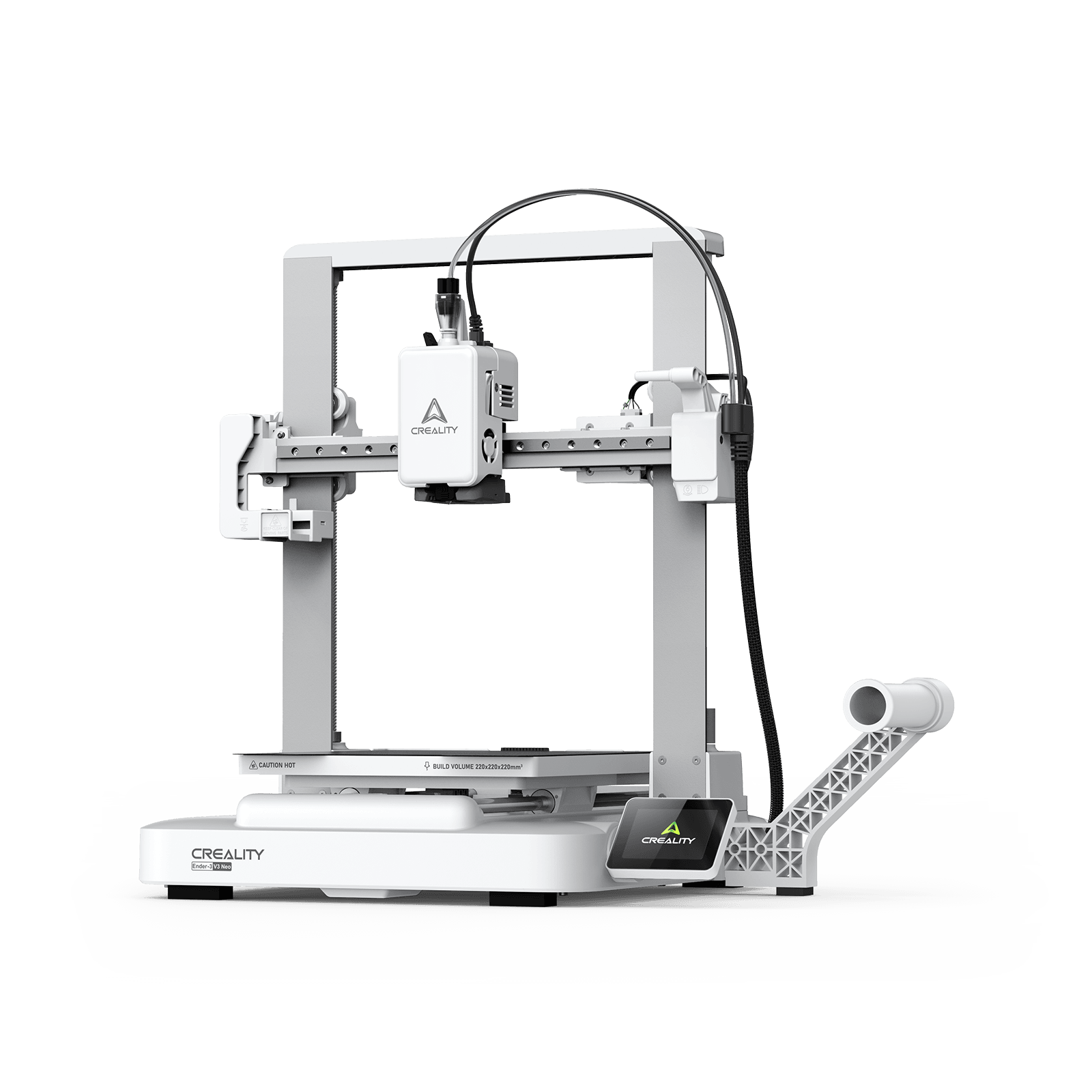
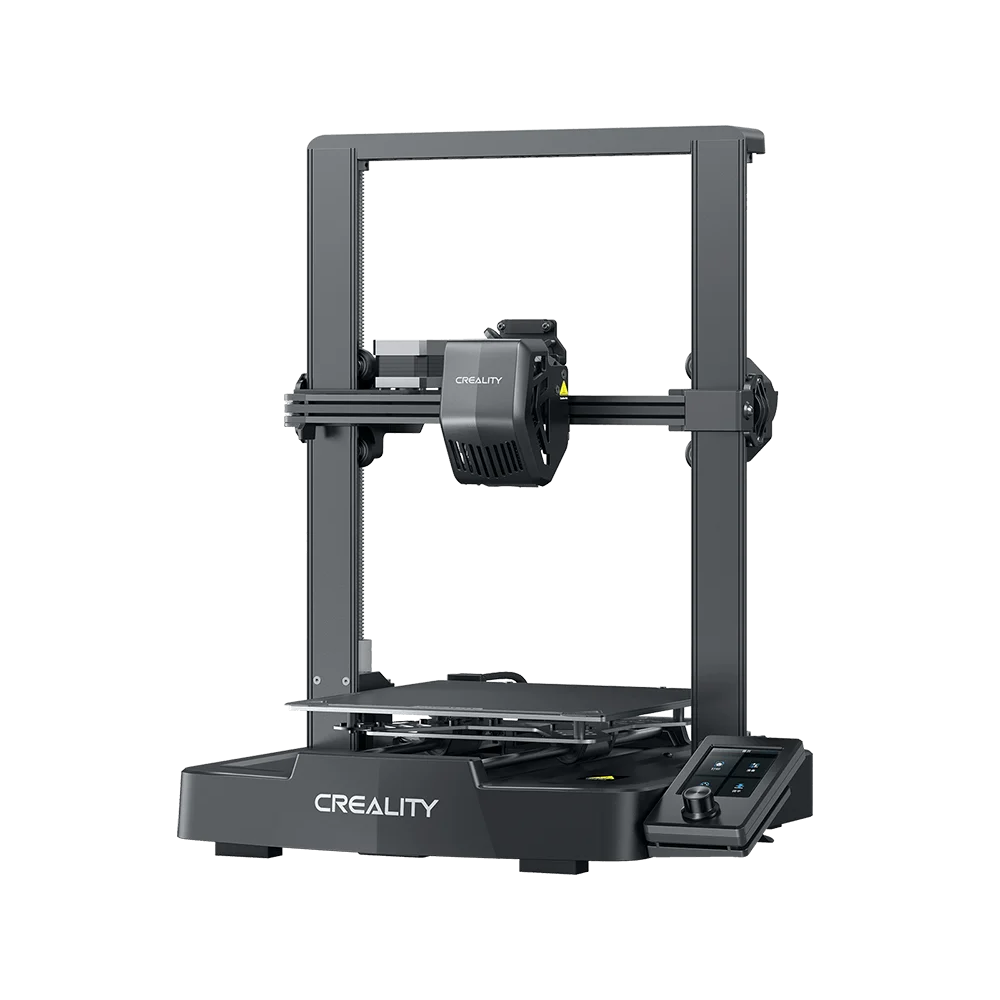
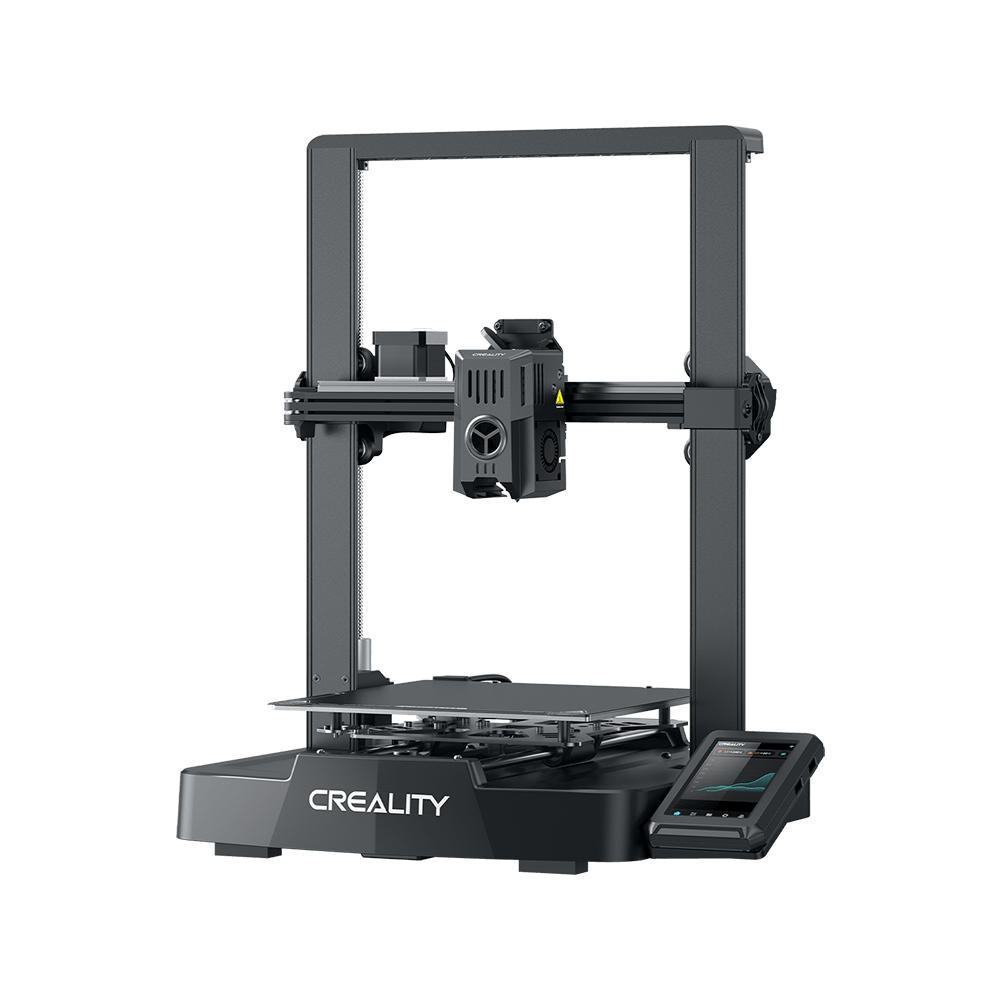
Whether you own a Creality Ender series or any other, the USB formatting requirements remain consistent: MBR partition scheme with FAT32 file system. This universality stems from firmware limitations rather than hardware capabilities.
|
Brand/Model
|
Partition Scheme
|
File System
|
Max Recommended Size
|
Special Requirements
|
|
Creality Ender Series
|
MBR
|
FAT32
|
32GB
|
4096 byte clusters for firmware updates
|
|
Creality Ender 3 V3
|
MBR
|
FAT32
|
32GB
|
USB 2.0 recommended
|
|
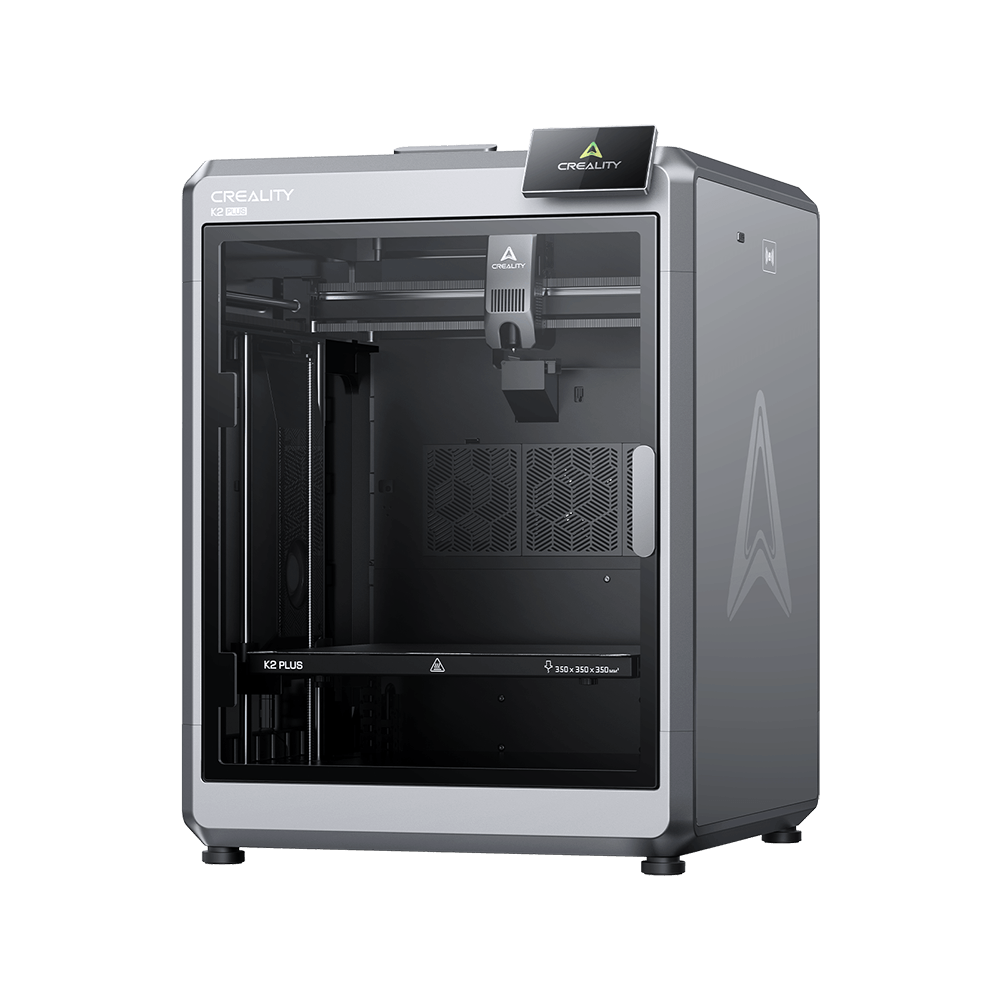
Creality K2 Plus
|
MBR
|
FAT32
|
128GB
|
Built in formatting option
|
|
Creality K1C
|
MBR
|
FAT32
|
32GB
|
Exactly 4096 byte allocation units
|
|
Creality Ender 5 Series
|
MBR
|
FAT32
|
16GB
|
Root directory placement
|
Marlin firmware, powering most consumer 3D printers including many Creality models, relies on the Arduino SD Card Library that supports only FAT16/FAT32 through FatFS middleware.
Adding GPT or exFAT support would consume precious flash memory needed for essential printing functions like temperature control and motor coordination.
Converting Your USB from GPT to MBR: Complete Guide
Forum users consistently report that converting GPT drives to MBR resolves 95% of USB recognition problems.
One Creality user noted: "Four unusable USB drives all now work after DISKPART conversion"
Here's how to perform this crucial conversion on each operating system.
Windows: Using DISKPART (Most Reliable Method)
-
Open Command Prompt as Administrator
-
Type diskpart and press Enter
-
Type list disk to identify your USB drive number
-
Type select disk X (replace X with your drive number)
-
Type clean (WARNING: This erases all data)
-
Type convert mbr
-
Type create partition primary
-
Type format fs=fat32 quick
-
Type assign
-
Type exit
For drives larger than 32GB, Windows GUI won't format as FAT32. Use third-party tools like Rufus with "Large FAT32" option and MBR partition scheme selected.
macOS: Terminal Commands for MBR Formatting
Mac users face additional challenges as macOS defaults to GPT. Use this terminal command for reliable results:
diskutil eraseDisk FAT32 PRINT3D MBRFormat /dev/diskX
Replace X with your disk number found via diskutil list. In Disk Utility, you must select "Show All Devices" from the View menu to access partition scheme options.
Linux: Complete Control with fdisk
Linux provides the most straightforward formatting process:
sudo fdisk /dev/sdX
o (create DOS partition table)
n (new partition, accept defaults)
t (change type)
b (W95 FAT32)
w (write changes)
sudo mkfs.vfat -F 32 -s 8 -n MYPRINT /dev/sdX1
Optimal USB Drive Selection and Configuration
Size matters more than you might expect when selecting USB drives for 3D printing. The sweet spot sits between 8 and 32GB for maximum compatibility across all printer models. Larger drives often trigger unexpected issues even after proper formatting.
Critical Configuration Parameters
-
Cluster Size: Standardize on 4096 bytes (4KB) for universal compatibility
-
Drive Size: 8 to 32GB optimal, 64GB+ may cause intermittent failures
-
USB Version: USB 2.0 drives work more reliably with older printers
-
File Naming: Use 8.3 format (FILENAME.GCO) without spaces or special characters
-
Directory Structure: Place G code files in root directory, not folders
Users report that 128GB drives require power cycling after every format change, while 16GB drives formatted once with MBR/FAT32 work flawlessly for years.
Professional users maintain dedicated USB drives permanently attached via extension cables to preserve printer port integrity.
Troubleshooting Common USB Recognition Issues
When proper formatting fails to resolve USB detection problems, systematic troubleshooting reveals deeper compatibility issues affecting your energy-efficient 3D printing setup.
Hardware Compatibility Problems
-
USB 3.0 Interference: Modern USB 3.0 drives can cause WiFi failures on Creality K1C printers. Test with genuine USB 2.0 drives or use USB 2.0 ports exclusively.
-
Physical Port Wear: Repeated insertions damage USB ports. Use extension cables to reduce mechanical stress on printer ports.
-
Power Draw Issues: Some high-capacity drives exceed printer USB port power limits. Try powered USB hubs for problematic drives.
Software and Firmware Considerations
Firmware limitations create unexpected obstacles. Older Marlin versions require a strict 8.3 filename format without Unicode characters. Mac users must remove hidden files using terminal command: dot_clean /Volumes/USBDRIVE to eliminate .DS_Store and ._filename metadata that confuses printer firmware.
Some printers cache drive information, requiring complete power cycling after formatting changes. Users spending "11 hours trying different solutions" often miss this simple step that immediately resolves recognition issues.
Why Do Modern Printers Still Use Legacy Formats?
The persistence of MBR/FAT32 requirements puzzles users accustomed to modern computing standards. However, embedded system constraints make newer formats impossible to support without significant hardware upgrades that would increase costs substantially.
Consider the computational overhead: MBR requires reading one 512-byte sector and parsing a 64-byte partition table.
GPT demands reading multiple sectors, verifying protective MBR, loading primary and backup GPT headers, checking CRC32 values, and parsing 128-byte partition entries.
For an STM32F4 microcontroller simultaneously managing stepper motors, heater control, and sensor monitoring, adding GPT support would require sacrificing core functionality.
FatFS, the standard file system library for embedded systems, prioritizes minimal resource usage. Supporting exFAT would require Microsoft licensing and implementing patent encumbered algorithms.
The additional 10 to 20KB code space represents significant overhead when total firmware must fit in 256KB to 1MB of flash memory.
Professional Best Practices for USB Management
Commercial printing operations develop workflows minimizing USB-related downtime. These practices benefit hobbyists managing multiple complex dragon prints or production environments.
Recommended Workflow
-
Format once with MBR/FAT32 using 4096 byte clusters
-
Dedicate drives to specific printers or material types
-
Use permanent USB extension cables to prevent port wear
-
Maintain master files on network storage, USB for transfer only
-
Label drives clearly with formatting date and printer compatibility
Professional users treat USB drives as consumables, replacing them proactively before failures occur. This approach prevents print failures during operation that waste material and time.
Future Developments and Alternatives
While USB remains essential for reliability and offline operation, alternatives emerge for users frustrated with formatting requirements. Network printing via OctoPrint eliminates USB entirely, though it introduces complexity and potential ventilation system interference from additional electronics.
Newer printers like Creality K2 Plus models include built in formatting utilities, acknowledging ongoing user struggles. Some manufacturers experiment with WiFi direct printing, though USB backup remains critical for production reliability.
Until 3D printers transition to more powerful processors, which is unlikely given cost pressures in the consumer market, the MBR/FAT32 combination remains mandatory. Understanding these limitations transforms USB formatting from mysterious problems to routine maintenance tasks.
Master USB Formatting for Successful 3D Printing
USB formatting issues stem from fundamental incompatibilities between modern storage technology and embedded printer systems.
The universal solution is MBR partition scheme with FAT32 file system on drives 32GB or smaller, which works across all printer brands and firmware versions.
Converting GPT drives to MBR resolves most recognition errors, while proper cluster sizing and file naming conventions prevent operational issues.
Though GPT offers superior features for modern computing, 3D printer microcontrollers lack resources to parse complex partition tables.
This limitation will persist until manufacturers prioritize computational power over cost efficiency. Master these formatting fundamentals, and USB connectivity problems disappear, leaving you free to focus on perfecting your prints rather than troubleshooting storage devices.
Remember: when your printer can't read your USB drive, it's not broken. It's speaking a different language.
MBR/FAT32 provides the universal translator enabling successful communication between your creative vision and printed reality.