



























There’s a unique heartbreak in 3D printing: you start a print, watch the first layers go down, and leave confident—only to return and see the printer moving above the bed with no filament coming out, sometimes accompanied by a click-click-click from the extruder.
This is usually a 3D printer filament jam. Beginners often confuse it with a clogged nozzle, but the causes and fixes are different. In this guide, you’ll learn how to diagnose, clear, and prevent jams for smoother printing.
What Is a 3D Printer Filament Jam?
A filament jam is when the filament is unable to pass through the extruder or the bowden tube and reach the hotend. It is similar to real-life traffic jams. There are cars lined up, but they have not moved. Either the road is blocked, or the cars cannot be propelled by the cars’ engines.
As the printer keeps trying, the sharp extruder gears often chew into the filament, creating a divot. Once this “bite” forms, the gears slip, and extrusion stops completely.
Common Causes of Filament Jams
Filament jams generally occur when the printer can’t pull the filament into the hot end. They are caused by:
Heat Creep: The heat travels upwards into the cold zone, which causes the filament to melt too soon. It can then solidify and become stuck.
Incorrect Retraction Settings: When too much filament is retracted, molten plastic can be sucked into the cold zone, causing it to stick.
Tangled Spool: Knots or cross-strap of the filament will not allow smooth feeding and hence result in a slipping or grinding motion.
Nozzle Too Close to the Bed: Excessive pressure on the first layer causes buckling and jams the extruder.
Filament Moisture or Poor Quality: Moisture in the filament swells, bubbles, or even breaks during printing, thus resulting in a jam.
Dirty or Worn Extruder Gear: This occurs when the teeth are worn or show plastic shavings, which makes them slip rather than grip the filament.
How to Fix a 3D Printer Filament Jam
Safety first: Keep in mind that the hotend is very hot. Wear heatproof gloves or use heatproof pliers.
Manual Push Method
This is the easiest fix and works for minor jams or partial clogs.
Step 1: Adjust your nozzle temperature to the standard printing temp range for your material (e.g., 200°C for PLA).
Step 2: Squeeze the extruder lever to disengage the gears from the filament.
Step 3: Manually push the filament into the Bowden tube or extruder. Apply steady, firm downward pressure.
Step 4: When you see the plastic move out of the nozzle, you now know you have cleared the small obstruction. When it doesn't come out, move on to the next process.
Cold Pull Method
The Cold Pull is the gold standard for clearing debris and internal plugs without disassembling the printer.
Step 1: Insert a piece of light-colored filament (like white PLA/nylon) into the nozzle.
Step 2: Heat the nozzle to working temperature (200°C) and extrude a small amount to ensure the nozzle is filled.
Step 3: Switch off the heating. Observe how the temperature drops. When it approaches about 90°C for PLA, (or 140°C in the case of ABS/Nylon), suddenly and abruptly pull out the filament from the extruder.
Step 4: Look at the tip of the filament you just pulled out. It should be shaped like the inside of your nozzle. If you see black specks or carbonized bits, cut the tip off and repeat the process until the filament comes out clean.
Cleaning the Nozzle
If this jam is actually the clog at the end, the situation might require physical intervention.
-
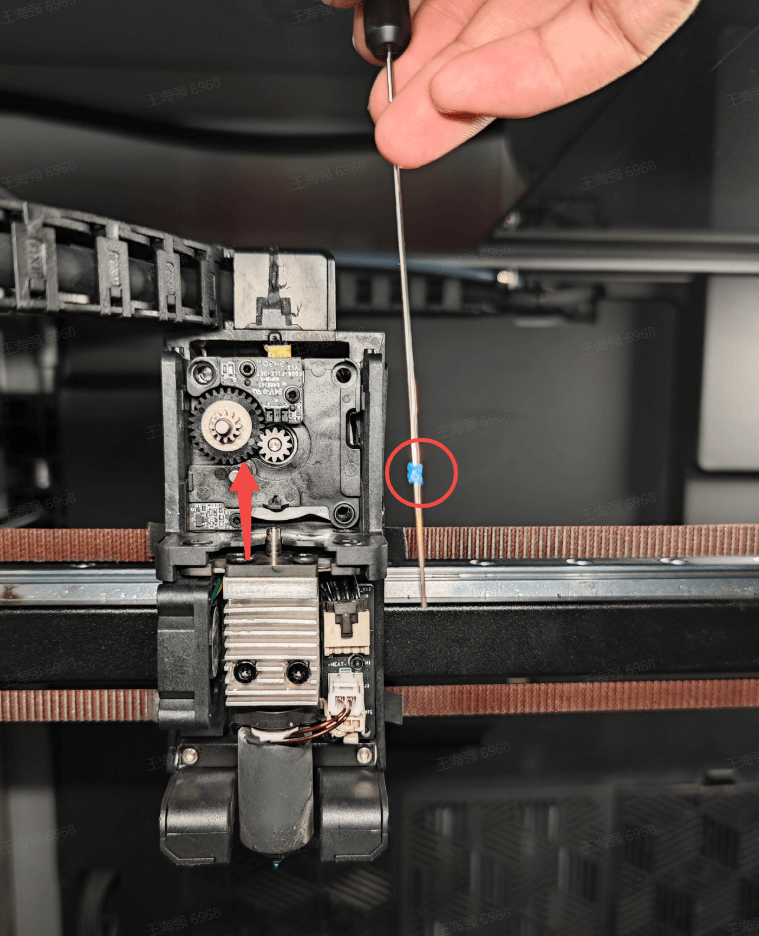
Acupuncture Needle: Most printers comes with a thin needle that can dislodge any carbonized blocks. Simple solution: heat up the nozzle, insert the needle from beneath, and wiggle it.
-
Heat Gun/Torch: If you remove the nozzle, you can use a heat gun to soften the residue. (Just be careful – hold it with pliers!)
Note: If the nozzle is heavily clogged, it is often quicker to replace the nozzle. Brass nozzles are consumable parts and relatively inexpensive.
Additional Tips
-
Start first by using the least invasive method before disassembling the printer.
-
Work slowly and carefully—forcing filament can damage the extruder or nozzle.
-
Once you clear the jam, extrude some filament to guarantee smooth flow before continuing printing.
Filament Jam vs Clogged Nozzle
Beginners often use these terms interchangeably, but they refer to different parts of printer anatomy. Here is a quick reference to help you identify which problem you have:
| Feature | Filament Jam | Clogged Nozzle |
| Primary Location | Extruder gears, heat break, or Bowden tube. | The 0.4mm tip of the brass nozzle. |
| Common Sound | Loud clicking or thumping from the extruder motor. | Often silent, or faint clicking. |
| Visual Symptom | Filament is stripped/ground down at the gears. | Filament flows unevenly, curls upwards, or is thin. |
| The Fix | Clearing the path or fixing tension. | Cold pulls or needle cleaning. |
How to Prevent Filament Jams
Once you are up and running, use these maintenance tips to keep your printer jam-free.
Protect Against Dust
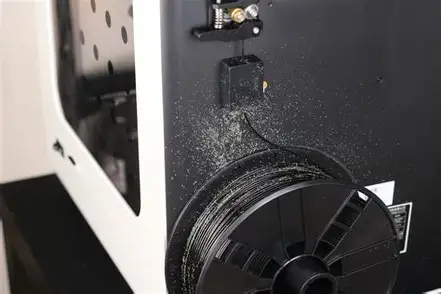
Static electricity makes filament a magnet for dust and pet hair. When the filament is inserted into the printer passes through the print head nozzle, it carries the loose material with it.
-
Solution: Simply print or buy a simple "filament filter." It is normally a simple clip that carries a piece of sponge that cleans the filament before it goes through the extruder.
Check Your PTFE Tubing
For many printers, the PTFE (Bowden) tube is connected fully to the nozzle. However, the final part of the tube can burn because of the heat over time and result in friction.
-
Solution: Every few months or so, pull out the tube, shave the bottom 5mm with a sharp razor blade (and be sure the cut is square), and reinsert the tube.
Adjust Retraction Settings
If you experience jams specifically during prints with lots of hopping around (retractions):
-
Solution: Adjust your retraction height in your slicing software. If it is set too high, try reducing it. If it is set to 6mm, try changing it to 4mm. Also, be sure your retraction speed isn’t set too fast
Proper Storage
Moisture is an enemy of 3D printing. If filament is damp, it will swell when printing, causing increased friction and a popping/hissing noise.
-
Solution: Filaments should be stored in airtight bags along with desiccant packs when they are not in use.
FAQs
Q: Can I reuse filament that got jammed?
Generally, no. If the filament has been ground down by the gears, it has lost its diameter consistency. If you try to reuse a segment with "teeth marks" or a stripped section, the gears won't be able to grip it, and it will jam again immediately.
Q:Why does my printer only jam on long prints?
This is a classic sign of Heat Creep. During short prints, the heat doesn't have enough time to travel up the heat break. On long prints, the heat eventually saturates the cooling zone.
Q:Is a jam dangerous for my printer?
While a jam itself rarely causes fire or catastrophic damage, leaving a printer "air printing" for hours causes unnecessary wear on the gears and motors. It also cooks the filament sitting in the hot nozzle, turning it into a hard carbon blockage that is difficult to remove.
Summary
Coping with filament jams is part of the 3D printing learning curve. It's something you have got to look into, from the way it interacts with the tension arm to the thermal properties of the hotend. A clean hotend, well-tuned settings, and a dry filament can make these frustrating jams something you encounter only rarely.