





























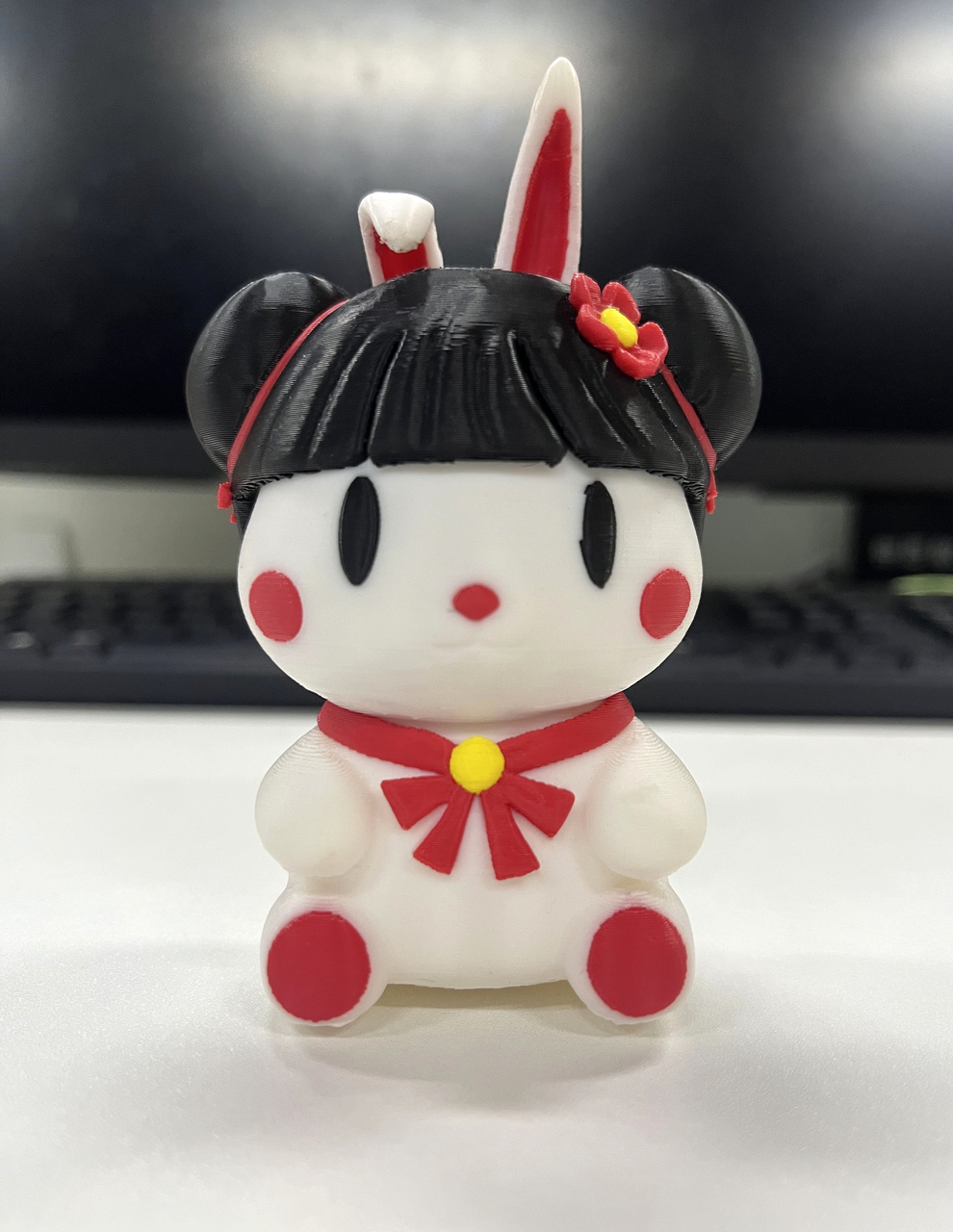
The Color Painting feature allows you to assign different colors to specific areas of a model for multi-color printing.
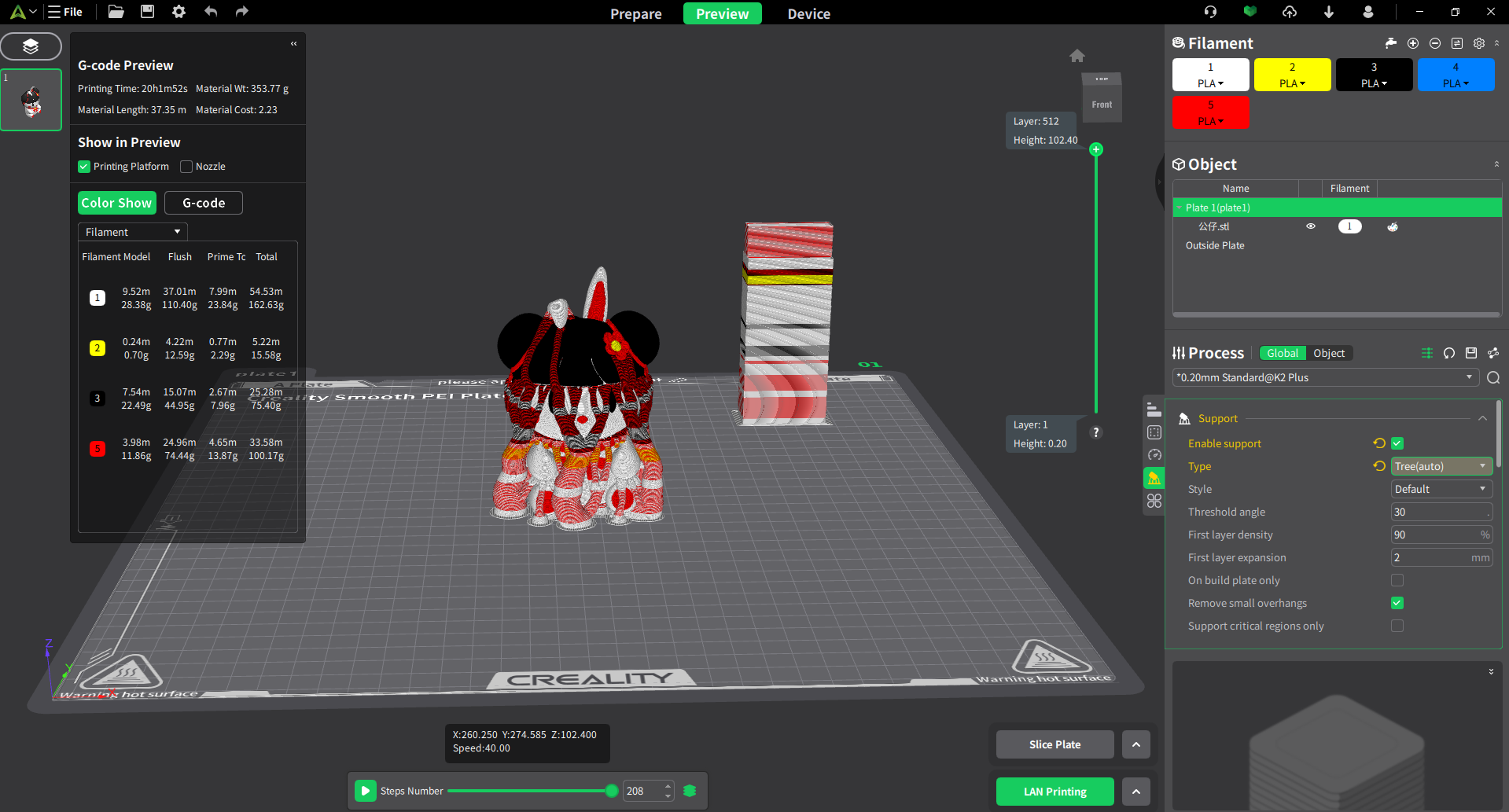
After painting is complete, Creality Print generates the corresponding G-code during slicing. When printed with compatible filaments, the final model will reproduce the colors you assigned.
Workflow
- Paint the model
- Slice the model
- Print the finished multi-color model
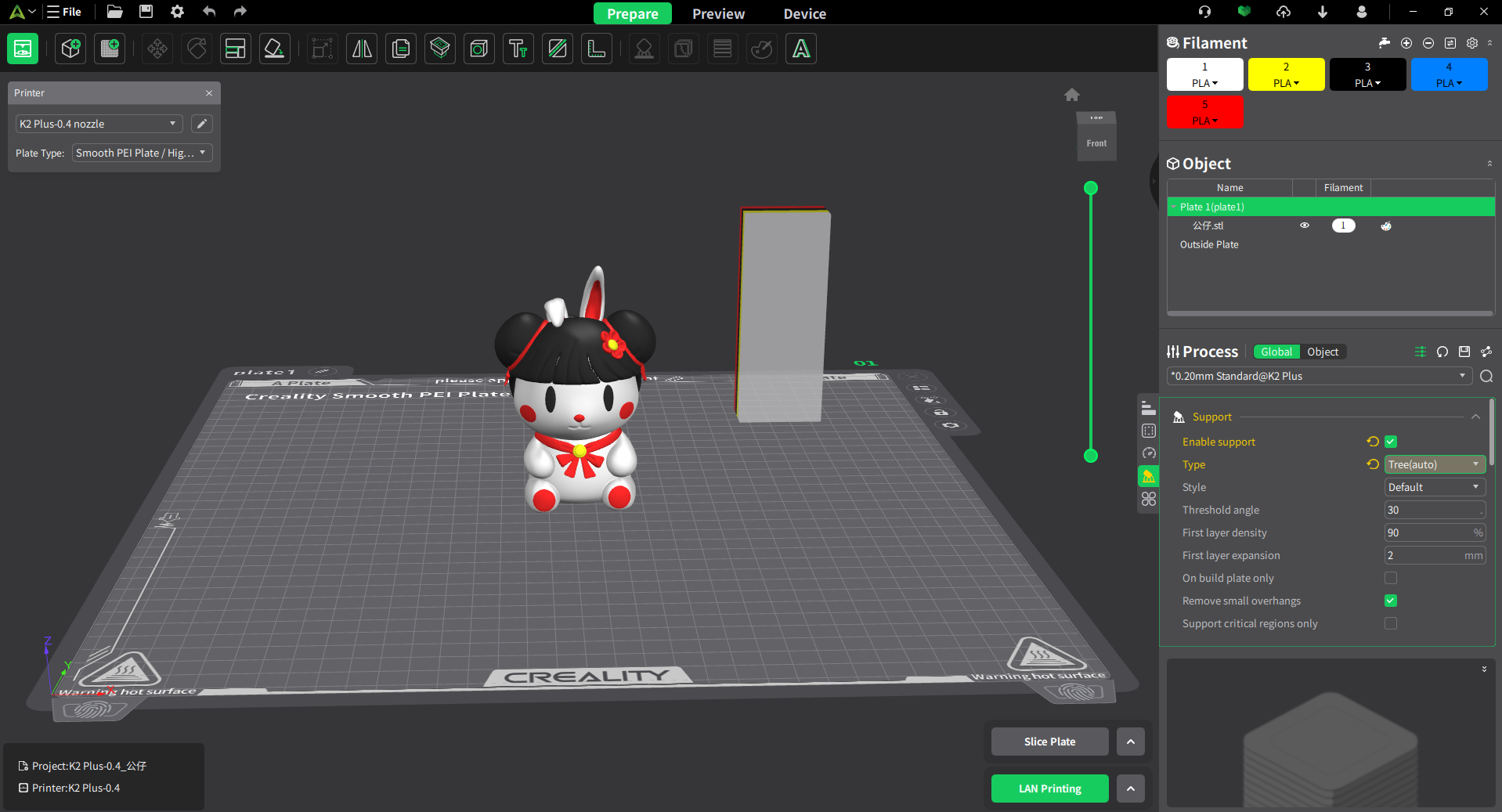
Coloring Tools
Creality Print provides six coloring tools to help you apply colors with precision and efficiency.
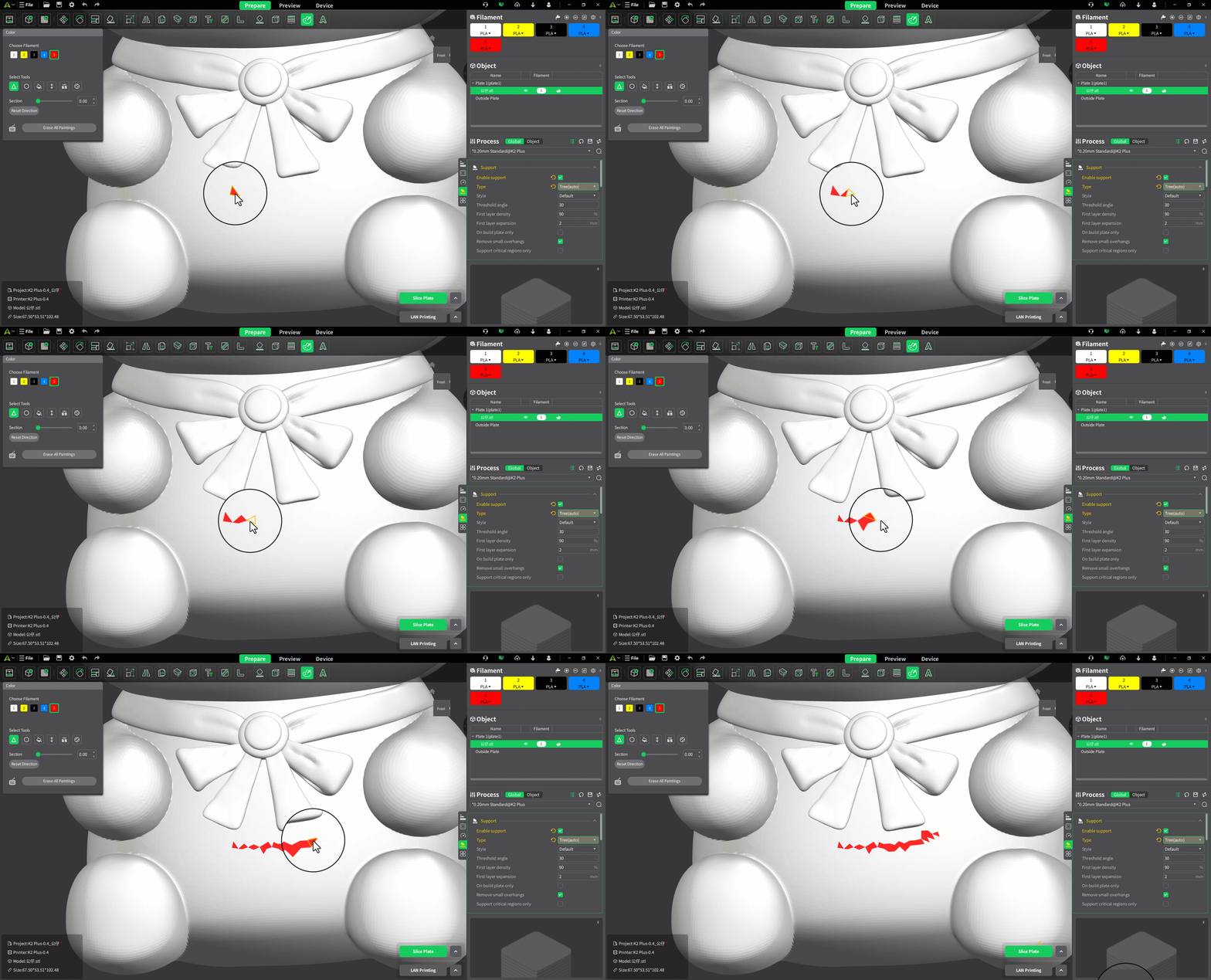
Triangle
The surface of a model is made up of triangular faces. The Triangle tool allows you to paint individual faces directly.
- Click to color a single triangular face.
- Click and drag to color multiple adjacent faces continuously.
Circle
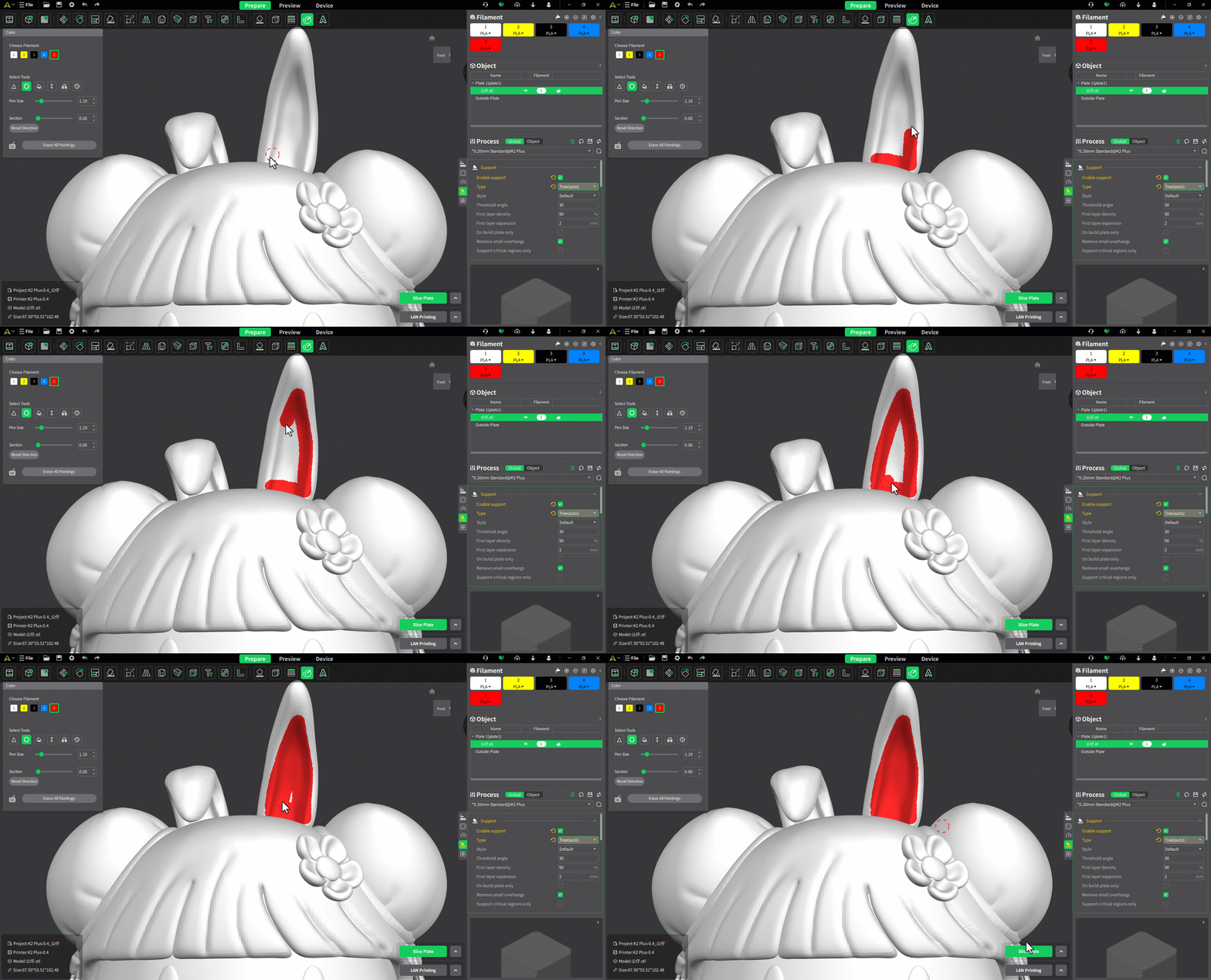
The Circle tool works like a paintbrush, allowing you to freely draw on the model surface.
- Click and drag to paint lines, shapes, or custom areas.
- Ideal for freehand coloring and detailed adjustments.
Fill
The Fill tool colors the selected face and any connected faces that meet the Smart Fill criteria.
- Hover over the model to preview the fill area.
- Click to apply the color.
Adjacent faces will be included if they:
- Share the same color, and
- Have an angle less than or equal to the specified Smart Fill Angle.

Height Range
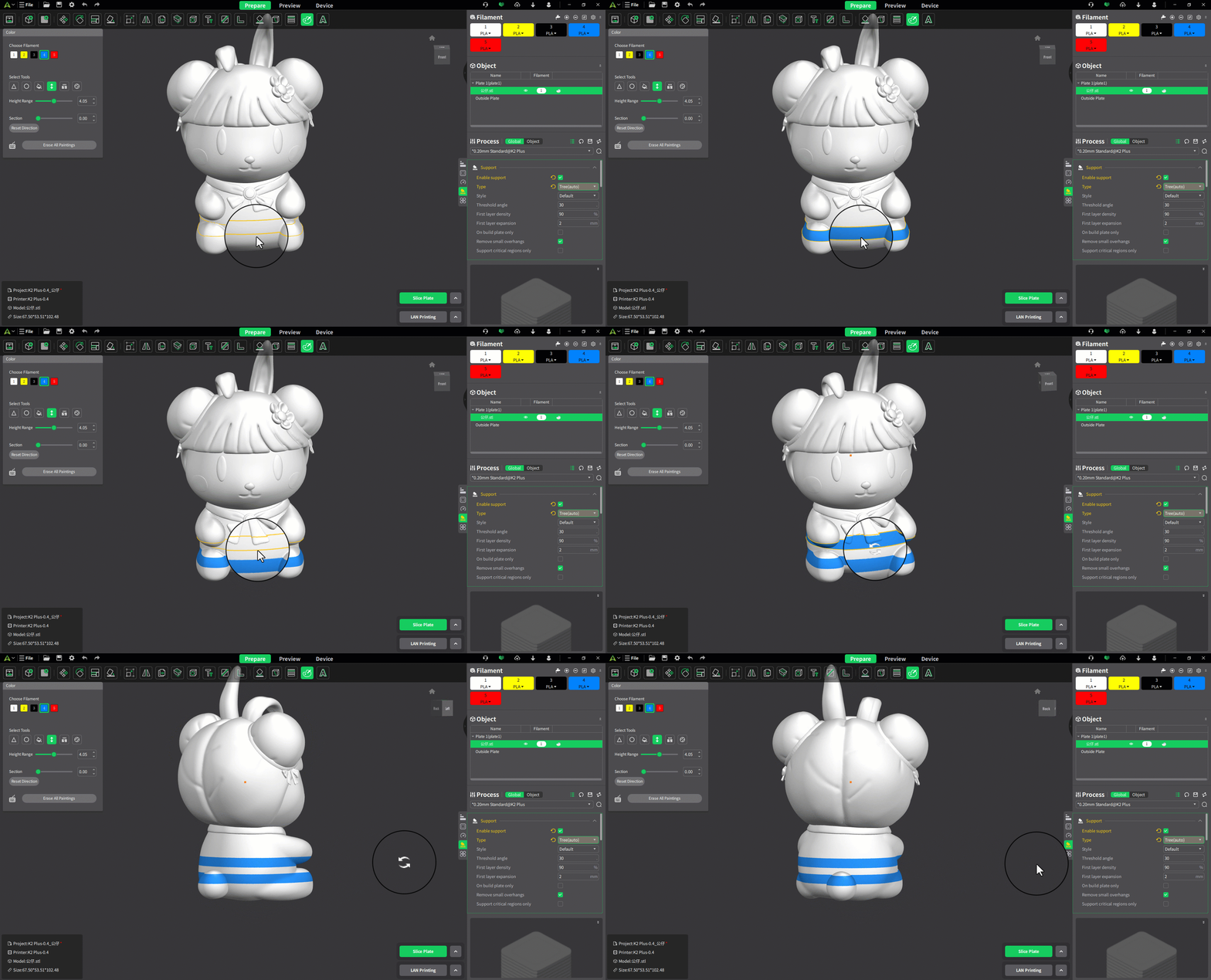
The Height Range tool colors all faces within a specified vertical range.
- Hover to preview the affected area.
- Click to apply the selected color.
This tool is useful for creating color bands or layered color transitions.
Gap Fill
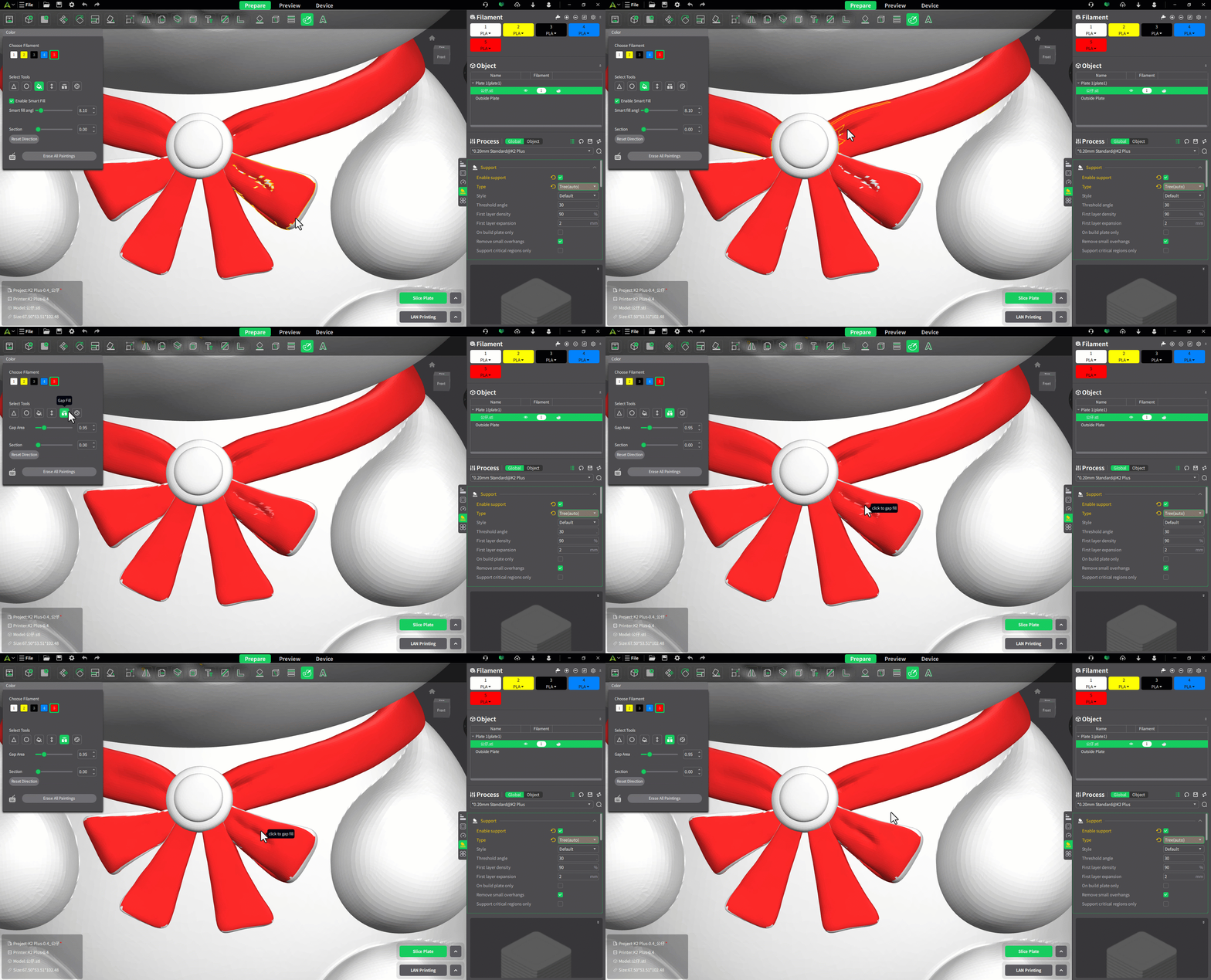
The Gap Fill tool automatically fills small unpainted areas created when using other coloring tools.
Benefits include:
- Smoother color transitions
- Fewer filament changes
- Reduced print time
- Lower material consumption
After selecting the tool:
- Set the maximum gap area.
- Preview the gaps that will be filled.
- Click to apply the fill.
Any gap with an area less than or equal to the specified value will be filled using the color of adjacent faces.
Sphere
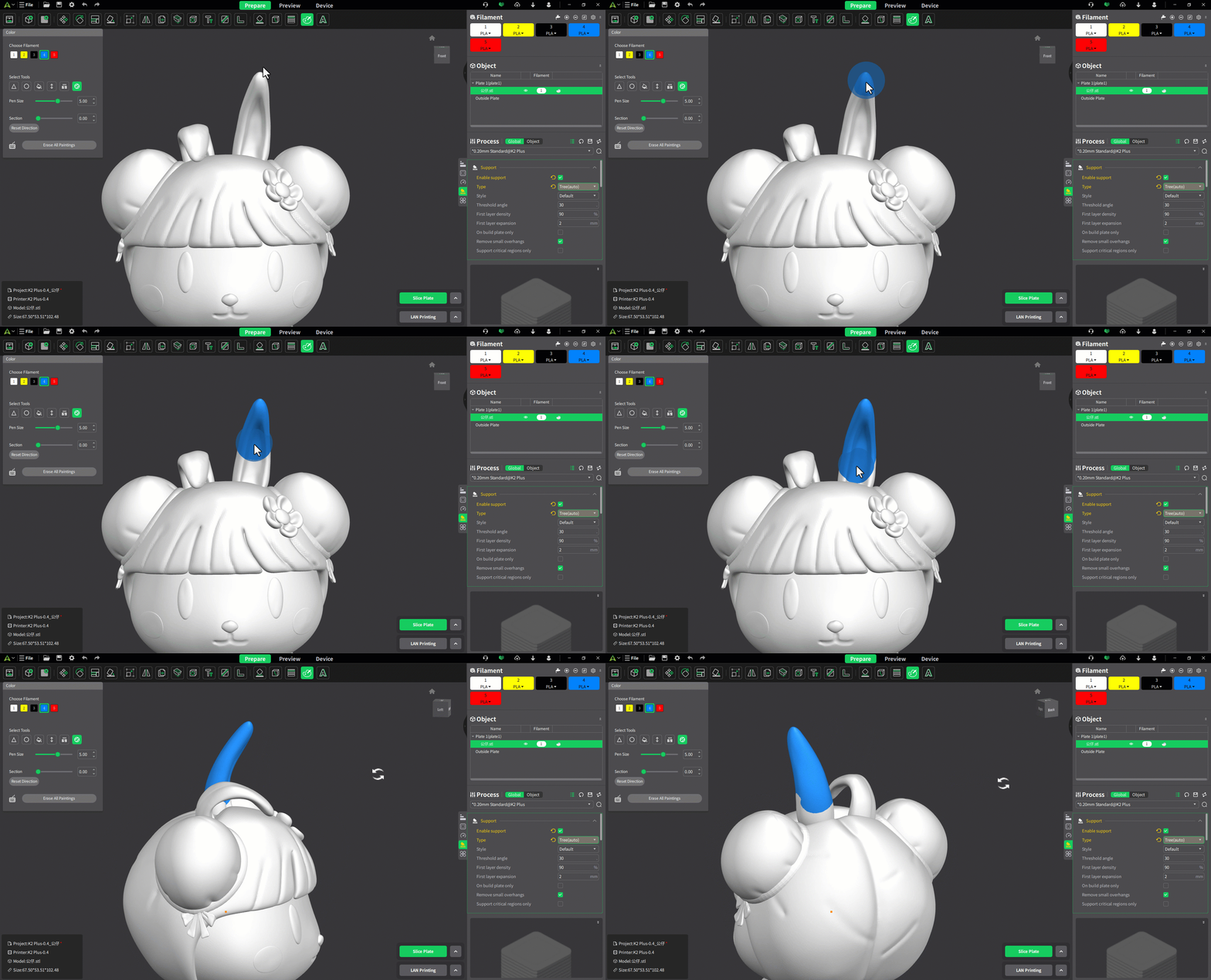
The Sphere tool works similarly to the Circle tool but applies color in three dimensions.
Unlike the Circle tool, it colors not only the visible surface but also faces intersected by the sphere volume.
- Click and drag to apply color.
- Useful for coloring complex geometries and internal intersections.
How to use
Watch the complete tutorial to learn how to use the Color Painting feature: Color Painting Usage Tutorial