
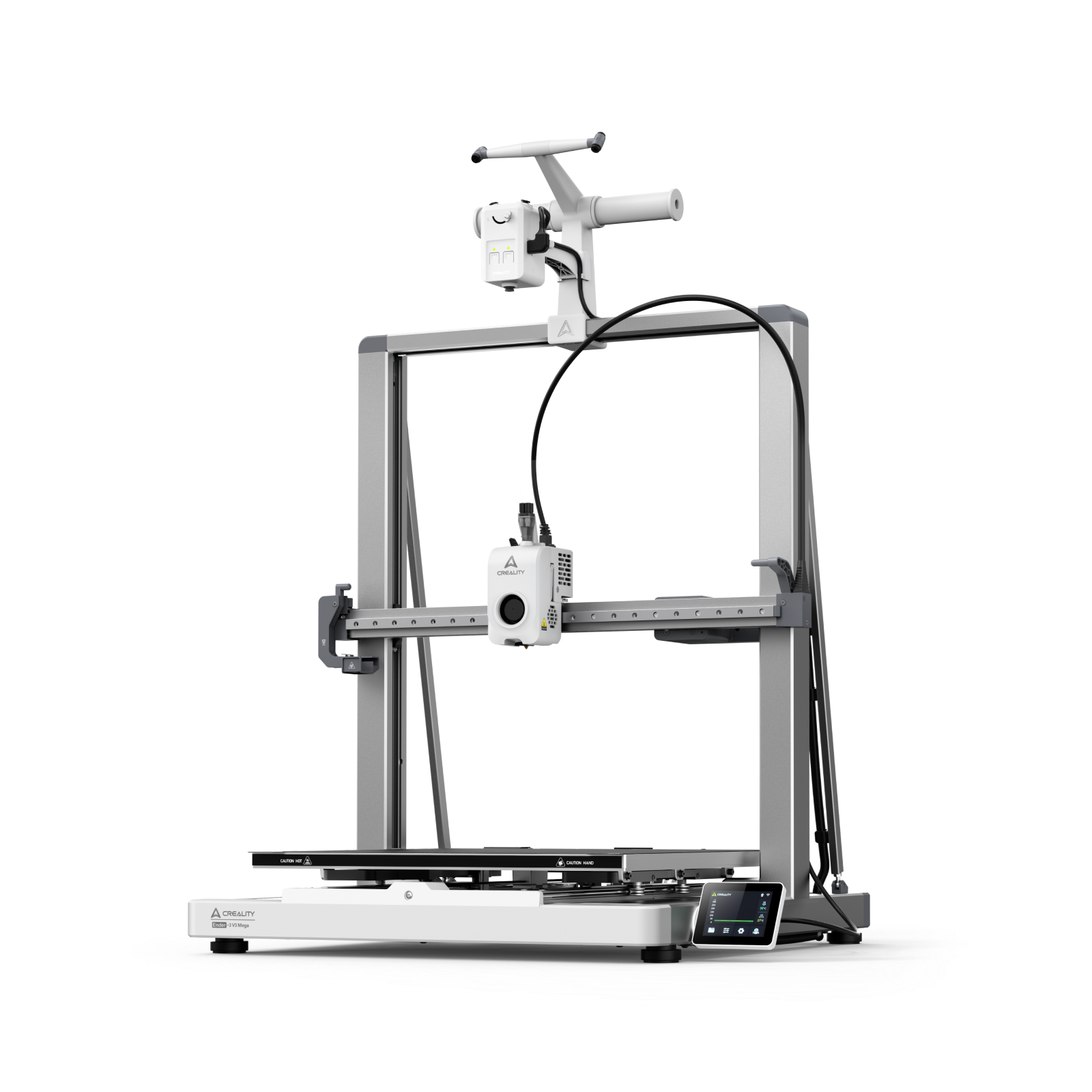
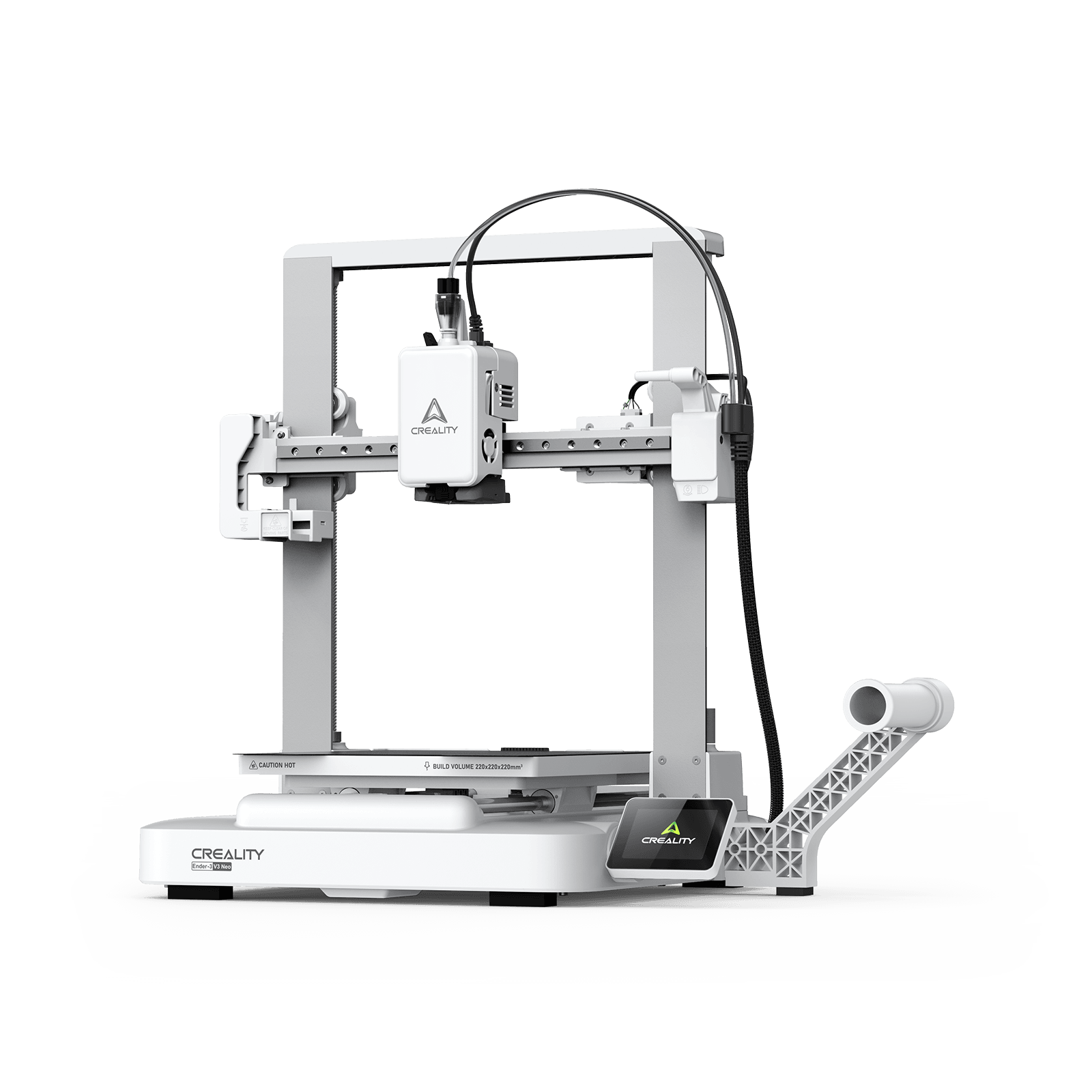
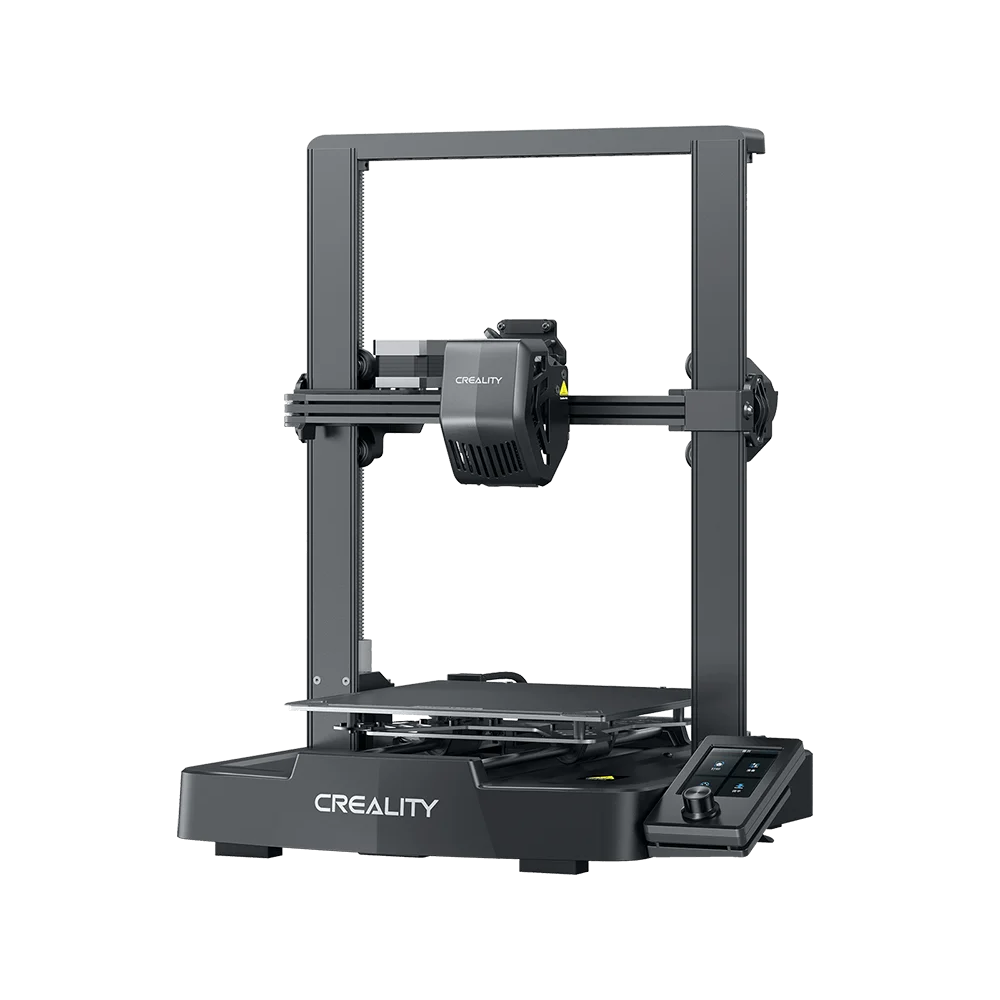
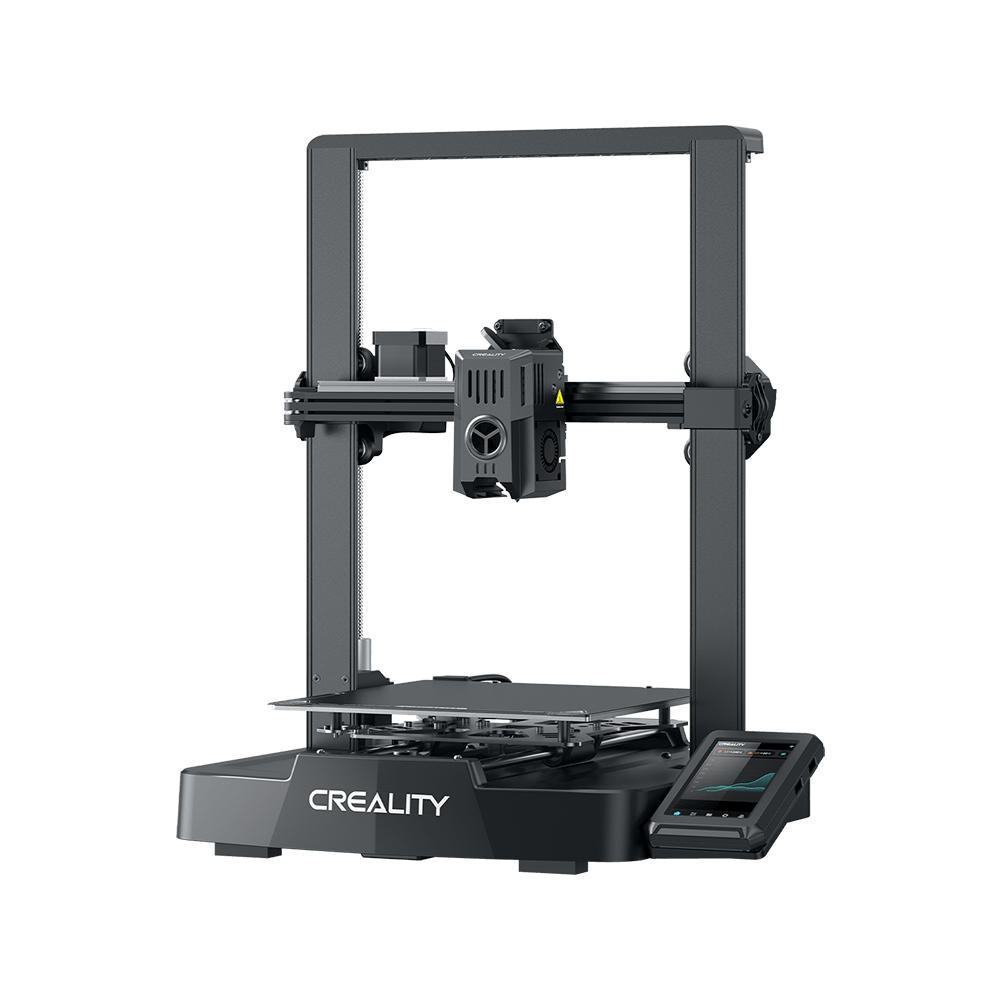

You just finished a 12-hour print. The model looks great from a distance. But when you look closer, those ripple patterns around every corner ruin the finish. Sound familiar? Those artifacts are called ringing or ghosting. They appear when your printer head accelerates too fast for the frame to handle. The vibrations caused are transferred straight into your print.
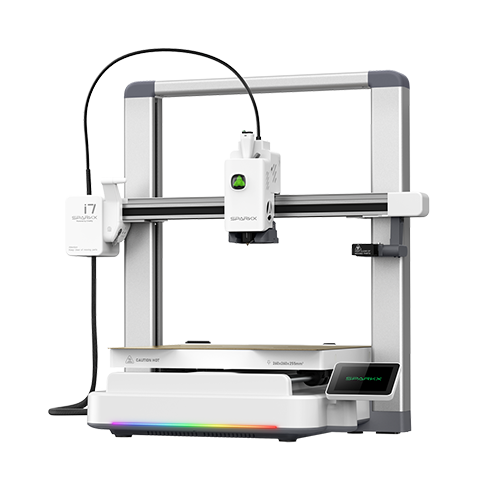
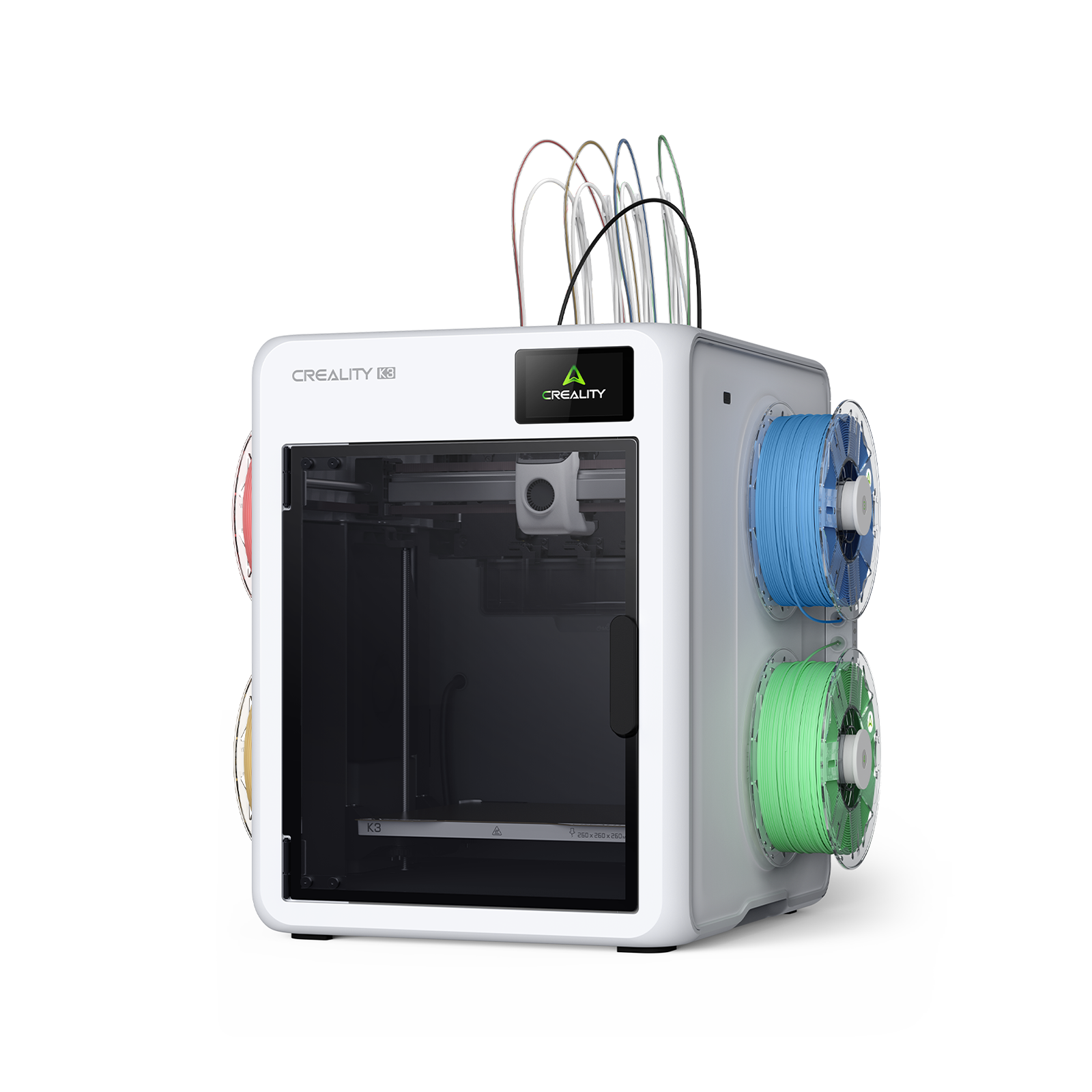
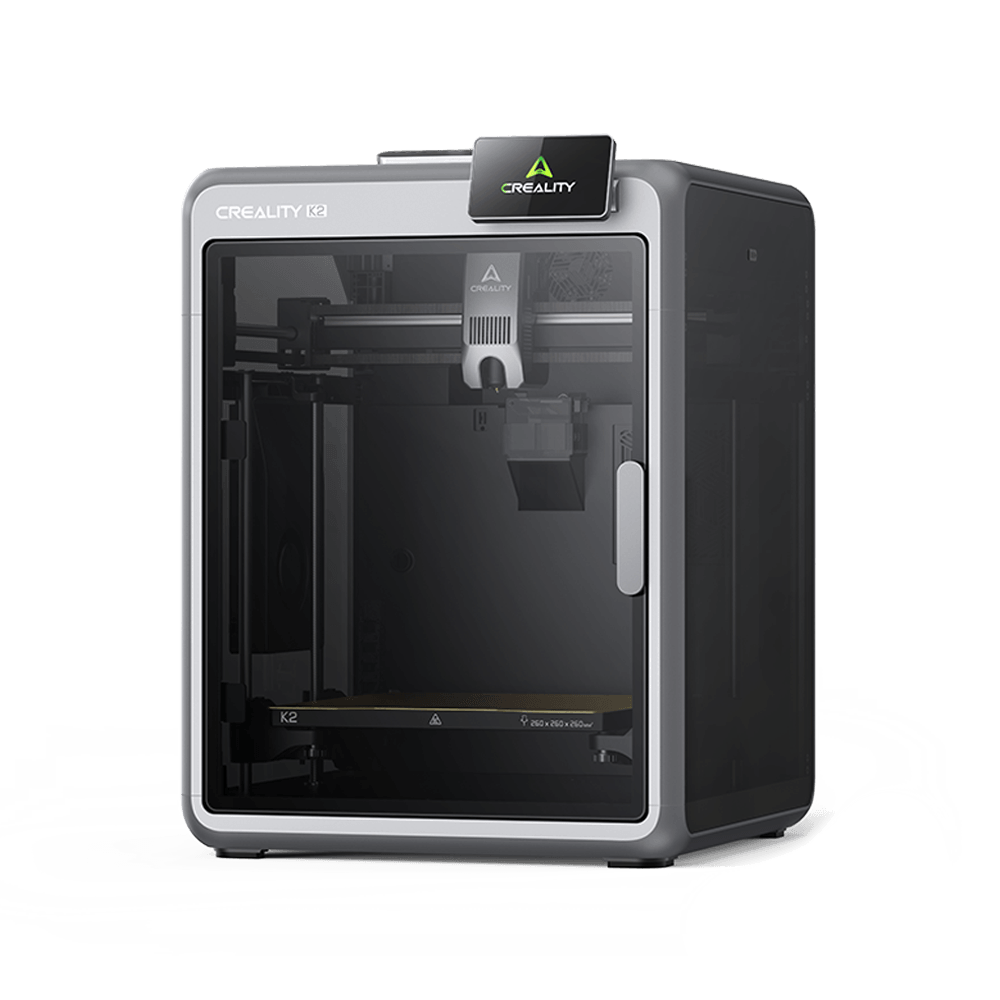
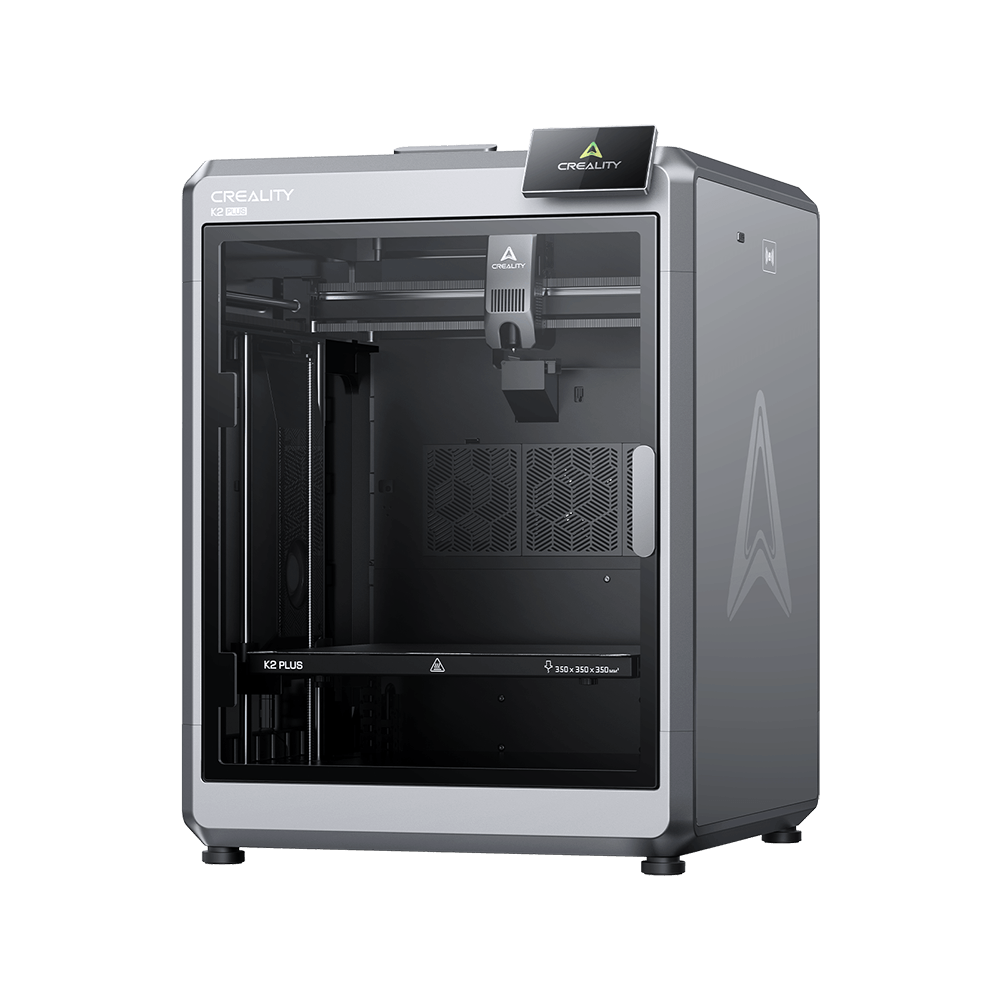
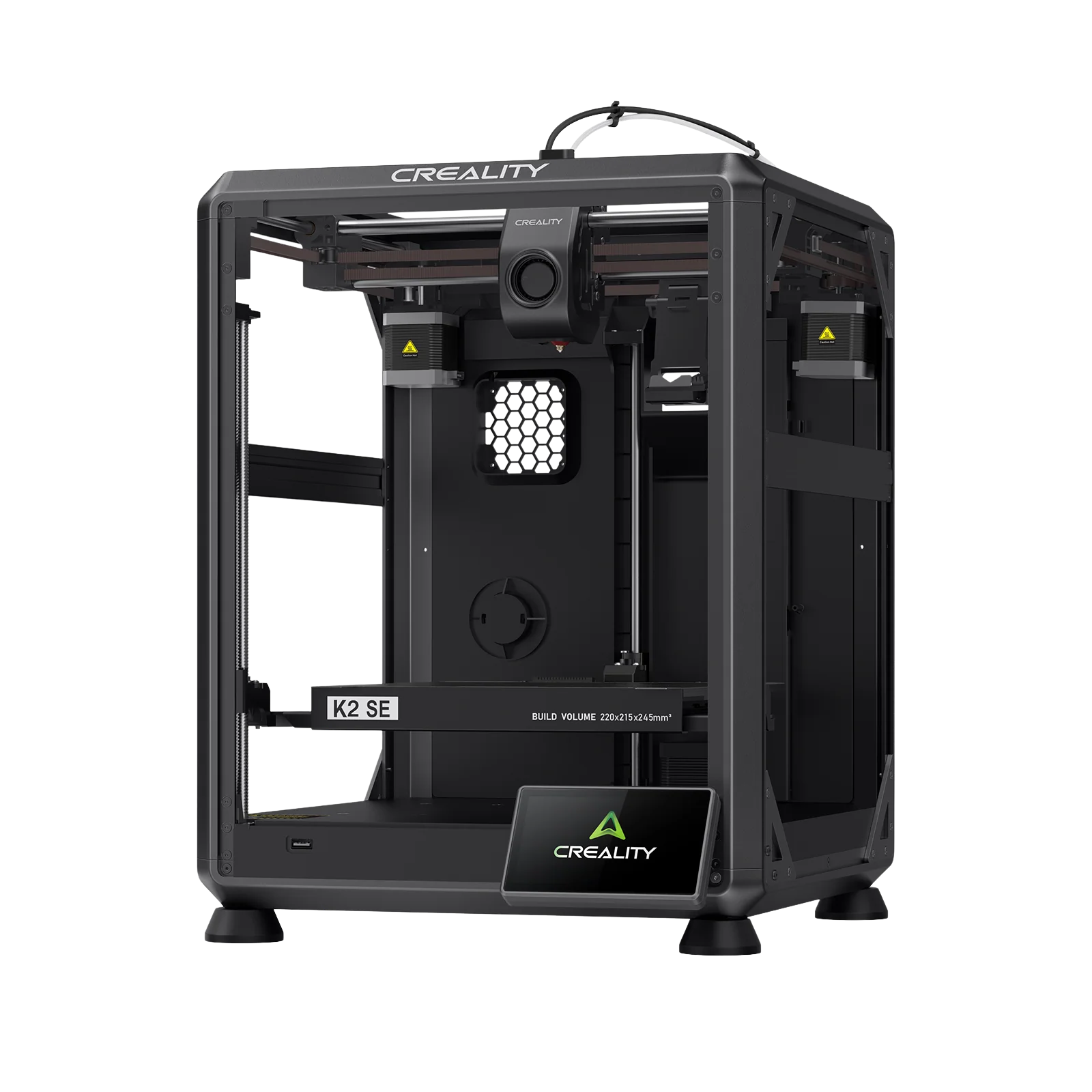
Input shaping solves this problem at the firmware level. It is a feature that cancels vibrations before they affect print quality. The best part is you don't need expensive hardware upgrades. Modern Creality printers, such as the K2 Series and Creality SparkX i7, come with input shaping built in. Older models can add it through firmware updates.
This blog explains what input shaping is, how it works, and how to set it up to print faster without compromising quality.
What is Input Shaping in 3D Printing?
Input shaping is a firmware feature that reduces mechanical vibrations during printing. What makes input shaping powerful is its simplicity. It works entirely through firmware. There are no new motors, no frame modifications, and no added weight. The printer sends compensating signals that counteract vibrations before they start. Think of it like noise-cancelling headphones but for printer movement.
The technology started in the aerospace and automotive industries. These industries needed precise motion control at high speeds. Engineers found they could cancel vibrations by modifying movement commands before sending them to motors.
The 3D printing community adapted this technology as printers got faster. Early versions appeared in industrial machines. Open source firmware made it accessible to hobbyists. Now, consumer printers can use the same vibration-cancelling techniques that industrial equipment relies on.
The Problem It Solves
Ringing shows up as ripple patterns near corners and edges. When your toolhead changes direction fast, the printer frame oscillates. Those oscillations continue for several millimeters. This creates waves on the surface.
Ghosting appears as faint echo lines parallel to raised features. Print a model with text, and you will see shadow copies of the letters a few millimeters away.
Both problems get worse as you increase print speed. That is why fast printing used to mean accepting lower quality. Input shaping breaks that tradeoff.
How Does Input Shaping Work?
Input shaping modifies how your printer accelerates. Instead of jumping to full speed instantly, the firmware breaks acceleration into smaller timed pulses. These pulses are calculated to cancel vibrations.
Here is the process. The firmware identifies your printer's resonance frequency. This is the speed at which it vibrates naturally. Then it generates movement commands that include compensating signals at the same frequency but opposite phase. When the natural vibration meets the compensating signal, they cancel out.
This happens in real time for every move. Complex geometry with lots of direction changes gets handled automatically. Input shaping adjusts continuously. Once calibrated, it works automatically without user intervention.
Types of Input Shapers
Different shaper types balance vibration reduction against print time:
-
MZV (Modified Zero Vibration) is best for most users. It reduces vibrations by 80-90% with only 5-10% longer print times.
-
EI (Extra Insensitive) handles heavy vibrations or uncertain calibration. It works across wider frequency ranges but adds 15-20% to print time.
-
ZV (Zero Vibration) is the fastest option with minimal smoothing. It requires precise calibration to work well.
Why Input Shaping Matters for Your Prints
Cleaner Surfaces and Sharp Corners
The difference is immediately visible. Prints that showed obvious ripples come out smooth. A 20mm calibration cube printed at 100mm per second without input shaping shows ripples extending 3 to 4mm from each corner. With MZV enabled, those ripples shrink to 0.5mm or less. That is an 85 to 90 percent reduction.
Sharp edges stay sharp. Mounting holes maintain their diameter. Snap-fit features actually fit. The improvements show up most on functional parts where dimensions matter.
Print 2 to 3 Times Faster Without Quality Loss
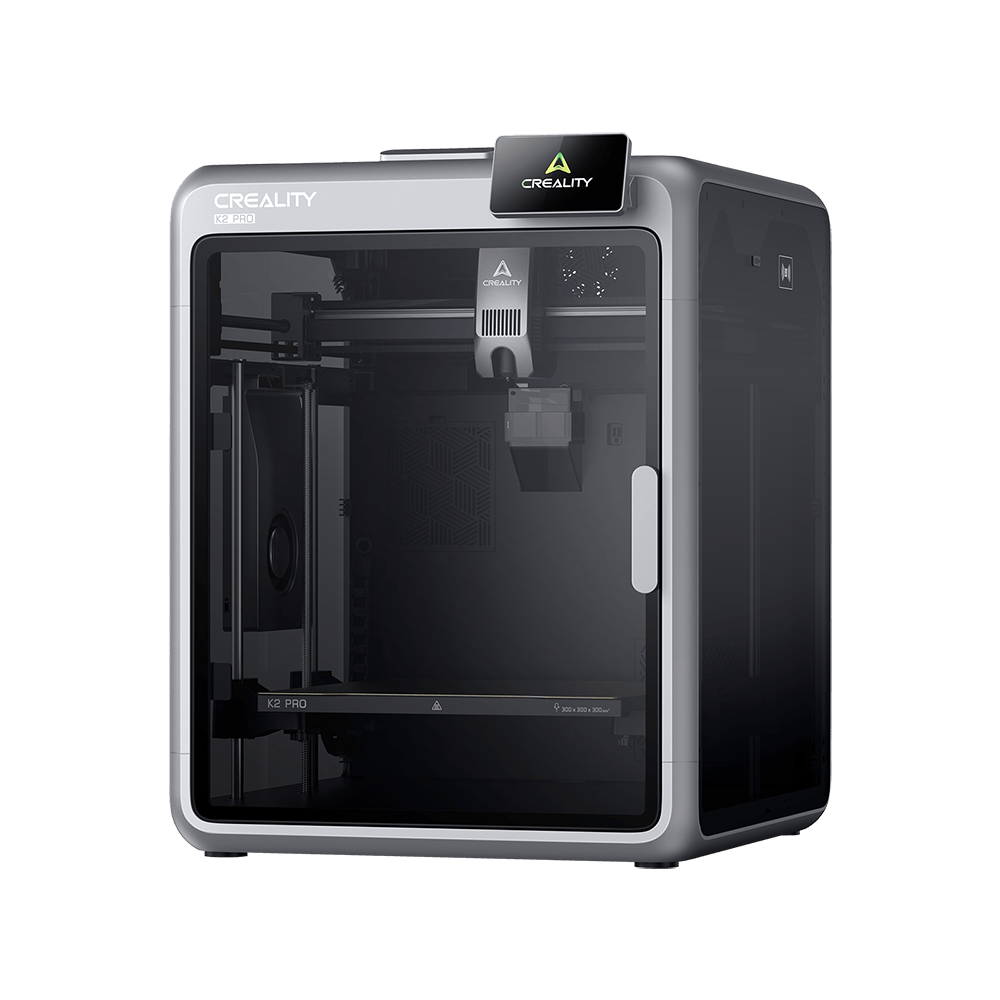
Input shaping lets you increase acceleration settings safely. The Creality K2 Pro prints at 600mm per second with factory-tuned input shaping. A standard 3DBenchy that takes over 2 hours on most printers finishes in 45 to 50 minutes. There is no visible quality loss.
For prototype iterations or production batches, the time savings add up quickly. What used to require overnight prints now finishes during lunch.
No Expensive Hardware Required
Many Creality printers can enable input shaping through free firmware updates. An accelerometer for automatic calibration costs 10 to 15 dollars if you want one. Compare that to 100 to 300 dollars for frame upgrades or linear rails that achieve similar results.
The return shows up immediately. Faster iterations mean more completed projects in the same timeframe.
How to Set Up Input Shaping
What You Will Need
• Compatible firmware (most modern versions support it)
• ADXL345 accelerometer (optional but recommended, costs 10 to 15 dollars)
• Basic tools for mounting (zip ties or screws)
• Digital calipers (for manual calibration method)
Automatic Setup with Accelerometer
This method gives the most accurate results:
-
Mount the accelerometer firmly to your toolhead. Make sure it aligns with the printer's X and Y axes.
-
Connect to your printer. Wire connections depend on your setup. They usually connect to GPIO pins for Raspberry Pi systems.
-
Run automatic calibration. The printer vibrates the toolhead at different frequencies for 5 to 10 minutes while collecting data.
-
Review and save settings. The firmware shows peak resonance frequencies and recommends optimal values.
-
Test with a print. Print a test cube to verify the calibration worked.
Manual Calibration Without Accelerometer
You can calibrate without an accelerometer:
-
Print a test tower at high speed (100 to 150mm per second). The tower should have flat walls where the ringing appears clearly.
-
Measure ripple spacing with digital calipers. Find the distance between ripple peaks.
-
Calculate frequency. Divide print speed by ripple distance. Example: 100mm per second divided by 2mm equals 50 Hz.
-
Enter values into your firmware configuration. Start with the MZV shaper type.
-
Test and adjust. Print another tower. Adjust frequency by plus or minus 5 Hz if needed.
Common Problems and Solutions
-
No improvement in quality: Verify input shaping is actually enabled in firmware. Check that frequency values are correct. Inspect belts and frame for mechanical issues.
-
Quality got worse: Wrong shaper type selected. Try switching from EI to MZV. Incorrect frequency entered. Double-check your calculations.
-
Still see some ringing: Fine-tune frequency in 5 Hz increments. Try the EI shaper for better suppression. Consider light frame reinforcement for very flexible frames.
Best Creality Printers with Input Shaping
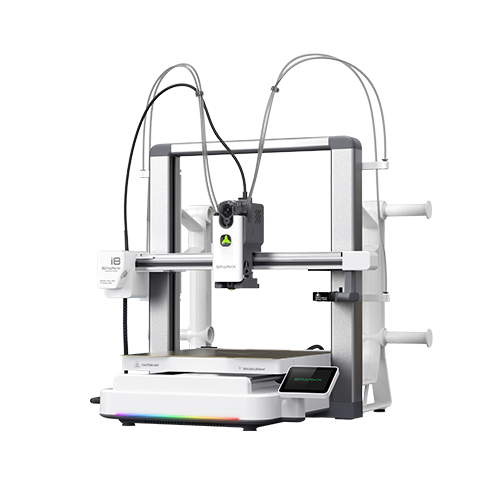
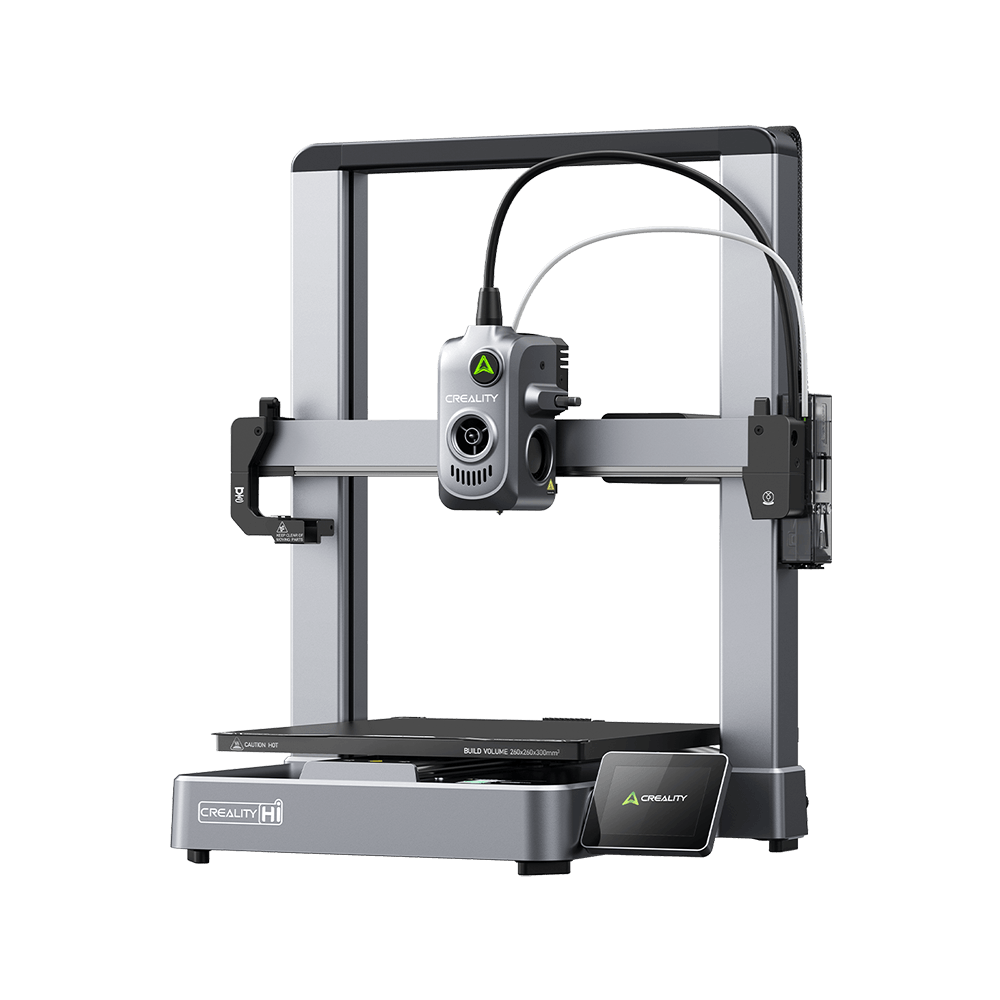
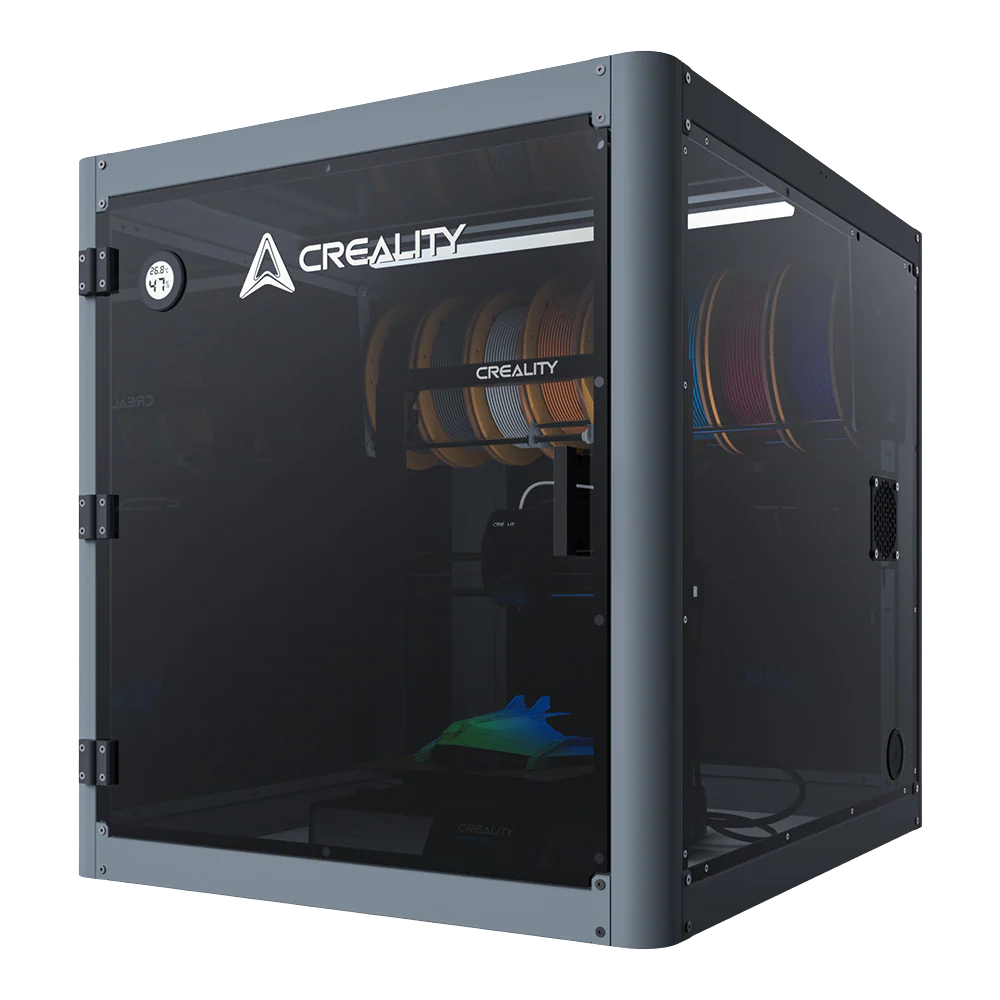
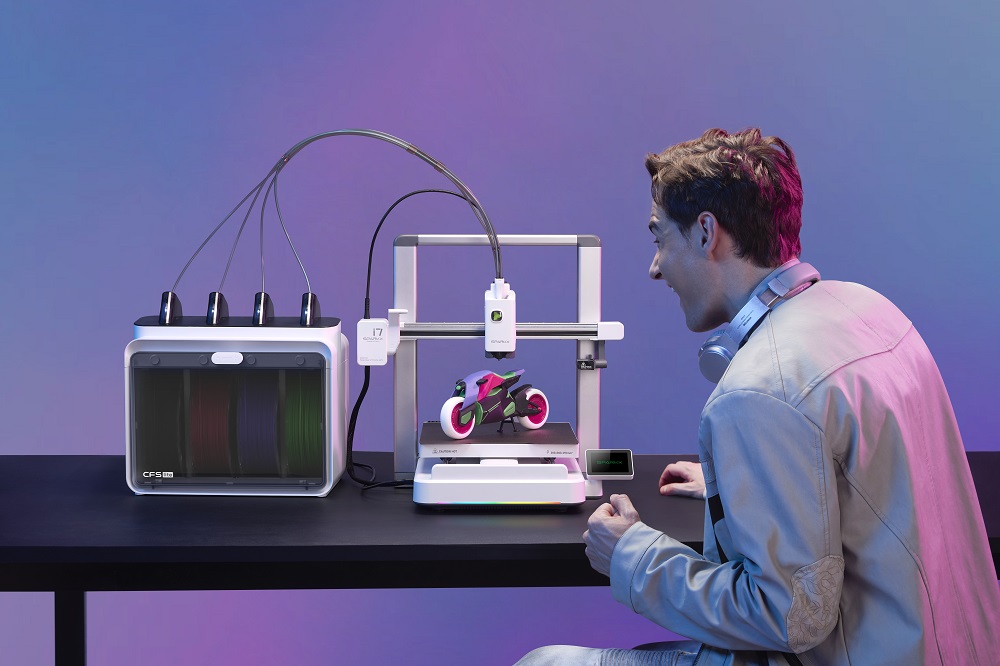
The K2 Series and Creality SparkX i7 ship with pre-configured input shaping. No calibration needed. Just unbox and start printing at speeds up to 600mm per second. The K2 Pro offers 300 * 300 * 300mm build volume. The Creality SparkX i7 provides 260 by 260 by 255 mm builds.
Both models include dual AI cameras for monitoring, CoreXY motion systems, and active chamber heating for engineering materials. If you want plug-and-play input shaping, these printers deliver professional results out of the box.
Conclusion
Input shaping eliminates the choice between speed and quality. It cancels vibrations at the firmware level. This lets you print 2 to 3 times faster without visible ringing or ghosting. The technology requires no expensive hardware. You just need firmware configuration or an inexpensive accelerometer.
For Creality users, the K2 Series offers the easiest path with factory-tuned settings. Older models can upgrade through firmware updates. Either way, input shaping transforms print workflows. It turns hours-long prints into lunch break projects.
The setup takes an afternoon. The benefits last for every print you make.