










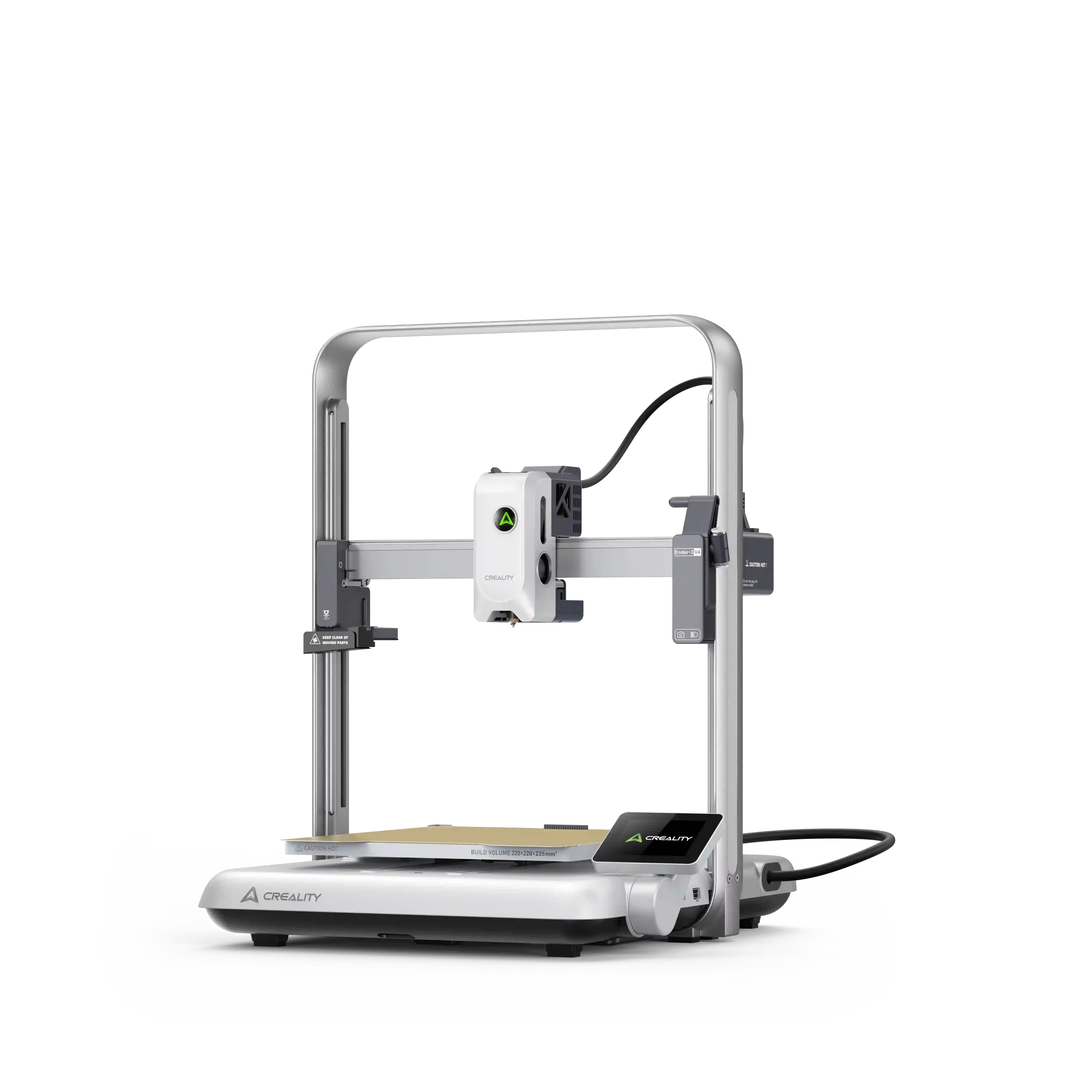

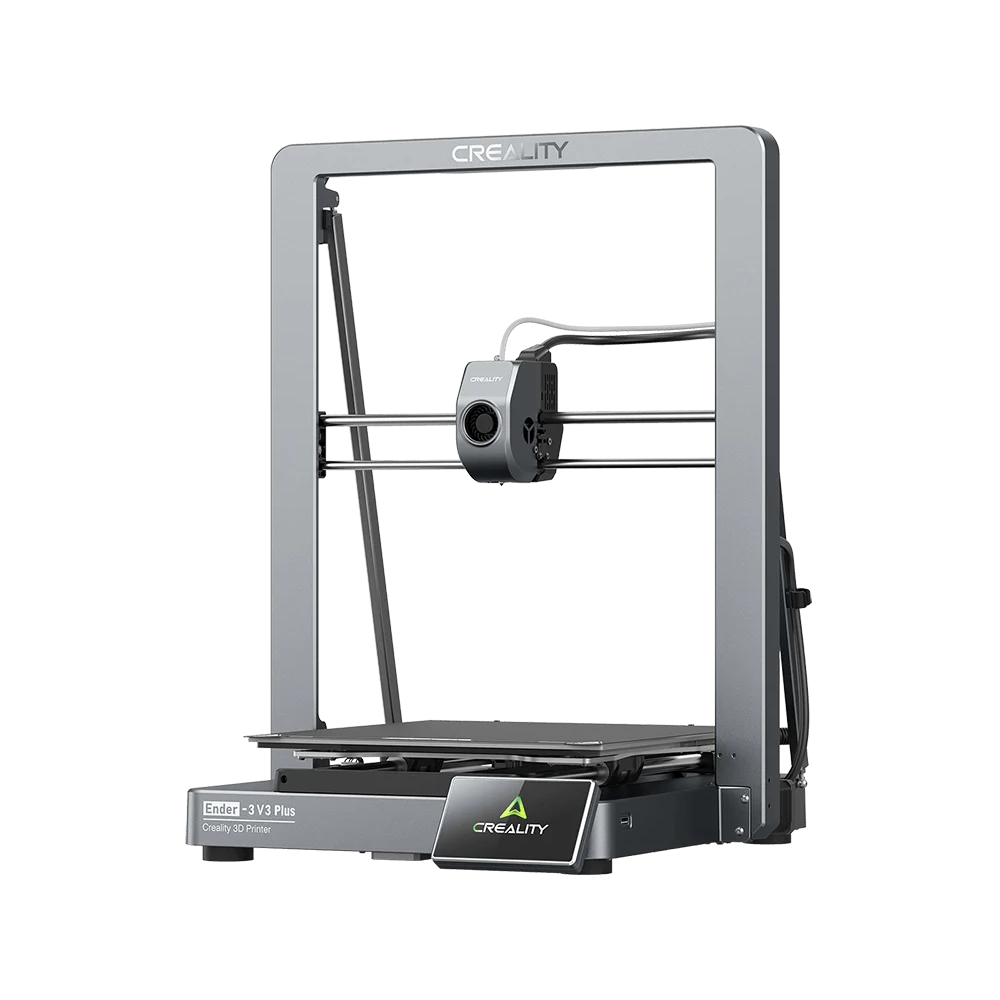



























Whether you are printing a high-end desk accessory, a functional gear shifter, or a cinematic prop replica, there is one thing that can immediately ruin the experience: the plastic feel. While FDM 3D printing is revolutionary, the standard thermoplastic materials, such as PLA and PETG, are inherently low-density (1.24g/cm³). When combined with hollow infill patterns, the resulting parts can feel fragile and lightweight, traits often associated with low-quality consumer goods.
Today, the standard for a premium 3D print is no longer just about visual layer height; it is about the tactile experience. This guide explores the engineering and psychological reasons for adding weight to your prints, the best materials for the job, and technical workflows for the latest Creality hardware.
Why 3D Prints Feel Too Light
The perceived quality of an object is deeply tied to its mass. In consumer psychology, this is known as the Tactile Paradox. A study on multisensory interaction found that tactile information often dominates visual input in product evaluation. When a user sees a detailed, metallic-looking 3D print but picks it up to find it weighs as much as a feather, a cognitive dissonance occurs, leading the brain to label the item as a "cheap toy."
Standard 3D prints are mostly air. A typical 15-20% infill density means 80% of the internal volume is empty. Even at 100% infill, the base polymer remains significantly less dense than traditional materials, such as die-cast zinc (7.1g/cm³) or stainless steel (8.0g/cm³).
When You Should Add Weight (And When Not To)
Adding ballast isn't always the right move. Knowing when to apply these techniques is key to functional engineering.
Ideal Use Cases:
-
Stability: Tall, top-heavy models like lamps or statues need a low center of gravity to prevent tipping.
-
Balance: Prop swords or tools require specific weight distributions to feel authentic in the hand.
-
Premium Feel: Chess pieces, luxury containers, and computer peripherals benefit from the heft that signals durability.
-
Functional Anchoring: Desk organizers or phone stands that shouldn't slide when in use.
When to Avoid Adding Weight:
-
Dynamic/Moving Parts: Increasing mass increases inertia, which can lead to motor strain or ghosting in mechanical assemblies.
-
Drones/Aerospace: Every gram counts toward flight time and battery efficiency.
-
High-Heat Environments: Some weights (like metal shot) have different thermal expansion coefficients than plastic, which can cause the print to crack if exposed to extreme temperatures.
6 Proven Methods to Add Weight
1. Increased Infill Density
The most straightforward method. Moving from 15% to 80-100% infill significantly increases mass. However, this is the most expensive method as it consumes a large amount of filament.
Best for: Small parts where internal cavities are too complex to fill.
2. Internal Cavity Fillers (Sand or Salt)
By designing a hollow void inside your model, you can fill it with dry sand or table salt mid-print.
Tip: Always use kiln-dried sand to prevent moisture from affecting the internal layers.
3. Metal Hardware Inserts
Nuts, bolts, and large washers are the most accessible weights. You can design a hexagonal or circular pocket in your CAD software (like Creality Cloud’s built-in modelers) and drop the hardware in during a "Pause at Height."
4. Loose Shot (Steel or Tungsten)
For maximum density in small volumes, steel or tungsten shot is king. Many builders today prefer using tungsten shot as a non-toxic alternative to lead. It also offers a density of 19.3g/cm³, which is nearly double that of lead.
5. Liquid Resin or Plaster Pour
If your model is already finished, you can drill a small hole in the base, pour in a mixture of epoxy resin and sand (or plaster), and seal it. This creates a rock-solid feel to the part.
6. Magnetic Bases
By embedding neodymium magnets, you aren't just adding weight; you are adding functional stability. The print will feel much heavier when placed on a steel desk or metal surface.
Step-by-Step: Pause at Height Guide
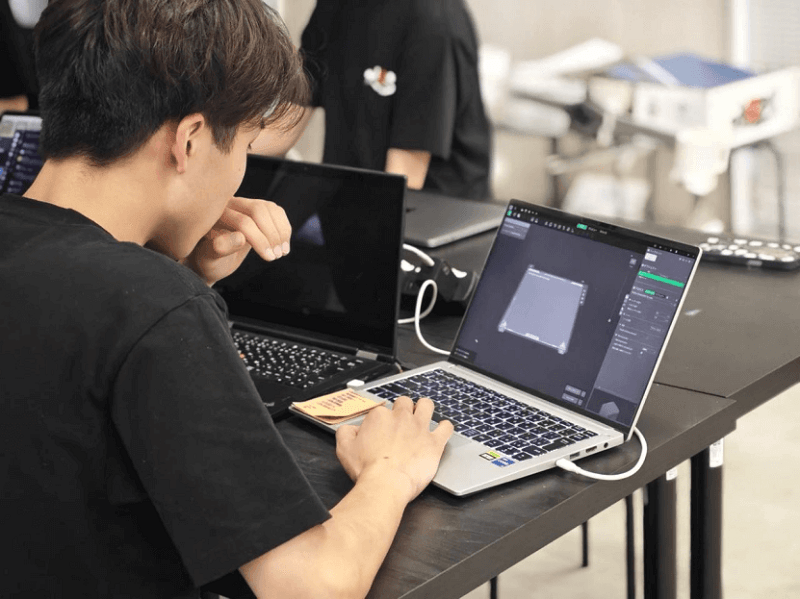
When using the latest version of Creality Print, the workflow for pausing prints to insert weights is more intuitive and doesn’t require you to edit G-code manually. All you need to do is:
-
Slice Your Model: Open your model in Creality Print and slice it with your desired settings.
-
Locate the Layer: Move the vertical slider on the right side of the "Preview" screen to find the exact layer where the cavity is still open but about to be covered by the first "Top Layer."
-
Add the Pause: Right-click the icon on the layer slider. Select "Add Pause."
-
Export: Save the G-code to your printer or send it via LAN/Cloud to your K1C or Ender-3 V3.
-
The Insertion: When the printer reaches that layer, it will automatically park the toolhead. Pour your weight (sand, BBs, etc.) carefully into the cavity.
Crucial: Ensure the weight is level and does not sit higher than the current layer height to avoid a nozzle collision.
-
Resume: Press "Resume" on the printer’s touch screen.
Slicer Settings That Matter
To successfully hold heavy weights, your slicer settings must be adjusted for "containment" and "structural integrity."
-
Wall Count (Perimeters): Use at least 4-5 walls. This prevents the internal weights from rattling against the sides or breaking through the shell if the print is dropped.
-
Infill Pattern: Use Gyroid. Unlike Grid or Lines, Gyroid creates a 3D cavernous structure that allows loose fillers (like sand) to distribute evenly throughout the model rather than getting stuck in one corner.
-
Top/Bottom Layers: Increase your Top Layers to 5 or 6. The weight of the fillers can cause the first bridging layer to sag; extra layers ensure a flat, professional finish.
Safety and Material Warnings
-
The Lead Risk: While lead shot is cheap, it is toxic. As such, many creators are switching to Tungsten or Steel for health and environmental reasons. If you must use lead, always wear gloves and seal the print completely.
-
Nozzle Collisions: If using magnets, ensure they are glued into their pockets. A strong magnet can jump up and stick to the metal nozzle, causing a catastrophic print failure or damage to the toolhead.
-
Moisture Trap: If you use organic fillers (like rice or beans), they will eventually rot or mold due to trapped moisture. Stick to inorganic materials, like sand, metal, or stone.
Recommended Creality Hardware for Weighted Prints
Creality K1C (The Performance Choice)
The K1C is ideal for weighted prints because of its tri-metal Unicorn nozzle. This nozzle features a hardened steel tip, which is essential if you choose to use metal-filled filaments (like Stainless Steel PLA) to add weight. The Klipper-based Creality OS also handles Pause/Resume commands with much higher reliability than older Marlin-based machines.
Ender-3 V3 Series (The Versatile Workhorse)
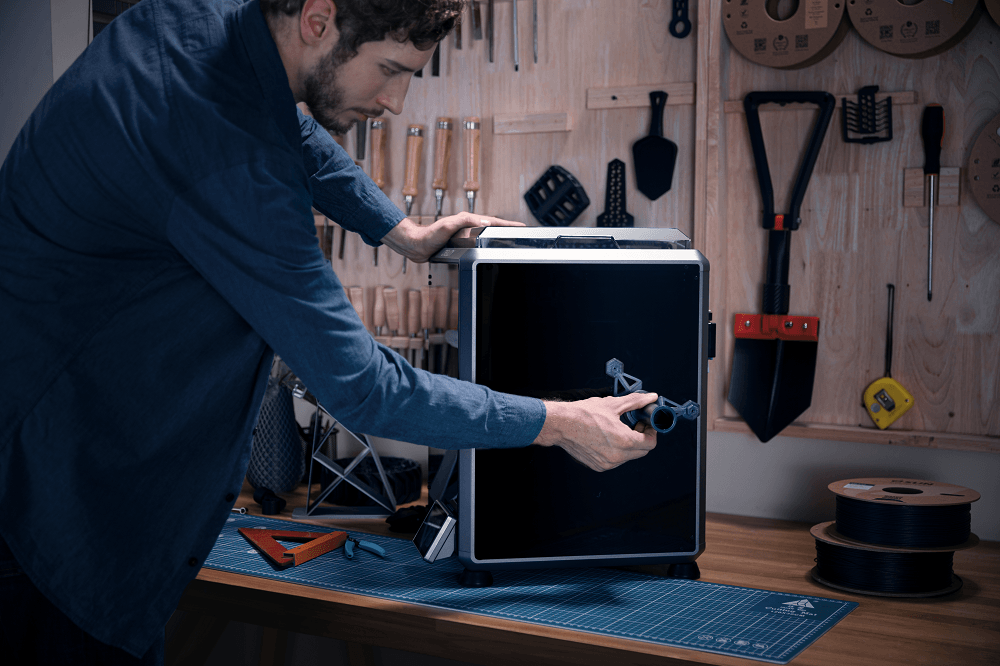
If you are on a budget, the Ender-3 V3 or V3 KE offers the precision needed for tight-tolerance hardware inserts. If you are using high-infill settings to add weight, the direct-drive extruder ensures that the filament flow remains consistent over long, heavy print jobs.
FAQs
Q: Can I use water to weight a 3D print?
A: No. FDM prints are rarely 100% watertight. Over time, the water will seep through the layer lines, potentially ruining your furniture and causing internal mold.
Q: Will adding weight make my print take longer?
A: The physical act of adding weight (sand/shot) doesn't add much time, but the "Pause at Height" and the required extra walls/top layers will increase your total print time by 15-20%.
Q: Does 100% infill make a print feel like metal?
A: Not quite. 100% PLA is still only about 15% the weight of a solid steel part. To get a metal feel, you must use internal ballast or metal-filled filaments.
Ready to Build Something Solid?
The difference between a plastic toy and a premium 3D-printed product is often just a few grams of sand or a handful of steel nuts. By mastering the "Pause at Height" workflow in Creality Print, you can elevate your designs from the screen to the real world with professional-grade heft.