


Dear Creality users,
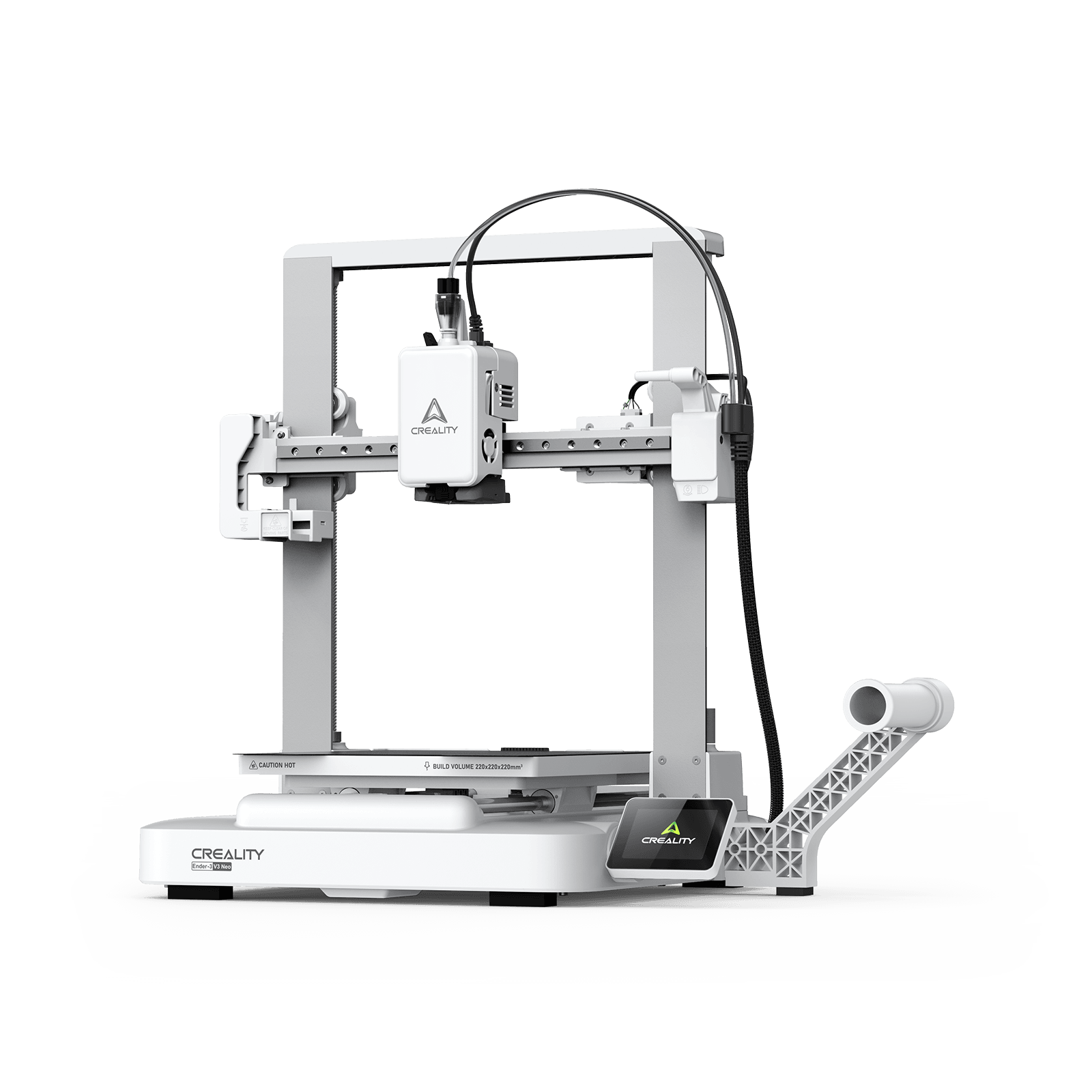
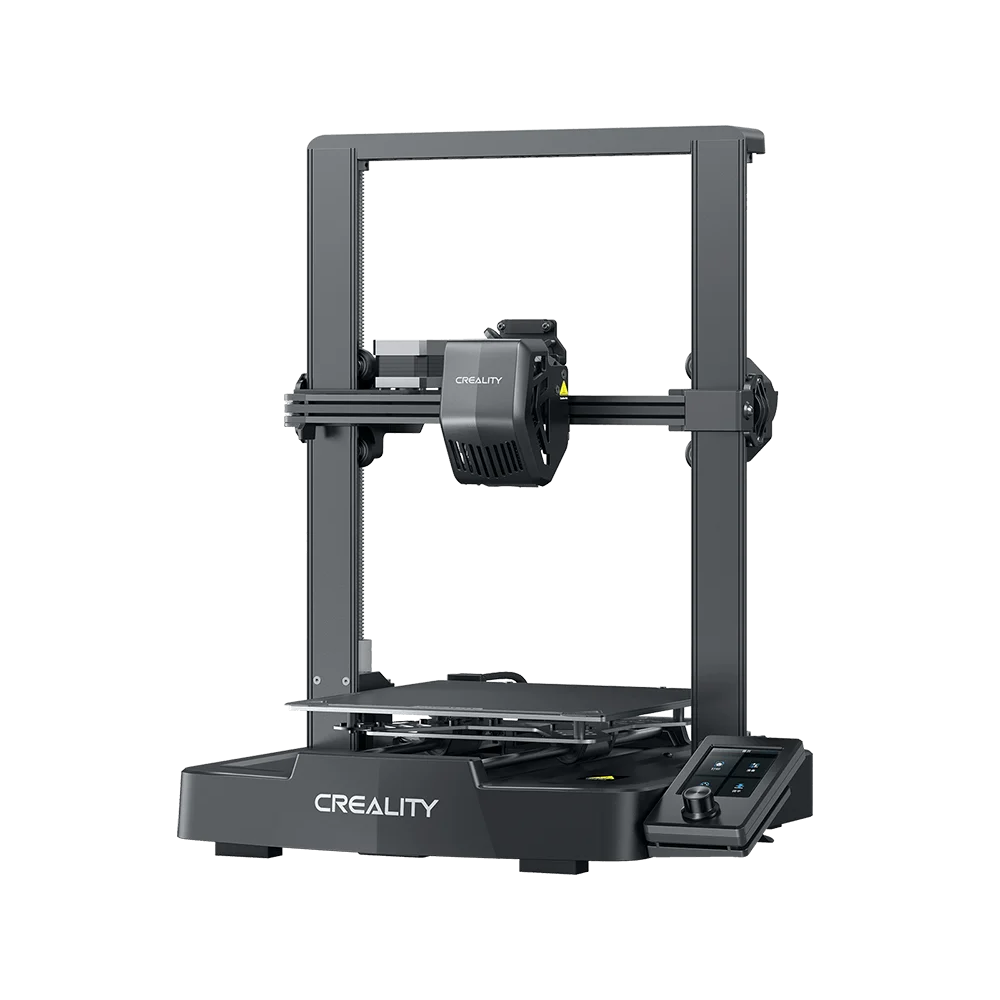
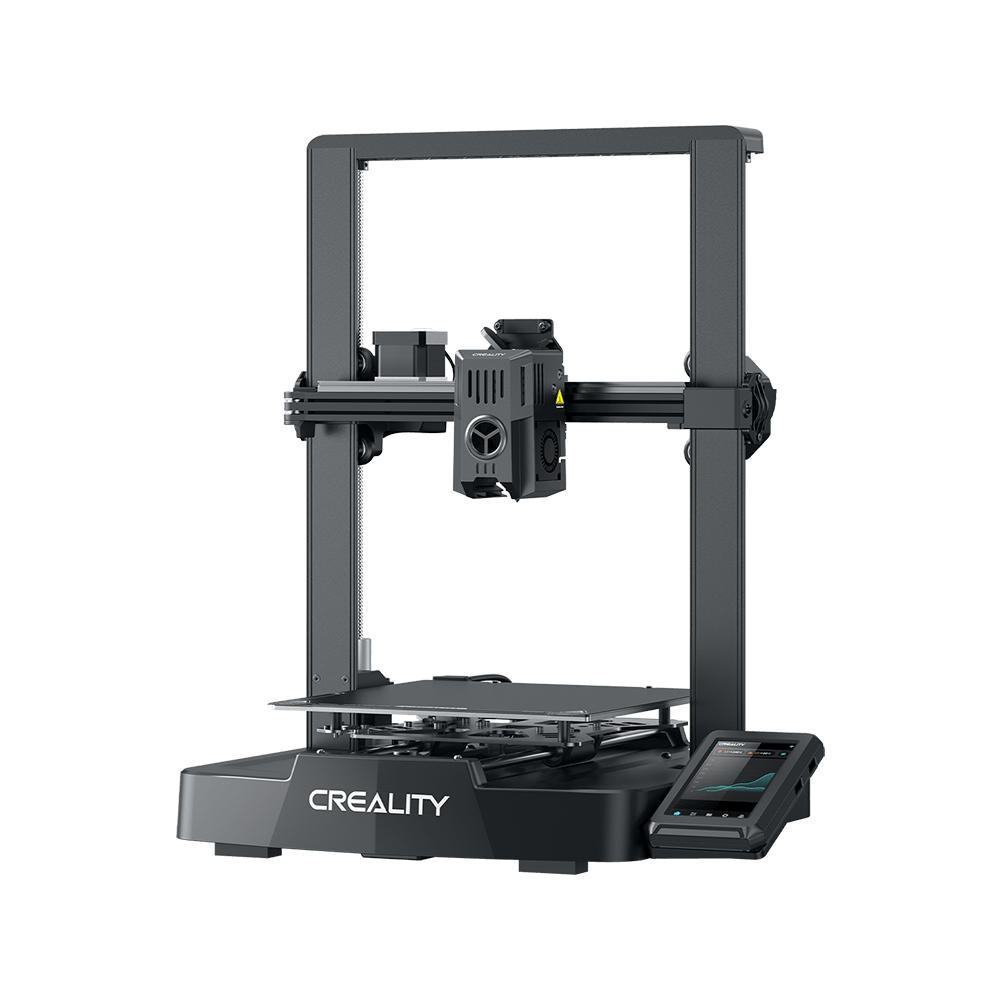
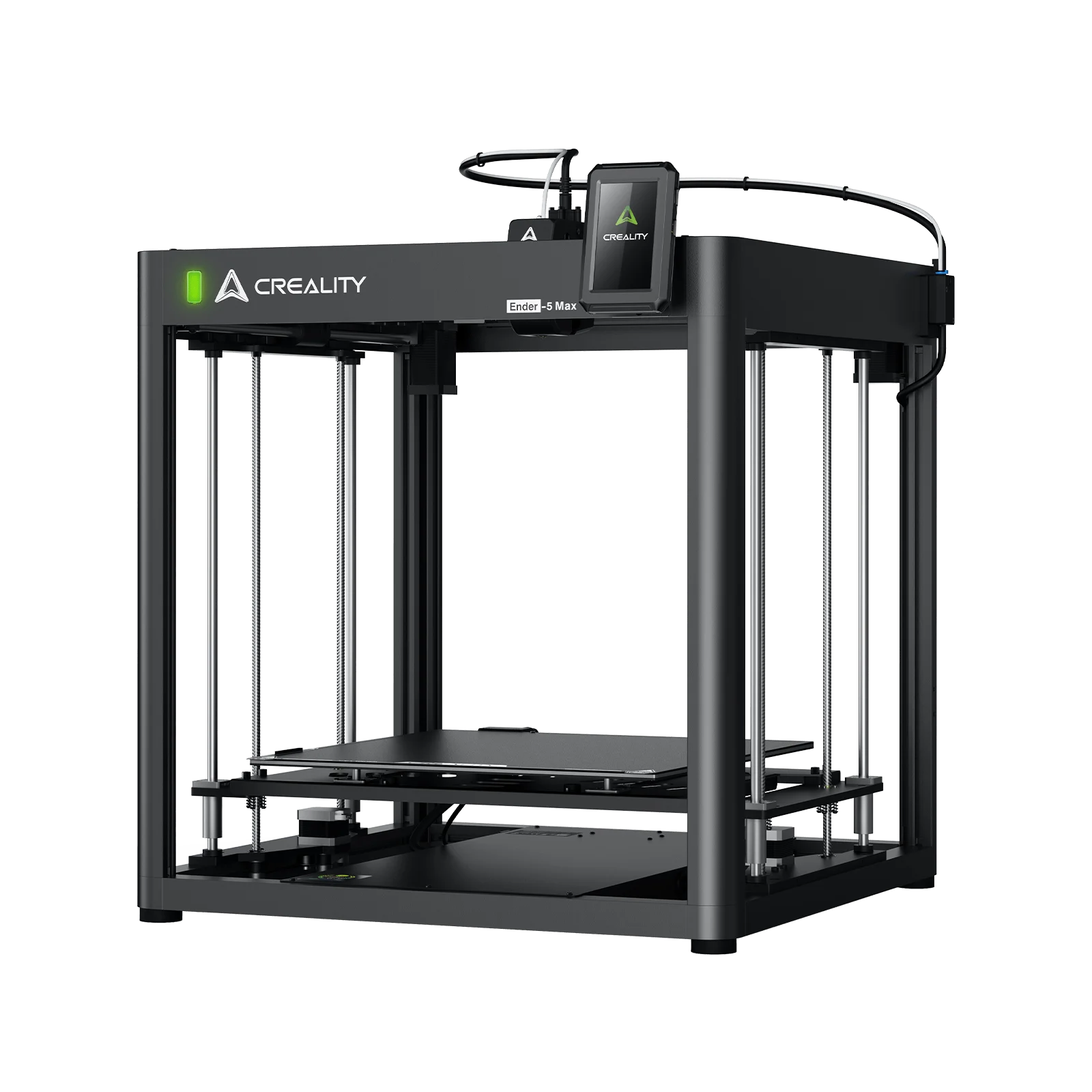
To further enhance your 3D printing experience, Creality Cloud is about to upgrade the IoT service system. To use the IoT service, please update the Creality Cloud app to V4.2.0 or later and finish the firmware updates of your Creality devices, and reconnect them to the network, including your Creality Box, Creality Box 2.0, Resin 3D printers (with built-in Wi-Fi), FDM 3D printers (with built-in Wi-Fi), and the CrealityPi, and Raspberry Pi for OctoPrint, etc. In this announcement, we provide detailed instructions on each Creality device firmware update. If you encounter any obstacles when updating the device firmware, please contact our online service in the Creality Cloud app. We're sincerely sorry for any inconvenience this may bring. Thanks for your understanding and support.
Firmware Update for Creality Box
Steps:
1. Open the Creality Cloud app, tap Devices, and connect your Creality Box to the network until it shows online.
2. Tap Update now to start downloading the latest firmware for your Creality Box. The update will automatically start when the download is finished.
3. After the update, reset your Creality Box and reconnect it to the network. When the Box shows online, it means the update is successful.
Firmware Update for FDM 3D Printers with Built-in Wi-Fi Connectivity
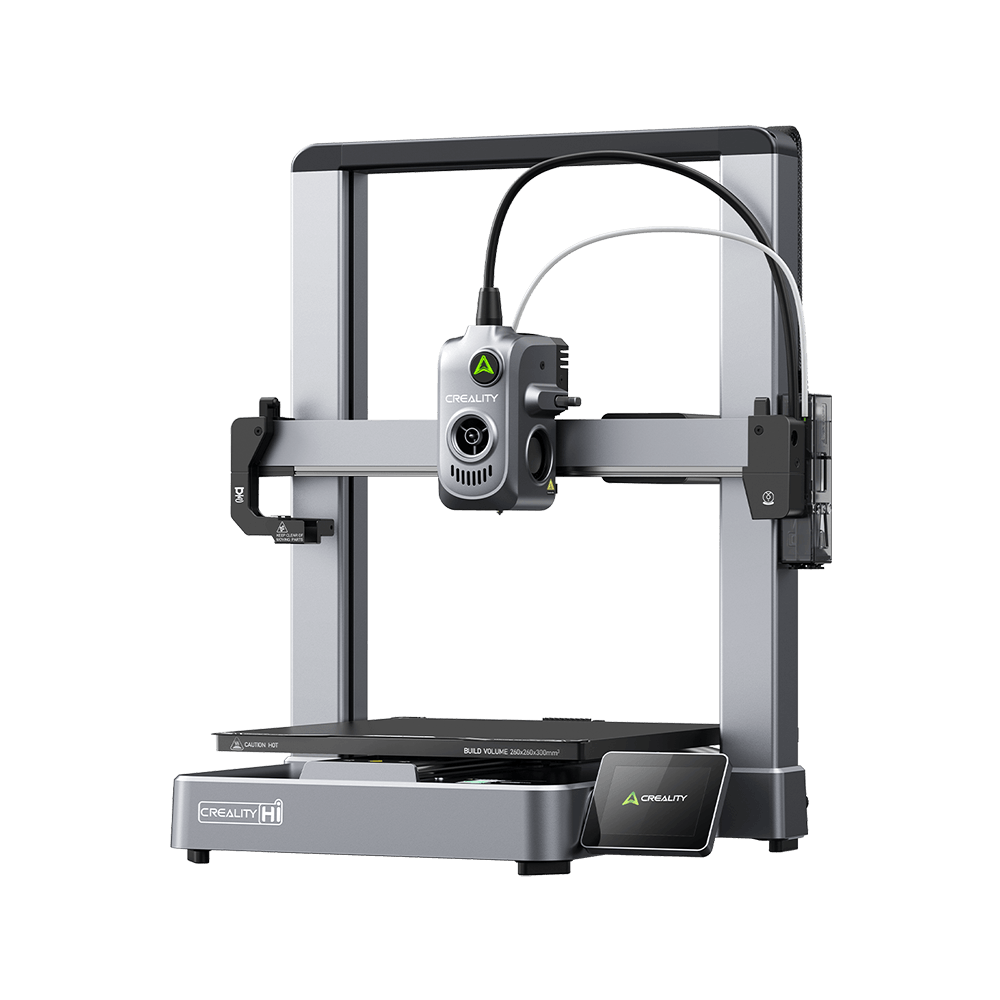
This update applies to FDM 3D printers such as CR-10 Smart, CR-10 Smart Pro, Sermoon V1, and Sermoon V1 Pro, etc.
Steps:
1. Turn on your printer.
2. Pair your printer (with built-in Wi-Fi connectivity) with the Creality Cloud app.
3. On the Creality Cloud app, tap Devices and find your printer. It should say something like “a new firmware is available”. Tap Update now to start downloading the latest firmware for your printer. The update will automatically start when the download is finished. You can check the update progress on the Creality Cloud app.
4. After the update, tap Restore Network on your printer screen and reconnect the printer to the network in the app. When the printer shows online, it means the update is successful.
Firmware Update for Resin 3D Printers with Built-in Wi-Fi Connectivity
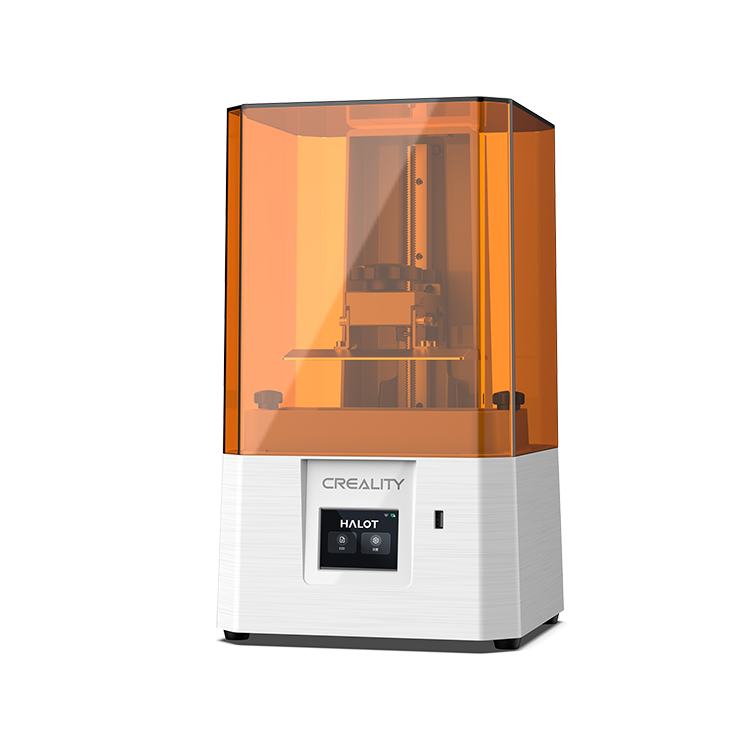
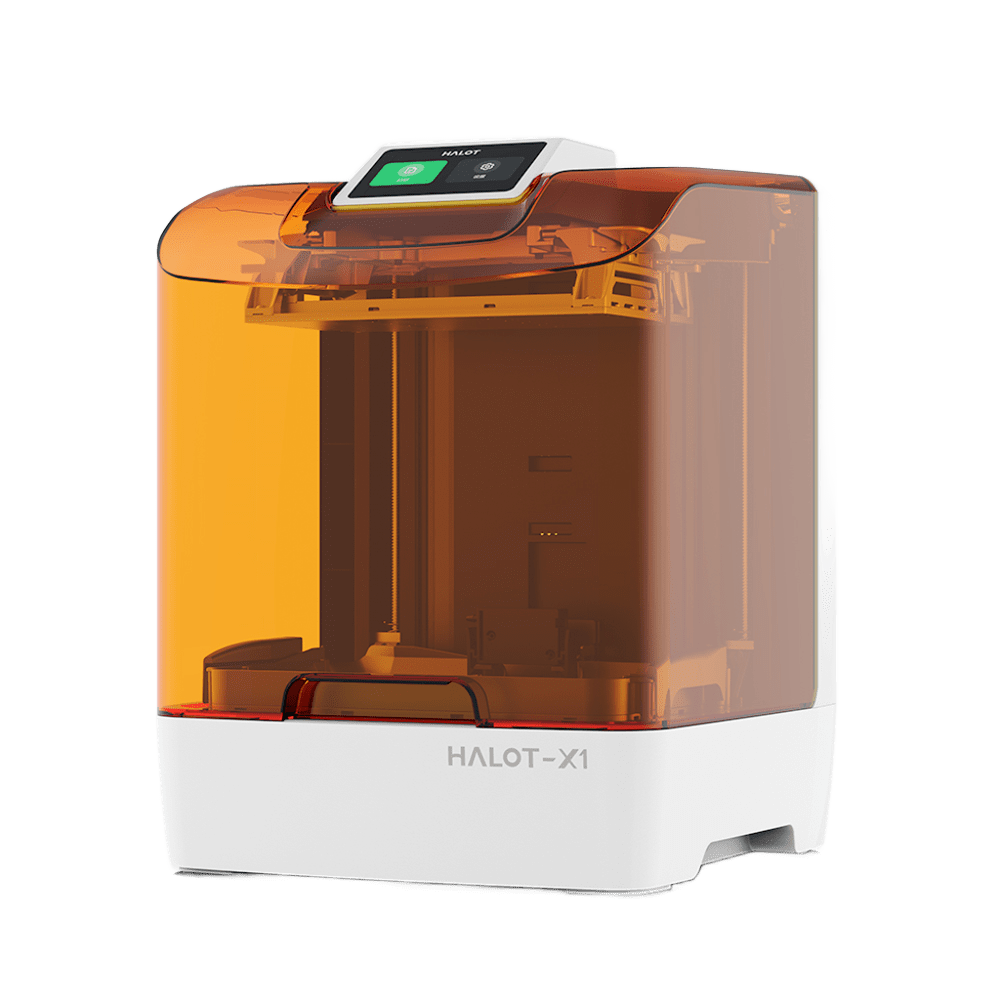
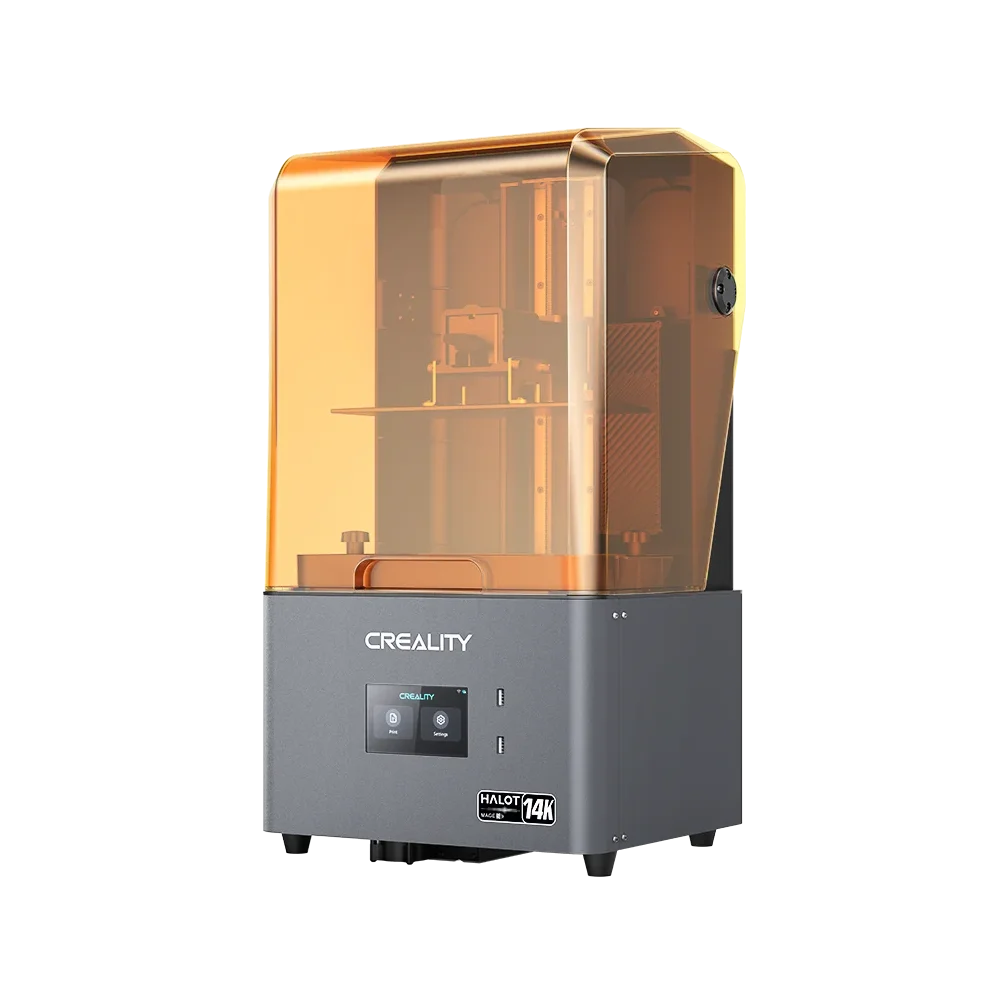
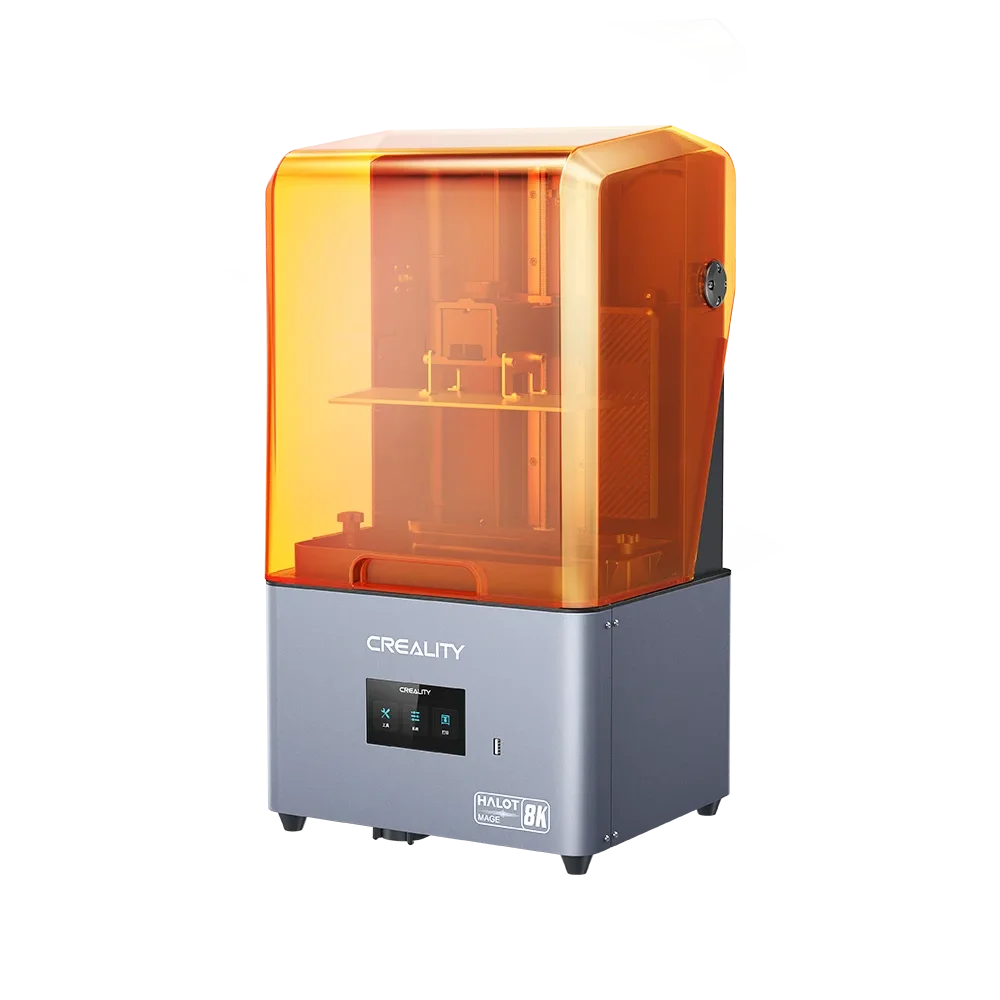
This update applies to HALOT series and CT series 3D printers with built-in Wi-Fi connectivity (Except for HALOT-L79).
Steps:
1. Turn on your printer.
2. Tap Settings > WLAN on the printer screen to connect the printer to your Wi-Fi network.
3. Return to the previous menu. Tap Update > Wireless Network Upgrade > Upgrade. This should take a few minutes, and your printer will restart after the update.
Update CrealityPi
Steps:
1. Insert the TF card into your computer and format the card. Supported file systems: FAT32 & exFAT.
2. Download balenaEtcher from https://www.balena.io/etcher/.
3. Download the latest CrealityPi firmware (V1.0.2.518) from https://www.crealitycloud.com/software-firmware/box?type=14
4. Open balenaEtcher and click Flash from file. Choose CrealityPi-V1.0.2.518.img and click OK.
5. In balenaEtcher, select the TF card you inserted and click Flash. This should take a few moments.
6. Put the TF card back into the Raspberry Pi you prepared. Pair it with the Creality Cloud app through Bluetooth. Visit crealitycloud.com on your computer and log into your Creality Cloud account. Go to Personal Center, and you will see your printer online on Device Manage if the update is successful.
Update Creality Cloud OctoPrint Plugin
Steps:
1. Log into OctoPrint web according to your device IP address. Go to Plugin Manager and uninstall Creality Cloud.
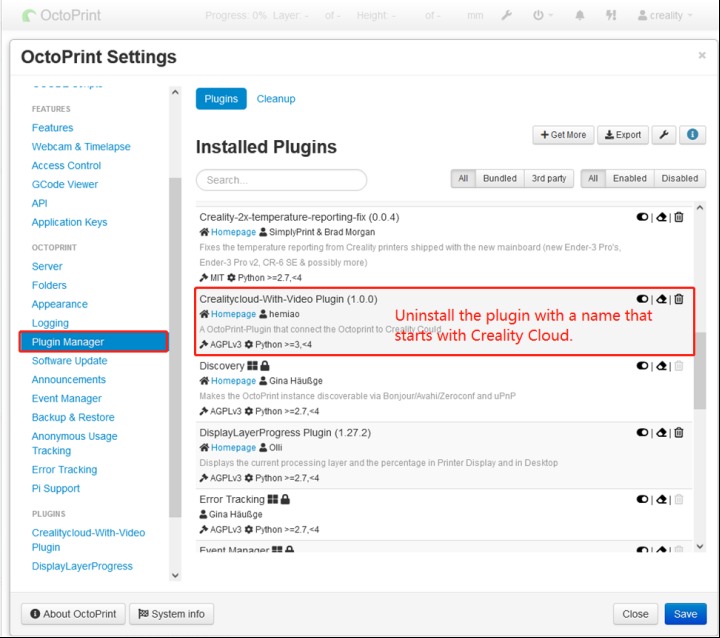
2. Download the latest (V1.0.4) Creality Cloud OctoPrint plugin from https://file-cdn.creality.com/octoprint/OctoPrint-CrealityCloud-With-Video-main.zip
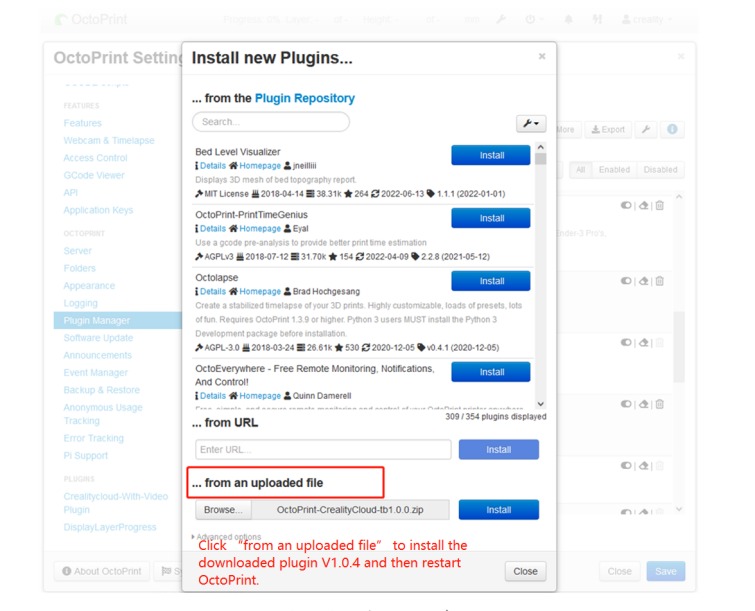
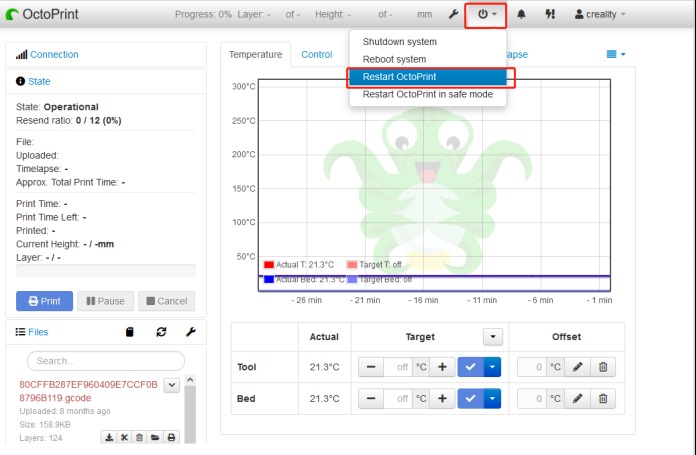
3. Go back to Plugin Manager and click Get more. Then choose from an uploaded file to install Creality Cloud OctoPrint Plugin V1.0.4. Restart OctoPrint.
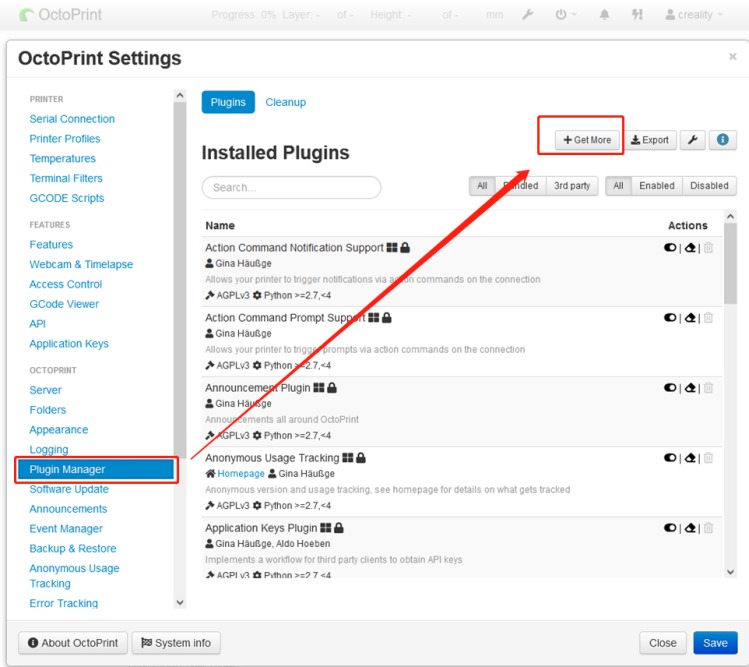
4. Open the Creality Cloud app. Tap Devices > Add Device > Raspberry Pi > Create Raspberry Pi > Download Key File (suffixed with.tk).
5. Send the Key File to your computer. Copy the file to Creality Cloud OctoPrint Plugin to finish the update.
6. Visit crealitycloud.com on your computer and log into your Creality Cloud account. Go to Personal Center, and you will see your printer online on Device Manage if the update is successful.
How to use Creality Cloud OctoPrint Plugin:
https://www.crealitycloud.com/software-firmware/plugins?type=13
——By Creality Cloud