








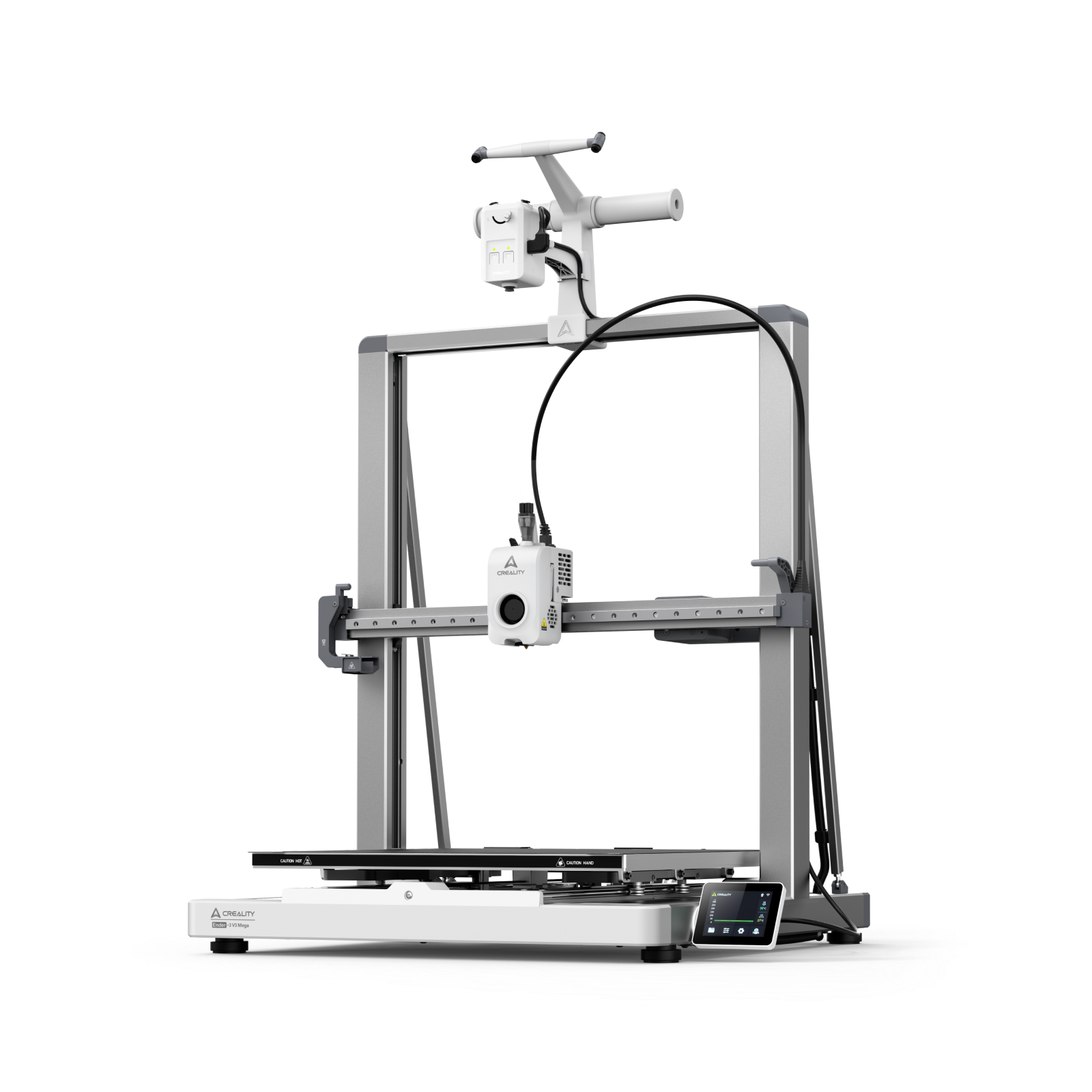
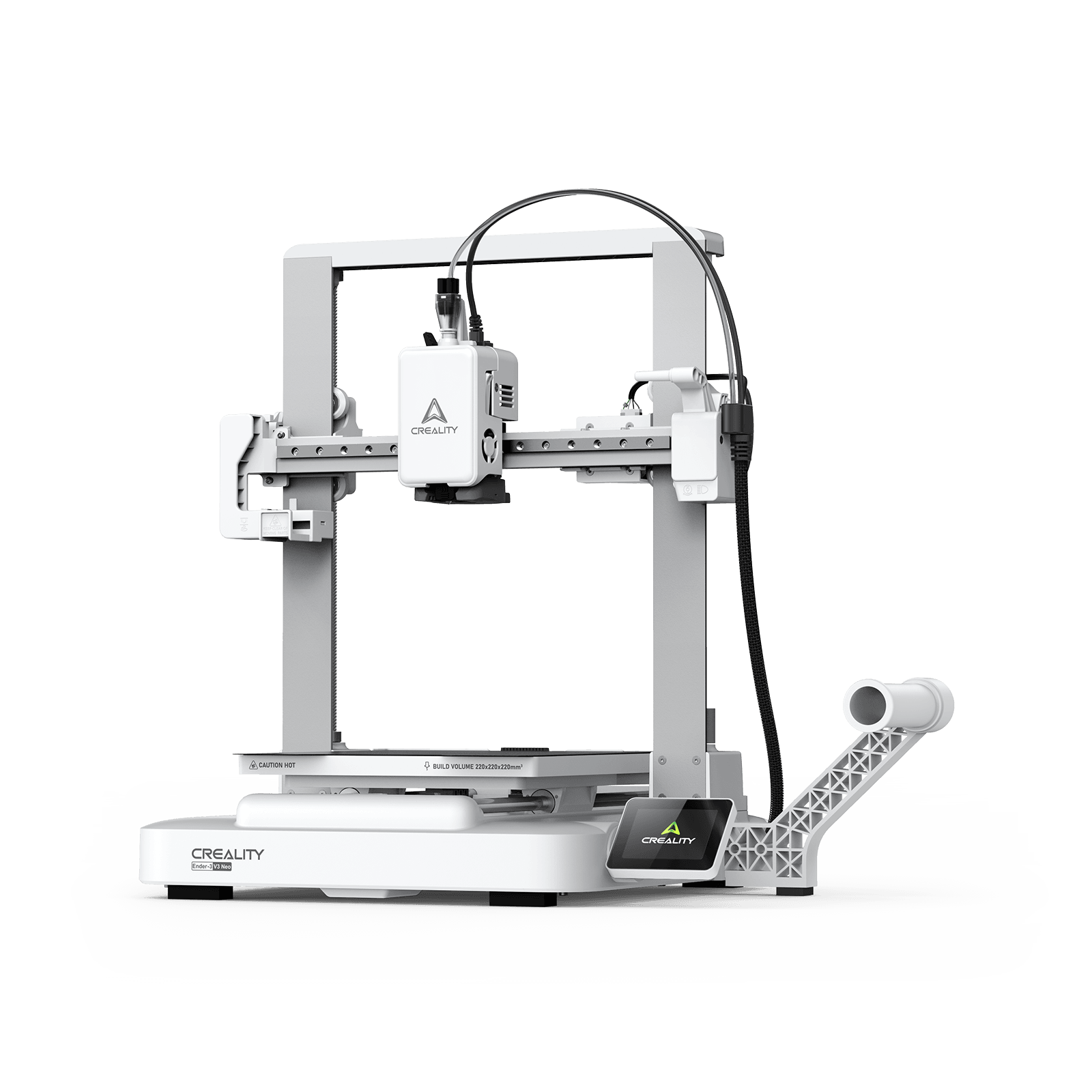































3D printing is transforming industries like design, art, and manufacturing, and ceramics are now part of that revolution. Whether it’s decorative pottery, functional kitchenware, or architectural models, ceramic 3D printing is unlocking new levels of creativity and innovation. But a question that almost always arises is: “How long does it take to 3D print ceramics?”
The honest answer is that there’s no single timeframe. Printing speed depends on several factors, including model size, layer height, infill density, printer speed, and even the material type. For instance, a small ceramic cup may take only a few hours, while a larger, highly detailed ceramic sculpture could run for more than an entire day.
In this blog, we’ll break down the key factors that influence ceramic 3D printing time, share practical examples from real projects, and provide tips on optimizing speed while maintaining quality. We’ll also highlight Creality’s advanced printers and ceramic materials designed to deliver professional-grade results in less time.
Quick Answer: Average 3D Printing Times
So, how long does it take to 3D print ceramics? It depends on your project’s complexity. On average:
-
Small ceramic models (e.g., cups, mini vases): 1–3 hours
-
Medium ceramic items (e.g., bowls, figurines): 3–8 hours
-
Large ceramic pieces (e.g., sculptures, architectural tiles): 10+ hours, sometimes over 24 hours
Here’s an estimate of typical print times using Creality printers:
|
Model Example
|
Size
|
Creality K2 Plus Combo
|
Creality K1
|
Creality K1 Max
|
|
Ceramic Cup
|
Small
|
~1 hr
|
~1.5 hrs
|
~1.2 hrs
|
|
Decorative Vase
|
Medium
|
~4 hrs
|
~5 hrs
|
~4.5 hrs
|
|
Ceramic Figurine
|
Medium
|
~6 hrs
|
~7 hrs
|
~6.5 hrs
|
|
Large Sculpture
|
Large
|
~12 hrs
|
~16 hrs
|
~14 hrs
|
|
Ceramic Tile Panel
|
Large
|
~20+ hrs
|
~24+ hrs
|
~22 hrs
|
With high-speed machines like the Creality K2 Plus Combo or K1 Series, you can dramatically cut production time while maintaining fine ceramic detail.
Eight Key Factors That Affect Ceramic 3D Printing Time
When asking “how long does it take to 3D print ceramics?”, consider these key factors:
Model Size (Volume & Dimensions)
1.Larger ceramic objects naturally require longer printing times.
2.Example: A small clay cube may take under 30 minutes, while a ceramic vase could exceed 12 hours.
Layer Height (Resolution)
1.Finer layers (0.1mm) create smooth ceramic surfaces but take much longer than 0.2mm layers.
2.Creality’s K2 Plus Combo supports ultra-fine resolution for detailed ceramic textures.
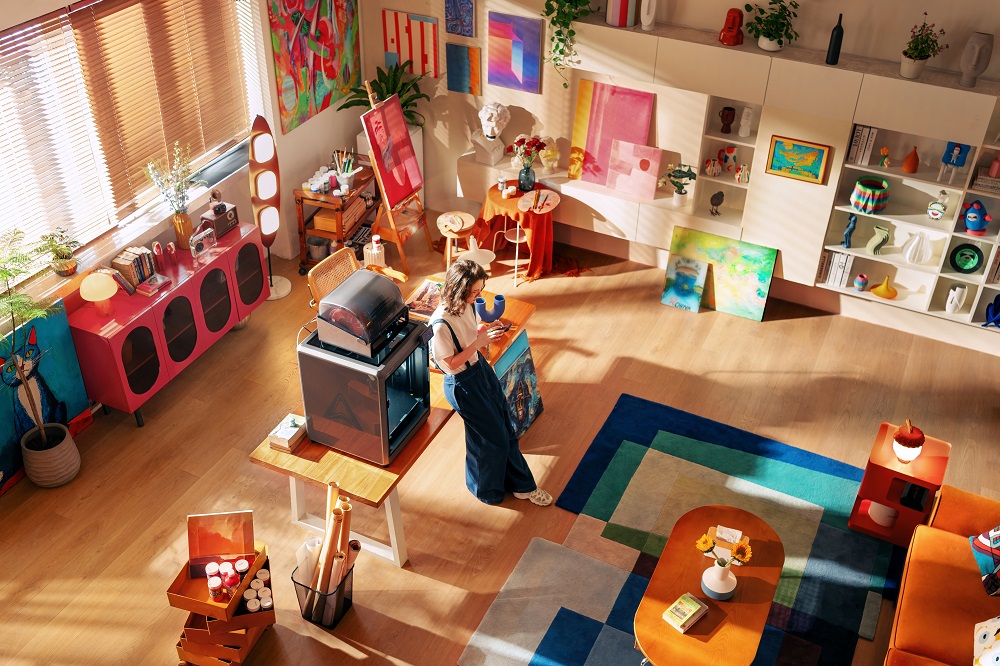
Infill Density & Pattern
1.More infill = stronger ceramic parts but longer print times.
2.20% infill is common for decorative ceramics, while 100% infill suits functional pieces.
Print Speed Settings
1.Higher speeds shorten print times but may affect ceramic finish.
2.Creality’s K1 Series balances speed with excellent quality for ceramic printing.
Shell Thickness (Wall Line Count)
Thicker walls mean stronger ceramic pieces but add hours to print time.
Support Structures
Complex ceramic shapes often need supports, increasing time and material use.
Filament or Material Type
1.Ceramic-based filaments may require slower printing speeds compared to PLA.
2.Using Creality high-speed PLA+ or ceramic-compatible filaments ensures efficiency.
Printer Type & Performance
1.Resin printers may print small ceramic prototypes faster, but FDM printers handle larger ceramic models better.
2.High-performance Creality models like the K1 Max excel at ceramic projects needing both scale and detail.
Ceramic 3D Printing Products
Custom Dental Crowns and Bridges
-
Use: Dentistry
-
Material: Zirconia or alumina ceramic
-
Why 3D Printed? Enables highly accurate, patient-specific dental prosthetics with fast turnaround times.
Complex Ceramic Heat Exchangers
-
Use: Aerospace & Industrial Applications
-
Material: Silicon carbide or alumina
-
Why 3D Printed? Intricate internal geometries for efficient heat transfer that are impossible to produce with traditional methods.
Designer Ceramic Homeware (Vases, Lamps, Tableware)
-
Use: Interior design & consumer goods
-
Material: Porcelain or stoneware
-
Why 3D Printed? Enables unique, customizable shapes and surface textures for aesthetic and functional products
How to Estimate 3D Print Time (Ceramics)
Estimating ceramic print times is easy with slicing software:
-
One of the easiest ways to estimate Ceramic 3D print time is by using slicing software.
-
Popular tools include Creality Print.
-
These programs let you:
-
Import your STL file
-
Adjust key settings like layer height, infill, and print speed
-
Instantly view an estimated print time
-
-
Creality’s slicing tools are beginner-friendly, offering:
-
Clear previews of print duration
-
Insights into material usage
-
-
The simple workflow is: Import STL → Adjust Settings → View Estimated Time.
-
This helps you plan projects efficiently and avoid delays.
How to Speed Up Ceramic Printing Without Losing Quality
When people ask, “How to Speed Up Ceramic Printing Without Losing Quality?” the answer often depends on the printer settings. While larger models or fine details naturally take longer, there are several smart ways to cut printing time without losing quality:
Reduce Infill Density
Dropping infill from 40% to 20% can cut hours off a print while still keeping parts strong enough for most uses.
Increase Layer Height (Balanced with Quality)
Moving from 0.1mm to 0.2mm layer height speeds up prints significantly. For example, a 6-hour model at 0.1mm might only take 3–4 hours at 0.2mm with minimal quality loss.
Use Draft Mode for Prototyping
Draft mode produces faster prints that are perfect for test fitting and concept models before investing time in a high-resolution version.
Optimize Model Orientation
Printing a model on its side or flat can reduce the need for supports, cutting print time and filament usage.
Upgrade to a High-Speed Printer
While settings can help, the best way to reduce waiting time is by using a high-performance machine. Creality’s K1 Series and K1 Max printers are designed for high-speed printing without compromising quality, allowing you to finish projects in a fraction of the usual time.
By applying these tips, you can cut hours from your projects while still achieving professional results. The next time you wonder “how long does it take to 3D print Ceramics?” remember that the right printer and settings make all the difference.
Real-World Ceramic Print Time Examples (Creality Printers)
|
Ceramic Model
|
Printer Model
|
Speed
|
Estimated Time
|
|
Mini Ceramic Cup
|
Ender-3 V3 KE
|
250mm/s
|
~45 mins
|
|
Decorative Vase
|
K1
|
<600mm/s
|
~3 hrs
|
|
Full Ceramic Sculpture
|
K2 Plus Combo
|
<600mm/s
|
~10–12 hrs
|
Conclusion
So, how long does it take to 3D print ceramics? The answer depends on size, resolution, infill, speed, material, and printer performance. By adjusting settings like infill density and layer height or upgrading to a high-speed printer, you can save hours without losing ceramic quality.
Explore Creality advanced 3D printers and ceramic-compatible filaments to create strong, detailed ceramic pieces efficiently. Whether you’re crafting pottery, sculptures, or tiles, Creality helps you balance speed, strength, and beauty.