
Welcome to Creality    

Creality
3D PrintersEcosystem3D Footwear SupportSoftwareBlogCreality CloudInvestor Relations
Store
SPARKXFlagshipHi SeriesEnder SeriesHALOT Series
SPARKX i7
New
SPARKX i7
More Products
Compare
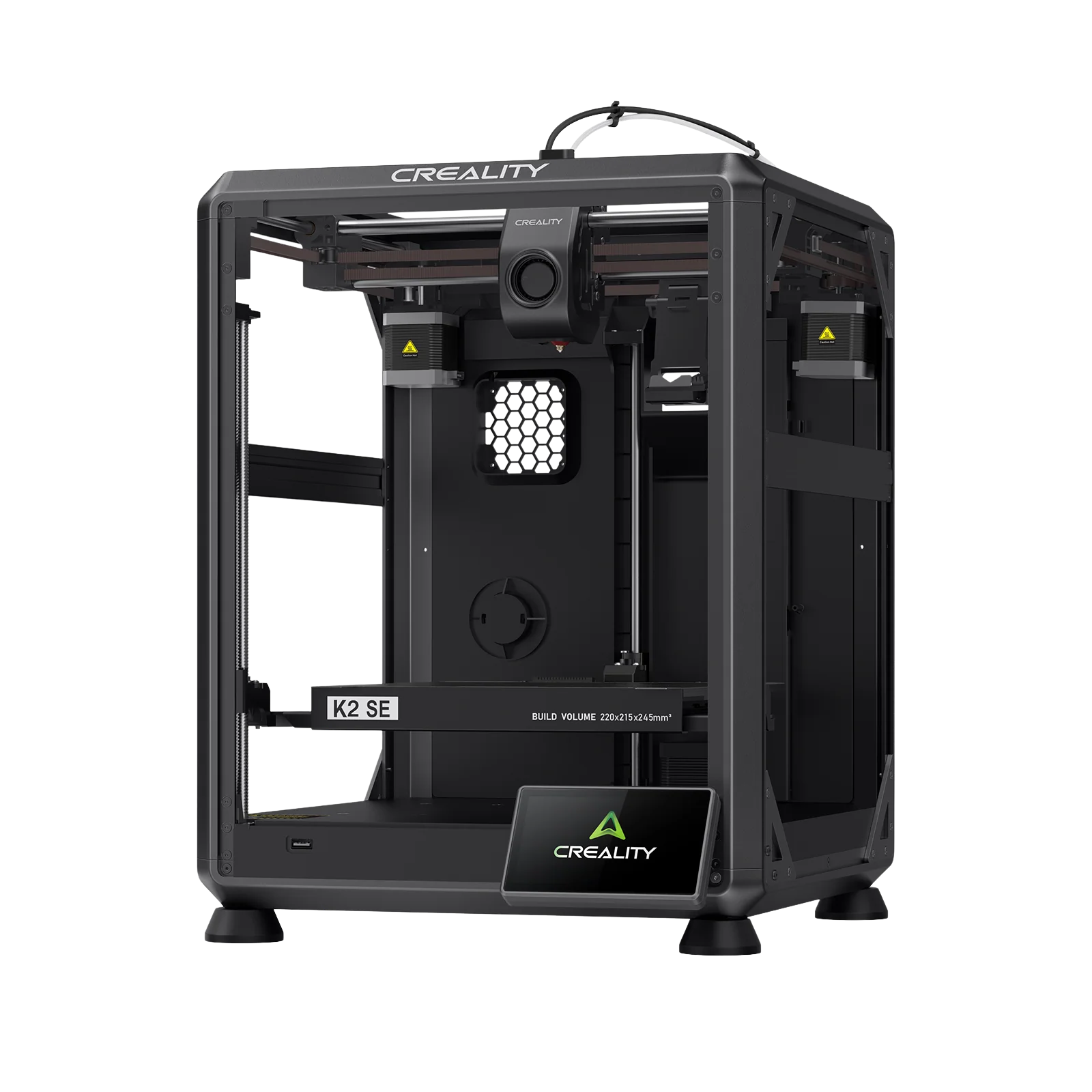
K2 SE
New
K2 SE
K2
New
K2
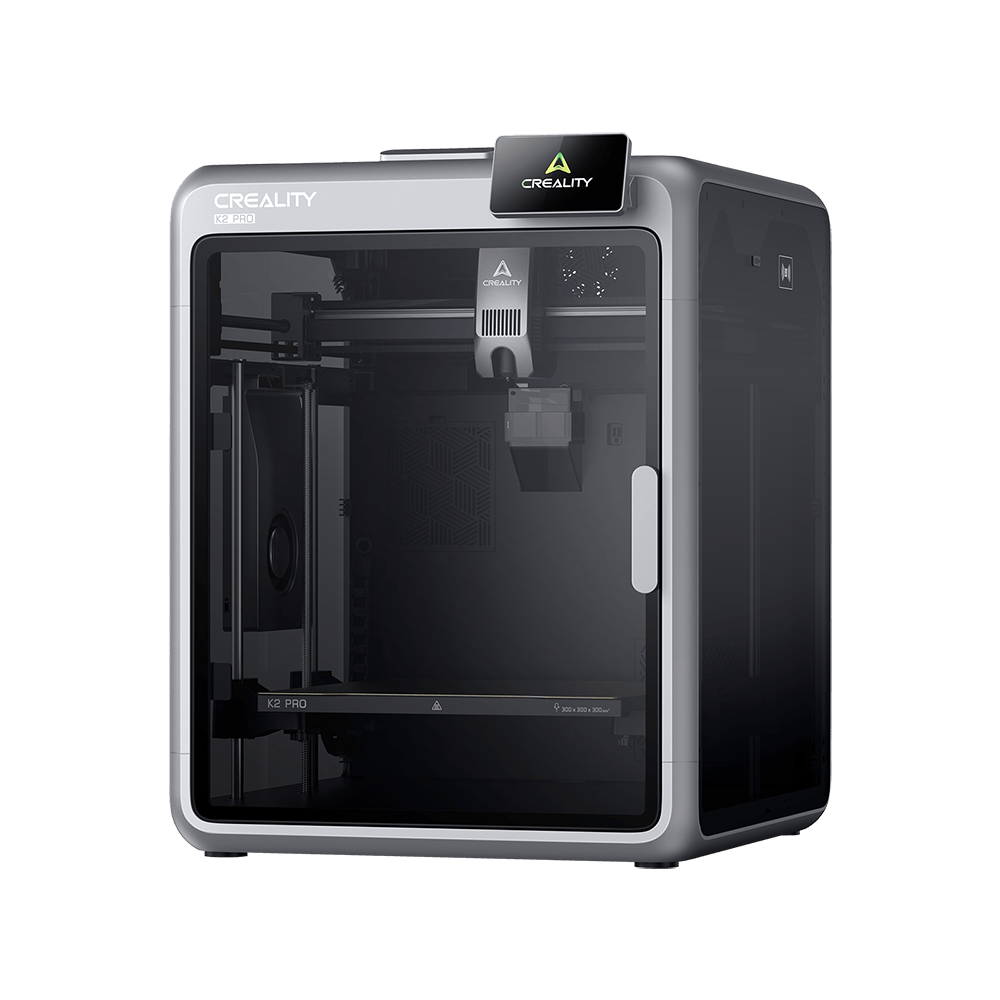
K2 Pro
K2 Pro
K2 Plus
K2 Plus
K1 Max
K1 Max
More Products
Compare
Creality Hi
Creality Hi
More Products
Compare
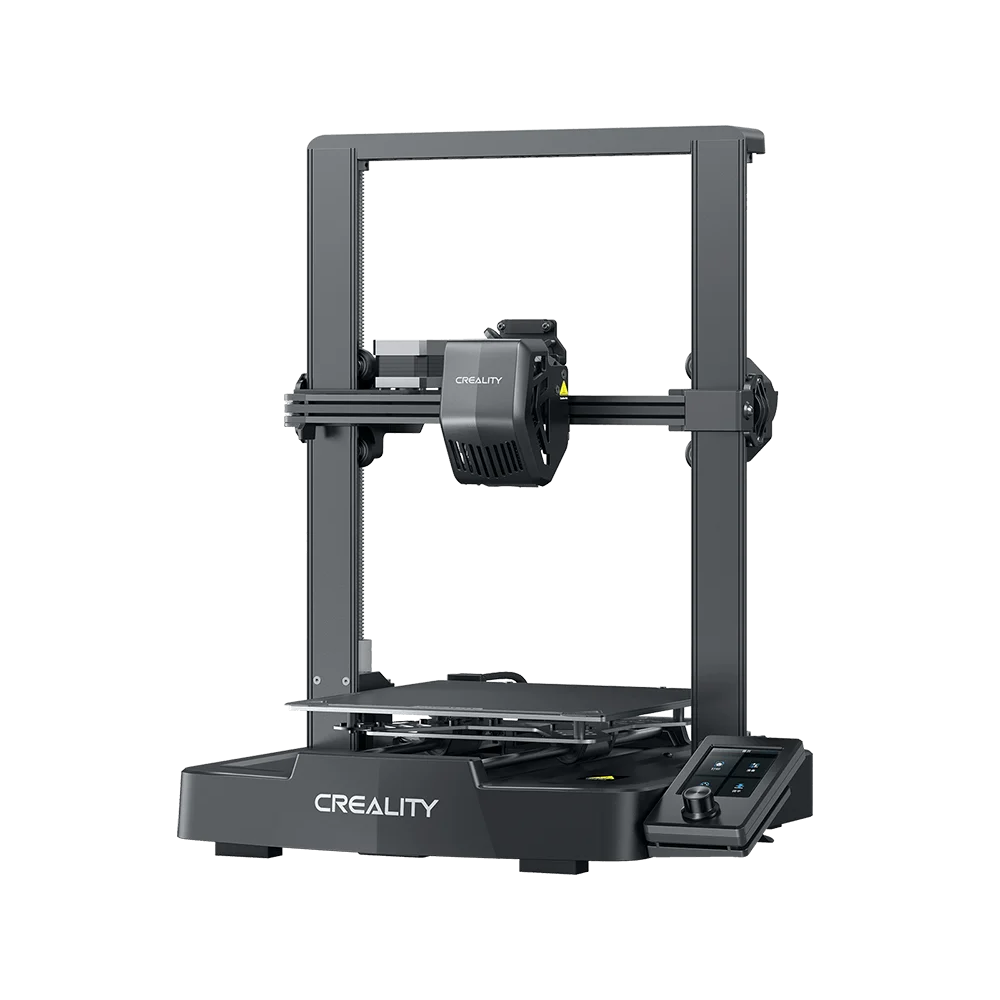
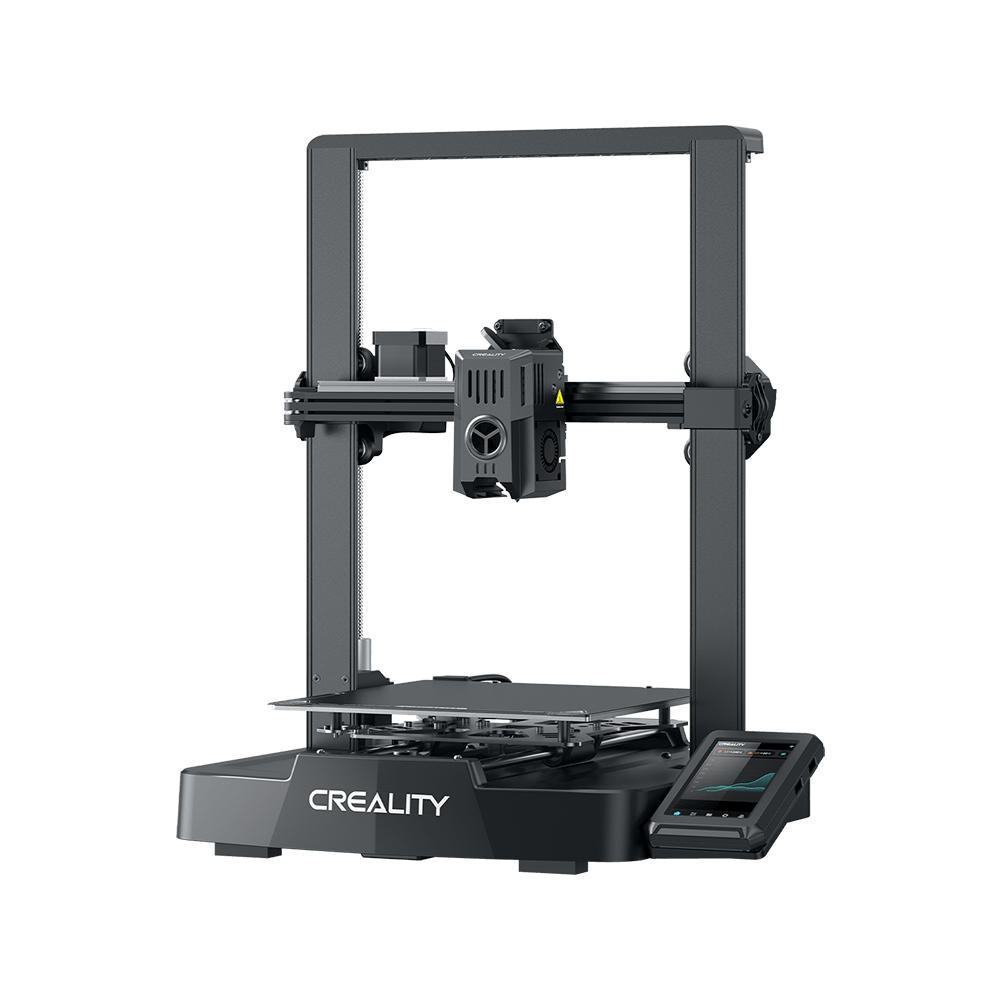
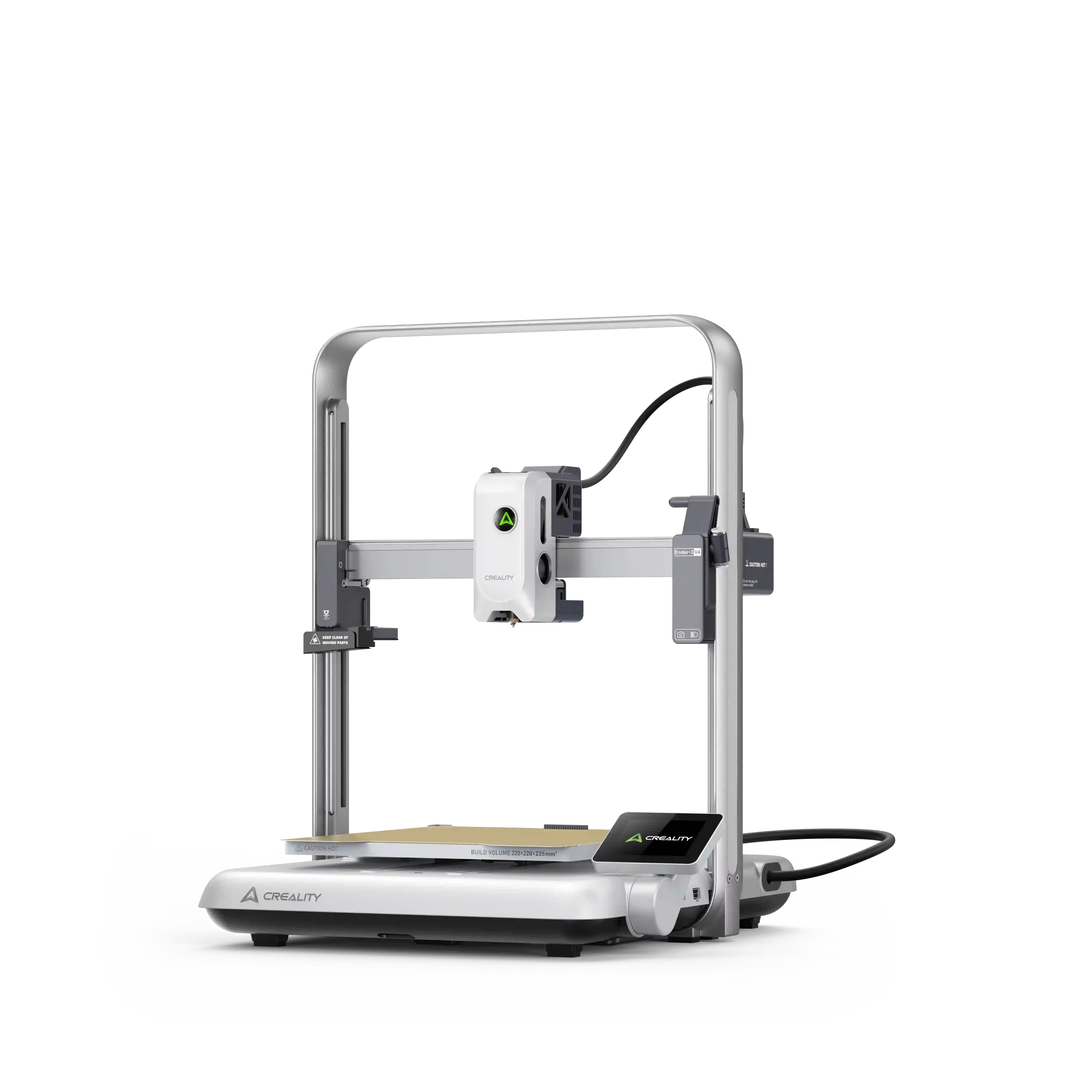
Ender-3 V4
New
Ender-3 V4
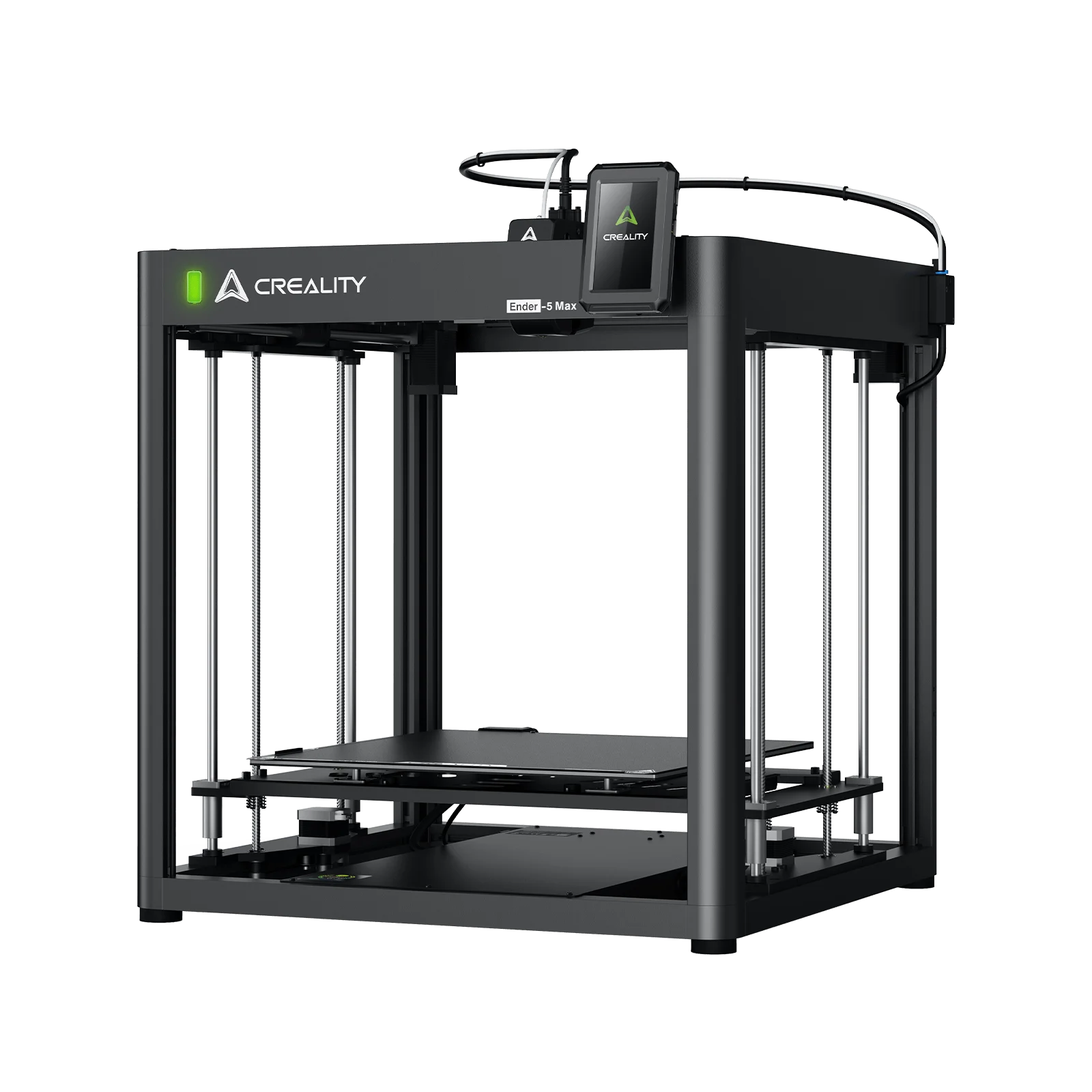
Ender-5 Max
Ender-5 Max
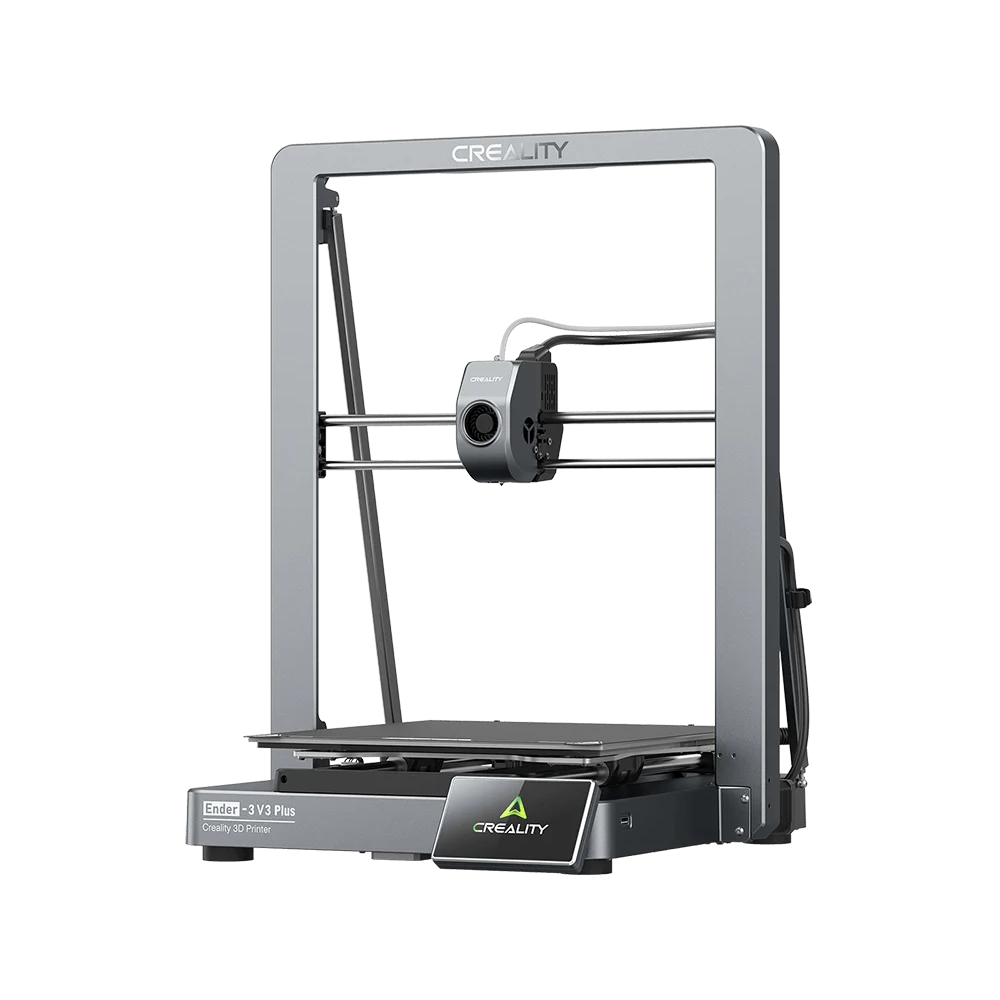
Ender-3 V3 Plus
Ender-3 V3 Plus
Ender-3 V3
Ender-3 V3
Ender-3 V3 SE
Ender-3 V3 SE
More Products
Compare
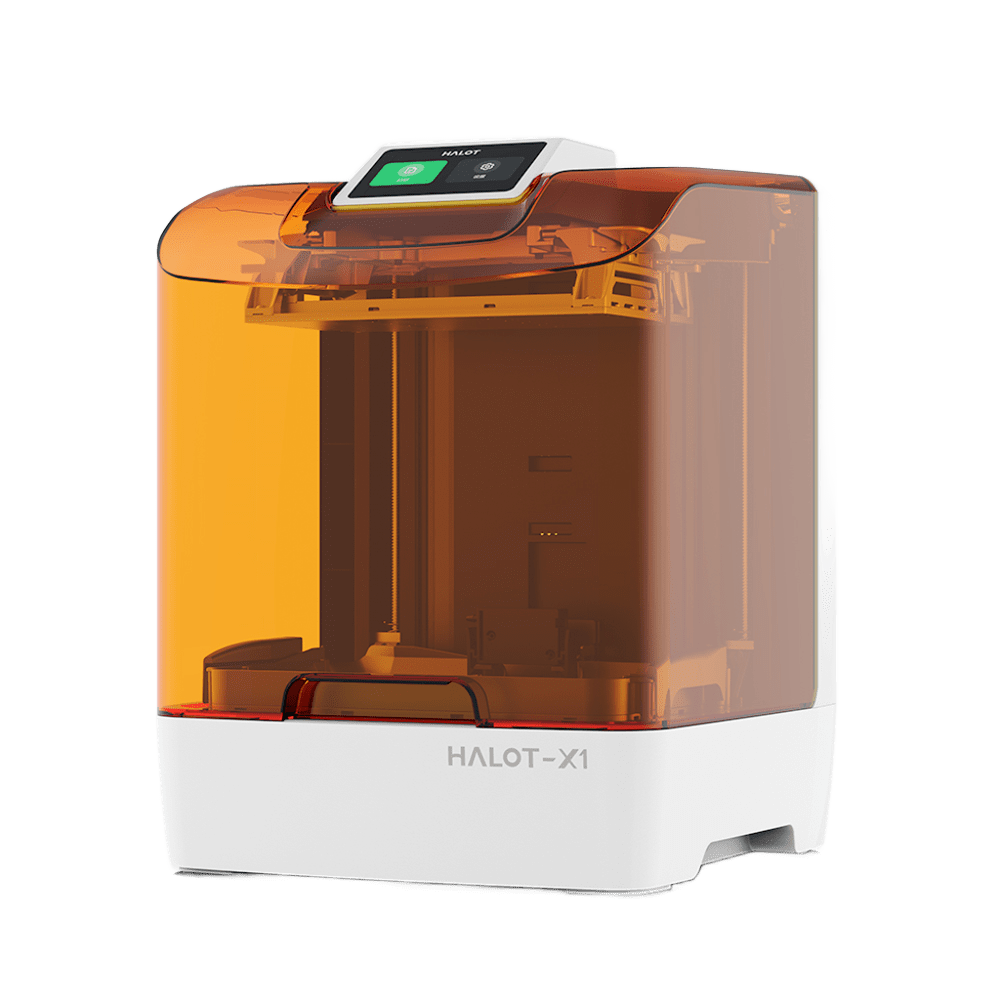
HALOT-X1
New
HALOT-X1
HALOT R6
HALOT R6
HALOT-MAGE S
HALOT-MAGE S
HALOT-MAGE
HALOT-MAGE
More Products
Filaments3D ScannersLaser EngraversAccessories
Hyper Series
Hyper Series
CR Series
CR Series
Soleyin Series
Soleyin Series
Ender Series
Ender Series
More Products
Filament Guide
Creality Pika
New
Creality Pika
Sermoon P1
New
Sermoon P1
Sermoon X1
Sermoon X1
Sermoon S1
Sermoon S1
Creality Raptor Pro
Creality Raptor Pro
More Products
Falcon A1C
New
Falcon A1C
Creality Falcon T1
New
Creality Falcon T1
Creality Falcon A1 Pro 20W
Creality Falcon A1
Creality Falcon A1
Creality Falcon2 Pro 60W
More Products
CFS-C
New
CFS-C
SpacePi X4L
New
SpacePi X4L
Creality SpacePi X4
Creality SpacePi X4
Creality Space Pi  Dryer
Creality Space Pi Dryer
CFS - Creality Filament System
More Products
Download Center
3D Models
Creality Cloud App
Firmware & Software
Service Center
Help Center
Creality Wiki
Product Support
Video Guides
Product Comparison
Filament Guide
Find Your Printer
Discover
User Stories
3D Scanner Applications
3D Printing in Education
Blog Center / Optimize K2 Pro/K2 Plus Chamber Temp for Engineering Materials
Contents
contents

Join Our Newsletter

Subscribe to our newsletter for 3D printing insights, step-by-step guides, and inspirations for your next 3D printing adventure.

By subscribing, you agree to our Terms and Privacy Policy.

Social Media

  • Youtube
  • Facebook
  • Instagram
  • TikTok
  • Twitter
  • Reddit
  • Discord
  • LinkedIn

Contents

  • Why is it necessary to set the printer chamber temperature?
  • Methods for adjusting chamber temperature

Optimize K2 Pro/K2 Plus Chamber Temp for Engineering Materials

Jun 8, 2026 09:09:15

Why is it necessary to set the printer chamber temperature?

K2 Pro and K2 Plus introduces active chamber temperature control, with a maximum chamber temperature of 60°C. Long-term operation of the chamber heater may affect the machine's service life and even cause damage. When the heating function has been working for a certain time and the temperature still cannot reach the set standard, pause the printing, add insulation measures, and then try printing again. However, when the ambient temperature is too low, the chamber temperature may not reach 60°C. Based on current testing, when the ambient temperature is below 15°C and the local operating voltage is 110V, the chamber may not reach the target temperature.

Higher chamber temperatures can significantly improve the printing results of certain engineering materials (such as ABS, ASA, PC, PA-CF, PAHT-CF, PET-CF, PPA-CF, PPS, PPS-CF), specifically by reducing warping, preventing model cracking, and enhancing surface quality. Additionally, appropriate chamber temperatures can improve mechanical properties, such as interlayer strength.

Please note that when printing PLA, PETG, TPU, BVOH, and other low-temperature materials, it is not recommended to use high chamber temperatures, as this may cause these materials to soften, potentially leading to extruder jamming issues. When using these low-temperature materials, it is recommended to set the chamber temperature to 30-35°C.

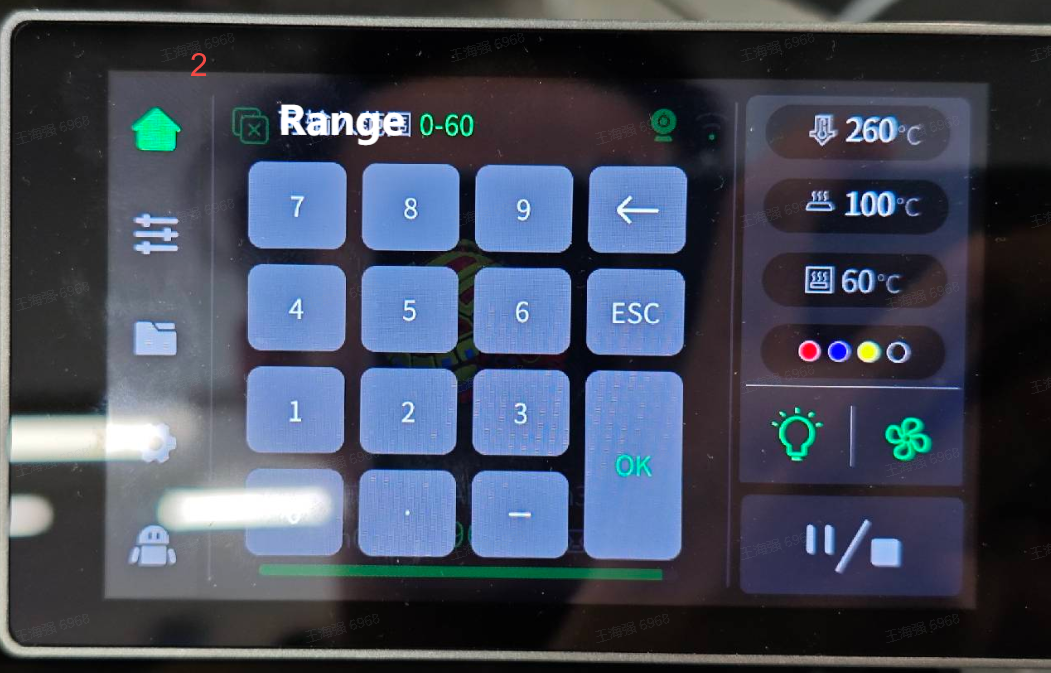
The chamber temperature setting logic for K2 Pro/K2 Plus is as follows:

T=0°C: Turn off the chamber fan and chamber heating

0°C < T ≤ 40°C: Chamber cooling fan control range. For example, if set to 35°C, the chamber fan will turn on for cooling when the temperature exceeds 35°C; when below 35°C, the chamber fan will turn off; chamber heating will not activate in this range.

40°C < T ≤ 60°C: Active heating control range. For example, if set to 45°C, chamber heating will turn on when the temperature is below 45°C; when above 45°C, chamber heating will turn off; the chamber cooling fan will not activate in this range.

Methods for adjusting chamber temperature

Setting chamber temperature when slicing in CrealityPrint

Select the K2 Pro/K2 Plus model (default nozzle is 0.4mm).

Choose the target material.

Click the material edit button.

Locate the chamber temperature control parameter.

All material parameters for K2 Pro/K2 Plus (including PLA) have been preset with appropriate chamber temperatures by default. If printing is normal, please do not adjust these settings on your own.
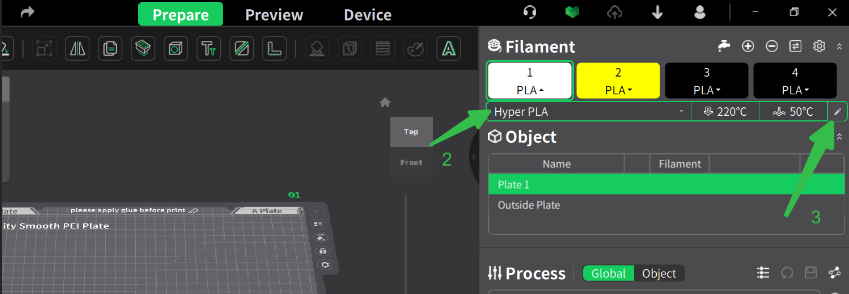
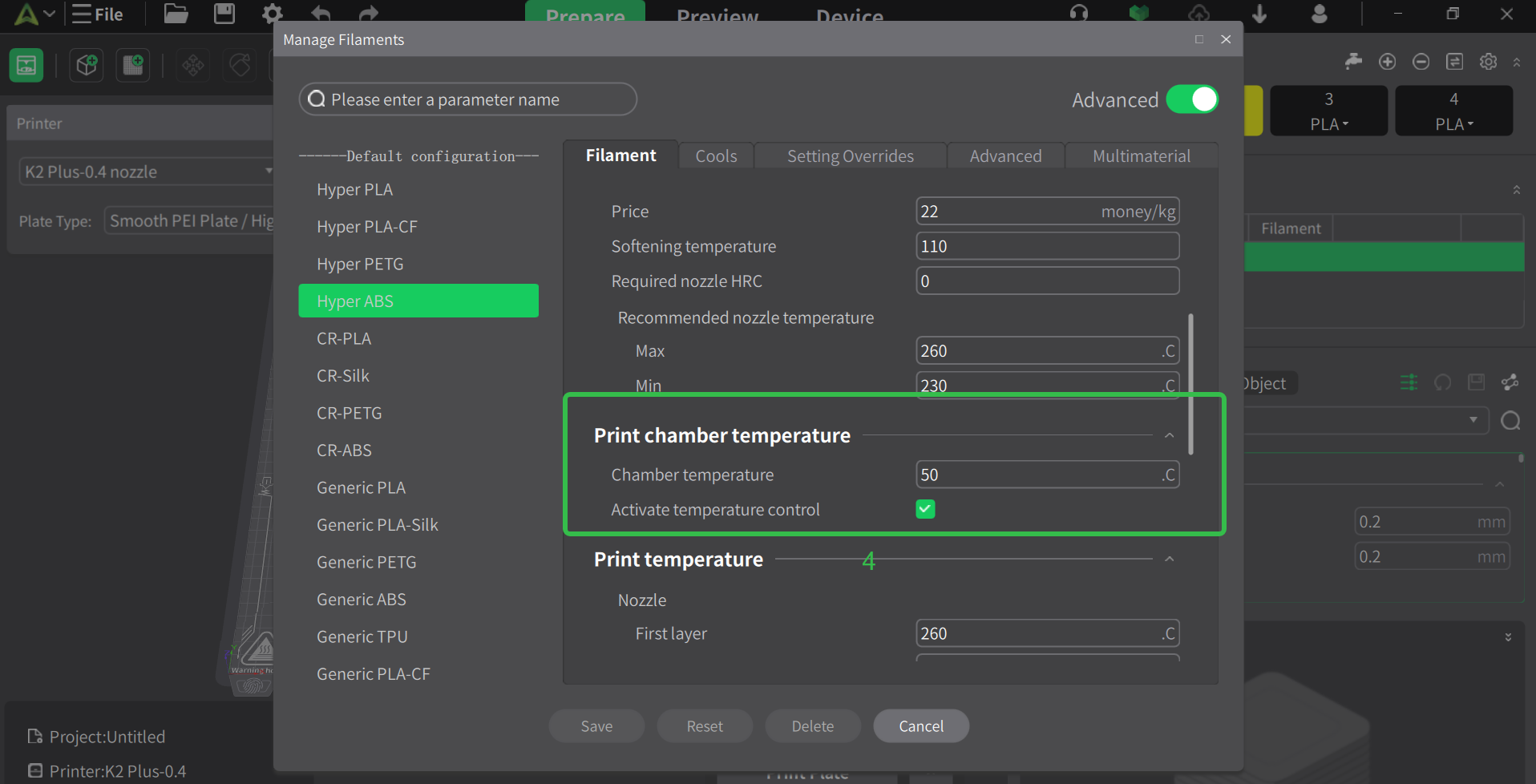
appropriate chamber temperatures by default
print chamber temperature

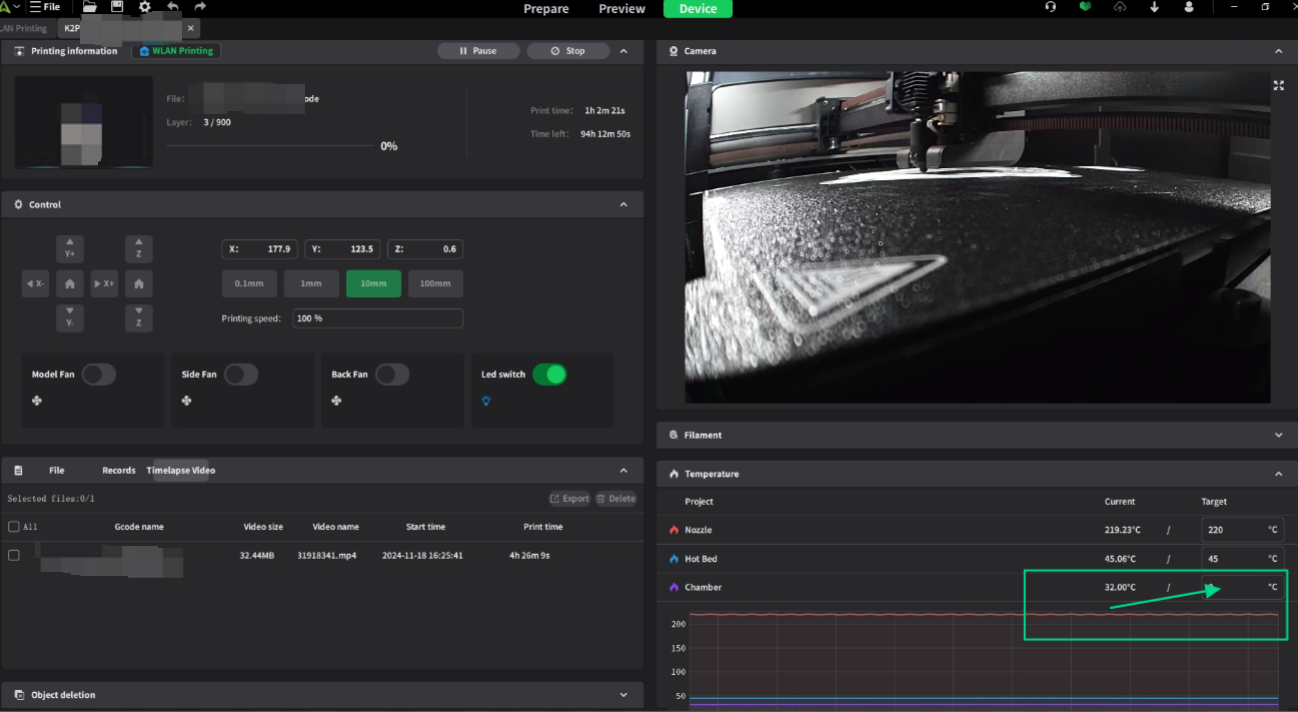
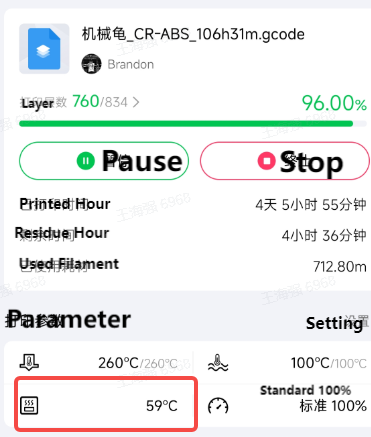
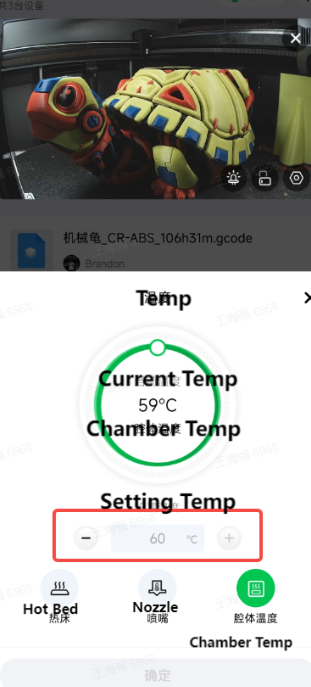
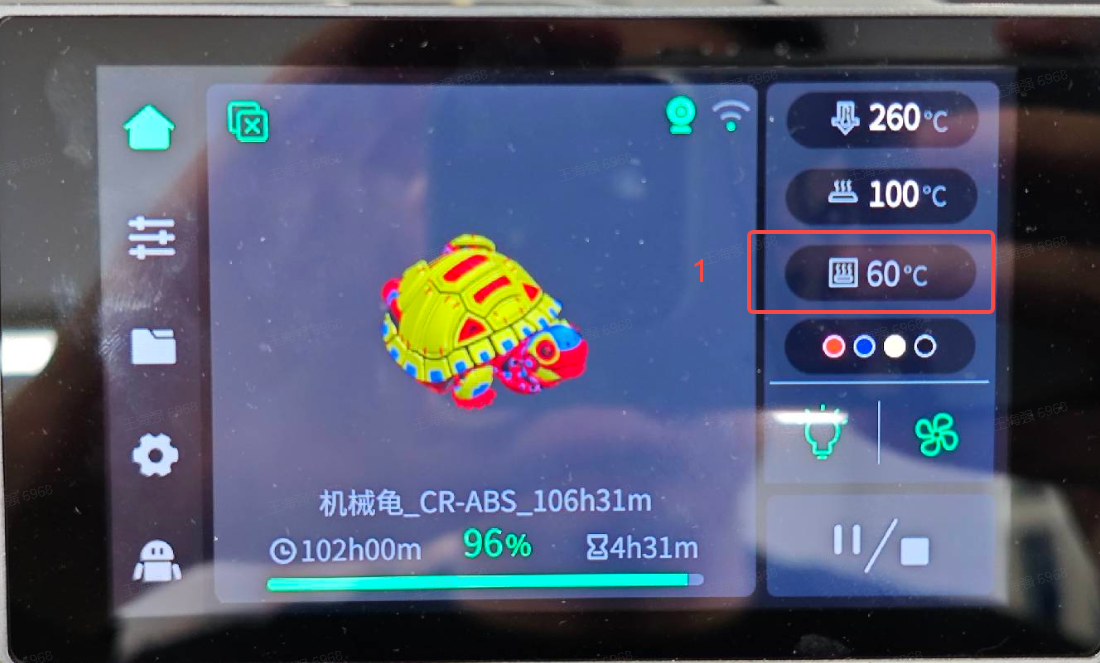
Actively setting chamber temperature in CrealityPrint, CrealityCloudApp, and on the printer screen

CrealityPrint
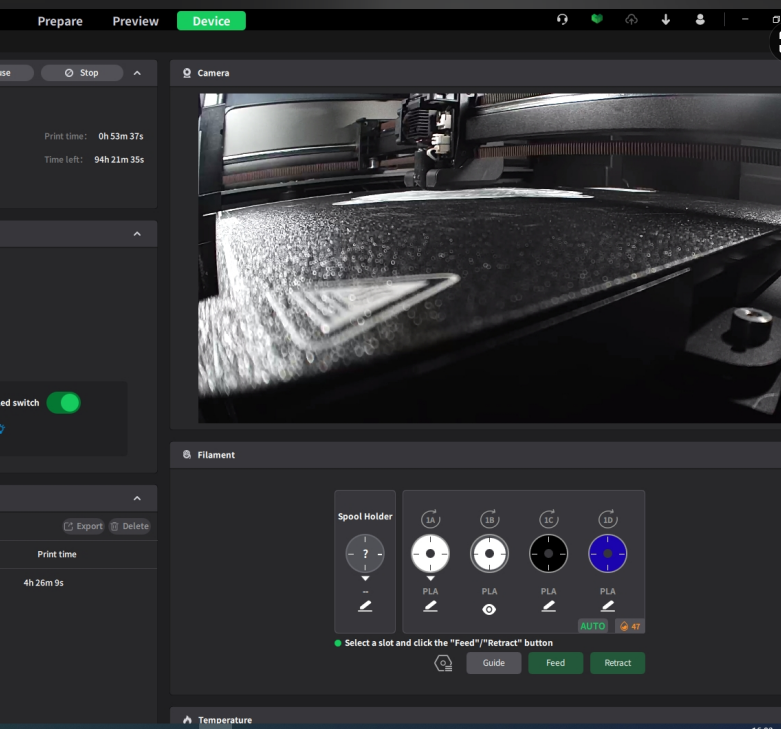
Actively setting chamber temperature

CrealityCloudApp

3d printed turtle
3d printed turtle

Printer screen

3d printed turtle
3d printed turtle

SHOP

  • Store
  • Falcon Store
  • Where to Buy
  • K Series
  • Hi Series
  • Ender Series

COMMUNITY

  • Forum
  • Creality Cloud
  • Discord
  • Reddit
  • Open Source

SUPPORT

  • Downloads
  • Help Center
  • Video Guides
  • Warranty & Repairs
  • Creality Wiki

ABOUT

  • Contact Us
  • Distributors
  • ShareFest Events
  • Investor Relations

Be the First to Know

Get the latest news from Creality.

  • Youtube
  • Facebook
  • Instagram
  • TikTok
  • Twitter
  • Reddit
  • Discord
  • LinkedIn
Privacy PolicyTerms of SalesShipping PolicyFeedback
United States(English)

Copyright © 2026 Creality Co., Ltd. All rights reserved.