



























Firmware Description
K2 Pro/K2 Plus/K2 firmware is in .img format.
CFS firmware is in .bin format.
To upgrade the CFS firmware, it needs to be connected to the printer and upgraded through the printer.
If the CFS firmware version is detected to be lower during K2 Pro/K2 Plus/K2 firmware upgrade process, the CFS version will be forced to upgrade.
Upgrading/Downgrading Firmware via USB Drive
Check Firmware Version
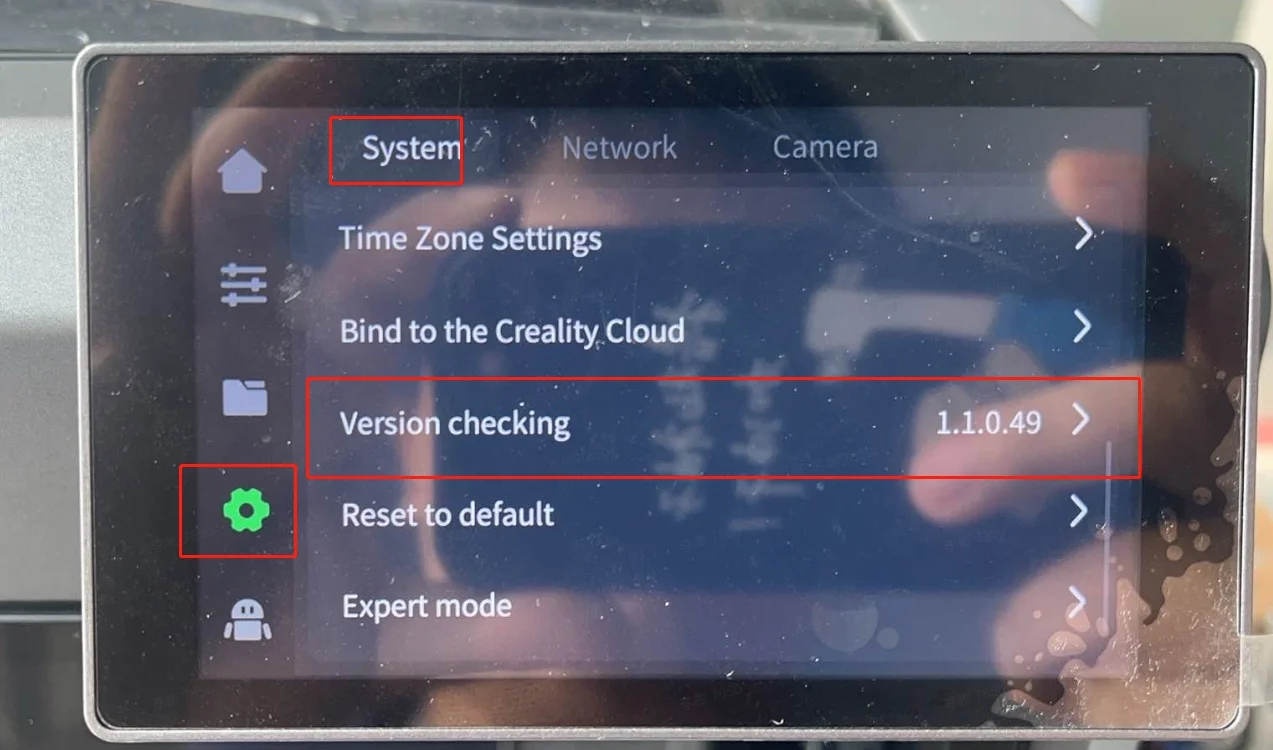
Download Firmware
Download the corresponding firmware from Creality Download:
Firmware Upgrade/Downgrade Steps
STEP 1:
Download the corresponding K2 Pro/K2 Plus/K2 firmware to a USB drive.
STEP 2:
Insert the USB drive into the printer.
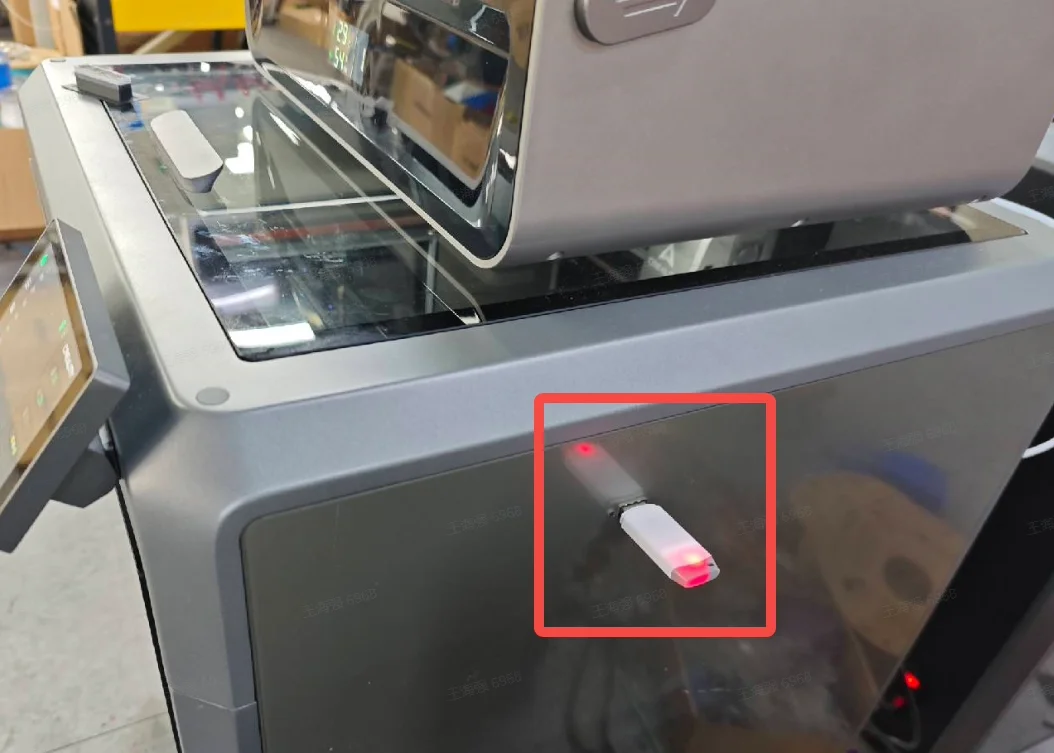
Click "Upgrade" and wait for the process to complete. The printer will restart automatically after upgrading.
After upgrading:
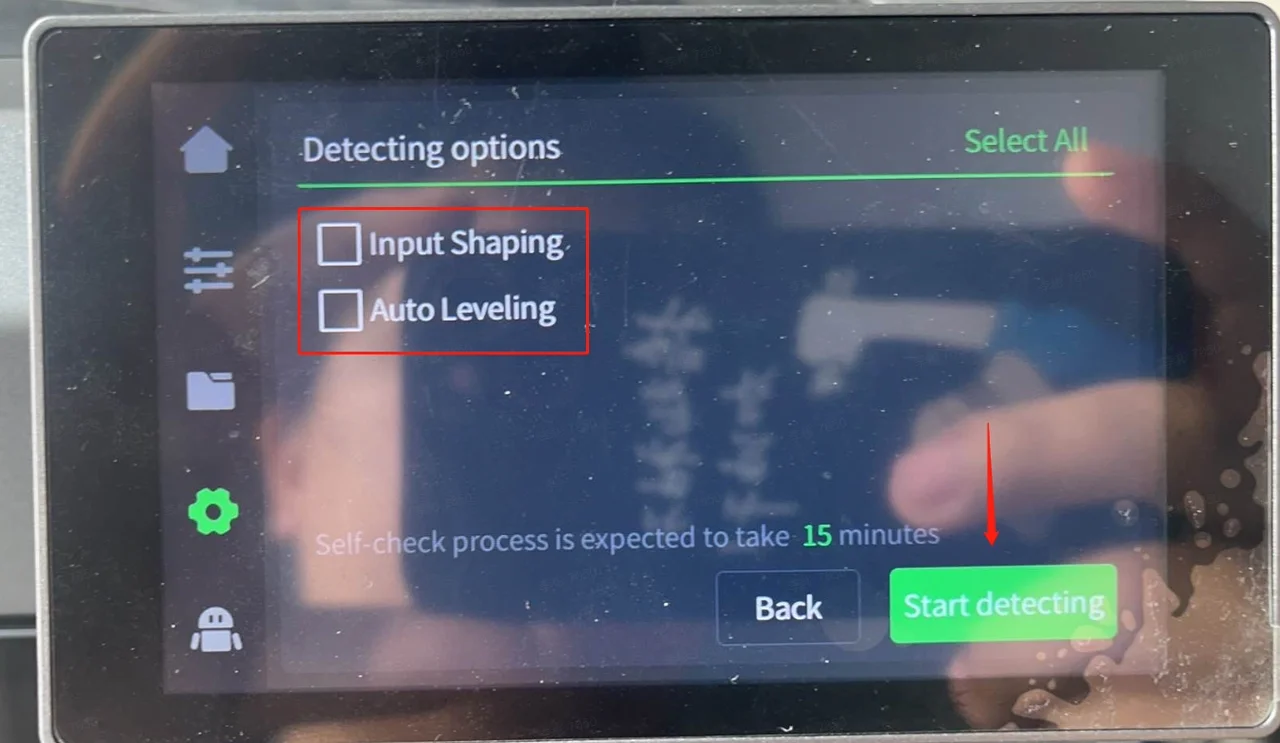
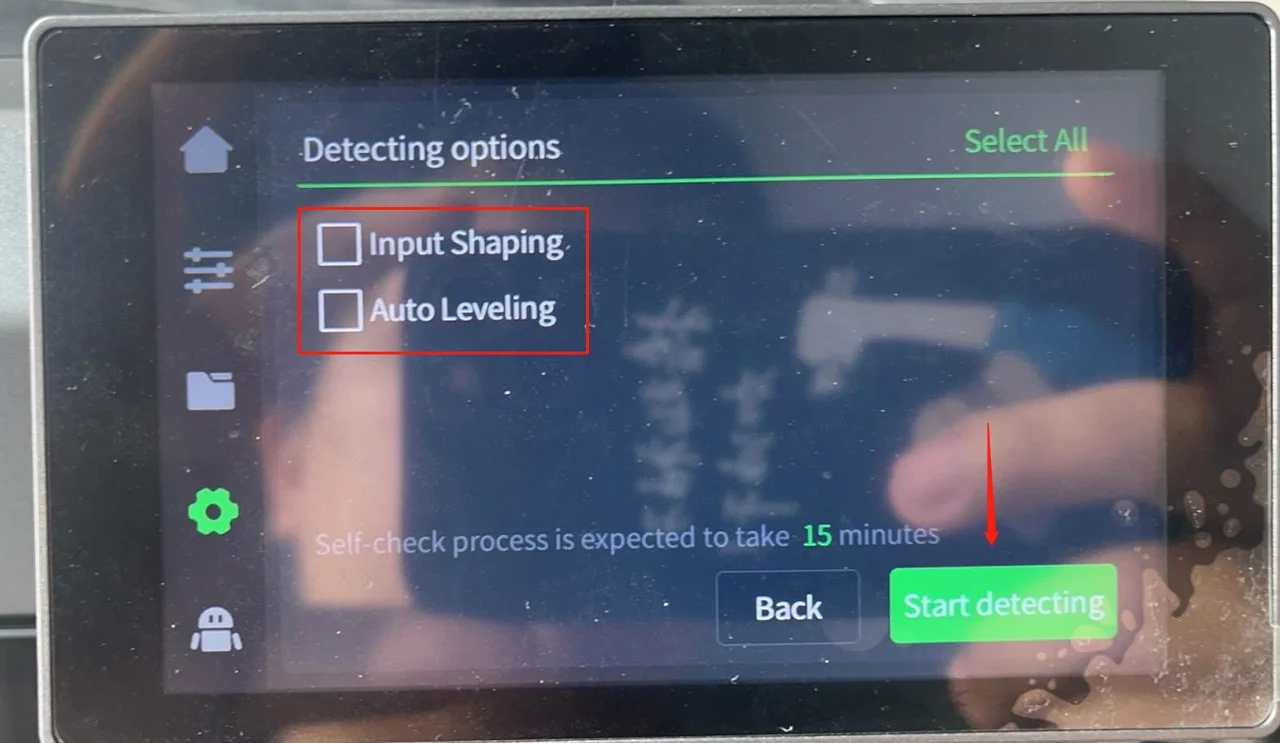
Go to Settings -Detecting options - Tick "Input Shaping", then click "Start detecting". After calibration is done, proceed with printing.
Note: Retract the filament menu before Input Shaping.
Online Firmware Upgrade
Ensure the printer is connected to the internet.
Ensure the printer is linked to your Creality Cloud account.
Step 1
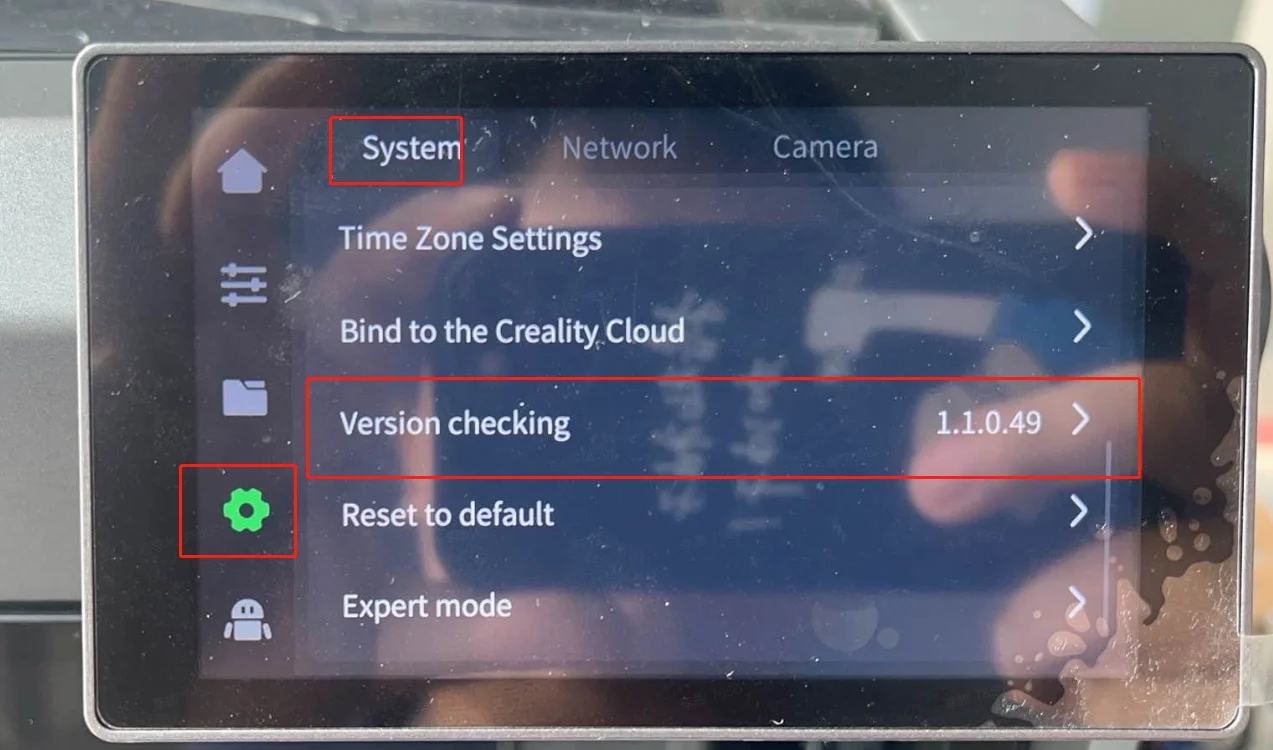
Go to Settings - Version Checking.
If a new version is available, there will be a red dot notification.
If there are multiple CFS , ensure only one is connected to the printer. This issue will be fixed in a future firmware version.
Step 2
Click "Download". After downloading, the installation will start automatically.
Step 3
Wait for the installation to complete, then the printer will restart automatically.
Step 4
Go to Settings - Detecting options - Tick "Input Shaping" and "Auto Leveling", then click "Start detecting". After calibration, proceed with printing.