
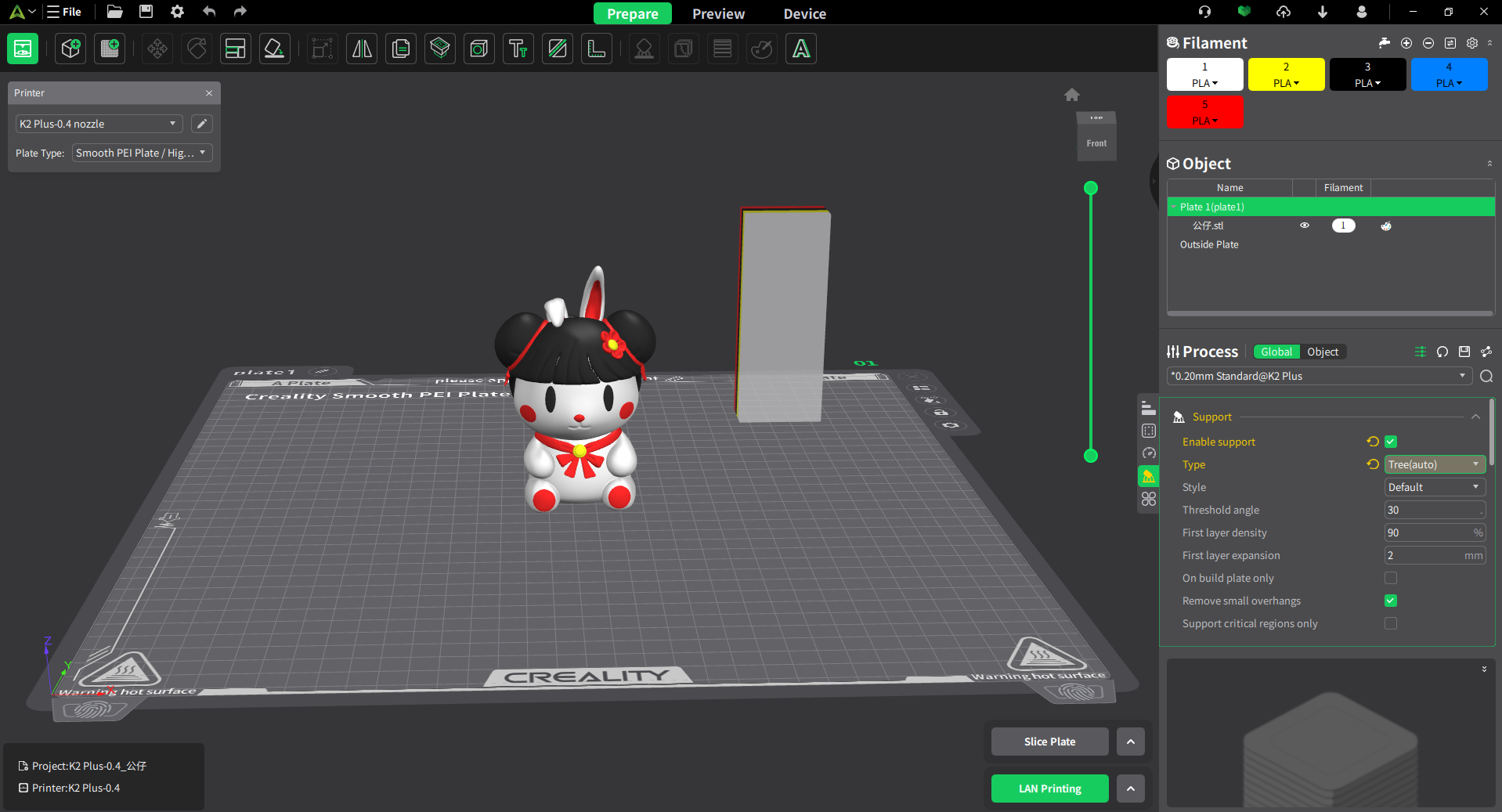
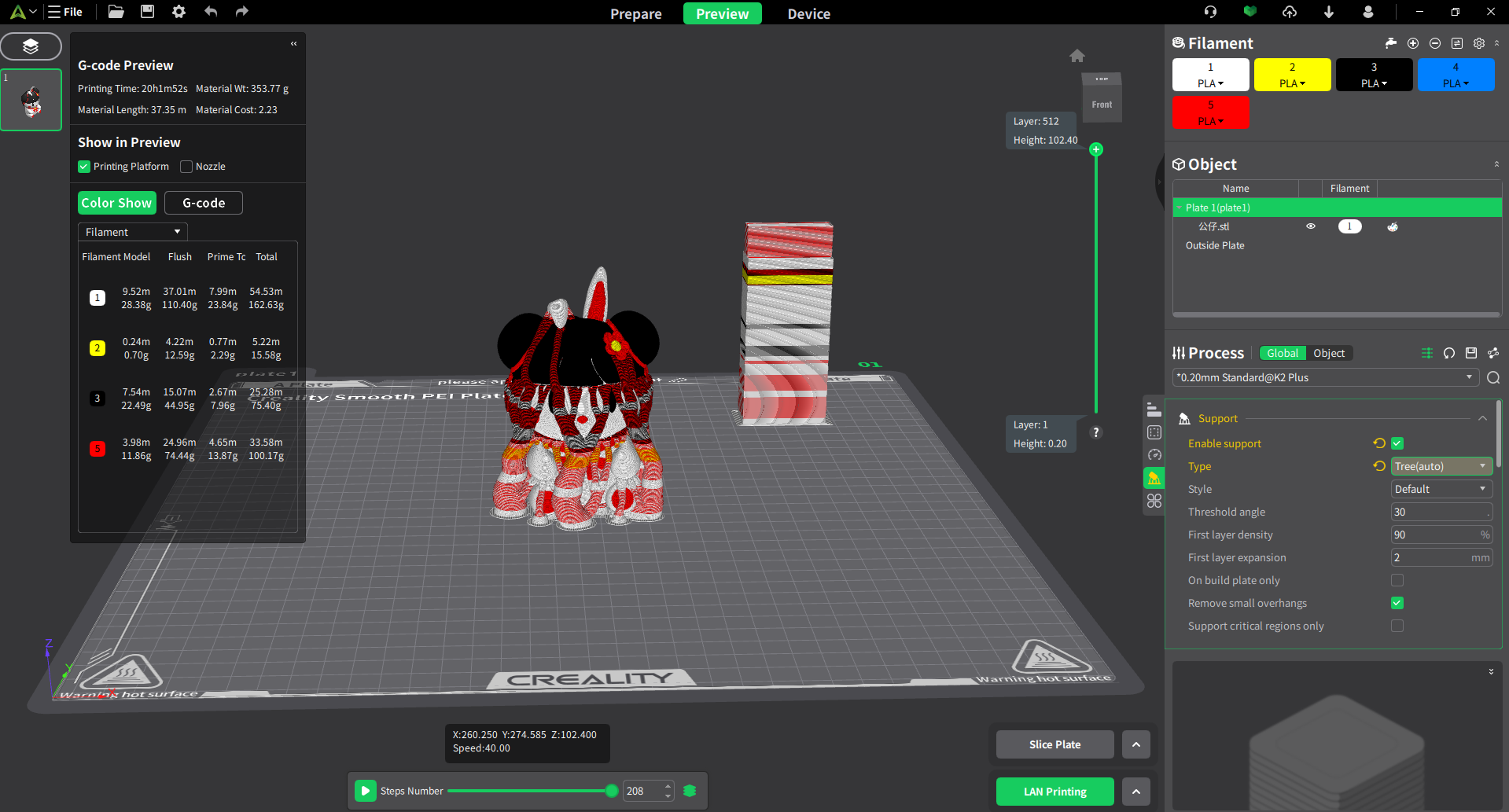
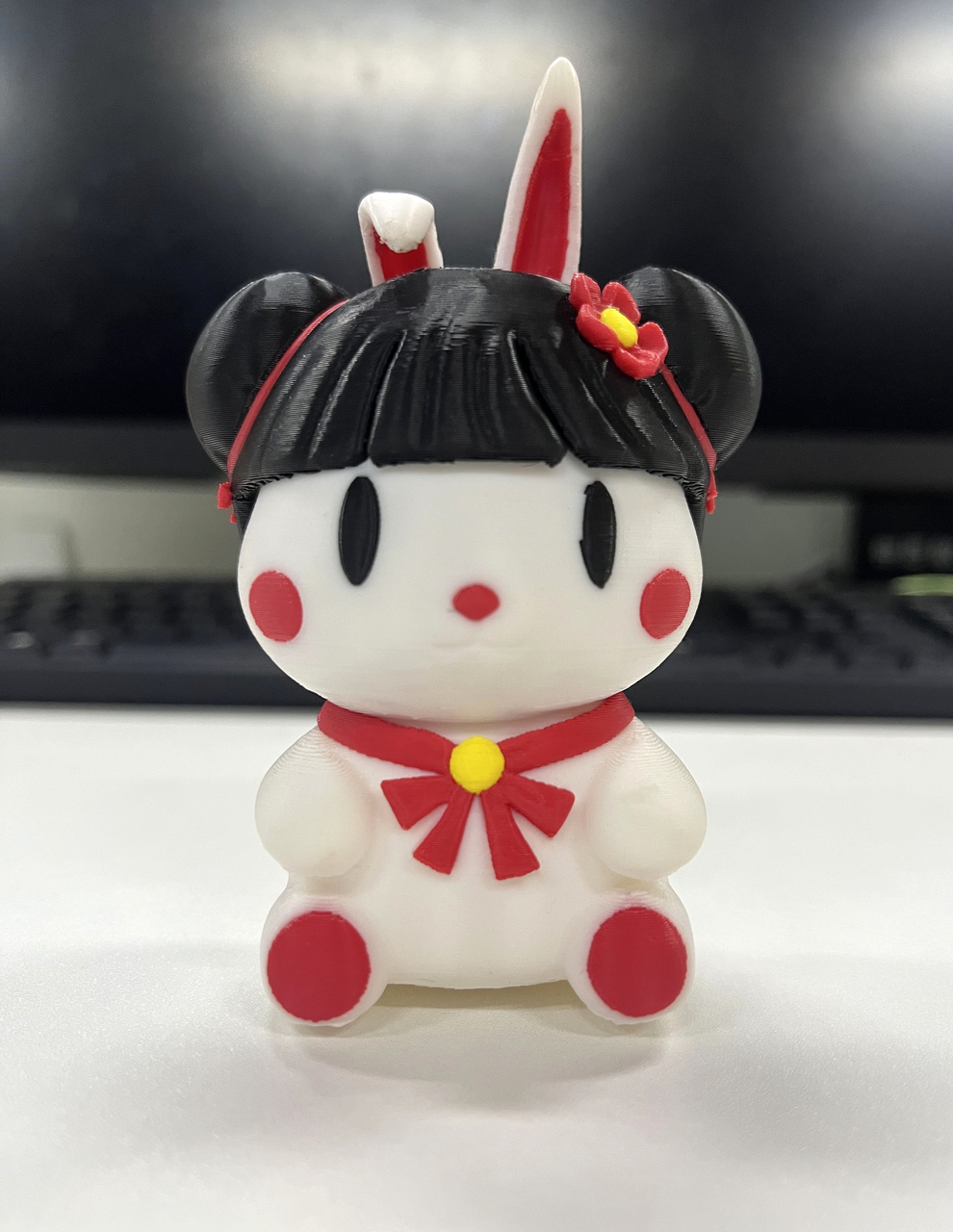
You can use the color painting feature to add colors to the model. Once coloring is complete, the model can be sliced into G-code paths for printing with various filaments, resulting in a finished product in color.
Coloring Tools
Creality Print offers six coloring tools, each with the following functions:
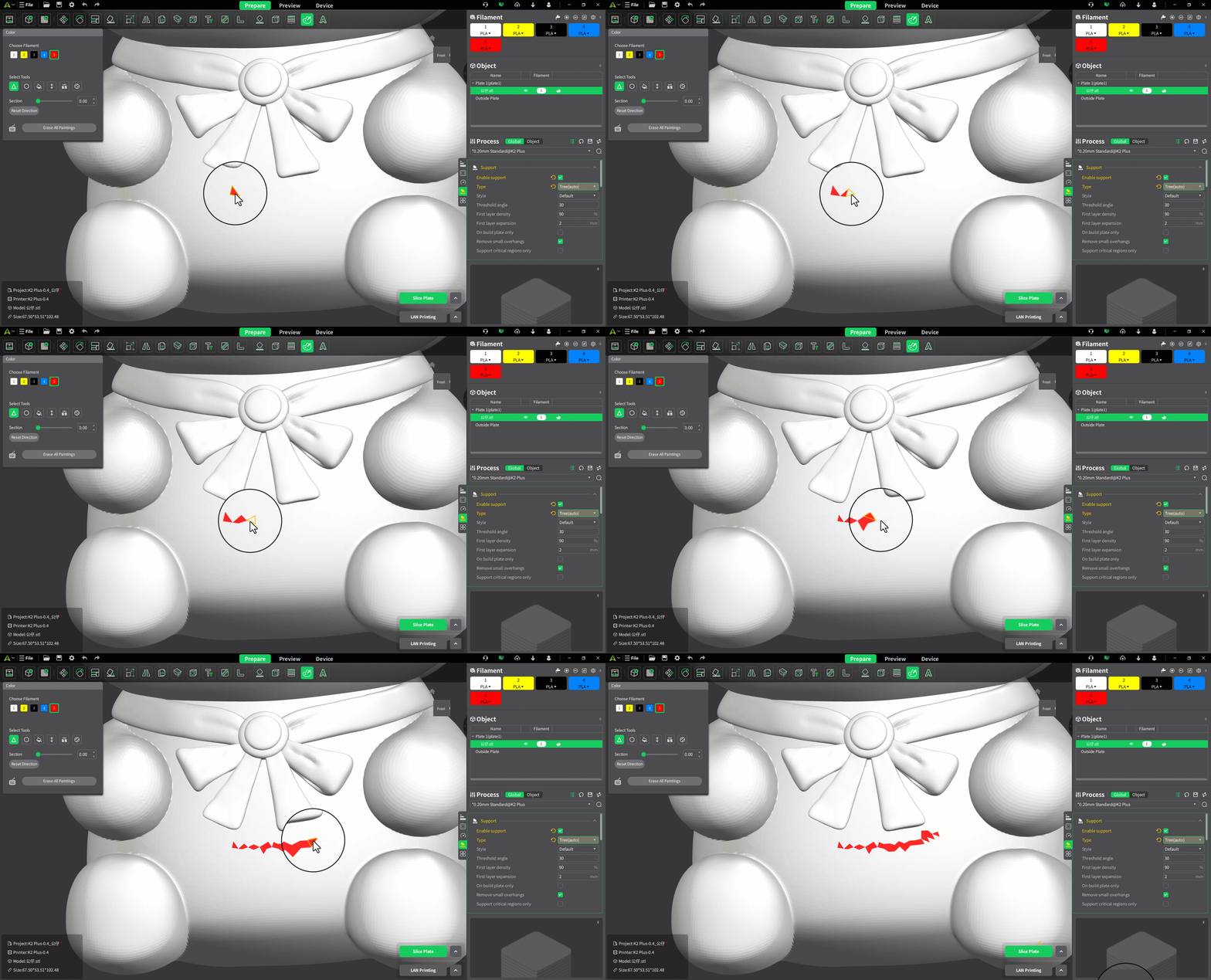
Triangle
The model's surface is composed of triangular faces. The Triangle Face tool allows you to color the selected triangular faces. Clicking colors is the currently selected triangular face, while clicking and dragging colors multiple triangular faces consecutively.
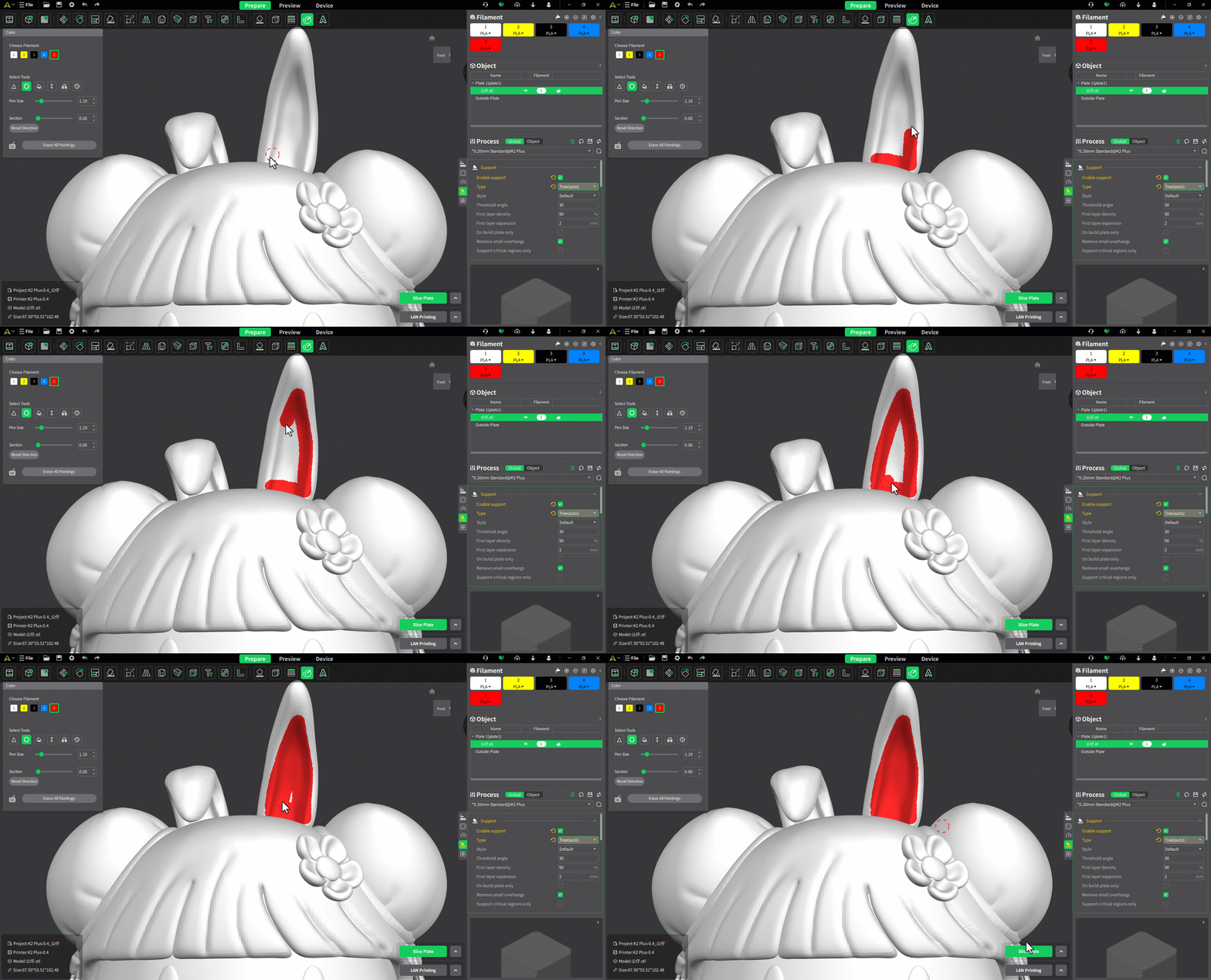
Circle
The Circle tool is similar to the brush tool and allows you to freely draw lines and shapes. Click and drag to draw.
Fill
The Fill tool can color the selected faces as well as any adjacent faces that have an angle ≤ smart fill angle and the same color. Hovering will preview the fill area, and clicking will complete the fill.

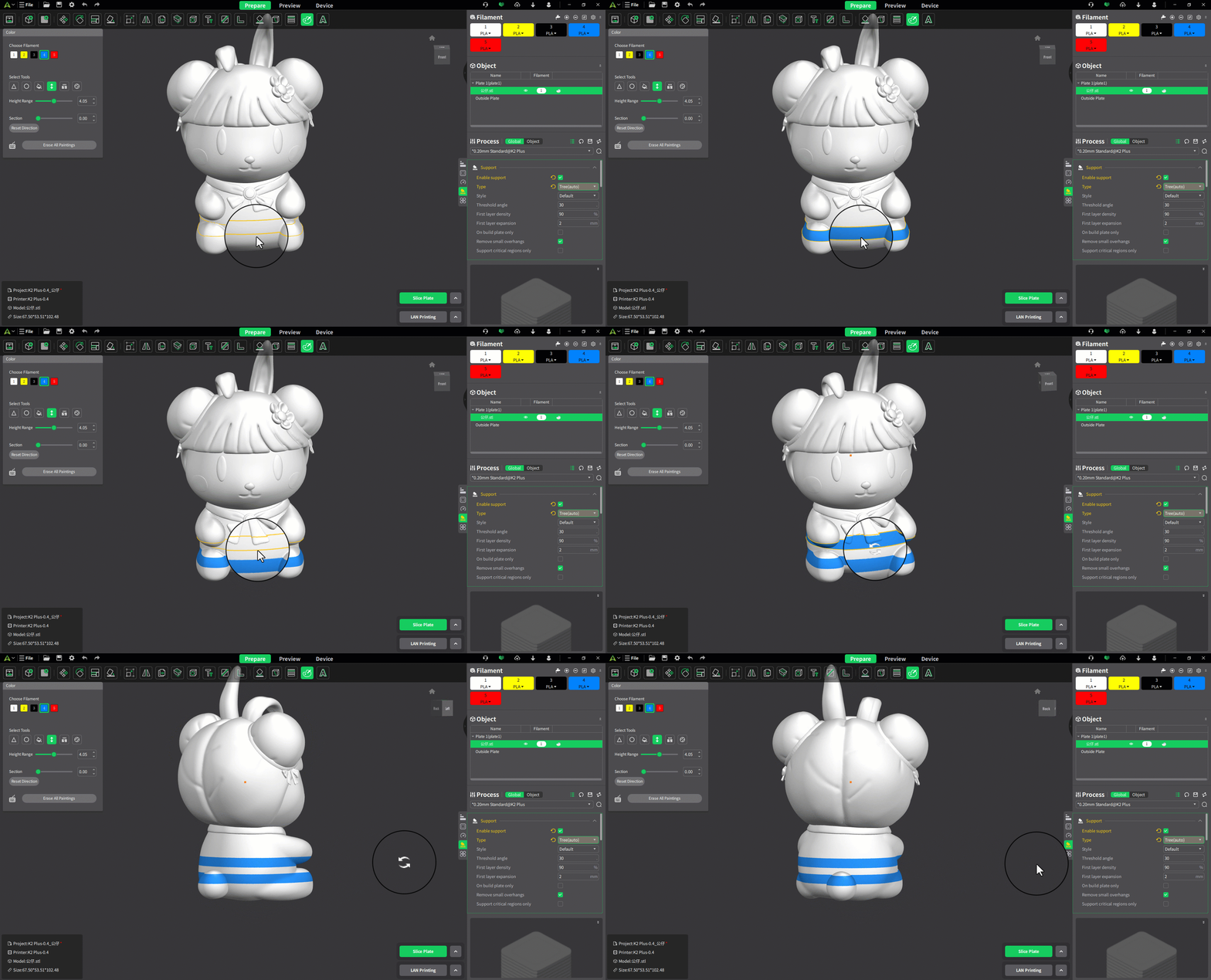
Height Range
The Height Range tool allows you to color all faces within a specified height range. Hover to preview the range, and click to apply the color.
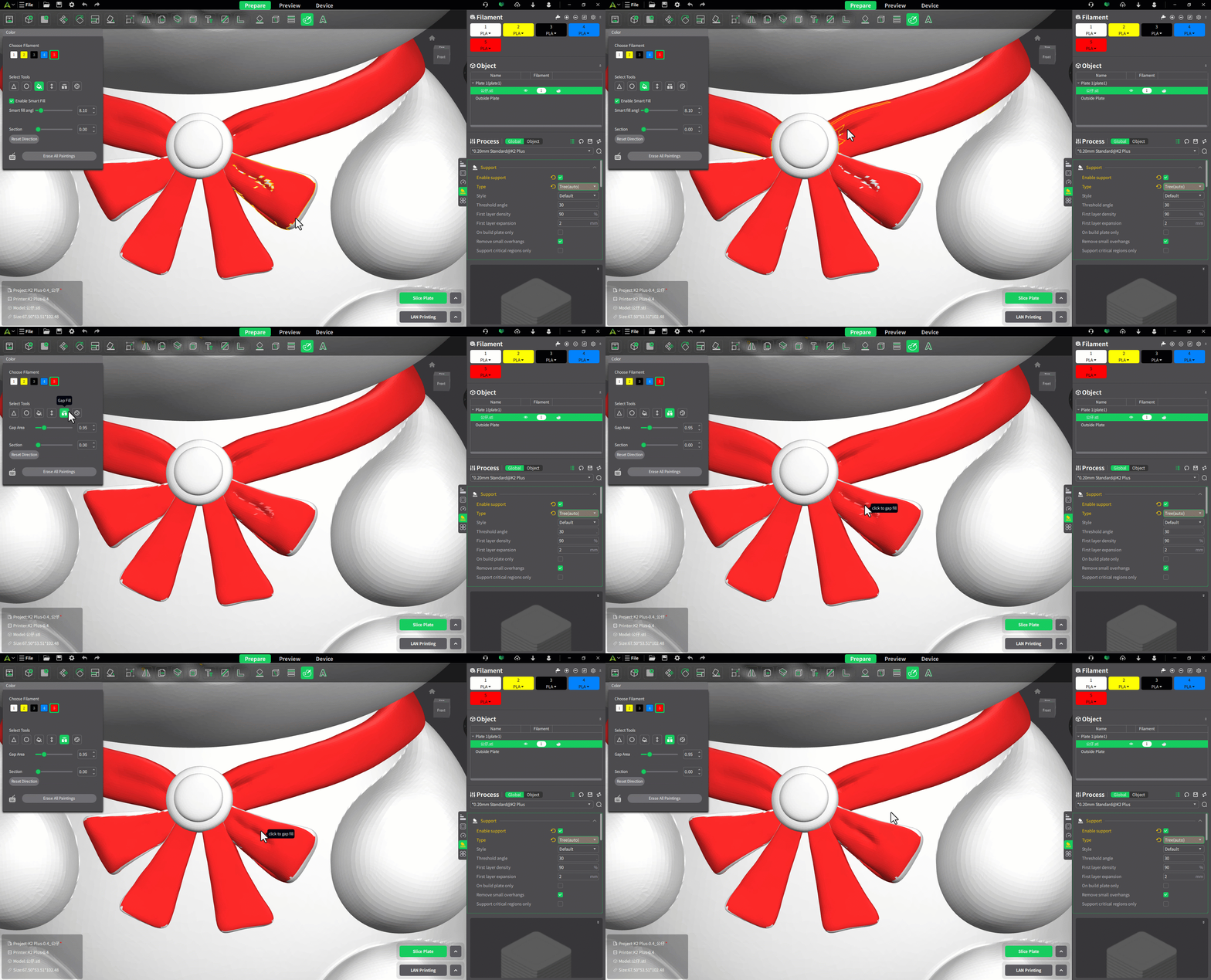
Gap Fill
The Gap Fill tool fills tiny gaps created when using other drawing tools, preventing uneven printing surfaces, reducing material changes, and saving both material and time. It detects these small gaps and fills them with the color of adjacent faces if their area is ≤ the specified gap area. After selecting this tool and adjusting the gap area, you can preview the areas to be filled. Click to complete the filling.
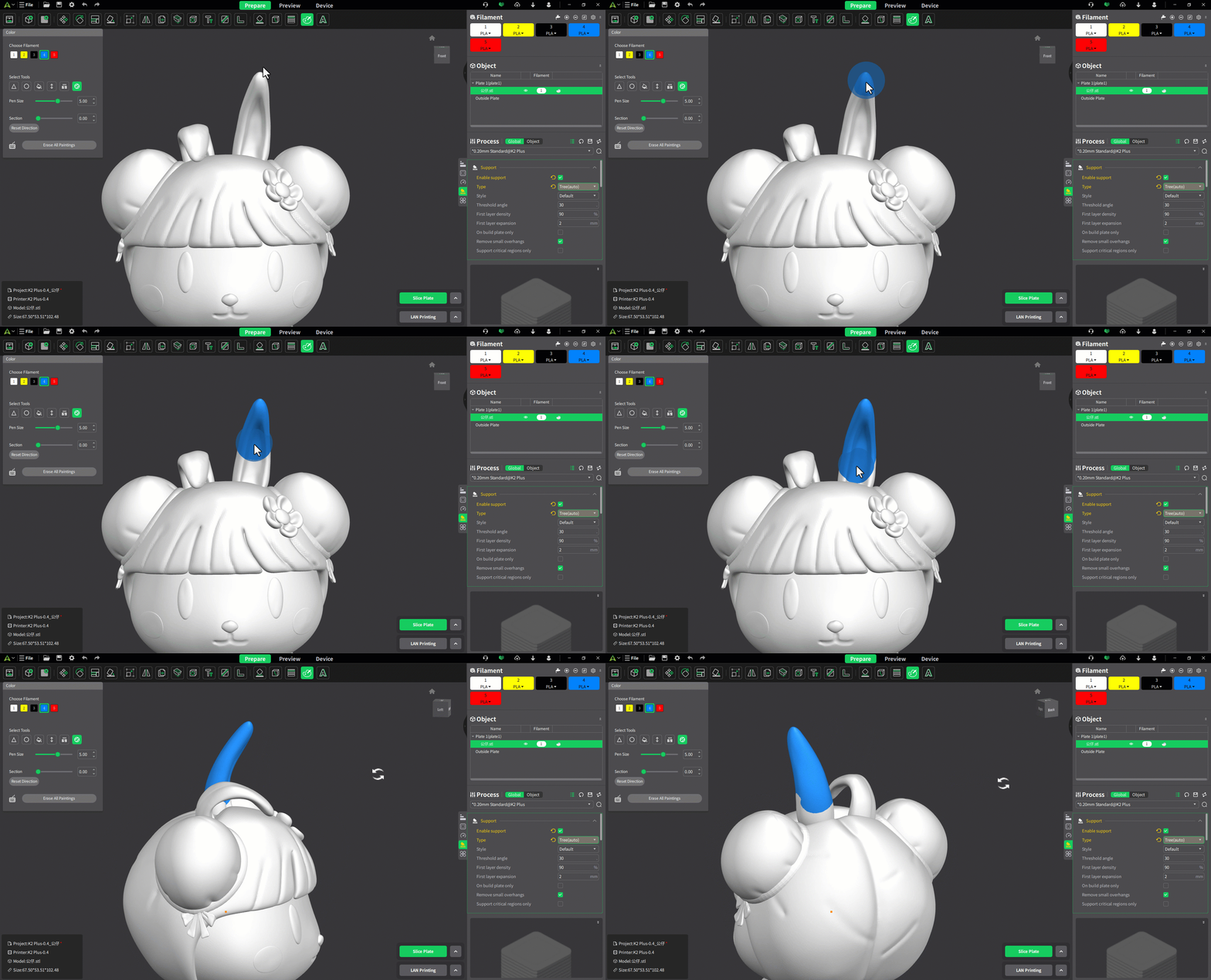
Sphere
The Sphere tool is similar to the Circle tool, but it not only colors the model's surface but also the faces intersected by the sphere. Click and drag to apply the color.
How to use
The complete usage process can be found in this video: Usage Tutorial