If Creality Print crashes unexpectedly, our technical support team may request log and crash dump (DMP) files to help diagnose the issue. Follow the steps below to locate and collect these files.
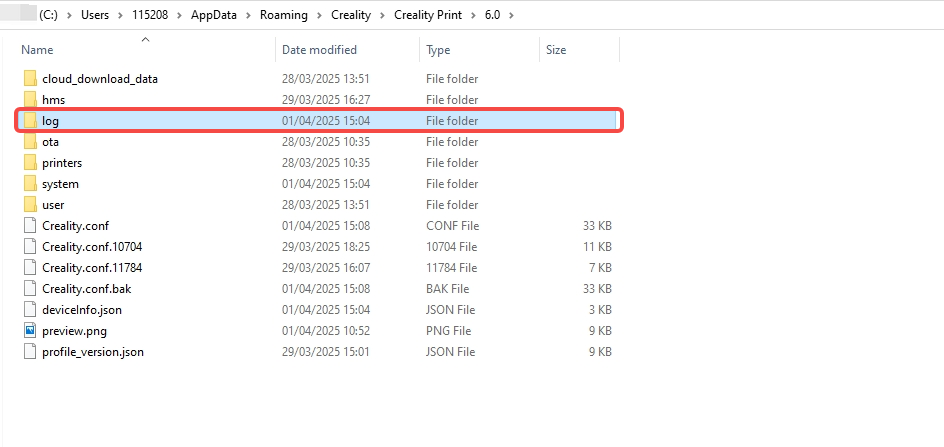
Step 1: Open the Log Folder
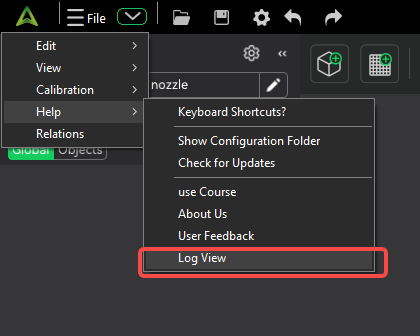
Click the menu button in the upper-left corner of Creality Print, then navigate to: Help > Log View. This will open the folder containing Creality Print log files.
Step 2: Collect and Send the Files
The Log folder contains all available log files and crash dump files (.dmp).
Compress the entire Log folder into a ZIP file and send it through our technical support channel for further analysis.