






































SPARKX i7 User FAQ Compilation
Question: How should the i7 and CFS lite be positioned?
Answer:
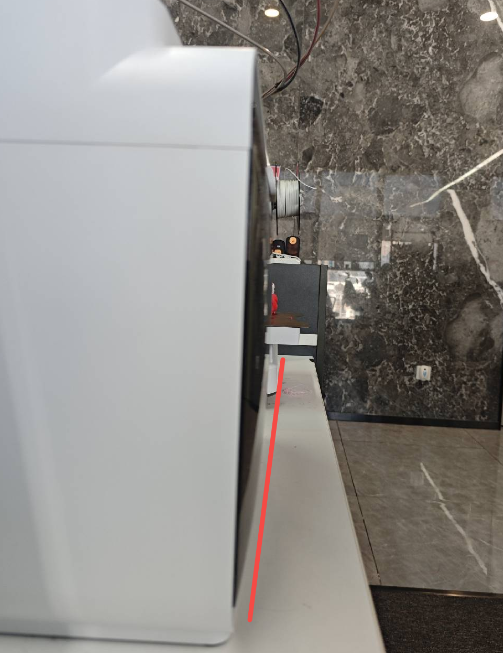
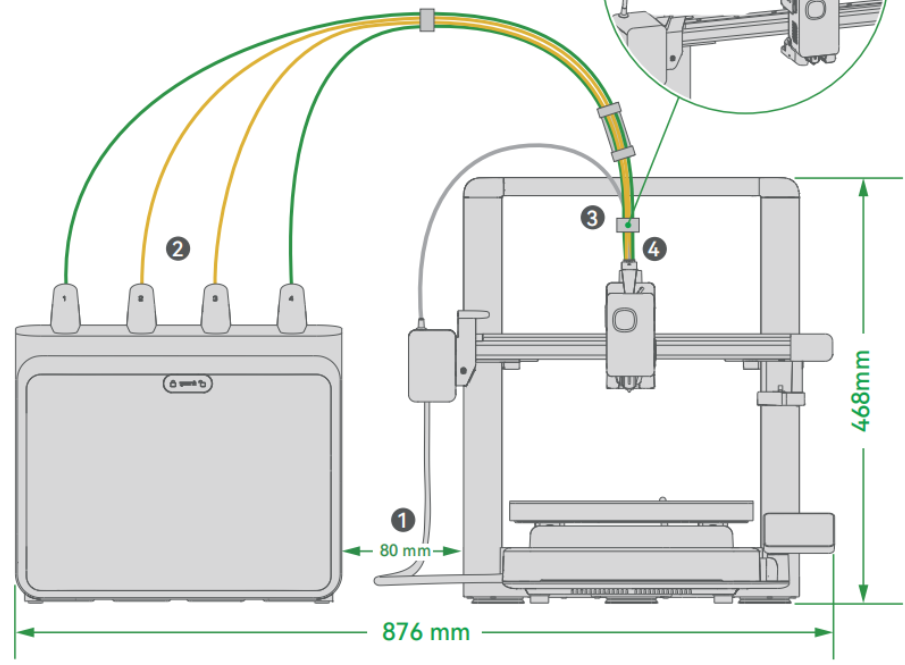
It is recommended to position the i7 and CFS lite as shown in the illustration, leaving sufficient space between them. The distance between the CFS lite and the Gantry should be approximately 8 cm, and the distance from the left side of the X-axis should be approximately 2 cm.
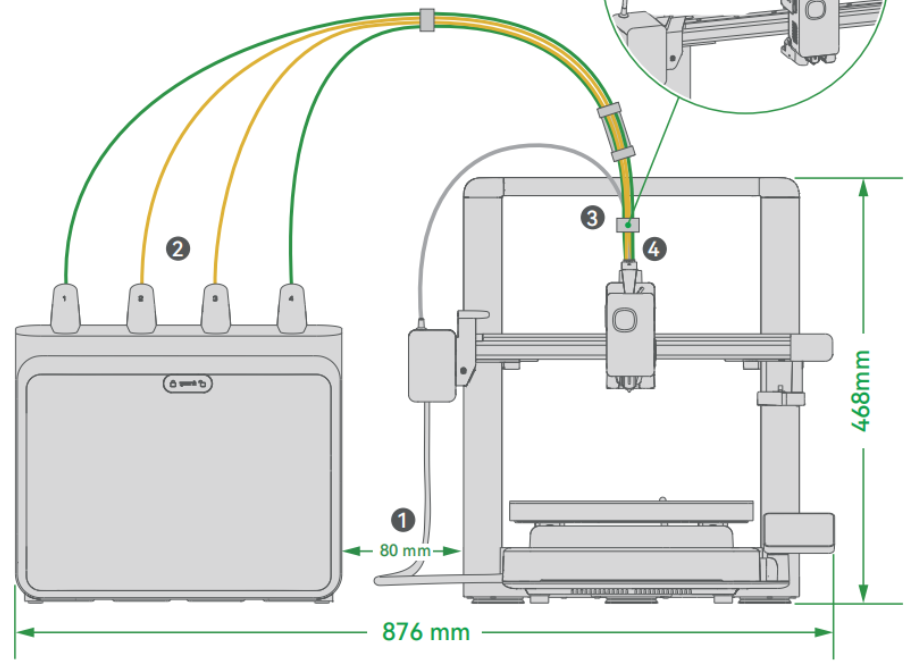
In addition, do not place the CFS lite too far back. It is recommended to align the CFS lite with the front of the i7, or place it in a centered position.
Question:How should the PTFE tubes be arranged to reduce resistance during filament feeding and retraction?
Answer:
All four PTFE tubes have a length of 98 cm.
The recommended distance between the i7 and the CFS lite is 8 cm (measured from the Gantry, or 2 cm from the leftmost side of the X-axis), as shown in the illustration. If the distance is too large, resistance during filament feeding and retraction will increase, and feeding resistance will also increase when printing on the right side.
To reduce resistance, we have designed three different hubs to help guide and align the PTFE tubes. Please install each hub as shown in the illustration:
Four-port hub (short): install it near the center position.
Four-port hub (long): its position is pre-fixed at the factory, approximately 8 cm from one end of the PTFE tubes.
Five-port hub: install it between the Toolhead Manifold and the four-port hub (long). During installation, place it closer to the four-port hub (long). The larger opening should face the rear of the i7 to allow the Toolhead Cable to be clipped in place.
Question:What is the overall space requirement for the i7 Color Combo (i7 + CFS lite)?
Answer:
To ensure more convenient use of the i7 Color Combo, you need to prepare a space with a length of 876 mm and a height of 468 mm.
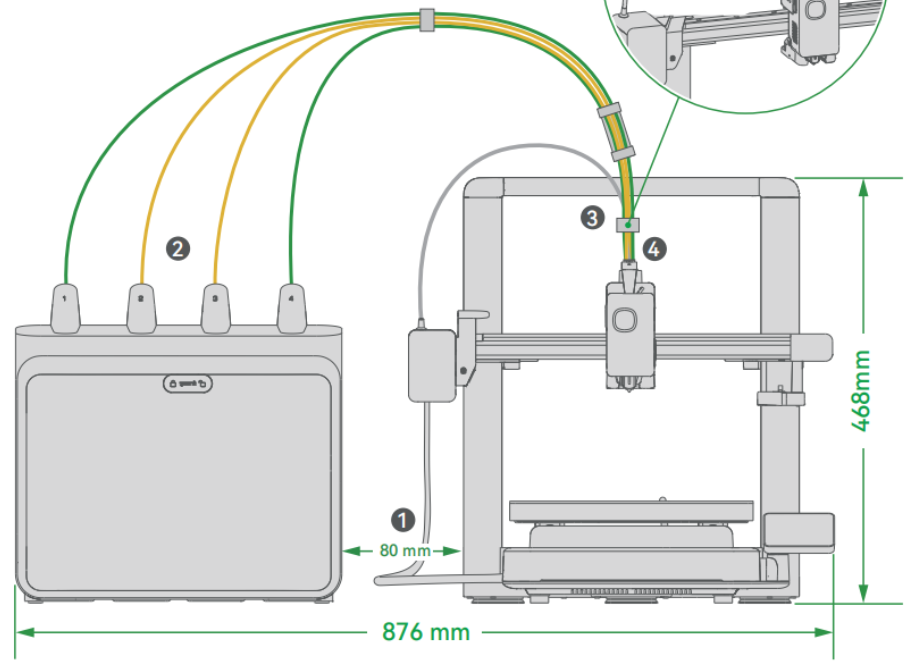
Since the Heated Bed of the i7 moves back and forth, the required motion clearance is approximately 100 + 110 + 423 = 633 mm.
However, to prevent the Heated Bed Cable from colliding with objects at the rear, and to avoid contact with the user when the heated bed is at the frontmost position, we recommend reserving 200 mm of clearance at the rear and 120 mm at the front of the i7.
Therefore, the total required safety clearance is 200 mm + 120 mm + 423 mm = 743 mm.
Question:Does the i7 support CFS or future new CFS/other systems?
Answer:
Currently, the i7 does not support CFS, but the hardware has the capability reserved; the software has not yet been adapted. We will evaluate adding support for CFS or next-generation multi-color feeding systems for the i7 based on user demand, enabling multi-color printing beyond four colors.
Question:How many CFS lite / CFS mini units can be connected to one i7?
Answer:
The i7 can be configured with only one CFS lite, so it supports up to 4-color printing. The i7 can also be configured with only one CFS mini, and it cannot be used together with CFS lite.
Question:Can CFS lite and CFS mini be used at the same time? How many colors are supported?
Answer:
No. For a single print job, the i7 can only use either CFS lite or CFS mini as the feeding method. CFS lite supports 4-color printing only and does not support expansion. CFS mini supports single-color printing only and does not support expansion.
Question:Which print plates are supported by the i7?
Answer:
Currently, the i7 supports textured PEI print plates only. Each i7 comes with one Dual-Texture PEI Plate (gold). Additional print plate options may be introduced in the future.
Question:Which materials are supported by the textured print plate?
Answer:
The textured print plate (textured PEI print plate) supports printing PLA, PETG, and TPU without the need for glue (when clean). After printing, please wait until the print plate has completely cooled down before removing the model. After a period of use, it is recommended to clean the print plate with water and dish detergent to maintain optimal adhesion. You may refer to the Print Plate Maintenance Wiki.
Question:Can the i7 print engineering materials such as ABS or ASA?
Answer:
Printing ABS / ASA on the i7 is not recommended. The i7 is an open-frame printer without an enclosed chamber, so heat in the printing area dissipates quickly into the surrounding environment. When printing ABS or ASA, issues such as warping and cracking are more likely to occur. Therefore, we do not recommend printing ABS, ASA, PC, PA, PA-CF/GF, PET-CF/GF, PPA-CF/GF, or other common high-temperature filaments on the i7. In addition, ABS and ASA release harmful gases with irritating odors during printing, which require effective air filtration and ventilation. As an open-frame printer, the i7 releases these gases directly into the air, so a very well-ventilated environment would be required. For these reasons, we do not recommend using the i7 to print ABS or ASA.
Question:What should I do if the filament runs out during printing? Can the print continue?
Answer:
The i7 Toolhead is equipped with a Filament Sensor. If the filament runs out during printing, the i7 will automatically pause. You can replace the filament and continue printing the unfinished model. When used with CFS lite, automatic filament refill is also supported. Please refer to:
i7 Filament Runout Recovery Guide
CFS lite Automatic Filament Refill Guide
Question:What should I do if there is an unexpected power outage during printing? Can the print be recovered?
Answer:
After restarting the printer, you can choose to resume the print task. The i7 will automatically recover the unfinished print from before the power outage. Please refer to: i7 Power Loss Recovery Guide.
Question:Does the i7 support offline printing? What happens if there is no USB?
Answer:
Yes. The i7 supports offline printing and is equipped with 8 GB of internal storage, allowing normal printing without a USB device.
Question:Can the i7 ambient light be turned off?
Answer:
Yes. You can turn off the ambient light in Settings → Print Settings → Status Light.
Question:Can the i7 ambient light switch to other colors or lighting effects? Can colors be customized?
Answer:
You can change the ambient light color and lighting effects in Settings → Print Settings → Status Light → Lighting Style. Custom color settings are not currently supported.
Question:Can the i7 sound prompts be turned off?
Answer:
Yes. You can turn off sound prompts in Settings → Print Settings → Sound Prompt.
Question:What is the extra column-shaped object generated during multi-color printing?
Answer:
The extra column-shaped object is called a purge tower. During multi-color printing, the nozzle performs a purge after switching colors. Since a small amount of filament residue may remain, the purge tower is used to clean the nozzle and stabilize the internal chamber pressure, helping to prevent surface defects on the printed model.
Question:Where should the purge tower be placed on the print plate?
Answer:
During multi-color printing, Creality Print automatically places the purge tower at the rear center position. We also recommend adjusting the purge tower to the rear-right position in the slicing software. This places it closer to the purge area, helps prevent waste filament or debris from interfering with printer motion, and reduces toolhead travel time during filament changes.
Question:If I purchase the i7 standalone version (without CFS lite), is a spool holder included?
Answer:
Yes. Regardless of the version you purchase, a Spool Holder is included. However, you will need to install it on the Gantry yourself. Please refer to the First Print Guide (Using the Standalone Spool Holder).
Question:How do I update the i7 firmware?
Answer:
From time to time, we release new firmware versions to the cloud. New firmware versions usually add new features or fix existing bugs. When the i7 is connected to the internet, it will automatically check whether a new firmware version is available in the cloud. If an update is available, a pop-up notification will appear to ask whether you want to proceed with the update.
Question:What should I do if the Toolhead Cable gets caught by the Gantry during printing and causes printing issues?
Answer:
This issue may occur if the Toolhead Cable tilts toward the rear while the toolhead is moving from left to right, causing it to be caught by the left-side Gantry, which may result in problems such as layer shifting. In this case, you need to adjust the orientation of the Toolhead Cable.
Please check the following:
Whether the CFS lite is placed too far back. It should be positioned toward the front, ideally aligned with the front of the i7.
Whether the Toolhead Cable is secured by the five-port cable clip, which effectively limits the position of the Toolhead Cable.
For the recommended optimal cable routing, please refer to the “How to Connect CFS lite” Wiki.
Question:Why does the Quick Start Guide for the i7 Color Combo mention PTFE tubes of different lengths, while the actual PTFE tubes are all the same length?
Answer:
In the early stage, to ensure optimal filament feeding resistance, we did use a solution with PTFE tubes of different lengths. However, after considering ease of use, we optimized the feeding resistance of the CFS lite by extending the PTFE tubes to further improve the stability of filament feeding and retraction. At the same time, we standardized the PTFE tubes to the same length to make installation more convenient. The Quick Start Guide has since been updated. You can obtain the latest version via the “i7 Quick Start Guides for All Versions” Wiki.
SPARKX i7 Specifications FAQ
Question:What is the maximum build volume of the i7?
Answer:
260 × 260 × 255 mm³.
Question:What are the maximum nozzle temperature and maximum heated bed temperature of the i7?
Answer:
The maximum nozzle temperature is 300 °C, and the maximum Heated Bed temperature is 100 °C.
Question:What material is the i7 nozzle made of?
Answer:
The i7 comes pre-installed with a 0.4 mm hardened steel nozzle. Additional hardened steel nozzles in 0.2 mm, 0.6 mm, and 0.8 mm diameters are also available for purchase from the official store.
Question:Which materials are supported by the i7?
Answer:
The i7 supports common materials such as PLA, PLA Silk, PLA CF, and PETG. TPU can also be printed; however, due to the flexible nature of TPU, filament jamming may occur. Please follow the official TPU Printing Guide when printing TPU. When used with CFS lite or CFS mini, only high-hardness TPU (such as TPU 64D) is supported.
Question:Can the i7 print fiber-reinforced materials?
Answer:
The i7 is equipped with a hardened steel nozzle, which can withstand wear caused by fiber particles. Fiber-reinforced filaments such as PLA-CF/GF, PLA Glow-in-the-Dark, and PETG-CF/GF are supported on the i7. However, printing fiber-reinforced high-temperature filaments is not recommended. Due to the open-frame design and insufficient chamber temperature, models are more prone to warping and cracking. If you plan to use these materials with CFS lite, please follow the filament requirements for CFS lite. You may refer to the “CFS lite Filament Requirements”.
Question:Can the i7 print TPU?
Answer:
Yes. When using the i7 as a standalone printer, TPU with a hardness of 90A or higher is supported. If you want to use TPU with CFS lite, TPU with a hardness of 64D or higher is required. For details, please refer to the “CFS lite Filament Requirements”.
SPARKX i7 Feature FAQ Compilation
Question:Why can i7 multi-color printing reduce waste by 50%?
Answer:
This is because color changes are cleaner and leave less residue. First, the Hotend has a shorter filament path, which reduces the volume of residual filament that must be purged. Second, the system adopts a “retract first, then cut” strategy (with a retraction of approximately 28 mm). This ensures that cleaner filament enters the hotend, further reducing the amount of purging required. Overall, compared with the previous generation of similar designs, color-change waste can be reduced by approximately 50%.
Question:What is Sleep Mode?
Answer:
Sleep Mode is a dedicated mode designed to reduce disturbance without affecting normal functionality. When Sleep Mode is enabled, the system puts the Screen into sleep, turns off all sound prompts and lights, and reduces operating noise. You may refer to the “i7 Sleep Mode Feature Guide” for more information.
Question:What is the function of CFS mini? Is it recommended for use with the i7?
Answer:
CFS mini is an automatic filament refill module that automatically switches to the next spool when the current filament runs out, preventing print failures caused by filament runout. It can also drive 3 kg large spools and provide automatic feeding for dry boxes without an active feeding mechanism. For leftover filament spools that are nearly used up but not worth discarding, CFS mini can automatically refill and continue printing.
Question:Which products are supported by CFS lite / CFS mini?
Answer:
Currently, CFS lite and CFS mini support SPARKX i7 only. Support for additional products may be expanded in the future based on user demand.
About SPARKX
Question:Is the SPARKX after-sales policy the same as Creality? How can I contact support?
Answer:
SPARKX shares the same after-sales service system as Creality, and the warranty policy is identical. We recommend obtaining official technical support by submitting a ticket through the Creality Cloud App. Support is also available via email, online customer service, and telephone hotlines. If you have hands-on experience, you may also first refer to the SPARKX Wiki troubleshooting guides.
Question:Why was SPARKX established as an independent brand from Creality?
Answer:
SPARKX operates as an independent brand to enable faster product iteration, a more user-focused approach, and more consistent experience standards. Independent operation allows the team to advance development more flexibly, while still sharing technology, supply chain resources, and the software ecosystem with Creality, ensuring users receive an equally reliable service system.