
Reading RFID Filament Information
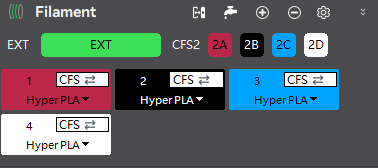
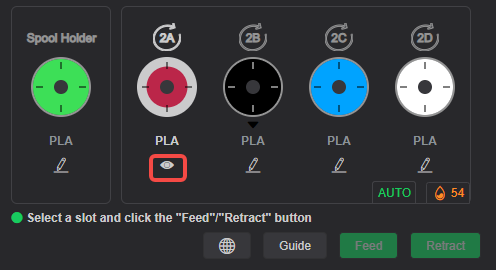
Creality RFID filaments will automatically have their information read and displayed, including filament color, material type, remaining amount, and more.
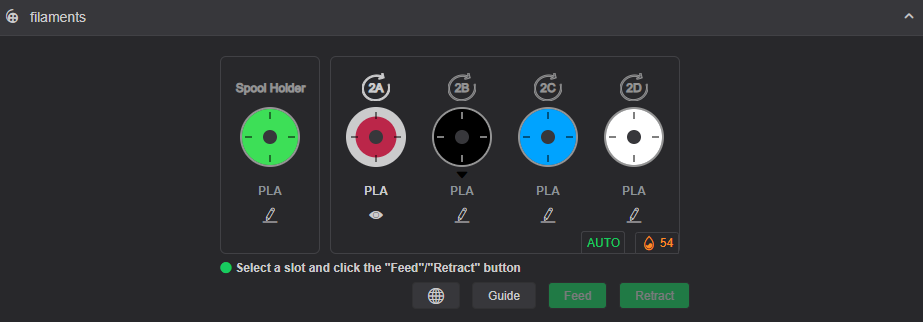
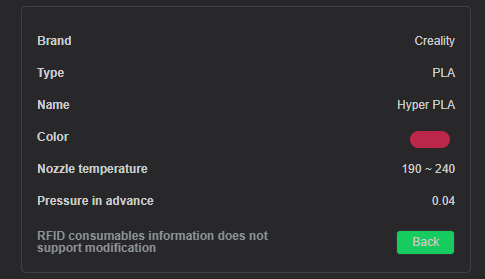
Click the Details icon to view additional filament information such as brand, material type, color, nozzle temperature range, and pressure in advance.
Editing Filament Information
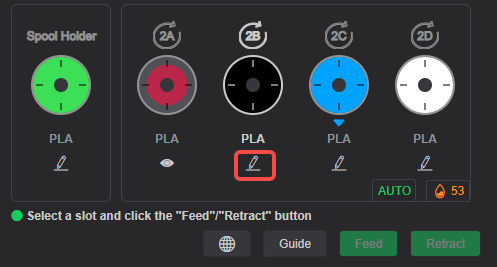
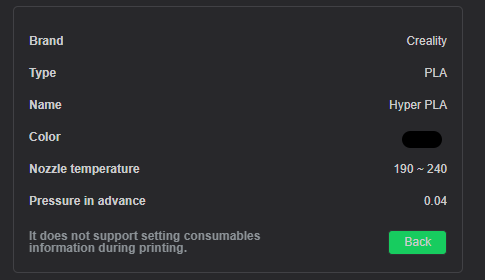
For non-Creality RFID or other filaments, manual editing is supported. Users can manually input and modify filament settings.
Feeding and Retracting Filament
After selecting the filament slot you want to feed or retract, click the "Feed" or "Retract" button. Wait for the filament to be fully feed or retract. The button will become inactive once the process is complete.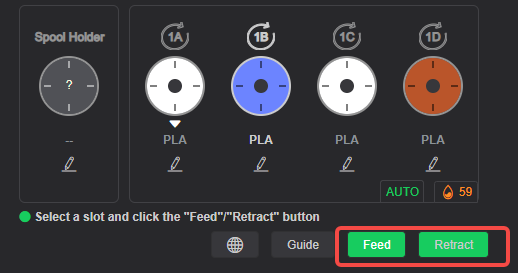
Filament box setting
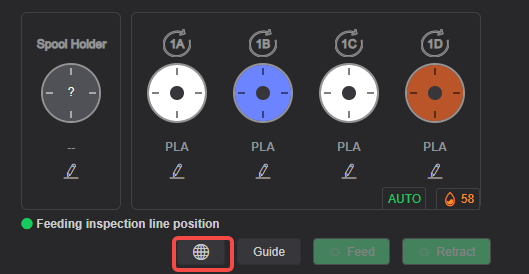
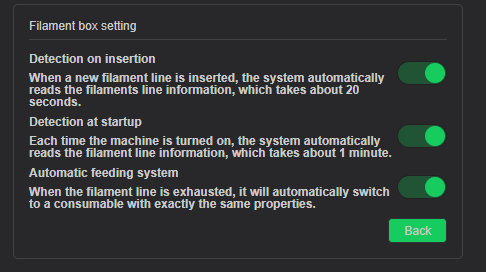
Click the Settings button to access the Filament box setting. You can configure options such as automatic filament line information reading and auto filament feeding.
automatic refill
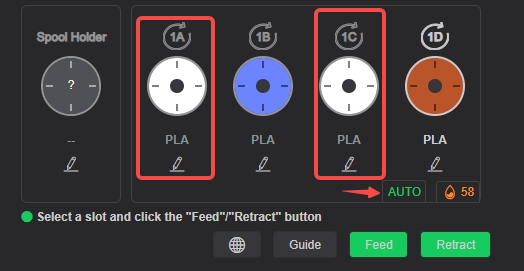
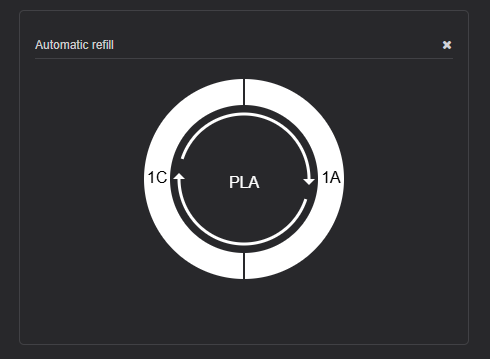
When "Auto feeding system" is enabled in the settings, if multiple slots contain filaments with identical parameters, CFS will automatically switch to another available spool once the current one is depleted. Click the "AUTO" button to view currently detected spools eligible for automatic switching.
Humidity Display
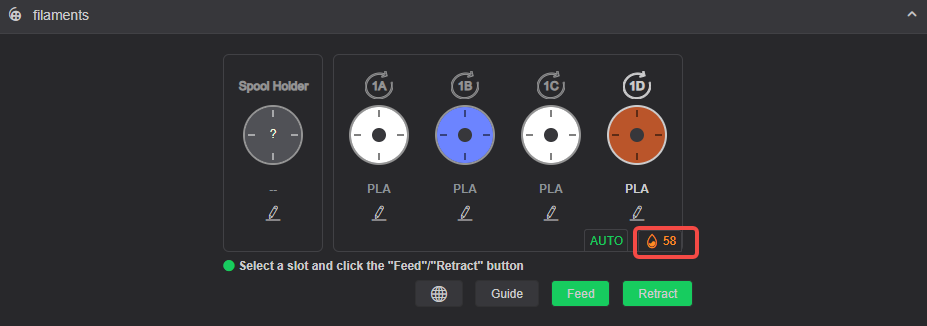
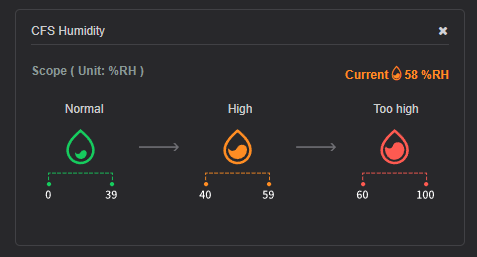
Displays the current humidity inside the CFS. Click the humidity reading to view detailed humidity range explanations.
Multiple CFS units Display
When multiple CFS units are connected, click on the corresponding CFS on the right side to switch and view information for each individual CFS unit.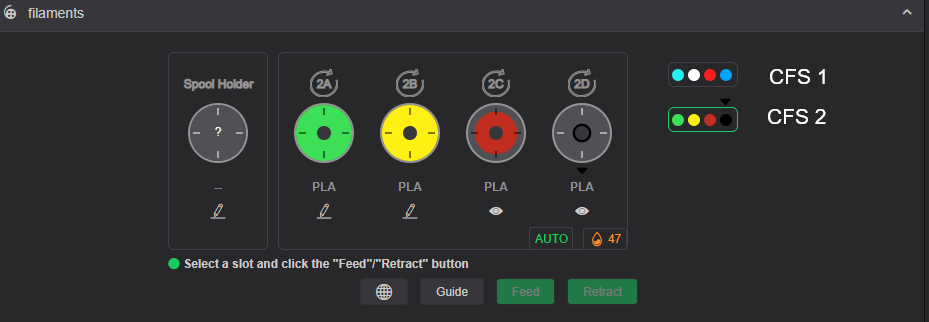
Auto Mapping
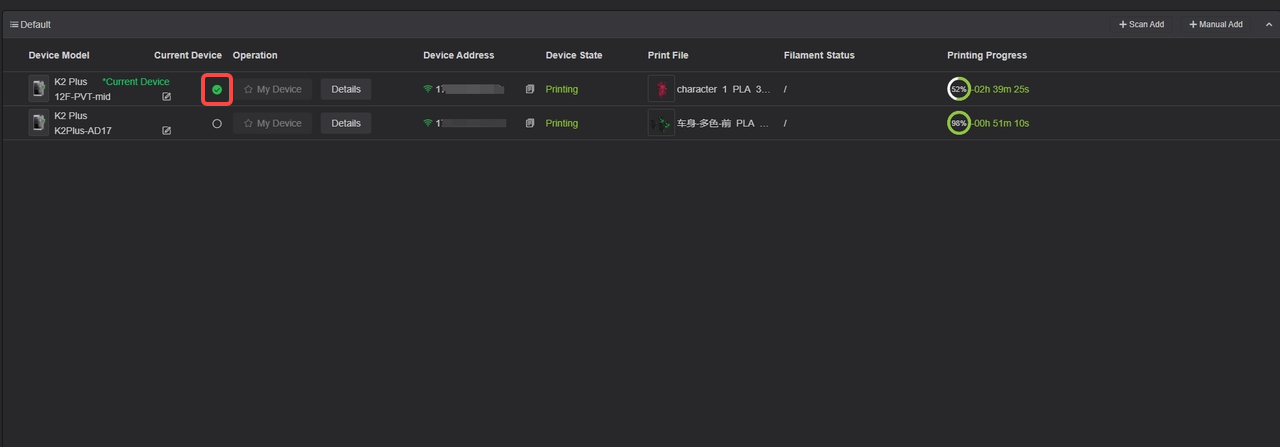
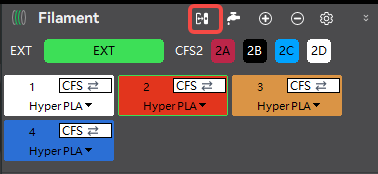
Once a device connected to CFS is set as the current device on the Device page, clicking the "Auto Mapping" button in the Filament section will sequentially map the CFS slots to the corresponding filament presets.