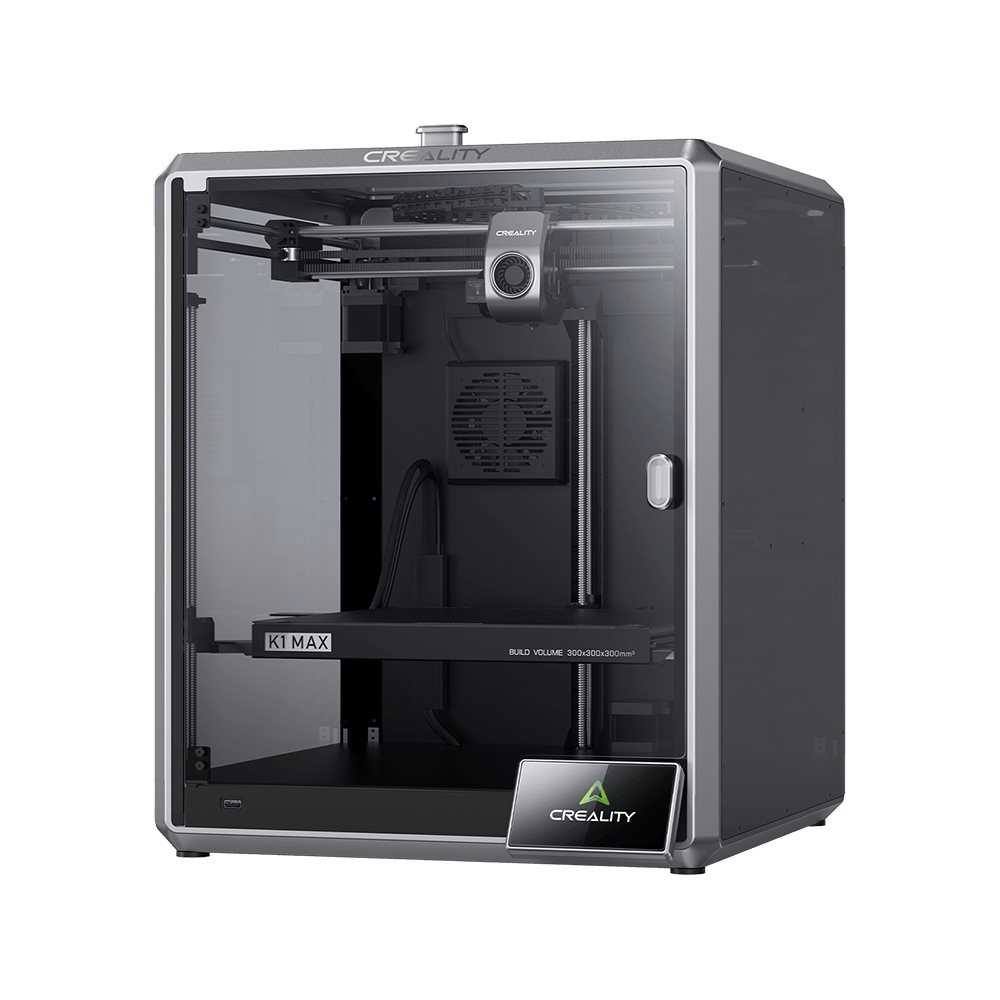
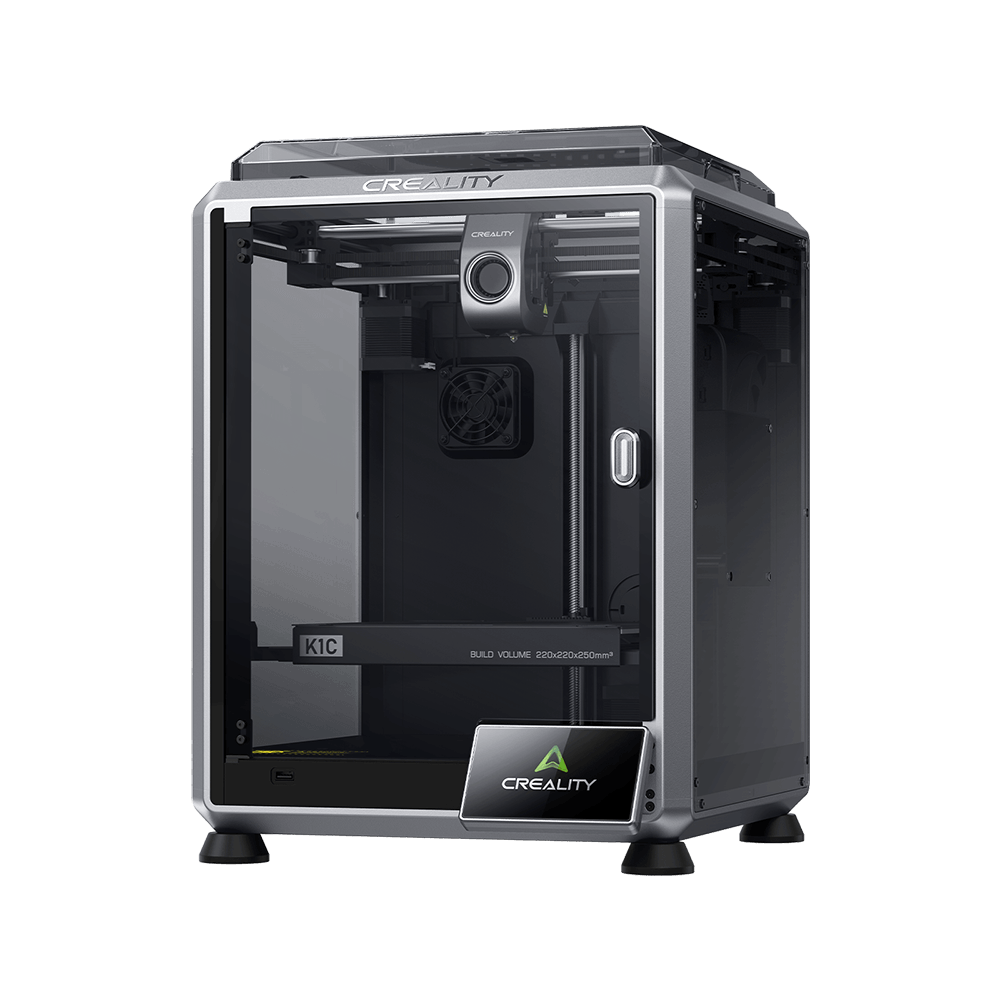
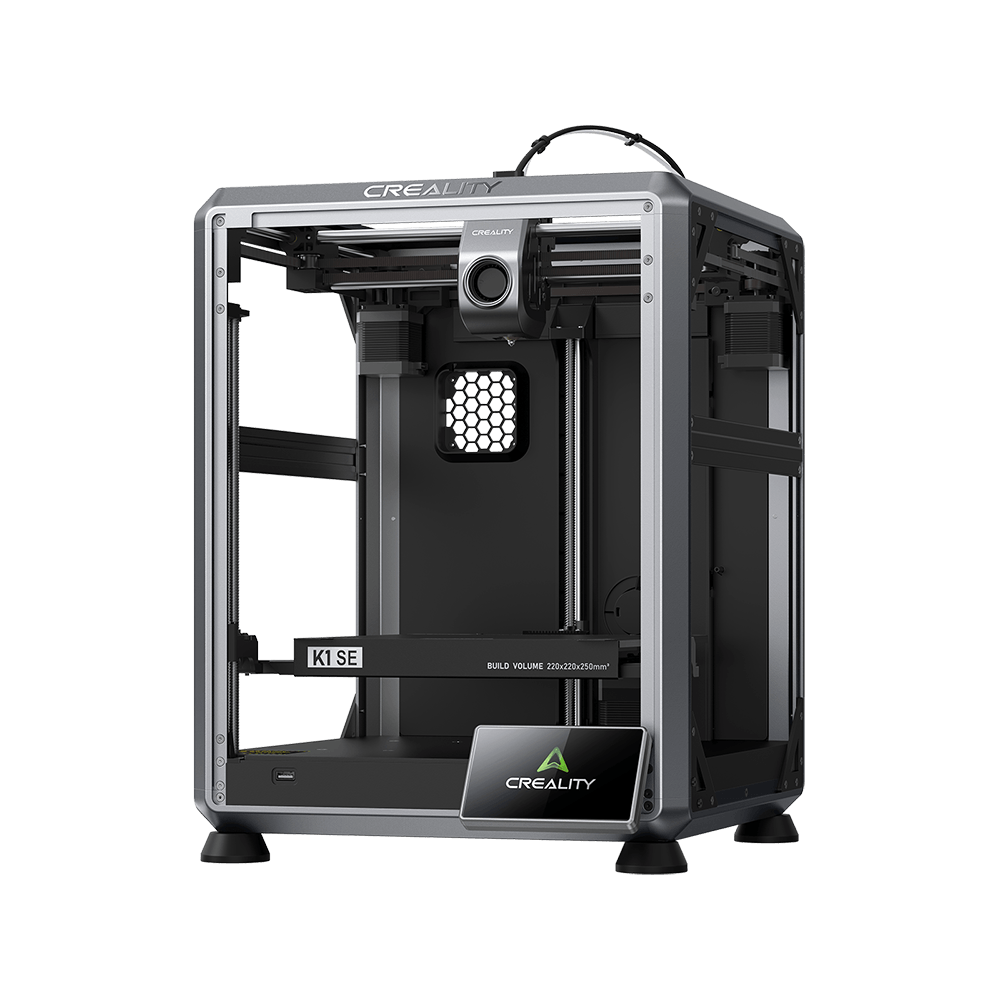
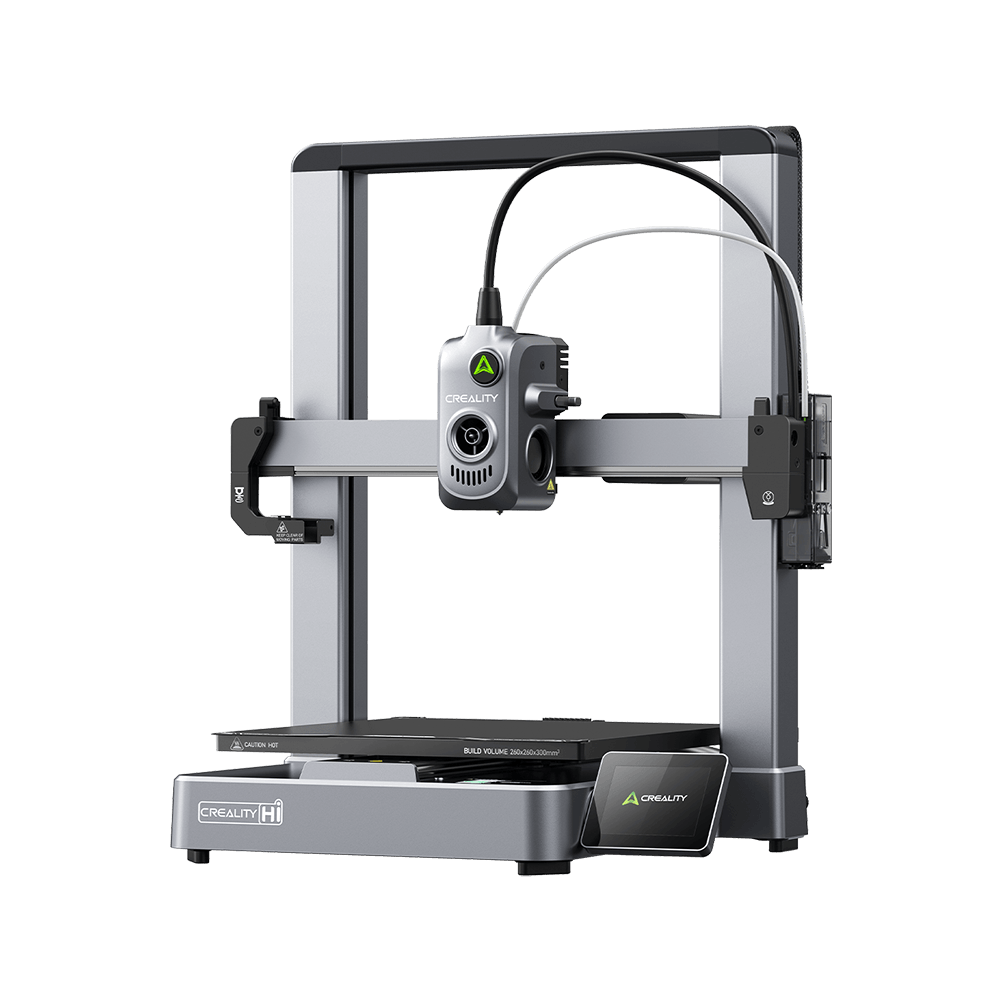
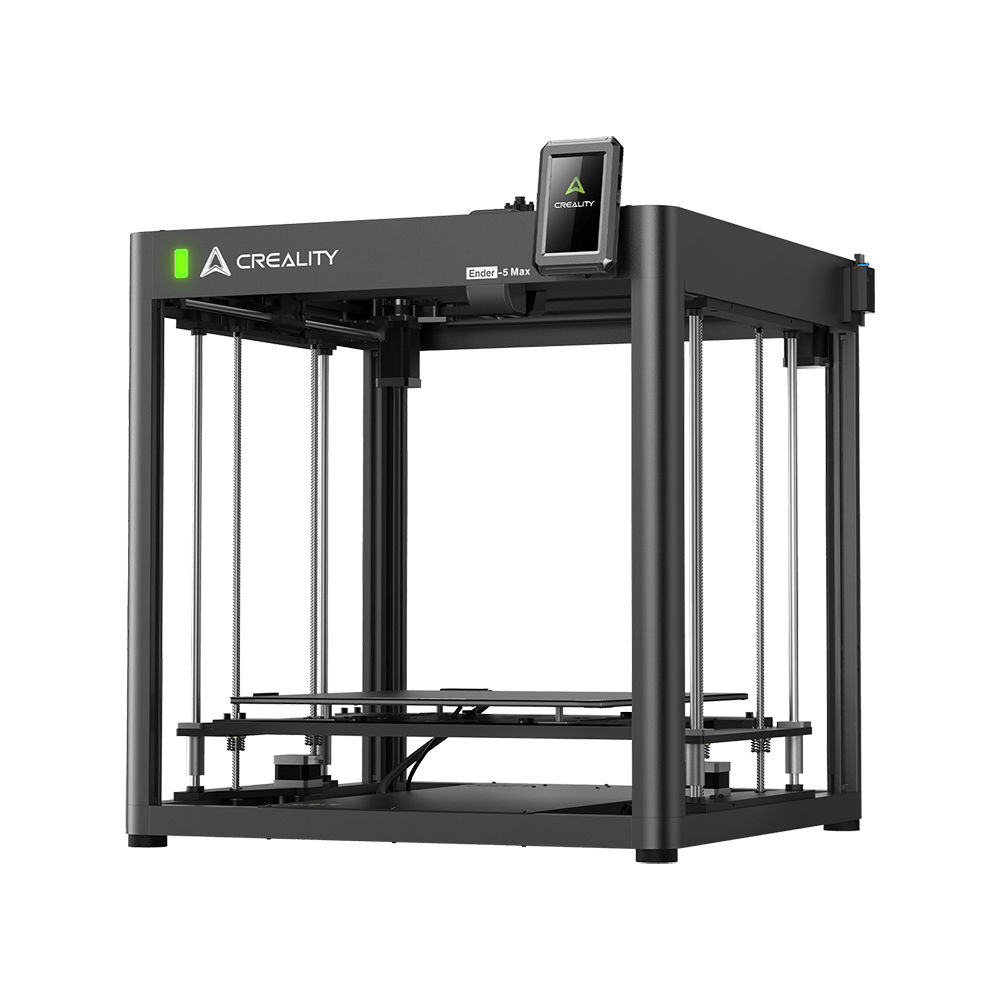
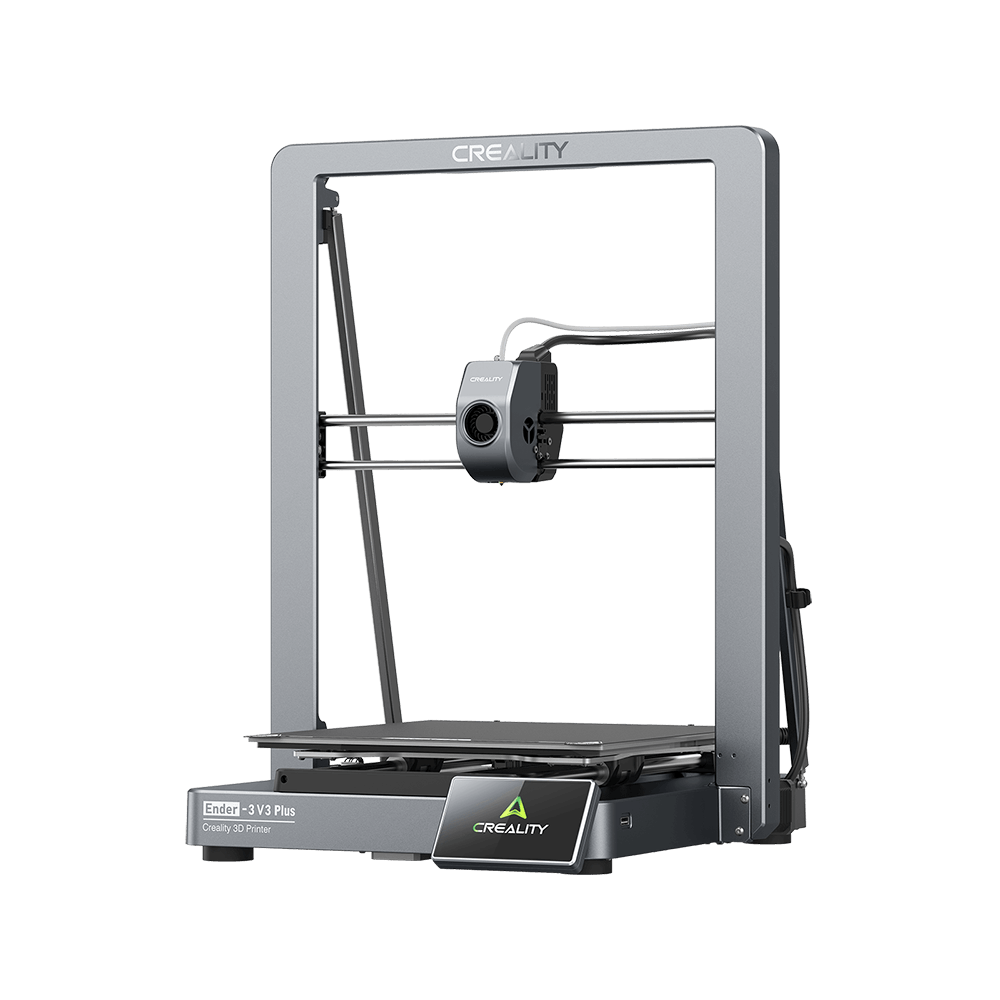
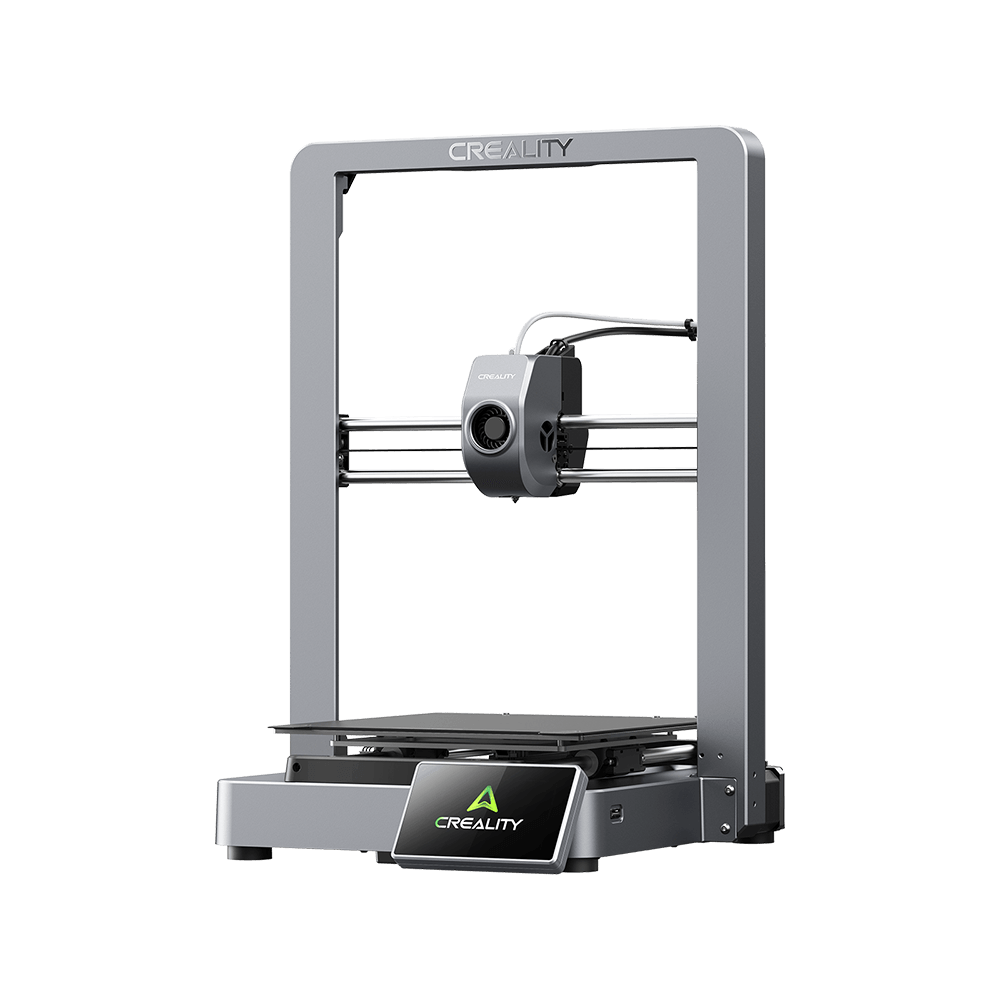
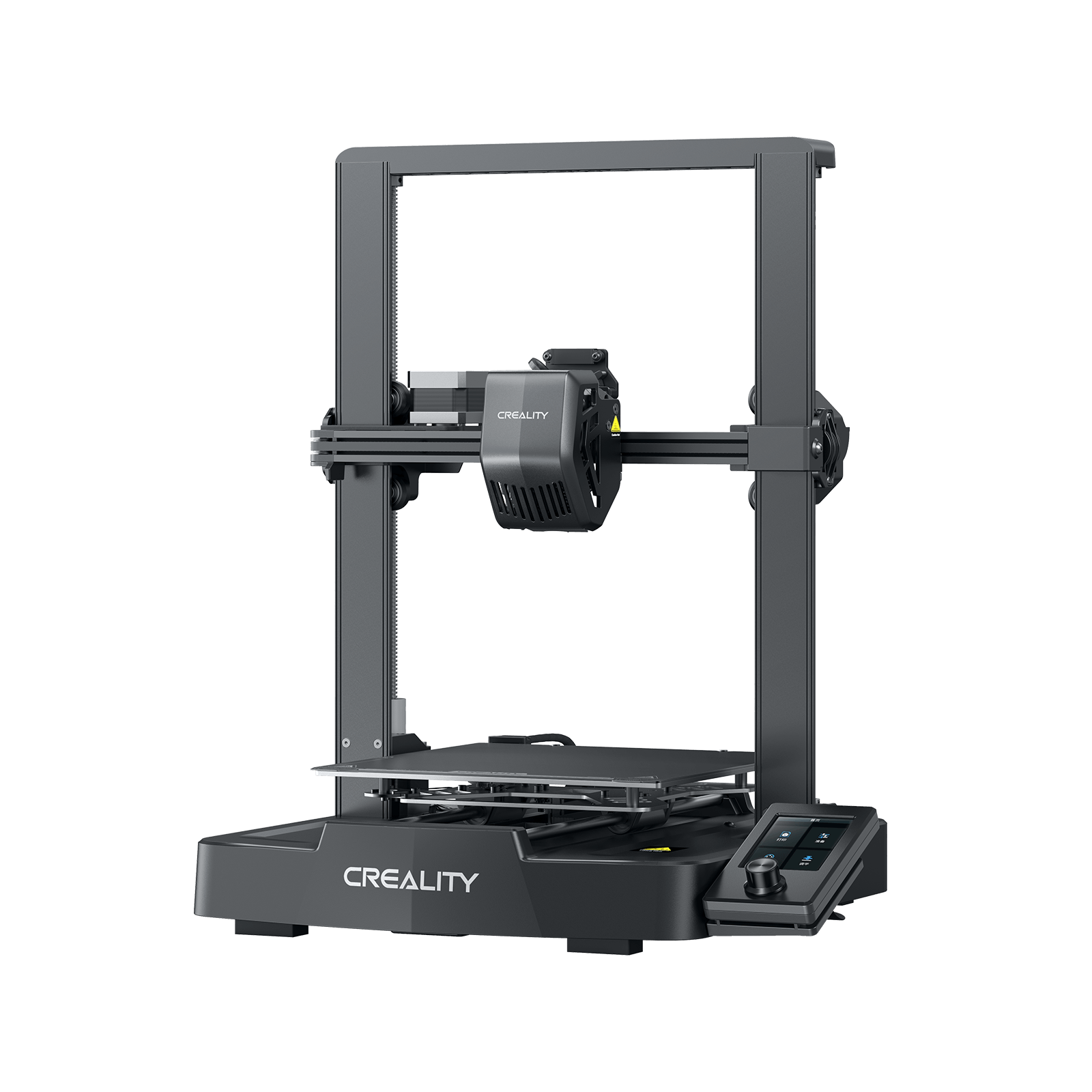
System preset
System preset selection
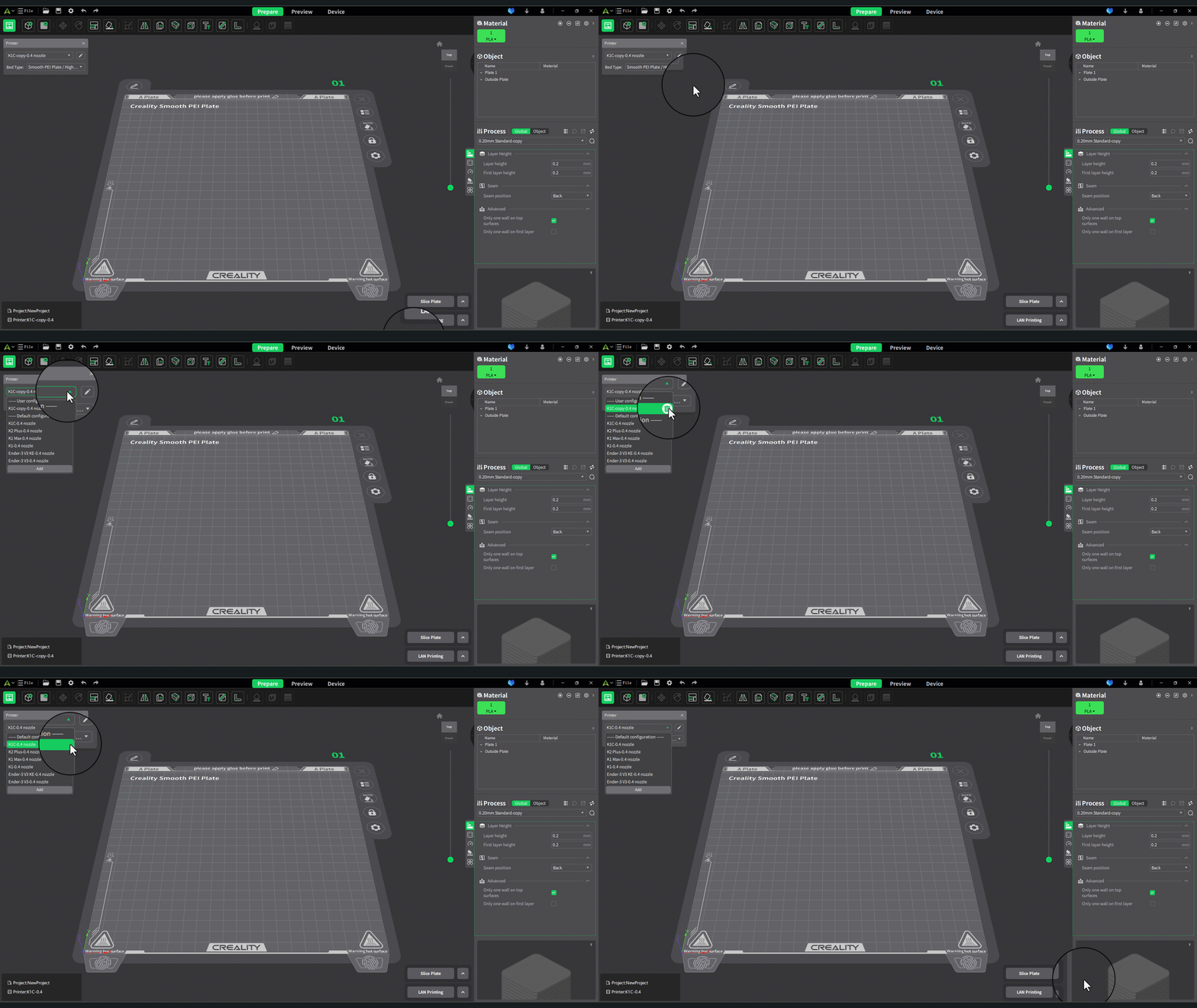
Creality Print offers hundreds of slicing parameters that are mainly divided into three categories: printer, filament, and process. We have conducted extensive testing for each preset parameter to generally ensure good print quality. You just need to choose the corresponding preset parameter based on your needs. How to choose:Creality Print Interface Layout Introduction.
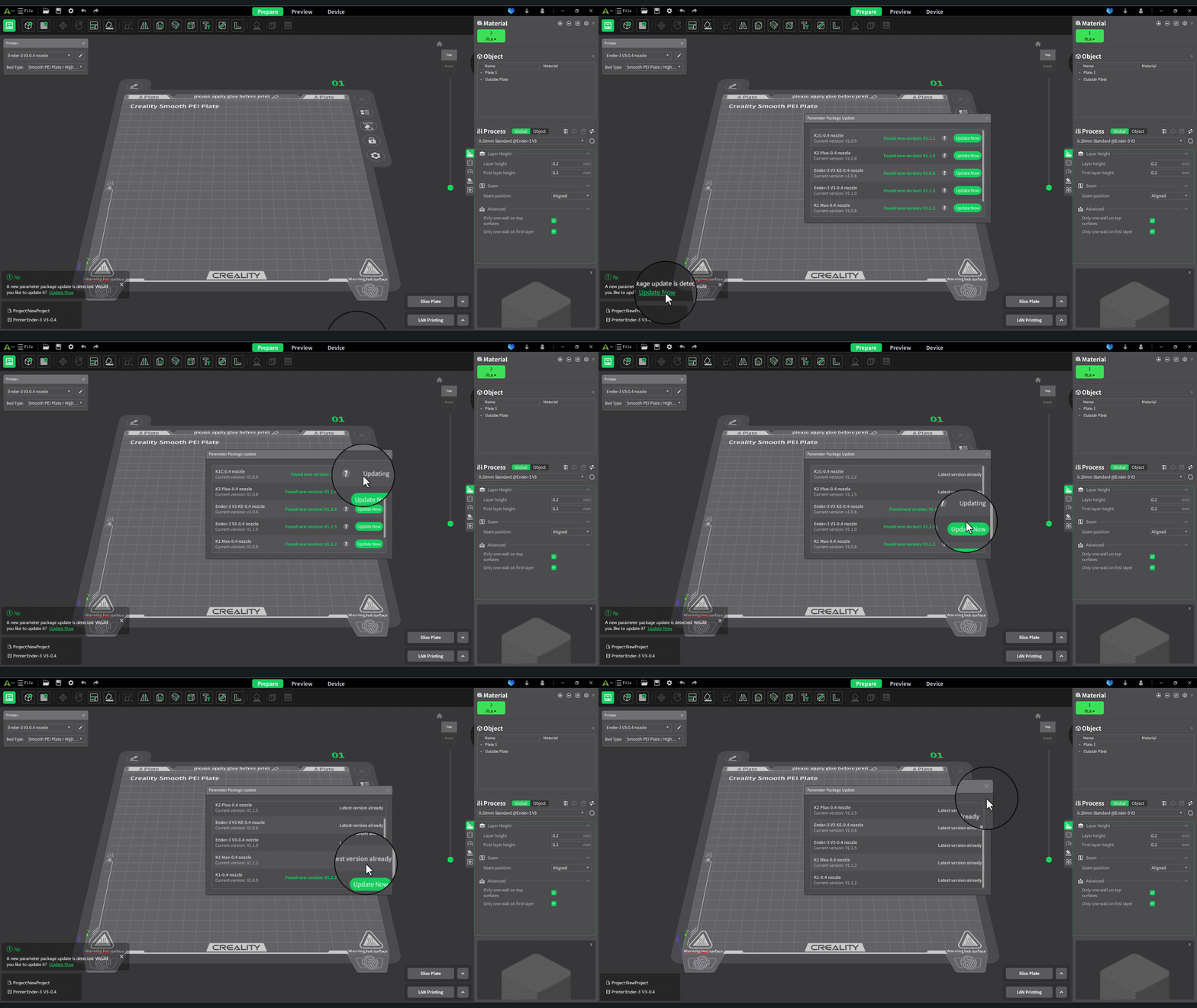
Parameter package updates
We will continually optimize the system presets for printer, filament, and processes to enhance your printing experience and quality.The core of this feature is to support users in updating system presets related to printer, filament, and processes online without having to uninstall and reinstall the software.When you are connected to the internet, you will receive an update prompt, and by clicking "Update Now," you can use the latest optimized parameters.
Create user preset
In addition to using system presets, you can also create user preset to save the most commonly used slicing parameters. For example, if most of your models have strict requirements for strength, you can create a user preset with higher wall loops and infill density. The next time you use it, there's no need for further modifications; you can simply apply it directly.
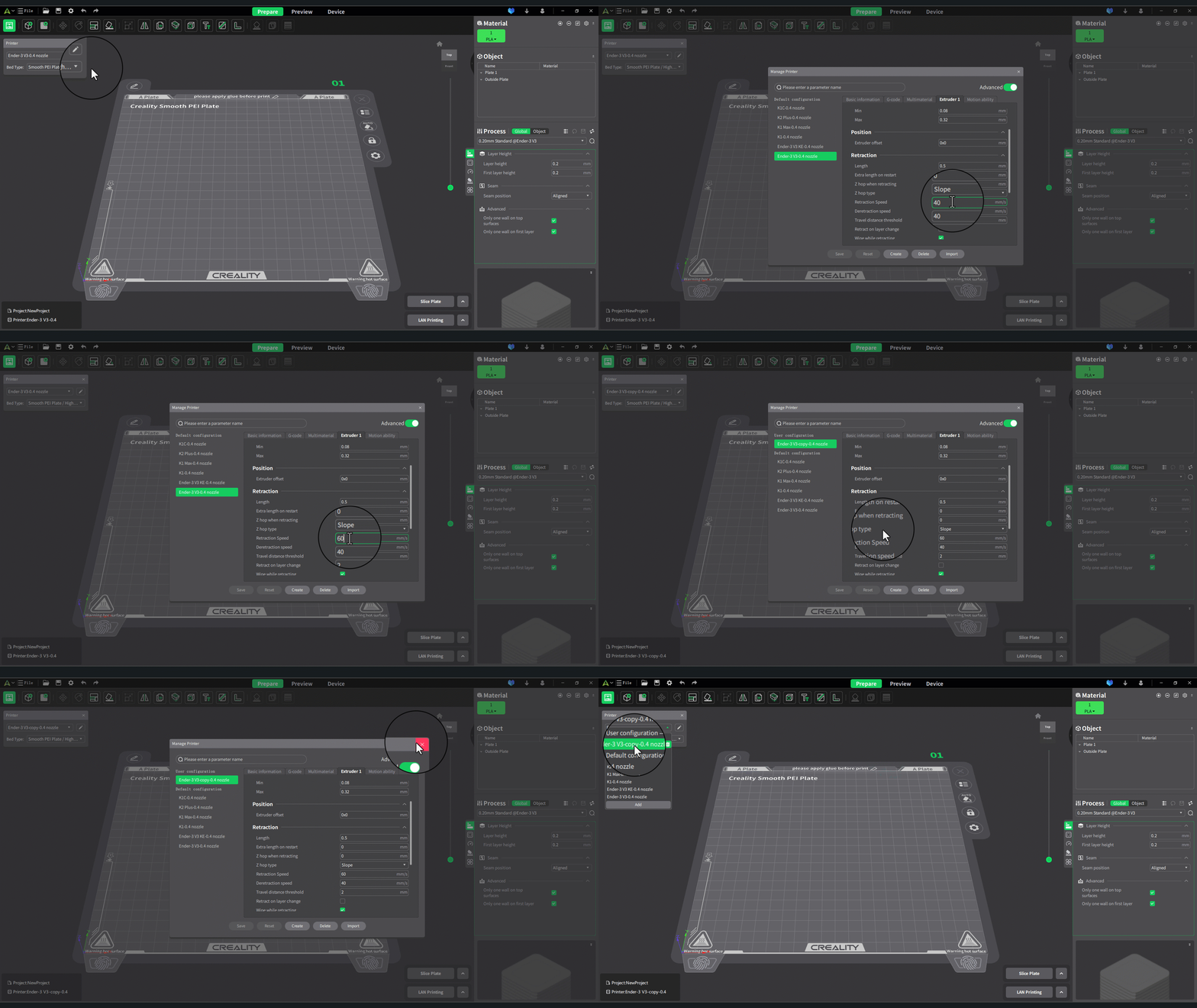
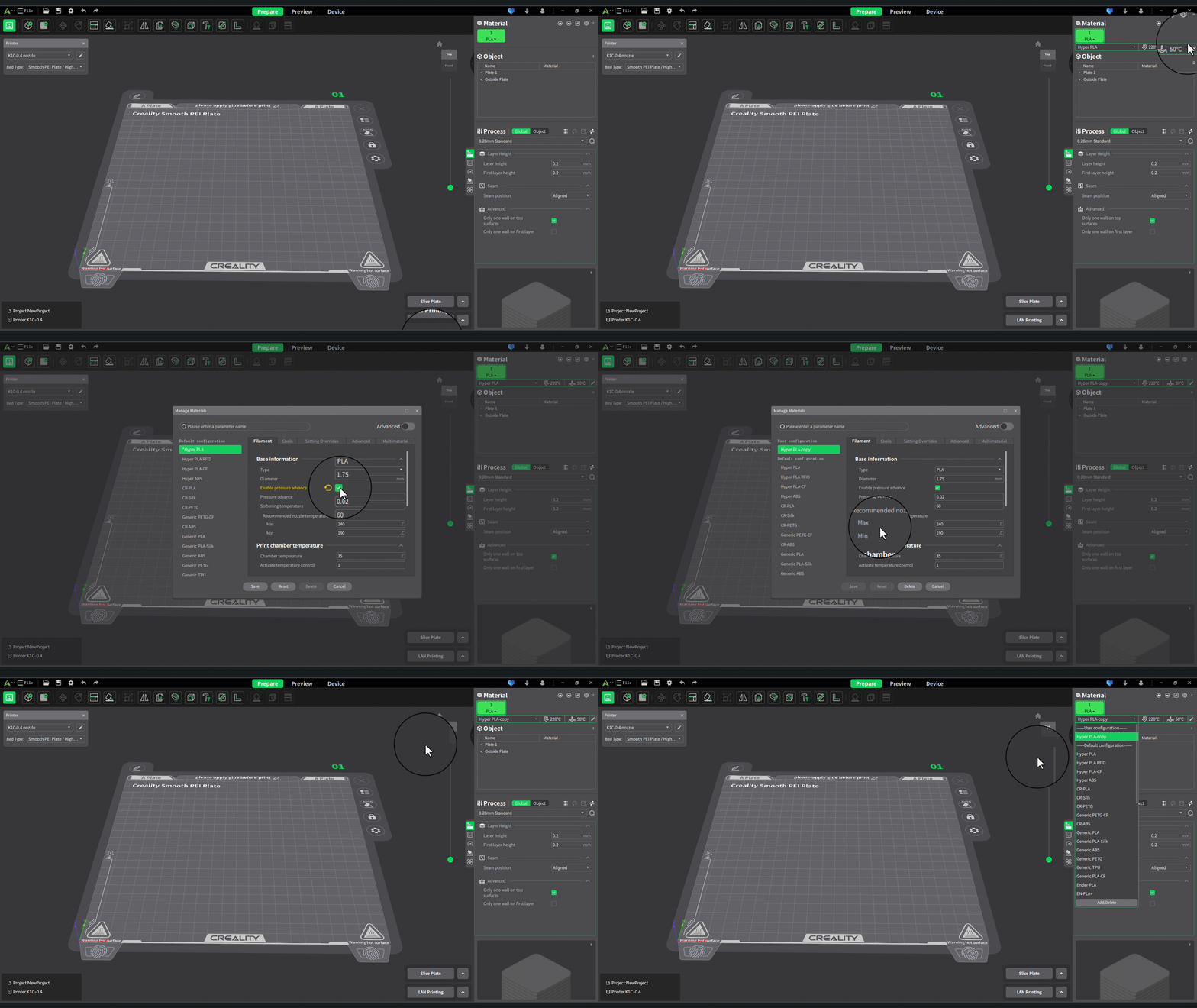
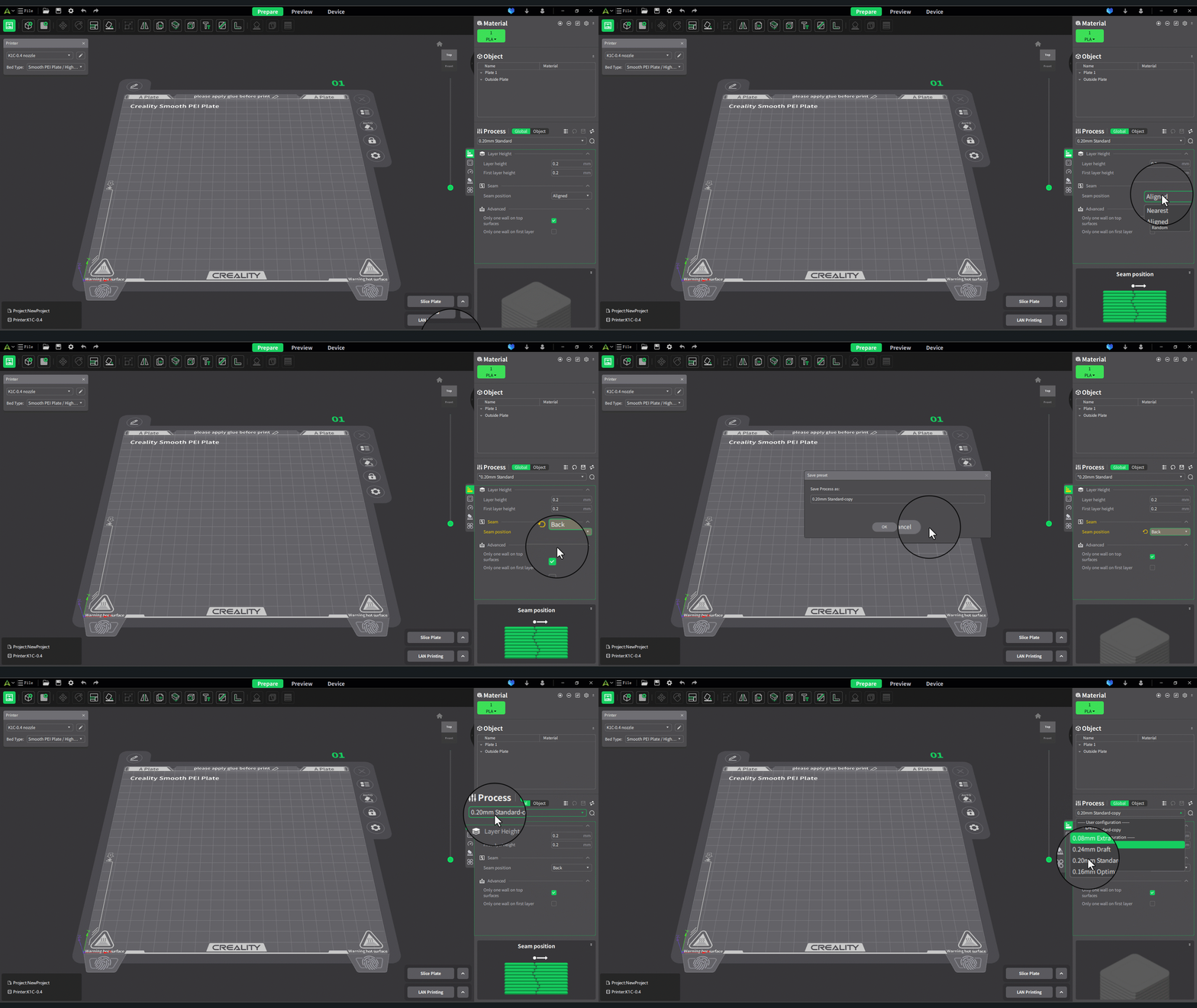
The steps to create a user preset are as follows:
- Select a system preset as a base.
- Modify the relevant parameters.
- Click the "Save" icon and name your preset.
The specific operations are as follows:
Printer User Preset
Filament User Preset
Process User Preset
Tips
- During modifications, if you're unsure about the meaning of each parameter, hover your mouse over the parameter to see its explanation. Especially, when hovering over the processing parameters, a dynamic schematic will appear at the bottom to aid your understanding.
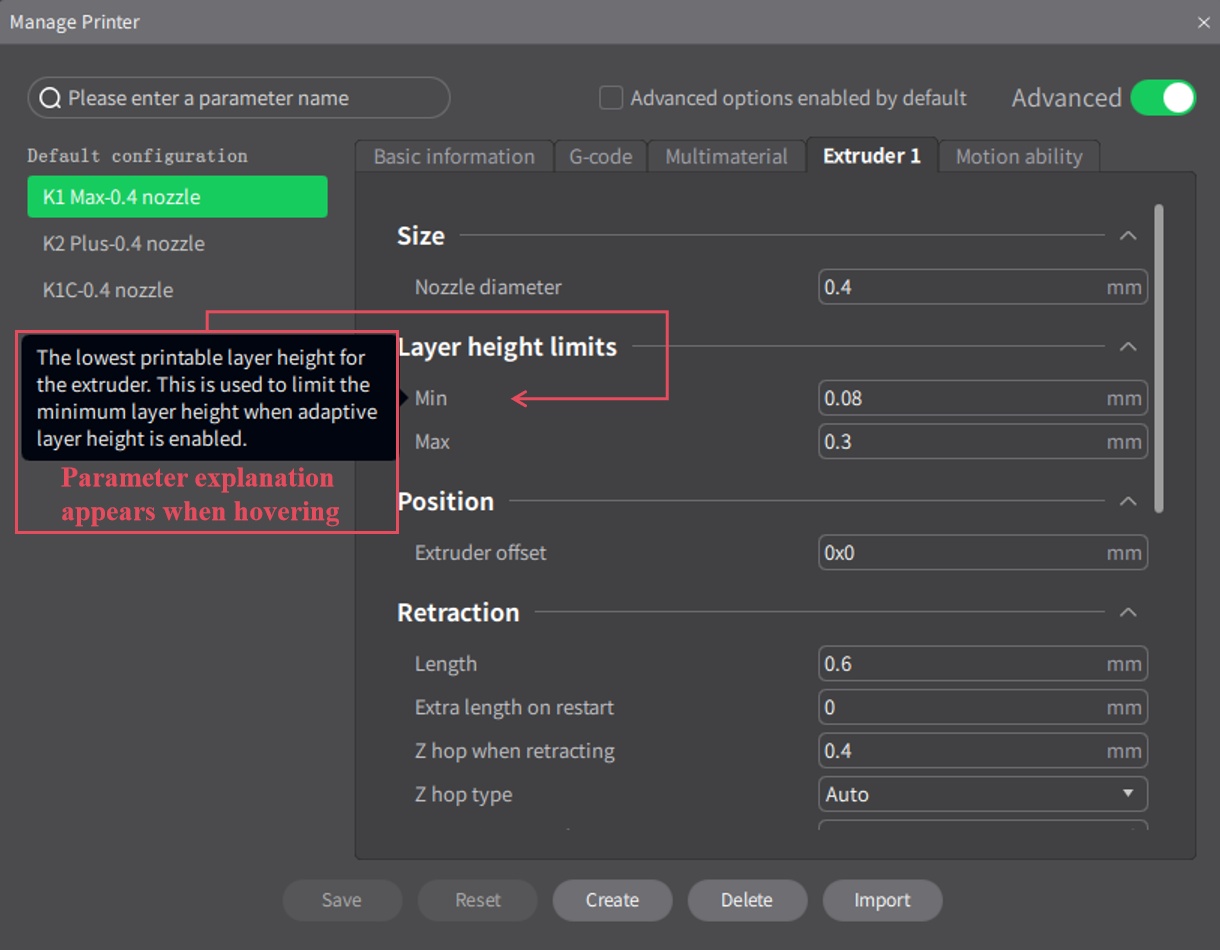
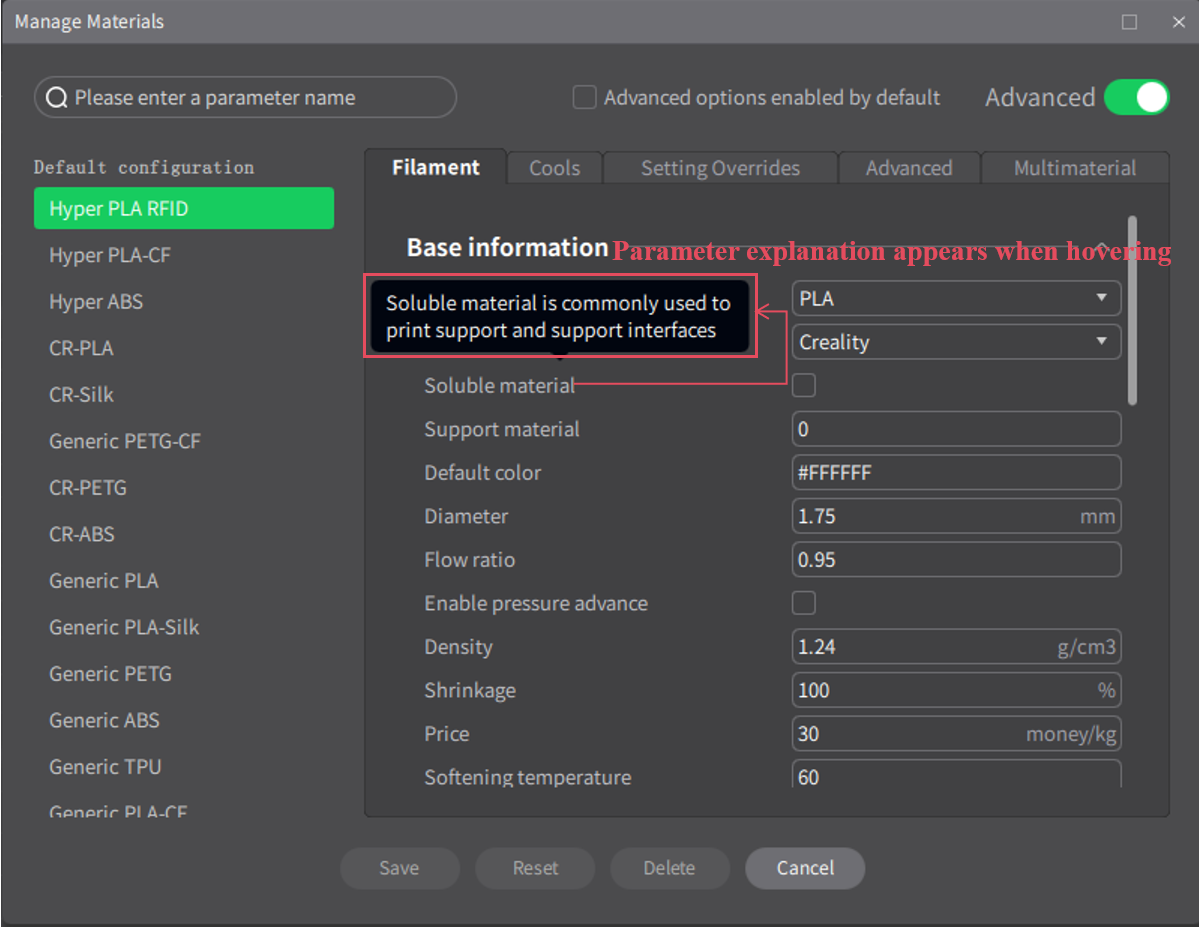
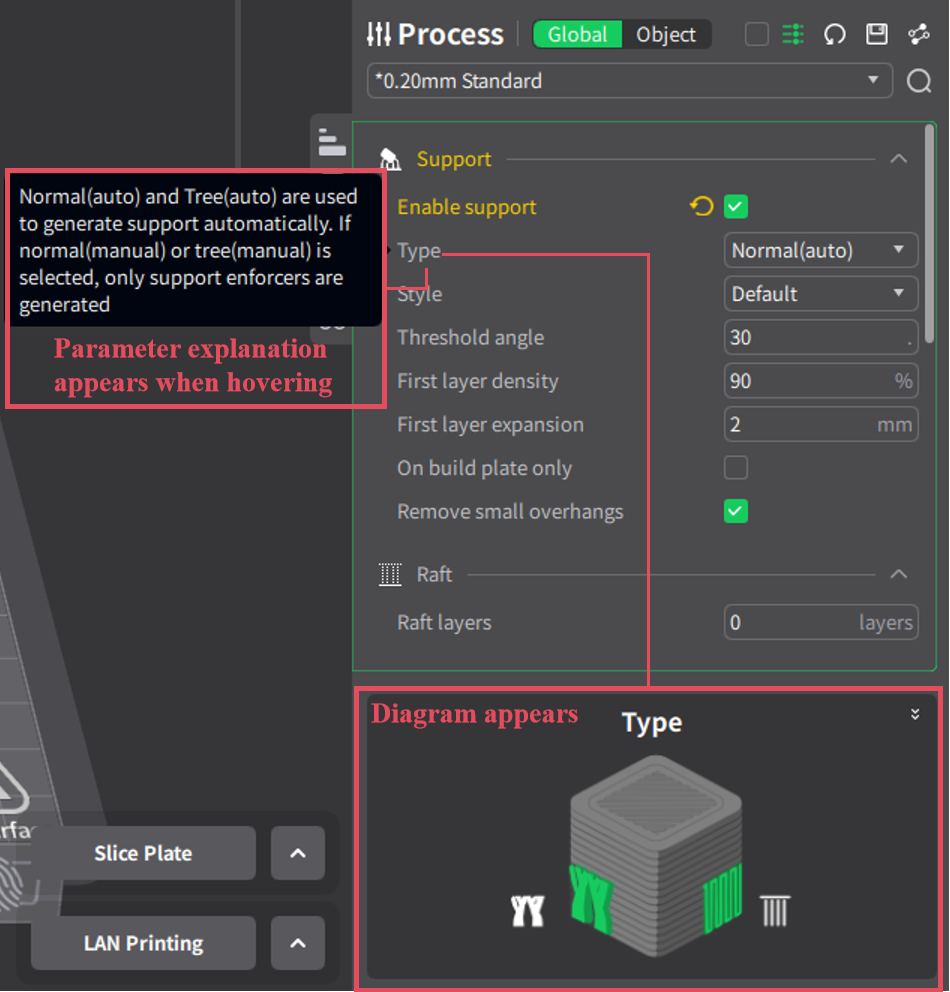
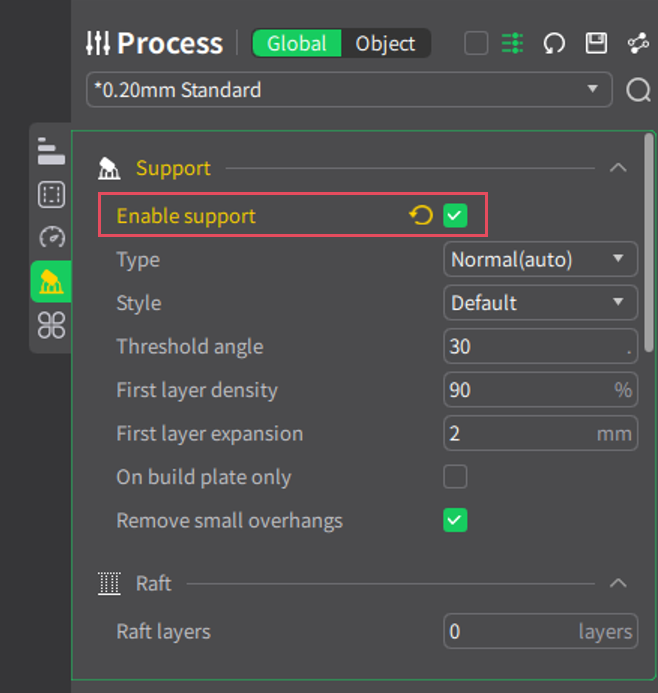
- After modifying the parameters, the changed settings will appear in yellow, making it easy for you to see which values have been altered at a glance.
Delete user preset
After successfully creating a user preset, hovering your mouse over the dropdown menu for that preset will reveal a trash bin icon. Clicking on it will allow you to delete the preset.
Below is an example of a printer user preset: